3 Methods to Create Bootable USB Windows 10 [Full Guide]
Why create a bootable USB in Windows 10?
If your PC doesn't have an optical drive or you've lost the original installation DVD, you can't simply reinstall Windows 10 from a physical media. However, you can still create a bootable USB drive with a Windows 10 installation media, which can be used to reinstall the operating system. To do this, you'll need a USB drive with at least 8GB of free space and a computer with a working internet connection. You can download the Windows 10 installation media from Microsoft's official website and use a tool like Rufus to create a bootable USB drive. Once you have the bootable USB drive, you can use it to reinstall Windows 10 on your PC.
A bootable USB installer is a convenient alternative to reinstalling Windows 10 from a DVD or CD, allowing you to install the OS from a portable and compatible USB drive that can be used with nearly all desktops or laptops. With a USB port available on every PC, this option is quicker and more user-friendly than traditional installation methods, making it a popular choice among users who like to keep a handy backup.
3 Methods to make a bootable USB drive for Window 10
We'll share three methods to make a bootable USB flash drive, allowing for more flexible OS installation. Let's get started!
Note: Regardless of the method you ultimately choose, make sure to backup the necessary files to a USB stick as they will be deleted during the process. The free Qiling Disk Master is suggested for this backup task.
- 1. Create bootable USB Windows 10 via CMD
- 2. Make bootable Win 10 USB via Windows USB/DVD Download Tool
- 3. Make bootable USB via MediaCreationTool
1. Create bootable USB Windows 10 via CMD
To make a bootable USB using Command Prompt, download the Windows 10 ISO files from the official site and ensure the USB flash drive has at least 5GB free space.
Step 1. Press "Win+R" at the same time to open "Run" dialogue. Input "cmd" and hit on "Enter" key.
Step 2. When the Command Prompt window opens, type "diskpart" and press "Enter" to launch the DiskPart tool. Next, type "list disk" and press "Enter" to list all disks, then type "select disk X" (where X is the disk number you want to clean), and press "Enter". After that, type "clean" and press "Enter" to clean the selected disk. Finally, type "exit" and press "Enter" to exit DiskPart.
▸list disk
▸select disk #
▸clean
▸create partition primary
▸select partition 1
▸format fs=ntfs quick To create a UEFI bootable USB, format it as FAT32 with the command "format fs=fat32 quick" instead of using the "format quick" command. This is the rewritten instruction .
▸active

After formatting the USB flash drive and setting the primary partition as active, exit the diskpart.exe. Next, use File Explorer to copy and paste the entire contents of the Windows ISO to the USB flash drive.
What if file copy fails?
If the Windows image file is over than 4GB, surpassing the file size limit of FAT32 file system, you will fail to copy files onto the USB flash drive. Once it happens, do as below:
1. Copy everything except the Windows image file (sources\install.wim) to the USB drive (either drag and drop, or use the following command, where D: is the mounted ISO and F: is the USB flash drive.)
robocopy D: F: /s /max:3800000000
2. Split the Windows image file into smaller files, and copy them onto the USB drive:
Dism /Split-Image /ImageFile:D:\sources\install.wim /SWMFile:F:\sources\install.swm /FileSize:3800
2. Make bootable Win 10 USB via Windows USB/DVD Download Tool
You can use the Windows USB/DVD Download Tool to create a copy of an ISO file onto a USB flash drive, which can serve as an installer.
Step 1. Download Windows USB/DVD Download Tool.
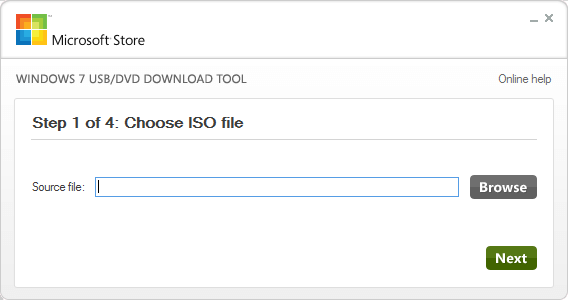
Step 2. To start the Windows 10 installation process, you can follow these steps: Run the Windows 10 Media Creation Tool. In the Source box, type the name and path of your Windows ISO file, or click BROWSE and select the file from the OPEN dialog box. Click "Next".
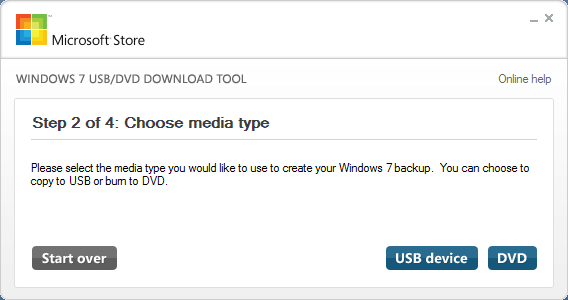
Step 3. Select USB DEVICE to create a copy on a USB flash drive.
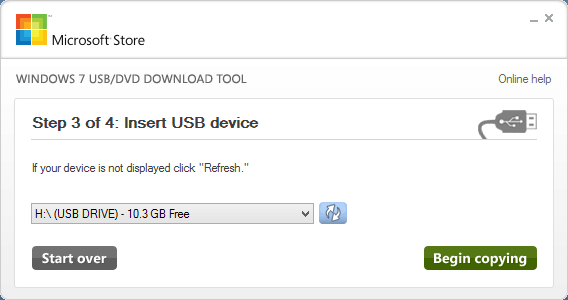
Step 4. Choose your USB drive and click "Begin copying".
Once the installation is complete, move to the root folder of your USB drive and double-click Setup.exe to install Windows.
3. Make bootable USB via MediaCreationTool
To create a bootable USB in Windows 10, users can use the MediaCreationTool, which is a common tool used by most users. This tool allows users to create a bootable USB drive that can be used to install Windows 10 or other operating systems.
Step 1. Download MediaCreationTool and run it as an administrator.
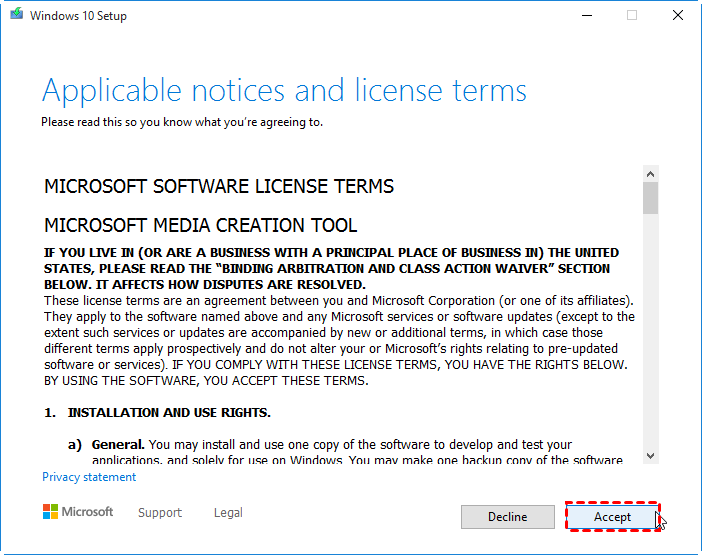
Step 2. Select "Accept" in the license terms screen.
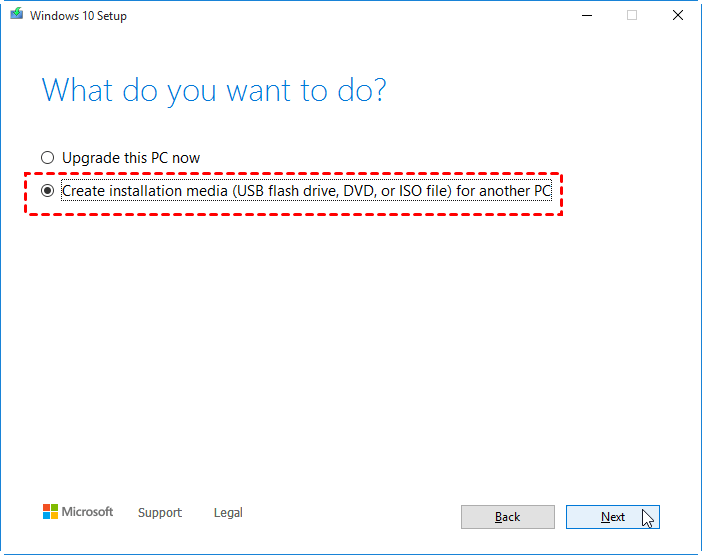
Step 3. Select "Create installation media for another PC", and then select Next.
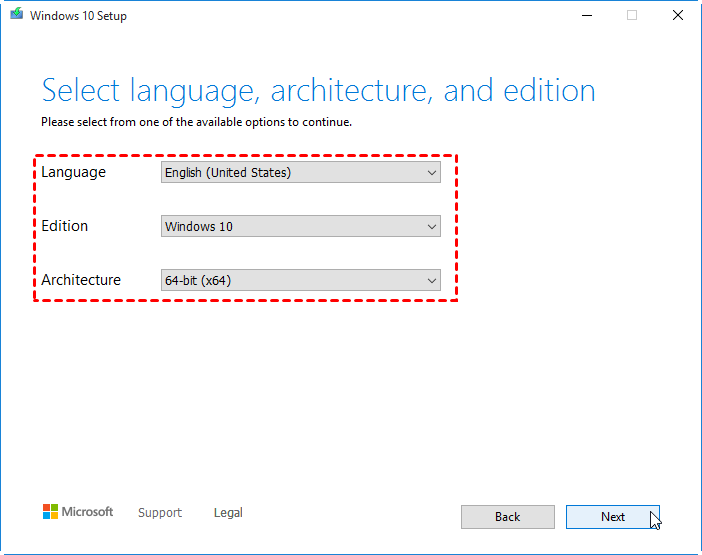
Step 4. Choose the language, edition, and architecture (64-bit or 32-bit) for Windows 10.
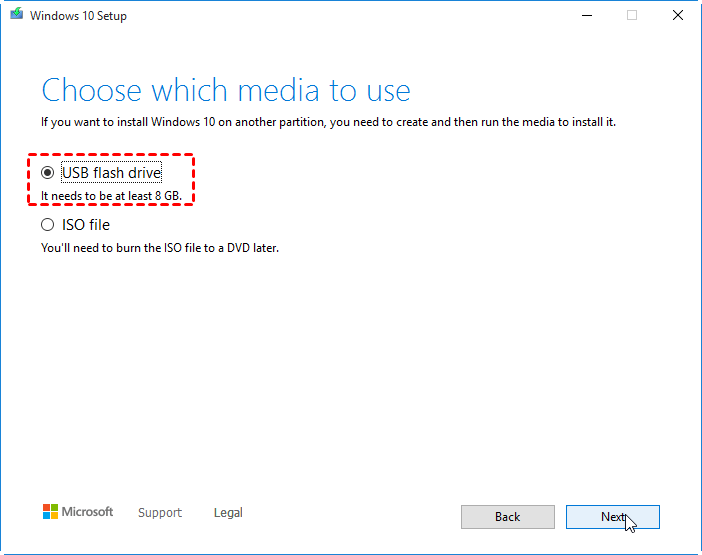
Step 5. Choose "USB flash drive" and click "Next".
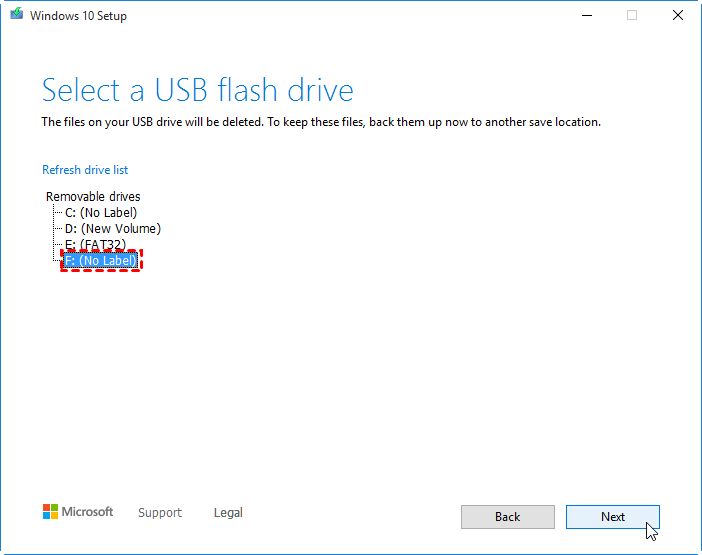
Step 6. Choose your prepared USB drive from the list, then "Next".
Step 7. Once done, the tool will start to download the latest Windows 10 installation files to your device.
When it's over, the data is written to your flash drive and the USB is made bootable with the newest Windows 10 setup.
Further study: create bootable USB to run Win 10 from flash drive
To install Windows 10 on another computer with an older operating system, you can run it directly through a bootable USB drive. You can use a free partition manager like Qiling Disk Master Standard, compatible with all Windows editions, to create a Windows bootable USB drive with ISO files. This allows you to install Windows 10 from the USB drive, making it a convenient option for upgrading or reinstalling the operating system.
After the process is completed, insert the bootable USB into the target computer, enter the BIOS settings, change the boot order to prioritize the USB drive, and then boot the PC from it.
If you want to create a bootable USB drive with your current operating system installed on your computer, you can upgrade to the Professional version, which also allows you to run Windows from a USB drive on a Mac.
Summary
In this article, we shared three ways to create a bootable USB in Windows 10 as an installer, along with an additional method to make a portable boot USB that can run an OS on any other computer. We also mentioned that if you need to repair boot issues caused by damaged MBR or disk errors, Qiling Disk Master Standard can be a helpful tool.
Related Articles
- How to Successfully Zero Fill Hard Drive from Bootable USB for Free?
Learn how to Successfully Zero Fill Hard Drive from Bootable USB for Free with clear steps, key checks, and practical tips. - How to Initialize SSD on Windows 10/8/7?
Here, you can learn how to initialize SSD on Windows 10, 8, 7 computer. If you cannot initialized SSD drive as expected, this article also provides effective methods to help you out. - How to Install Windows 11 – Easiest Guide for Beginners
As Windows 11 is set to be released on June 24, many are wondering how to install it for free. This tutorial will guide you through the process, making it easy to get the latest operating system without any cost. - How to Make Your Computer Faster for Gaming [3 Effective and Simple Ways]?
If you find your game applications load slowly, read this post and you can learn how to make your computer faster for gaming in Windows 10, 8, 7. Several different methods are available for your selection. - Free Resize Bootcamp Partition without Reinstalling Window
Sometims, you might need to resize Bootcamp partition to make it bigger, then you can use the free Qiling Partition software, and it allows you to add more space to Bootcamp partition with simple steps. - How to Resize Encrypted Partition Windows 10 [2022 Updated]
Learn how to Resize Encrypted Partition Windows 10 with clear steps, key checks, and practical tips.
Products
Articles & Tutorials
- Data Recovery
- Data Backup
- File Recovery
- File Backup
- File synchronize
- System Backup and Restore
- Disk and Partition Clone
- Technical articles
- Disk Master Help
- Windows Deleted File and Disk Recovery Tutorials
- Windows File and Data Recovery Tutorials
- More Windows Tutorials for Install, Security, Files, and PC Tips
- Windows Boot, Repair, and Recovery Environment Tutorials
- Windows Backup Tutorials
- Windows Restore Tutorials
- Windows Clone and Migration Tutorials
- Windows Server Backup, Recovery, and Management Tutorials
- Windows Disk, Partition, and Storage Management Tutorials