How to Fix MBR in Windows 7 With or Without Installation CD or DVD?
- What will happen when MBR corrupted in Windows 7?
- How to fix MBR in Windows 7 with Windows CD/DVD?
- How to repair Windows 7 MBR without CD/DVD?
- Summary
What will happen if MBR is corrupted in Windows 7/10/11?
The MBR is a boot sector on the hard disk that stores information about partitions and loads the operating system, created on the first partition after Windows installation, occupying the first 512 bytes of the hard disk.
If the MBR on your primary/main hard drive is corrupted, you won't be able to boot your OS successfully and receive various error messages, including the inability to access the drive as usual. If the MBR on the secondary hard drive gets damaged, you will be unable to access this drive as usual.
• Operating System not found
• Error loading operating system
• No bootable medium found
• Reboot and select proper boot device
If your external or internal hard drive is not accessible and your Windows 7 OS is not booting normally, you'll need to fix the Master Boot Record (MBR) to resolve the issue and make the drive accessible again. This will allow your OS to boot back to normal.
How to fix MBR in Windows 7 with Windows CD/DVD?
To repair the Master Boot Record (MBR) in Windows 7, you'll typically need to use a Windows installation DVD or CD. This is the general process to get started.
If you have kept your installation disc, you can try to fix MBR in Windows 7 through Command Prompt. To do this, simply put your original Windows 7 installation DVD into the computer's DVD or CD drive and follow the guide.
Step 1. Boot your computer from the Windows 7 installation DVD.
Step 2. When the message "Press any key to boot from CD or DVD… " appears, press any key to proceed with the boot from the DVD.
Step 3. Select a "language", "keyboard layout" and click "Next".
Step 4. Select the operating system and click "Next". In the "System Recovery Options" window, click on "Command Prompt" to access the command line interface.
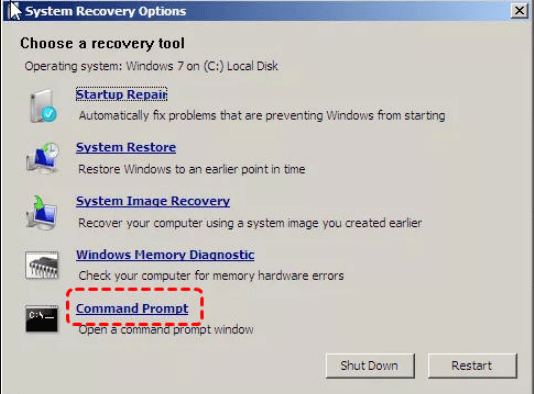
When Command Prompt successfully launched, type the following commands and press enter each time:
▪ bootrec /rebuildbcd
▪ bootrec /fixmbr
▪ bootrec /fixboot
Remove the installation DVD from the disk tray and restart your computer to see if it can boot up normally.
✍ If the above commands don't work, you can run the command to export and erase the BCD store, then use the Rebuildbcd command again to fix MBR in Windows 7.
● bcdedit /export C:\bcdbackup
● c:
● cd boot
● attrib bcd -s -h -r
● ren c:\boot\bcd bcd.backup
● bootrec /rebuildbcd
To repair the Windows 7 MBR, follow these steps. Note that the process for Windows 10 or Windows 8 is slightly different, so if you're using one of those versions, refer to separate instructions. If you're looking to repair the MBR on your Windows 7 system, you can proceed with the relevant steps.
Step 1. Put the Windows installation DVD into the disk tray, boot from it, and click "Repair your computer" at the Windows Welcome screen.
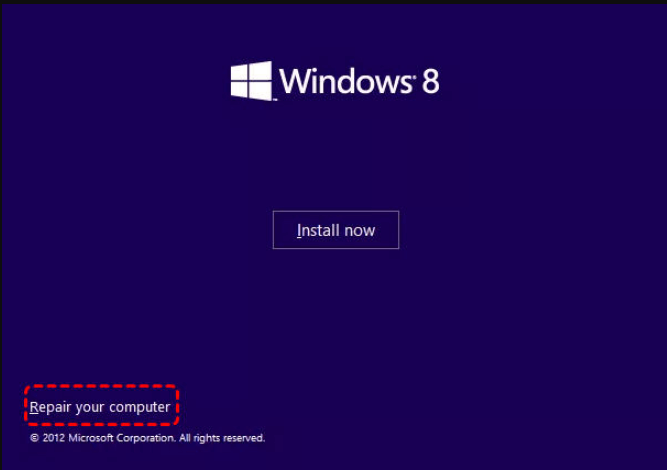
Step 2. Choose "Troubleshoot" > "Command Prompt".
Step 3. When the Command Prompt loads, type the following commands:
▪ bootrec /FixMbr
▪ bootrec /FixBoot
▪ bootrec /ScanOs
▪ bootrec /RebuildBcd
Remove the DVD from the disk tray, restart the computer, and verify if Windows boots normally.
How to repair my Windows 7 MBR without CD/DVD?
The above section is about repairing corrupted MBR in Windows 7/8/10/11, which can be complicated for some users. However, you can use a free MBR repair tool called Qiling Disk Master Standard, which allows you to create a bootable USB drive and rebuild MBR in WinPE environment, making it much easier to operate.
See how to do it in detail (the same steps can also be applied to repair MBR in Windows XP/Vista/8/8.1/10):
◆If you can boot into Windows, you can skip the process of creating a bootable USB drive and instead run the software directly from within Windows to rebuild the Master Boot Record (MBR) on the disk. This will allow you to resolve the issue without needing to restart your computer.
Step 1. Connect an empty USB drive (preferably over 8GB) to a working Windows computer, ideally a Windows-based system, since your Windows 7 won't boot. Then, download a free MBR repair tool.
Step 2. To create a WinPE bootable USB disk, install and run Qiling Disk Master on the PC, then click "Tools" in the top toolbar and choose "Create Bootable Media". Follow the wizard to complete the process, and once done, disconnect the USB drive.

Note: Qiling Disk Master Standard is pre-installed on the bootable drive.
Step 3. Plug the USB to your computer with a corrupted MBR, power it up, and enter the BIOS by pressing the key (usually Del, F2, or another specific key) while it's booting.
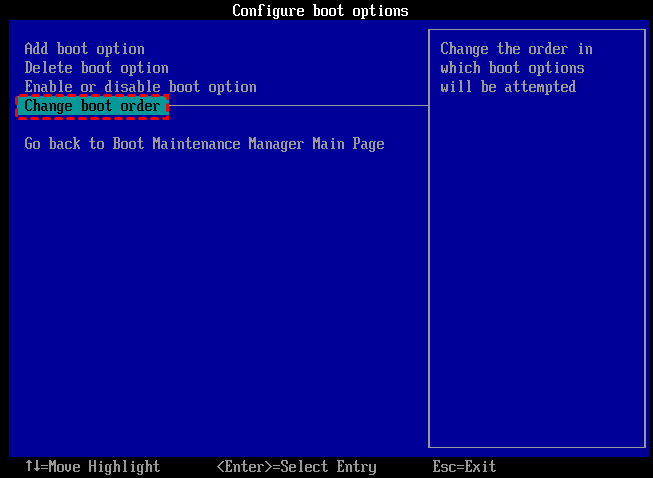
Step 4. To boot from the bootable USB drive, change the boot priority to the USB drive in your BIOS settings. Press F10 to save the changes and restart your computer, which will then boot into Windows PE mode.
Step 5. Once logged in, the Qiling Disk Master Standard will load and start. In the main interface, you can right-click the system disk you need to rebuild the MBR and click "Rebuild MBR" to proceed.
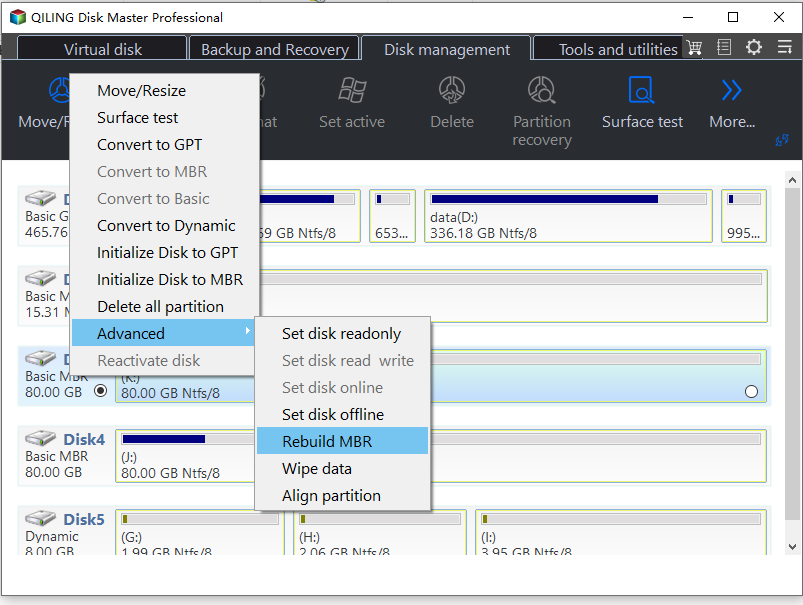
Step 6. A mini window will pop out, choose the proper MBR type for Windows 7.
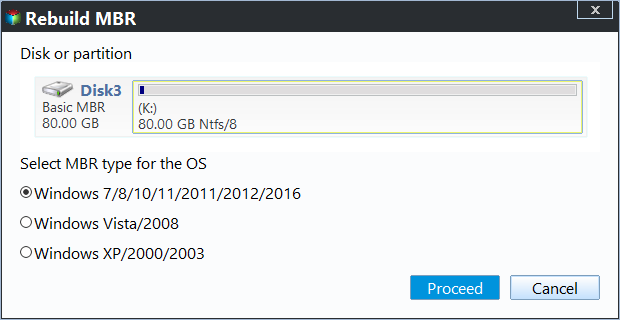
Step 7. Click "Proceed" in the main interface to commit the change.
Finally, remove the bootable drive and restart your Windows 7.
Tip: If any data loss occurs during your operation, you can use the "Recover Data" function to retrieve lost data.
Summary
Regardless of whether you have a Windows CD or not, you can fix the MBR in Windows 7/8/10/11 using the methods provided in this article. Qiling Disk Master is a better choice, allowing you to easily and effortlessly fix the MBR in Windows 7/8/10/11, both 32-bit and 64-bit versions, without having to input complex commands.
This software can also check for disk errors after repairing the MBR in Windows 7, ensuring the system disk has no bad sectors. For servers, Qiling Disk Master Server can be used to fix or rebuild the MBR.
Related Articles
- Safest Way to Convert MBR to GPT/GPT to MBR without Data Loss in Windows 10
This guide explains Safest Way to Convert MBR to GPT/GPT to MBR without Data Loss in Windows 10 and provides practical steps, tips, or recovery options to help you complete the task safely. - How to Delete Recovery Partition in Windows 10/8/7 Safely?
Learn how to safely delete recovery partition to reclaim disk space since Windows 7/8/10/11 has one or more recovery partitions on a disk, which takes much space. - How to Remove/Delete Unallocated Partition Effectively in Windows 10/8/7?
To delete unallocated partition in Windows 11, 10, 8, 7, you can create a new partition or extend another partition. Either way, you can find the step-by-step guide on how to do it right here. - Fixed: Dell Alerts Hard Drive Not Found
If your Dell hard drive is not detected, this guide explains common causes and practical fixes, including checking BIOS settings, cables, and disk health. - How to Make Windows Server Backup Mapped Network Drive
Learn how to Make Windows Server Backup Mapped Network Drive with clear steps, key checks, and practical tips. - [Fixed] Windows Server Backup Reading data please wait
This article offer several solutions to Windows Server Backup 'Reading data; Please wait...' issue, as well as one powerful backup software to create backup image.
Products
Articles & Tutorials
- Data Recovery
- Data Backup
- File Recovery
- File Backup
- File synchronize
- System Backup and Restore
- Disk and Partition Clone
- Technical articles
- Disk Master Help
- Windows Deleted File and Disk Recovery Tutorials
- Windows File and Data Recovery Tutorials
- More Windows Tutorials for Install, Security, Files, and PC Tips
- Windows Boot, Repair, and Recovery Environment Tutorials
- Windows Backup Tutorials
- Windows Restore Tutorials
- Windows Clone and Migration Tutorials
- Windows Server Backup, Recovery, and Management Tutorials
- Windows Disk, Partition, and Storage Management Tutorials