[Fixed] Windows Server Backup Reading data please wait
Scenario: Windows Server Backup stuck at "Reading data; please wait..." status
I could definitely use some help. I am running Windows Server 2016 standard. Backup had been working fine but now when I open it it is stuck at reading data; please wait...This message fails to go away, even after leaving the server for over 12 hours.
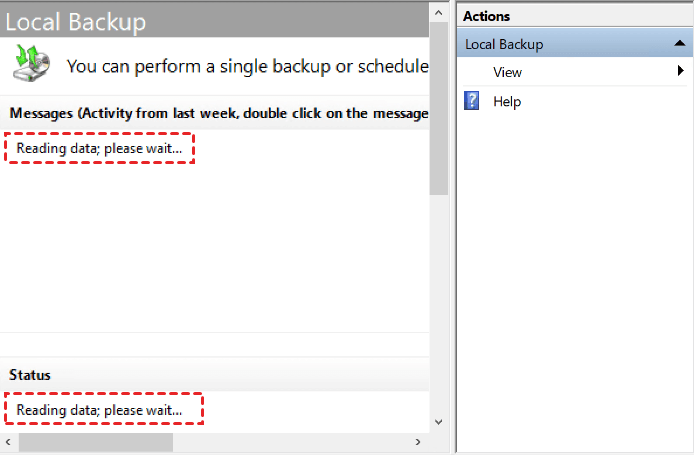
This error message occurs in various Windows Server versions and can be resolved by following the provided information or using a powerful server backup software, offering an easier alternative to protect the server.
Fix Windows Server Backup Stuck on Reading Data
Generally, Windows Server Backup hangs on reading data because some services failed to work. However, the specific reason is hard to detect. You can try disabling and re-enabling the Volume Shadow Copy Service (VSS) and also check if the Windows Server Backup service is running properly. Additionally, you can try to run the backup process in a non-interactive mode or try to exclude specific volumes from the backup process to see if that resolves the issue.
- Run the Windows Server Backup application as administrator.
- Consider using the Wbadmin command to run the backup instead of the graphical backup application. It's possible that the graphical interface is malfunctioning, but the underlying backup program might still be functioning properly.
- To troubleshoot the issue, try restarting the Windows search, Volume Shadow Copy, and COM+ System Application Service. This can be done by going to the Services tab in the Task Manager, finding these services, and right-clicking on them to select 'Restart'.
- To resolve the issue of Windows Server Backup getting stuck on "please wait", disable the SQL Server VSS Writer service, which has been identified as a potential cause of this problem.
- To restart your server, you can follow these steps: 1) shut down your server, 2) unplug the power cord, 3) wait for 30 seconds, 4) plug the power cord back in, and 5) turn on your server. This process will get everything restarted and may resolve any issues you're experiencing.
If you're experiencing issues with Windows Server Backup getting stuck while mounting a VHD backup image, you can refer to the methods and steps outlined in the "Mount Windows Image Backup VHD" page for assistance.
Use Powerful Server Backup Software to Create Backup
Qiling Disk Master Server is a powerful backup and restore tool that supports almost all Windows Server systems, offering more useful functions than Windows Server Backup, including backup and restore, disk clone, disk partition, and data recovery, making it a reliable choice for Windows Server users.
- This allows you to include system, disks, partitions, files, and folders in the backup, or directly backup files to Qiling Cloud, with 1TB of free storage available for 15 days.
- To keep multiple scheduled backup tasks, you can enable schedule backup, which allows you to set tasks for daily, weekly, monthly, and even event triggers, as well as USB plug-in.
- This software saves storage space or frees up space by using incremental or differential backups and an automatic backup cleanup scheme.
- This software allows users to backup Windows Server to various storage options, including internal/external drives, USB flash drives, network shares, NAS devices, and cloud drives, giving users flexibility and convenience in managing their backups.
You can download Qiling Disk Master Server for a free 30-day trial and run this server backup software.
1. To create a backup of your server, go to the "Backup" tab and click on "System Backup" or "Disk Backup" depending on your needs.

2. To back up your Windows Server 2016 system, the "System Backup" will automatically select the necessary items for a server system restore. Simply click to choose a destination path to save the image backup, which can be saved to an external hard drive, USB flash drive, network drive, NAS, cloud drive, or other storage options.

3. Configure backup options, schedule, and scheme according to your needs.
Click "Options" to comment on the task, set compression level, choose a splitting method, enable email notifications, and configure other settings.
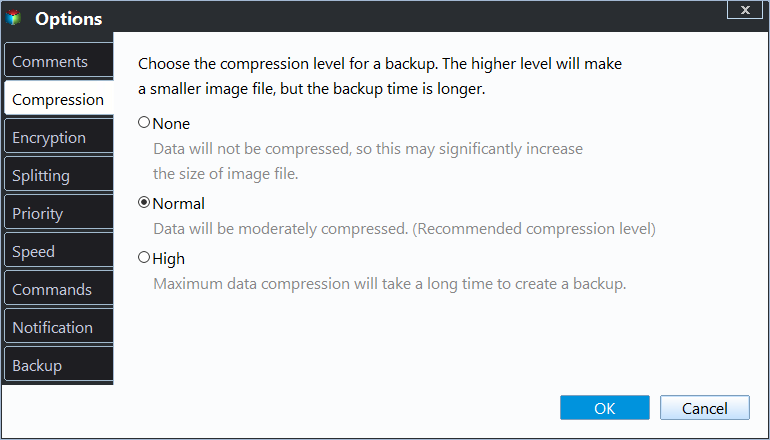
To specify the backup schedule, click the "Schedule Backup" button and choose how often you want the backup to run, such as daily, weekly, or monthly, or trigger it at specific events like system shutdown, or automatically when a USB flash drive is connected.

To select a backup method, click the "Backup Scheme" button and choose from full, incremental, or differential backups. Alternatively, enable automatic backup cleanup to automatically delete old backup images after a set period, such as daily, weekly, or monthly. This can help keep old backups for as long as possible.
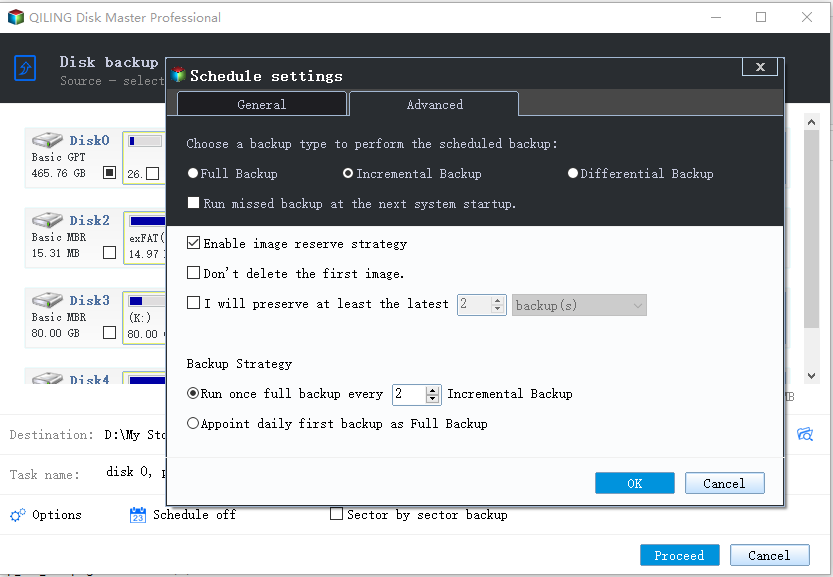
4. After completing the settings, click "Proceed" to create a system image for Windows Server.

★ Tip on how to backup system without booting into Windows easily:
When you create a system image backup, you're often prompted to also create a bootable media, which can be useful for booting your computer in case of failure. However, keeping both the backup and bootable media can be a security concern, as they may contain sensitive information.
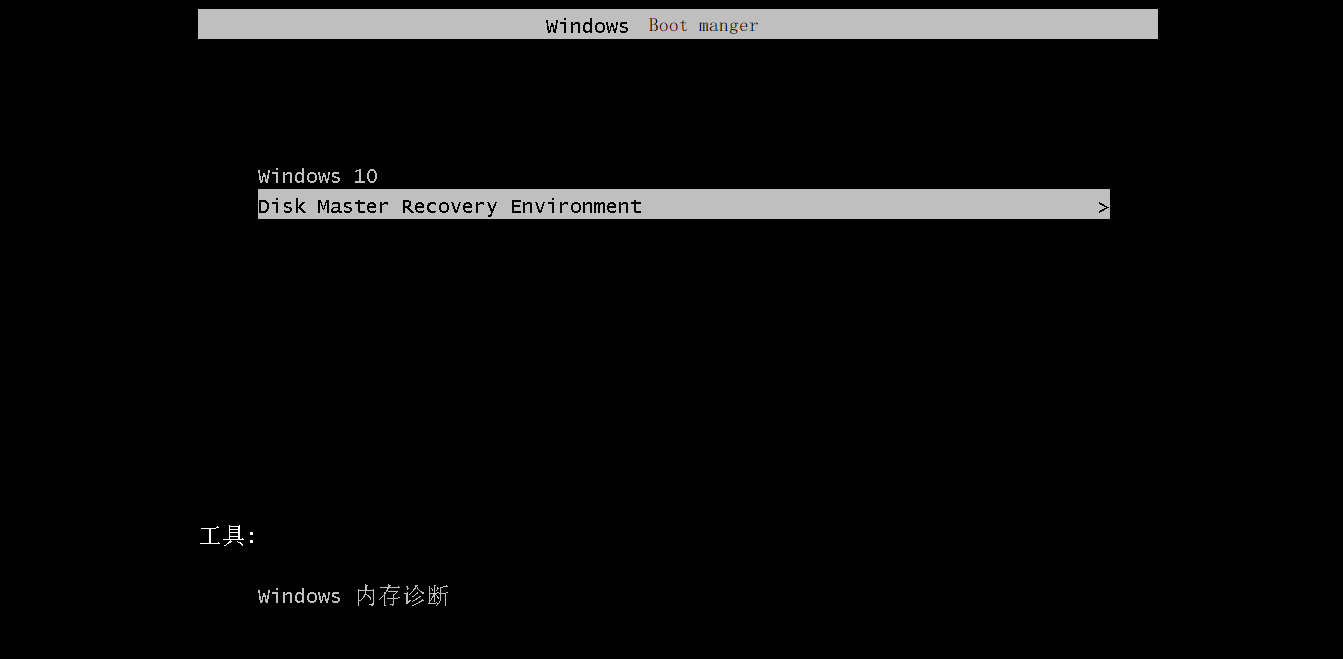
You can use Qiling Disk Master to create a bootable system image backup, allowing you to boot your current computer via the F11 or A key and restore the system image to a new hard drive or SSD.
Conclusion
If you're experiencing issues with Windows Server Backup, you may want to try using a more powerful server backup software to create a backup image. This can be a system backup, disk backup, partition backup, file backup, or even a cloud backup, depending on your specific needs. This alternative approach can help resolve any reading data please wait issues you're encountering.
Additionally, enabling backup settings allows for scheduled backups, incremental or differential backups, and automatic cleanup, making the process more convenient. This also enables restoring the server to its original state or to dissimilar hardware when needed.
Related Articles
- How to Fix Windows Server Backup Incorrect Function
You will learn 5 quick solutions to Windows Server 2012 backup incorrect function. Also, if it does not work, you can try an easy alternative to backup files, system, partition, or disk as you like. - Windows Server 2008/2012/2016 Backup Encryption Guide
You can set Windows Server 2008/2008 R2/2012/2012 R2/2016/2019/2022 backup encryption using BitLocker or third-party backup software - Qiling Disk Master. - Create Backups with Windows Server Backup Command Line
You will learn how to use Windows Server Backup command line with Wbadmin or third-party tool. Besides, you can use the GUI version of backup software if you want a simpler way. - Configure Email Notification for Windows Server 2012 (R2) Backup (2 Ways)
This article introduces 2 effective ways to enable and configure email notifications for Windows Server Backup 2012 (R2). Learn more about them now! - How to Reimage a PC? (with Screenshots)
Reimage a PC with guided recovery options while protecting important files before repair. - How to Remove Windows Installation Media in Windows 7, 8, 10, 11
Learn how to Remove Windows Installation Media in Windows 7, 8, 10, 11 with clear steps, key checks, and practical tips.
Products
Articles & Tutorials
- Data Recovery
- Data Backup
- File Recovery
- File Backup
- File synchronize
- System Backup and Restore
- Disk and Partition Clone
- Technical articles
- Disk Master Help
- Windows Deleted File and Disk Recovery Tutorials
- Windows File and Data Recovery Tutorials
- More Windows Tutorials for Install, Security, Files, and PC Tips
- Windows Boot, Repair, and Recovery Environment Tutorials
- Windows Backup Tutorials
- Windows Restore Tutorials
- Windows Clone and Migration Tutorials
- Windows Server Backup, Recovery, and Management Tutorials
- Windows Disk, Partition, and Storage Management Tutorials