5 Quick Fixes to Windows Server Backup Incorrect Function
Quick Navigation:
- The case
- Reasons and solutions for Windows Server Backup incorrect function
- An easy way to solve Windows Server backup incorrect function
- Use powerful Windows Server backup software to backup system
- Further reading: Windows Server 2012 end of life
- Conclusion
The case
"I am trying to get a Windows Server 2012 box to backup to a NAS. However, Windows Server backup failed every time no matter what I select to backup (System State, BMR, single file, etc), the job will fail giving an Incorrect Function error. Can anybody give some insight into what could be causing the Incorrect Function error?"
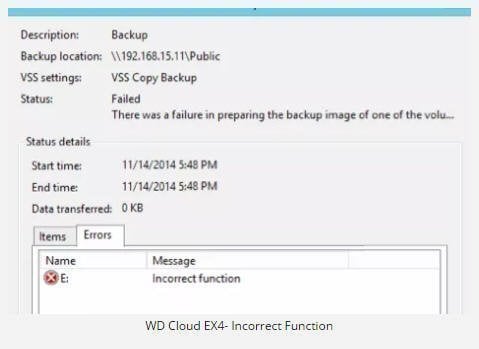
The incorrect function error is a common issue that can occur in various situations, such as backing up files or folders to a network share or external hard drive with Windows Server Backup, or restoring a system image with bootable media. Don't worry, this error is not uncommon, and this article will provide you with the reasons and solutions to resolve it.
Besides, you may receive different error messages in the following:
- The backup process initiated on Windows Server Backup, but unfortunately, it encountered an error and failed with the message "Incorrect Function".
- There was an issue with creating a backup image of one of the storage volumes, resulting in a failure.
- The system image restore failed. Incorrect function (0x80070001);
- The backup process for one of the volumes in the backup set failed due to a preparation issue with the backup image, resulting in an incorrect function.
Reasons and solutions for Windows Server Backup incorrect function
What's wrong with the Windows Server backup failed incorrect function and how to fix this? Please continue to see below, and we will show you the reasons and solutions.
Reasons for Windows Server Backup incorrect function
1. The backup or restore process fails due to a reparse point in the folders or libraries being backed up or restored, which points to a volume using the FAT file system.
A file or directory can contain a reparse point, which is a collection of user-defined data, often used to point to a file temporarily relocated on a different drive, such as a folder like C:\DVD pointing to the actual DVD drive on a different drive.
2. Windows Backup may fail to read the last sector on the volume, resulting in a backup error, due to a corrupted last sector or a backup disk with a sector size greater than 512 bytes that lacks emulation for 512-byte size I/O.
3. You are experiencing issues with the backup path being over 110 characters when restoring a system image.
Other backup configuration or system issues may also cause this error.
Solutions to Windows Server Backup failed to complete incorrect function
If you're experiencing Windows Server Backup error incorrect function, try these 5 quick fixes:
- Remove the reparse point from the library
- Shrink the volume with disk management
- Use a shorter backup path
- Use a different backup path to store backup images.
- Allocate disk unit size to 512 byte
For details, please check them below.
Fix 1: Remove the reparse point from the library
To resolve the issue with Windows Server Backup completing with warnings due to a reparse point, remove the reparse point from the library and recreate the backup.
First, you should know where the reparse point folder is. To locate reparse point folder or its subfolder, do as the following.
1. To start the Command Prompt, click the Start button, type "CMD" in the Search program and files box, and then press Enter.
2. To view the list of junctions in the Command Prompt, type `DIR /AL /S` and press Enter. This will display the list of junctions, which are one type of reparse point.
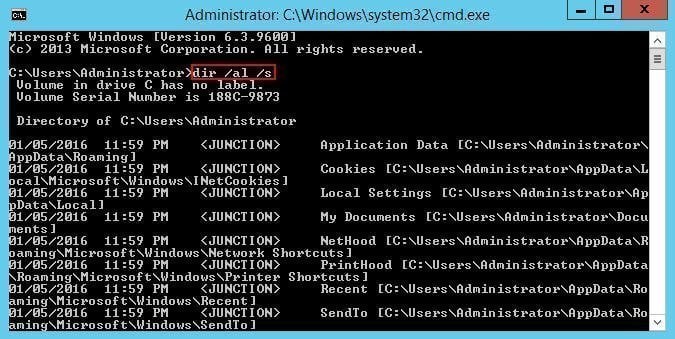
Note: The entries labeled "junction" refer to a reparse point, which is another name for a junction point. When a program attempts to write to a directory that is actually a reparse point, the files are sent directly to the other directory without any filtering, as if the reparse point doesn't exist.
To delete the mounted volume reparse point, after finding the reparse point, you can delete it. Follow these steps to do so.
1. Locate the reparse point you found, right-click it and select Properties.
2. In the General tab, confirm the folder Type is Mounted Volume and delete this folder.
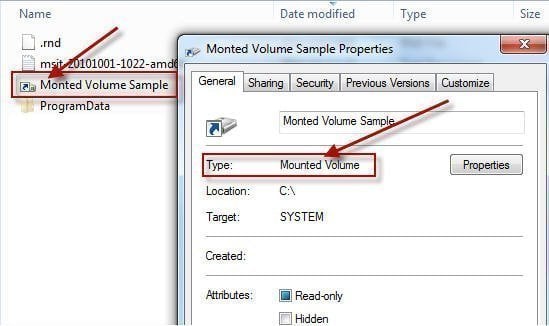
Note: To back up content for the reparse point before deletion, you need to select the absolute path of this location in the Windows Backup configuration user interface, ensuring you have a backup of the FAT volume or the mounted volume. This will allow you to recover the data in case of accidental deletion.
Fix 2: Shrink volume with Disk Management
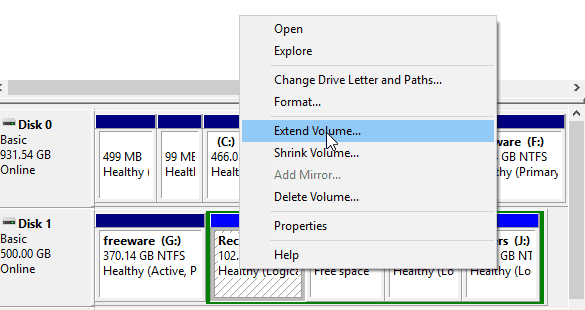
To fix Windows Server Backup failed to complete due to the last sector being corrupt, try shrinking or extending the volume where the backup is failing by 5-10 MBs, using the shrink volume method as an example.
1. To shrink a volume in Windows, press the Windows key + R to open the Run dialog, type "diskmgmt.msc" and press Enter to open the Disk Management console. Then, right-click on the volume you want to shrink and select the "Shrink volume" option.
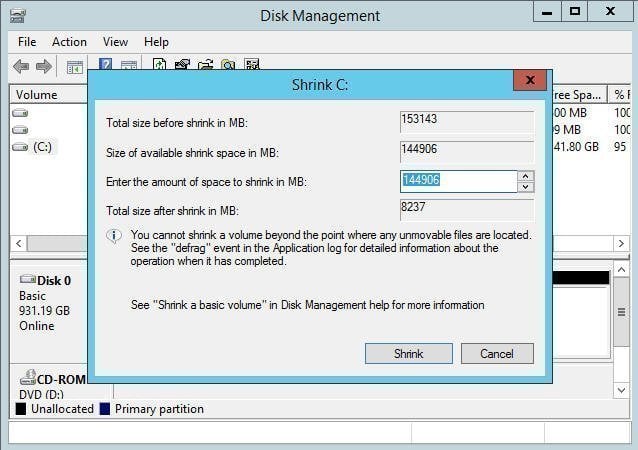
2. Enter the amount of space to shrink in MB and click Shrink.
Tip: If you're experiencing the Incorrection function error due to the last sector, you can use the Extend Volume feature to resolve the issue. Open Disk Management, right-click on the affected disk, and select Extend Volume. Then, set the desired MBs to extend and follow the on-screen instructions to complete the process.
Fix 3: Use a shorter backup path
If a backup path is over 110 characters, it may cause an "Incorrect function" error when restoring, so it's recommended to use a shorter backup path or directly create a WindowsImageBackup on a network share and copy the folder with your computer name into it.
Fix 4: Use different backup path to store backup images
If you're using a NAS as a backup path but getting an "Incorrect Function" error, you can try backing up files to an external hard drive or using iSCSI LUN to store backup images, as these methods may sometimes work. You can start by configuring iSCSI and using LUN as a backup path.
Here are the steps to configure WD Cloud EX4 :
1. To enable iSCSI on your WD Cloud EX4, open the network path in a browser and navigate to Storage > iSCSI.
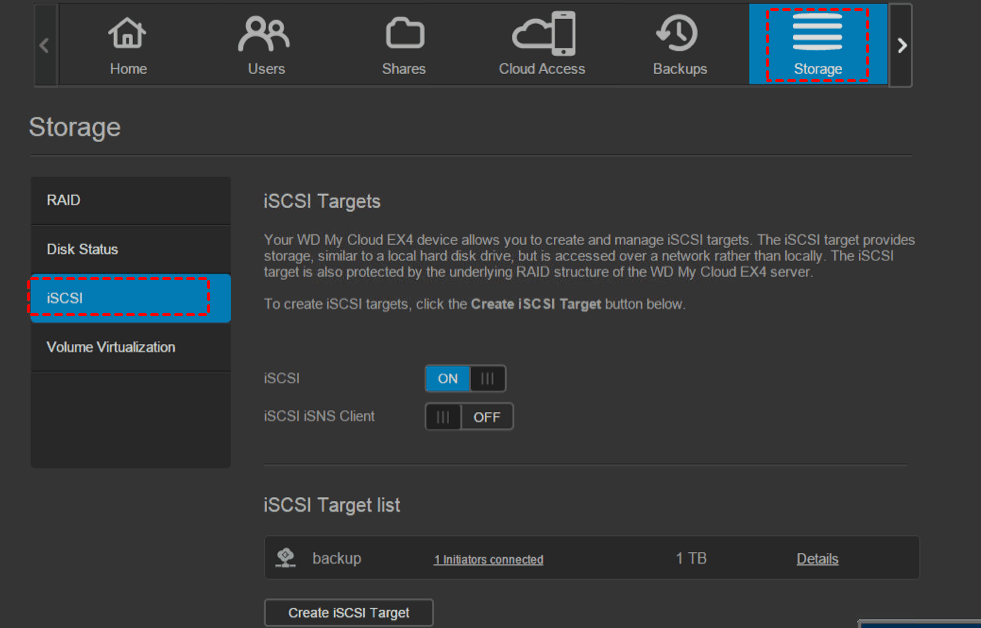
2. To create an iSCSI target, navigate to the Create iSCSI Target option and click it. This will prompt you to set a name and size for the target, which you should complete and proceed with the rest of the steps.
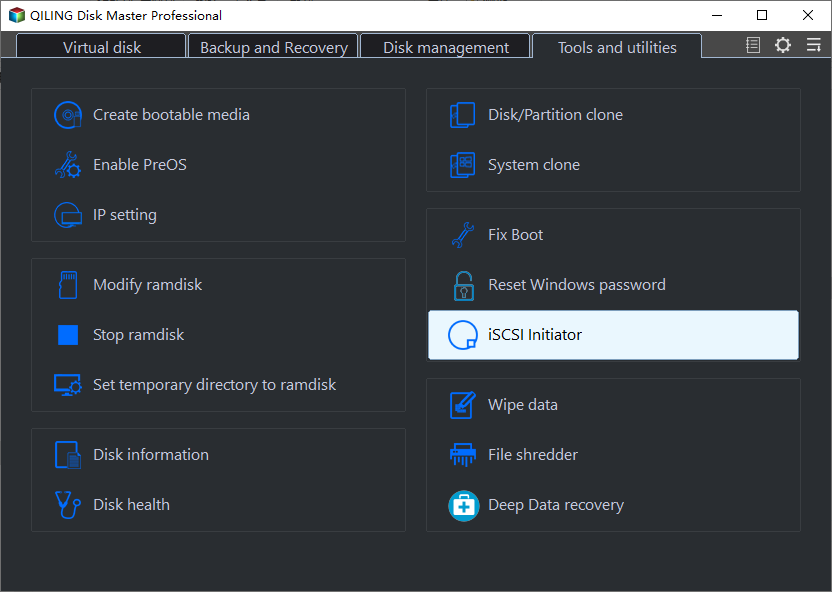
3. To find and select the iSCSI Initiator on your Windows Server, go back to your server and search for "iscsi initiator" and select it. This feature has been available since Windows Server 2008. If you are using an earlier version, such as Windows Server 2003, you will need to download and install it first.
4. In the iSCSI Initiator Properties window, type the IP of your NAS and click Quick Connect, then select the desired LUN from the available list.
Fix 5: Allocate disk unit size to 512 bytes
1. To open Disk Management, type `diskmgmt.msc` in the Run box and press OK.
2. Then, right-click the disk and select the Format...option.
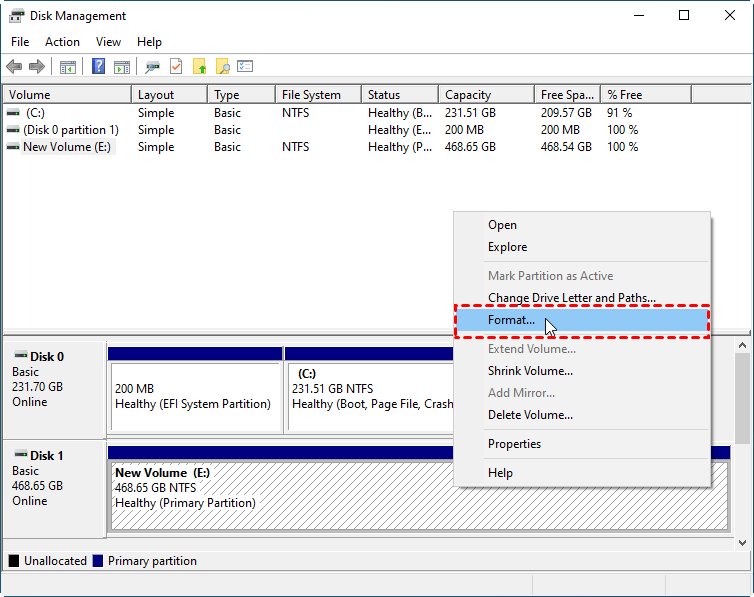
3. To start the formatting process, select NTFS file system, 512 allocation unit, and tick Perform a quick format in the Format window, then click OK.

After you finish the above steps, you can create a backup using Windows Server Backup or directly use the Wbadmin command to make a backup.
An easy way to solve Windows Server backup incorrect function
If the solution mentioned above does not solve the problem, or you think the solutions are complicated, you can try an easier solution – use third-party software. As a matter of fact, Windows Server Backup still leaves something to be satisfied with.
When trying to backup using Windows Server Backup, you can't use volumes not formatted with NTFS, and volumes over 2TB are also not supported. Additionally, you may encounter errors like "The parameter is incorrect" or "The mounted backup volume is inaccessible".
If you're experiencing issues with your disk, such as partition loss or system crashes, Qiling Disk Master offers an easy solution.
Use powerful Windows Server backup software to backup system
Qiling Disk Master Server is a professional Windows Server backup and recovery software that offers more powerful functions than Windows Server Backup, allowing for easy backup of files and folders, partitions, hard disk, or system, as well as cloud backup.
- You can easily back up files, folders, systems, disks, or partitions to various locations, like network drives, external hard drives, NAS, or cloud drives, and create a cloud backup in a few simple steps.
- The backup task can be set to run automatically at a pre-set time, daily, weekly, monthly, or upon specific events, and can be configured to use different backup methods, such as full, incremental, or differential backup, and automatic cleanup methods to save storage space.
- You can quickly restore your computer to its previous state with just a few clicks, even if something bad happens to your system or data, thanks to the "Universal Restore" feature, which allows you to restore your system to dissimilar hardware.
- .....
Download Qiling Disk Master Server and install it on your computer. For unlimited protection of PCs and servers within a company, try the Qiling Disk Master TechPlus edition.
How to backup Windows Server with Qiling Disk Master
Step 1. Launch Qiling Disk Master, and it will bring you to the main interface. Click Backup at the left panel, and choose System Backup to proceed.

Step 2. No need to manually select source partitions, Qiling Disk Master will automatically choose them. Simply click on the column below to select a new destination path for your system image files. The destination can be an internal hard drive, external hard drive, NAS, or other locations.

Best practice for schedule backup:
▶ If you back up to a NAS, network share or cloud drives, select Daily, Weekly or Monthly.
▶ If you backup your computer to a USB flash drive, select the USB plug in, which is a plug-and-pull backup method, allowing the task to run automatically without needing to manually connect the disk each time.
▶ For internal or external disks, select one of them based on your needs, except for the USB plug in feature.
▶ You can also customize your backup settings by setting options such as encryption and email notifications, and by configuring a backup scheme to choose between full, incremental, or differential backups, and to automatically delete previous backup images using a specified cleanup method.
Step 3. Finally, click Proceed to run Windows Server backup without incorrect function.
Further reading: Windows Server 2012 end of life
Microsoft will stop providing security updates and support for older versions of Windows Server, such as 2012 and 2012 R2, to focus on newer versions, potentially leaving them vulnerable to security risks.
Windows Server 2012's mainstream support ended on October 9, 2018, but extended support will continue until October 10, 2023. To avoid any potential issues, it's essential to upgrade Windows Server 2012 to the latest version, which involves a two-step process: first, upgrading to Windows Server 2016, and then to Windows Server 2019.

You can still upgrade from Windows Server 2019 to Windows Server 2022, or choose to keep using Windows Server 2012. Regardless, it's essential to create a system image backup in Windows Server 2012 and maintain multiple backup versions by scheduling regular backups. To do this effectively, consider using a powerful backup software like Qiling Disk Master Server.
Conclusion
To fix the incorrect function error in Windows Server 2012 backup, you can try the steps provided or use a simpler alternative like Qiling Disk Master Server, which allows for easy backup and restoration of system, disk, partition, or files with just a few clicks. To make the process automatic and flexible, you can set up Schedule Backup, Options, or Backup Scheme according to best practices for scheduling backups.
Qiling Disk Master Technician Plus is a suitable option for protecting unlimited PCs and servers within a company. It offers unlimited billable technical services to clients and allows for the creation of portable versions by copying the installation directory. Additionally, it enables the deployment of system or disk images to multiple computers simultaneously.
Related Articles
- How to Automatically Backup Windows Server to Cloud
- Windows Server Backup Encryption – Double Protection for Your Data
You can set Windows Server 2008/2008 R2/2012/2012 R2/2016/2019/2022 backup encryption using BitLocker or third-party backup software - Qiling Disk Master. - Create Windows Server 2012 (R2) Backup to USB Drive with an Easier Way
This article will introduce how to create Windows Server 2012 backup to USB drive or other external hard drives with detailed steps. - Toshiba NTI Backup Now EZ Free Alternative and Guide
Qiling Disk Master Standard is more than a Toshiba NTI Disk Master Now EZ free alternative, it is an independent and powerful backup software. - Install a Second Hard Drive in Windows 10 (One-Stop Wizard)
This is a one-stop wizard for installing a second hard drive in Windows 10, whether it's external or internal, and migrating system or data afterward. - How to Install Windows 11 – Easiest Guide for Beginners
As Windows 11 is set to be released on June 24, many are wondering how to install it for free. This tutorial will guide you through the process, making it easy to get the latest operating system without any cost.
Products
Articles & Tutorials
- Data Recovery
- Data Backup
- File Recovery
- File Backup
- File synchronize
- System Backup and Restore
- Disk and Partition Clone
- Technical articles
- Disk Master Help
- Windows Deleted File and Disk Recovery Tutorials
- Windows File and Data Recovery Tutorials
- More Windows Tutorials for Install, Security, Files, and PC Tips
- Windows Boot, Repair, and Recovery Environment Tutorials
- Windows Backup Tutorials
- Windows Restore Tutorials
- Windows Clone and Migration Tutorials
- Windows Server Backup, Recovery, and Management Tutorials
- Windows Disk, Partition, and Storage Management Tutorials