Why and How to Convert to Dynamic Disk in Windows 10 or 11?
- Why convert to dynamic disk in Windows 10?
- Two ways to convert to dynamic in Windows 10 or 11
- Further reading: Convert dynamic disk to basic without losing data
Why convert to dynamic disk in Windows 10?
Dynamic and basic disks are two types of storage that support both MBR and GPT partition styles. Unlike basic disks, dynamic disks offer more volume types, including simple, spanned, striped, mirrored, and RAID-5 volumes, making them more versatile. Converting disks to dynamic in Windows 10 unlocks additional features and operations that are not possible on basic disks.
Converting a disk to dynamic in Windows 10 can provide more flexibility in using disk space and improving performance. For instance, you can create a large spanned volume with unallocated spaces from multiple physical disks, which is not possible with basic disks. Additionally, extending a volume is easier on a dynamic disk, even if there is a volume between the target volume and the unallocated space.
Notes:
◆ If your disk contains unknown partitions like OEM partitions, do not convert it to a dynamic disk, as these partitions may not function properly.
◆ Converting a disk containing the system drive (C drive) to dynamic is acceptable, as it remains bootable. However, it's not recommended to do so on a disk with dual boot functionality.
◆ You cannot install Windows on a dynamic disk because it's not supported for installation. The error message "Windows cannot be installed to this hard disk space" appears when trying to install on a dynamic disk, as it contains one or more dynamic volumes that are not compatible with the installation process.
Two ways to convert to dynamic in Windows 10 or 11
To convert a disk from basic to dynamic in Windows 10, you can choose between two methods based on your preference.
Way 1. Convert to dynamic disk within Disk Management
To manage your disk and partitions easily, use the Disk Management tool, which is built into Windows. Press the Windows key + R, type "diskmgmt.msc", and click "OK" to access it. From there, you can follow the steps to manage your disk and partitions.
1. Right-click the disk that is going to be converted to dynamic, choose "Convert to Dynamic Disk…".
2. To convert a disk to dynamic, select the disk you want to convert and click "OK" in the window. Make sure the selected disk is the correct one. You can also choose to convert multiple disks by checking the boxes next to them.
3. Click "Convert" and then a message will appear explaining the process of converting from basic to dynamic. If you're okay with it, click "Yes" to proceed.
4. After a while, the disk(s) will be converted.
Way 2. Convert to dynamic disk using Diskpart
To convert a disk to dynamic in Windows 10, you can use the Diskpart command-line utility. First, open the Command Prompt as an administrator. Then, type "diskpart" and press Enter to open the Diskpart tool.
Press "Windows" + "R" at the same time, input "diskpart" and hit "Enter" to run Diskpart as administrator.
▪list disk
▪To convert a disk to dynamic, you would use the command `convert dynamic`, or first select the disk you want to convert using `select disk n` and then run the `convert dynamic` command.
▪convert dynamic
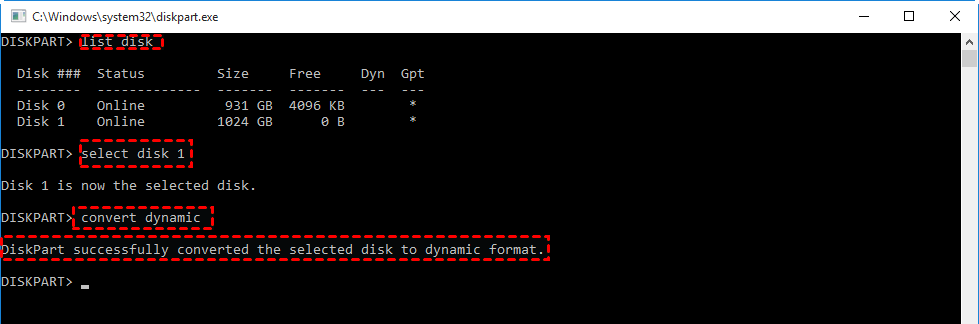
Note: If you find that Convert to Dynamic Disk is greyed out in Disk Management or receive an error about only being able to use the first 2TB of a large MBR disk, you can convert your disk from MBR to GPT to solve the issue.
Further reading: convert dynamic disk to basic without losing data
To convert a dynamic disk back to basic in Windows without data loss, you can use a tool like Qiling Disk Master Professional. This tool can help convert dynamic disks to basic without losing any data and also allows you to manage dynamic partitions. By using this tool, you can safely change the dynamic disk back to basic without compromising your data.
▶ The demo version of Qiling Disk Master Professional is available for free download, allowing users to try out the software before purchasing the full version.
Step 1. Install and run the tool. In the home interface, right-click the target disk and go to "Dynamic Disk Manager".
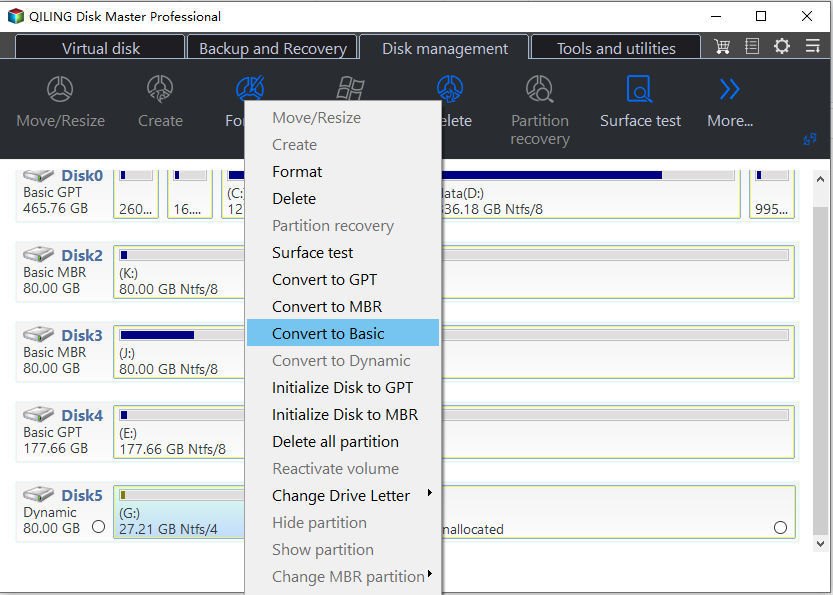
Warning: If you have spanned/striped/mirrored/RAID-5 volumes, the program can't convert them directly. Instead, you'll need to copy the data to another location first, then delete the original volumes and continue the conversion using the program.
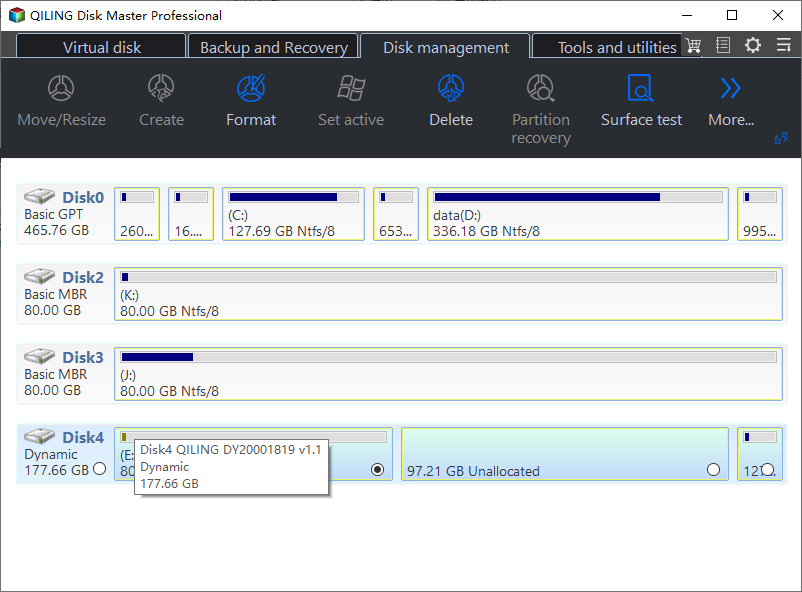
Step 5. Here you can view the conversation operation.
✍ Note:
☞ The update will take effect after the computer restarts.
☞ Qiling Disk Master Professional is a software tool designed for Windows operating systems, including Windows 11, 10, 8.1, 8, 7, XP, and Vista, as well as Windows Server 2019, 2016, 2012, 2008, and 2003. For the latter, users should consider Qiling Disk Master Server instead.
Related Articles
- Fix Dynamic Disk Missing/Offline in Windows 10/8.1/8/7 [Case Study]
If you find the dynamic disk shows missing or offline in Disk Management, read this post and you can find the easy yet efftcive solution. - How to Fix Unformatted Hard Drives in Windows 10/8/7 Easily?
Fix an unformatted hard drive in Windows while protecting recoverable data before formatting. - How to Fix USB Flash Drive Not Detected in Windows 10/8/7?
This article provides a solution to the issue of a USB flash drive not being detected in Windows 10/8/7. It explains why this problem occurs and offers a simple and easy-to-follow guide to resolve it. - No Free Memory-How to Increase Memory of C Drive?
Increase C drive space when Windows has low free memory or storage by cleaning up and extending partitions. - How to Remove Unwanted Files from C Drive in Windows 10?
To remove unwanted files from C drive in Windows 10 or increase partition capacity of C drive without deleting partition, you can follow these steps. First, you need to free up disk space by deleting unnecessary files and emptying the recycle bin. - How to Remove Write Protection on Micro SD Card SanDisk?
Remove write protection from a SanDisk microSD card by checking lock, attributes, registry, and formatting options.
Products
Articles & Tutorials
- Data Recovery
- Data Backup
- File Recovery
- File Backup
- File synchronize
- System Backup and Restore
- Disk and Partition Clone
- Technical articles
- Disk Master Help
- Windows Deleted File and Disk Recovery Tutorials
- Windows File and Data Recovery Tutorials
- More Windows Tutorials for Install, Security, Files, and PC Tips
- Windows Boot, Repair, and Recovery Environment Tutorials
- Windows Backup Tutorials
- Windows Restore Tutorials
- Windows Clone and Migration Tutorials
- Windows Server Backup, Recovery, and Management Tutorials
- Windows Disk, Partition, and Storage Management Tutorials