How to Remove Unwanted Files from C Drive in Windows 10?
- Need to remove unnecessary files from C drive
- How to: remove unwanted files from C drive in Windows 10/11
- ▶ Solution 1. Delete/ remove personal files and third-party program files on C drive
- ▶ Solution 2. Run Disk Cleanup in Windows 10/11 to reclaim disk space for C drive
- ▶ Solution 3. Run Storage Sense in Windows 10/11
- What if C drive still doesn't have enough space?
Need to remove unnecessary files from C drive
After installing the Windows 10 update, you're likely to find that the C drive has run out of space due to temporary files and system logs being left behind. To free up space, you can try deleting the Windows Update Cleanup and Delivery Optimization files, which can be found in the C:\Windows\Temp folder. Additionally, you can also delete the Windows Error Reporting and Windows Defender files, which are also located in the C:\Windows\Temp folder. Be cautious not to delete any files that are essential to the operating system, such as the Windows Update folder, as this may cause issues with future updates. It's also a good idea to run the built-in Disk Cleanup tool to remove any unnecessary system files and free up space on the C drive.
How to: remove unwanted files from C drive in Windows 10/11
Even if you don't add any files to C drive, it can still fill up due to various reasons such as back up files, page files, temporary files, and even remnants of previous Windows installations. Additionally, you might have inadvertently set the download path for files from websites and third-party software to C drive without realizing it.
Warning: To avoid losing important files, it's a good idea to back up your C drive to a safe location beforehand, just in case you accidentally delete some folders that contain files you want to keep.
▶ Solution 1. Delete/ remove personal files and third-party program files on C drive
Removing personal files, such as photos and music saved in the "My Documents" folder, and third-party program files will not harm your operating system. To delete these files or folders, follow these steps: [insert steps here].
✔ To delete personal files
Step 1. Press "Windows" + "E" in Windows 10 to open Windows Explorer.
Step 2. Open C drive, locate the folders or files that you don't need anymore, right-click them and choose "Delete".
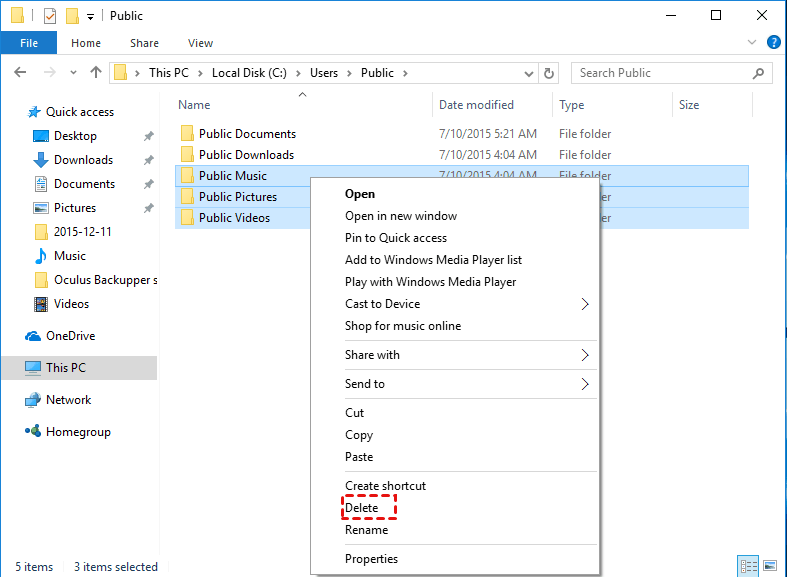
PS.: To move files or folders from the C drive to another drive like the D drive, right-click the items you want to move and select Cut. Then, open the D drive, right-click a blank space, and select Paste.
✔ To uninstall apps & delete app files
To safely uninstall extra apps installed on your C drive, follow these steps. First, open the Control Panel and click on Programs and Features.
Step 1. Press "Windows" + "R" at the same time, input "control" and press Enter.
Step 2. In the pop-up window, navigate to "Programs" > "Programs and features".
Step 3. Right-click the program that you don't want and choose "Uninstall".
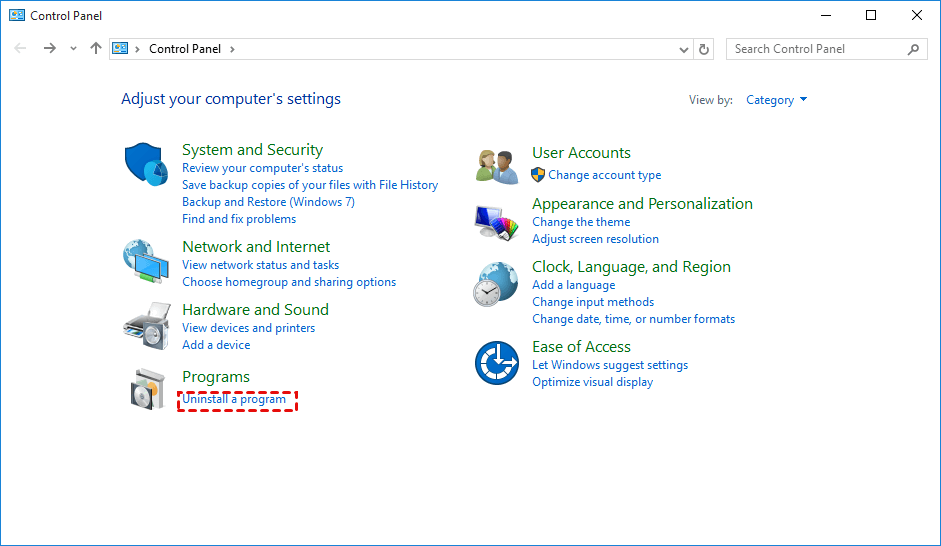
Step 4. After uninstalling the app, there may be leftover files. Check for and delete them.
Note: After deleting and uninstalling an app, you won't be able to use it. If you want to use it again, you can transfer the program files from the C drive to another drive like D, but some programs only work when installed on the C drive.
▶ Solution 2. Run Disk Cleanup in Windows 10/11 to reclaim disk space for C drive
If you don't have any unwanted personal or program files, you can skip solution 1. Alternatively, you can run the Windows 10/11 built-in tool, Disk Cleanup, which allows you to remove unnecessary files that aren't accessible through Windows Explorer, freeing up space on your drive.
Step 1. In the Run window, type "cleanmgr.exe" and press Enter to run Disk Cleanup.
Step 2. In the Disk Cleanup window, choose items that you want to delete and click "OK".
Step 3. To free up more space, click "Clean up system files".
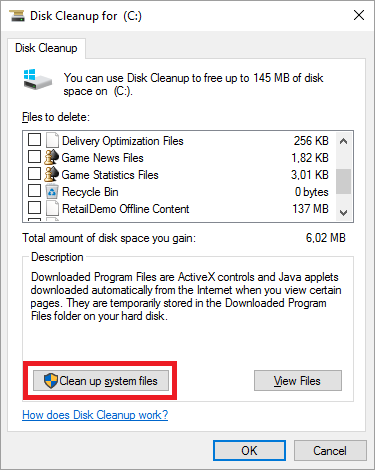
Step 4. Choose the files that you want to remove and click "OK".
Importance: If you don't need to downgrade your system, you can delete the Windows.old folder, but keep the Windows ESD installation files, which are necessary for resetting your PC. Deleting the ESD files will make the Reset this PC option unavailable.
▶ Solution 3. Run Storage Sense in Windows 10/11
If you're using Windows 10 1703 or later, you can use Storage Sense to automatically remove unnecessary files from your C drive. This feature will periodically clean up temporary files, system logs, and other items you don't need, freeing up space on your computer. To access Storage Sense, go to Settings > System > Storage > Storage Sense.
Step 1. Click "Start" and navigate to "Settings" > "System"> "Storage".
Step 2. Here you can see Storage Sense. It is Off by default. Toggle the button to On.
Step 3. The storage condition of your C drive in Windows 10/11 will be listed.
Step 4. Check the files that you don't need anymore and click "Delete Files".
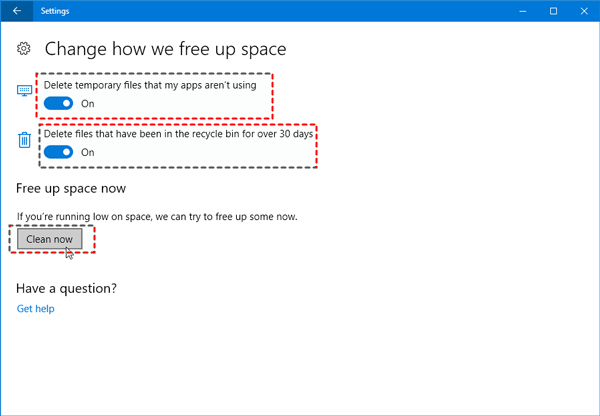
Note: You can click Change how we free up space to configure Storage Sense, and also click Clean Now to quickly free up space.
What if C drive still doesn't have enough space?
If the freed space after deleting unnecessary files from C drive in Windows 10/11 is not enough, you can try to increase the capacity of C drive by allocating free space from a partition with enough space. This can be done using Qiling Disk Master Professional, which can add unallocated space to C drive without losing data, whether the unallocated space is contiguously behind C drive or not. This process allows you to easily enlarge C drive and utilize the available free space on the same hard drive.
✍ Qiling Disk Master Professional is available to download as a demo version.
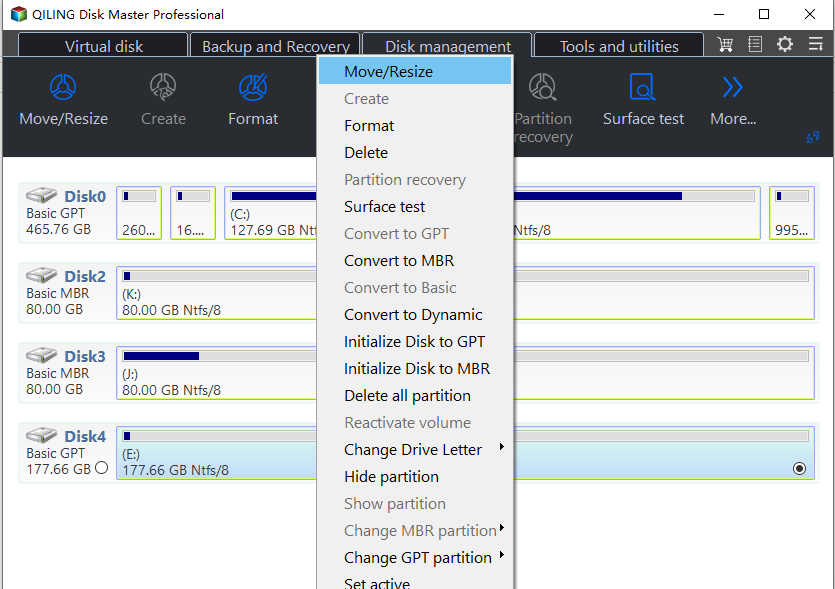
Step 1. Install and run the partition tool. Right-click the partition that has much-unused space and select "Move/resize".
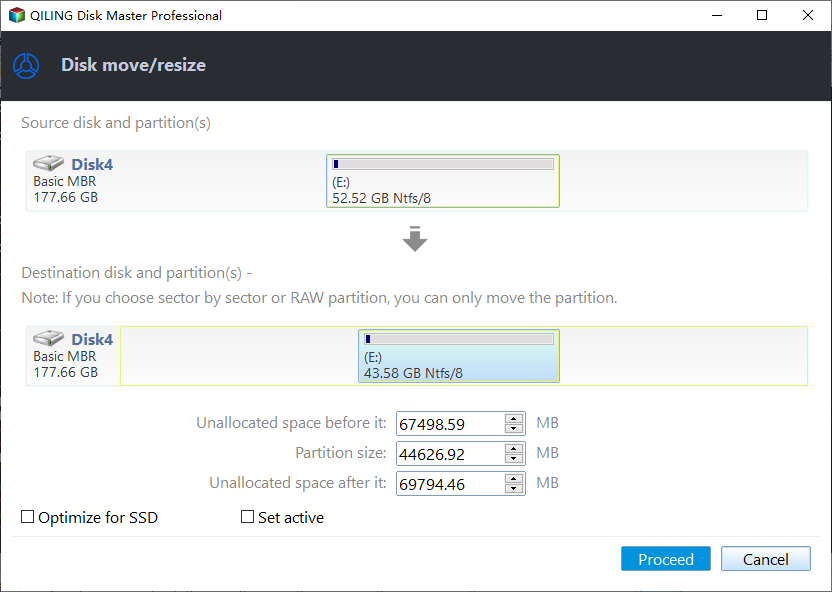
Step 2. In the pop-up window, enter the desired size of free space to allocate from partition D, and select partition C as the destination partition.
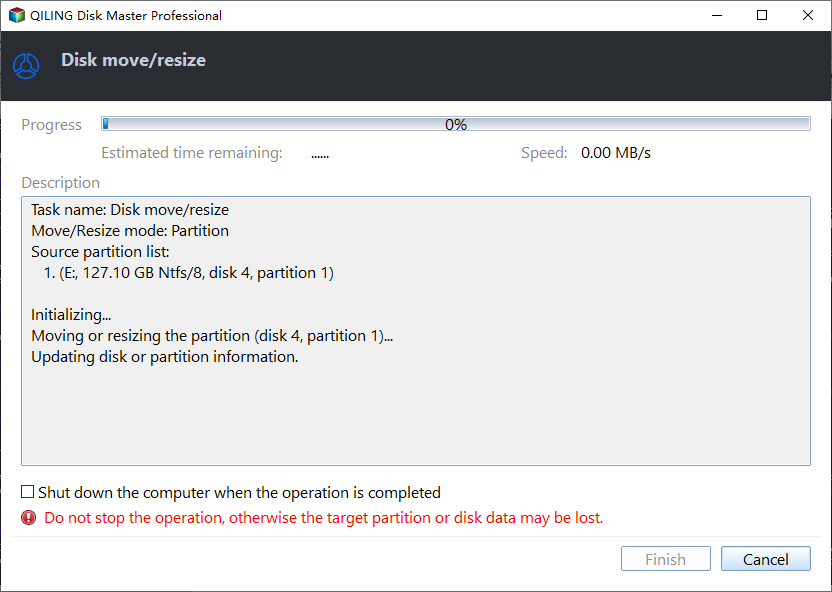
Step 3. Now, you can preview the operation result before confirmation. Click "Proceed" to execute the operation.
Note: Qiling Disk Master Professional supports Windows 11/10/8.1/8/7, XP, and Vista, and Qiling Disk Master Server is used to allocate free space from one partition to another in Windows Server 2019, 2016, 2012 (R2), 2008, 2003.
Related Articles
- Clone Hard Drive to Larger Drive Easily and Safely
With Qiling Disk Master Professional, you can easily clone hard drive to larger drive in Windows 11, 10, 8, 7 and you don't need to reinstall Windows operating system and other applications from scratch. - How to Wipe Hard Drive in Windows 8 Permanently?
You can wipe hard drive in Windows 8 from Command Prompt. If the hard drive is with OS installed, you can employ a third-party partition tool, Qiling Disk Master Professional. - How to Repair Windows Server 2008 R2 using Command Prompt?
Learn how to Repair Windows Server 2008 R2 using Command Prompt with clear steps, key checks, and practical tips. - Transfer Windows 7/8/10 OS (Operating System) to SSD
In order to get faster Windows boot time, you can migrate only OS to SSD drive from HDD. This article brings you a reliable software-Qiling Disk Master, allowing you to transfer only Windows 10, 8, 7 from HDD to SSD without boot issues. - What is File System in Windows Operating Systems?
This guide explains What is File System in Windows Operating Systems with clear steps, key checks, and practical tips. - How to Perform Windows 7 Disk Defrag Command Line?
If you want to speed up computer, disk defrag is your first choice. In this tutorial, I will show how to perform Windows 7 disk defrag command line step by step.
Products
Articles & Tutorials
- Data Recovery
- Data Backup
- File Recovery
- File Backup
- File synchronize
- System Backup and Restore
- Disk and Partition Clone
- Technical articles
- Disk Master Help
- Windows Deleted File and Disk Recovery Tutorials
- Windows File and Data Recovery Tutorials
- More Windows Tutorials for Install, Security, Files, and PC Tips
- Windows Boot, Repair, and Recovery Environment Tutorials
- Windows Backup Tutorials
- Windows Restore Tutorials
- Windows Clone and Migration Tutorials
- Windows Server Backup, Recovery, and Management Tutorials
- Windows Disk, Partition, and Storage Management Tutorials