How to Repair Windows Server 2008 R2 using Command Prompt?
Failed to boot Windows Server 2008 R2
When using Windows Server 2008 R2 or other Windows versions, you may encounter boot issues, resulting in error messages such as Invalid Partition Table, Error loading operating system, or Bootmgr is missing.
Windows Server 2008 R2 may not boot due to various reasons such as virus infection, bad boot sector, corrupted Master Boot Record (MBR), or missing system files.
Repair Windows Server 2008 R2 using Command Prompt
To resolve Windows Server 2008 R2 boot issues, you can use the Command Prompt to run various commands. These commands can be used to troubleshoot and fix the problem, allowing you to boot your server successfully.
▐ Firstly, Access Command Prompt using Windows installation CD/DVD
1. Insert the installation CD/DVD into your machine and enter the BIOS settings to set the computer to boot from the CD/DVD.
2. When the installation window appears, select the language, time, and keyboard settings, then click the "Next" button.
3. In the Install Now interface, click "Repair your computer".
4. In the System Recovery Options windows, choose "Command Prompt".
▐ Then, you can scan and fix errors using chkdsk.exe
To scan and fix errors and bad sectors on your hard drive using the Command Prompt, navigate to the drive you want to scan and run the command `chkdsk /f` followed by the drive letter (e.g., `chkdsk /f C:`).
Type "chkdsk c:/f/r" and hit Enter. If prompted, type "y" and press Enter to force a dismount on the volume.
▐ Or fix MBR, boot sector, or BCD using bootrec.exe
When Windows Server 2008 R2 won't boot due to MBR, boot record or BCD issue, you can run the following commands from Command Prompt to fix the problem.
▪ bootrec/fixmbr
This command can help fix the Master Boot Record (MBR) by writing a new Windows-compatible MBR based on the version of your Windows to boot sector, without overwriting the existing partition table.
▪ bootrec/fixboot
This command is used to repair the boot sector by writing a new boot sector on the hard disk if Windows detects damage.
▪ bootrec/scanos
(This command is applied to scan your operating system.)
▪ bootrec/rebuildbcd
The command is used to rebuild Boot Configuration Data that contains boot information and partition parameters.
PS.: To prevent incorrect operations, you can type "rename c:\boot'BCD bcd.old" and press Enter to create a backup of your BCD file.
If Windows Server 2008 R2 is still not booting, you can try to run sfc.exe to fix system files from Command Prompt.
Repair Windows Server 2008(R2) without Windows installation disc
If you're without an installation CD/DVD or not familiar with command lines, you can use the built-in Windows Server 2008 R2 System Recovery feature, also known as System Repair, which can be accessed from the Windows Recovery Environment (WinRE). This feature allows you to repair or restore your system without needing a CD/DVD or extensive command line knowledge. Simply boot from a USB drive or CD/DVD, access the System Recovery feature, and follow the prompts to select the repair option.
Qiling Disk Master Server, a comprehensive and professional partition manager, can be helpful in fixing MBR issues. With its intuitive and simple graphical user interface, it's easy to use, even for those new to computers. This tool can not only rebuild MBR for Windows Server 2008(R2), but also for Windows Server 2019/2016/2012 (R2)/2003. To use it, follow the steps provided to resolve MBR issues.
Note: You can download the demo version of Qiling Disk Master Server to try it out first.
1. Prepare a Windows-based working computer and insert a healthy USB drive into it.
2. To prepare the OS, install and run Qiling Disk Master Server, then click "Make Bootable Media" in the main interface and follow the prompts to create a bootable USB.
Detailed steps to rebuild MBR for Windows Server 2008 R2
Step 1. Remove the bootable media from the working computer and connect it to Server 2008 R2. Then, enter the BIOS to boot from the bootable media created by Qiling Disk Master Server.
Step 2. To fix a corrupted hard drive, you will automatically be taken to the main interface of Qiling Disk Master. From there, select the hard drive you want to repair and choose "Rebuild MBR" from the right-hand navigation.
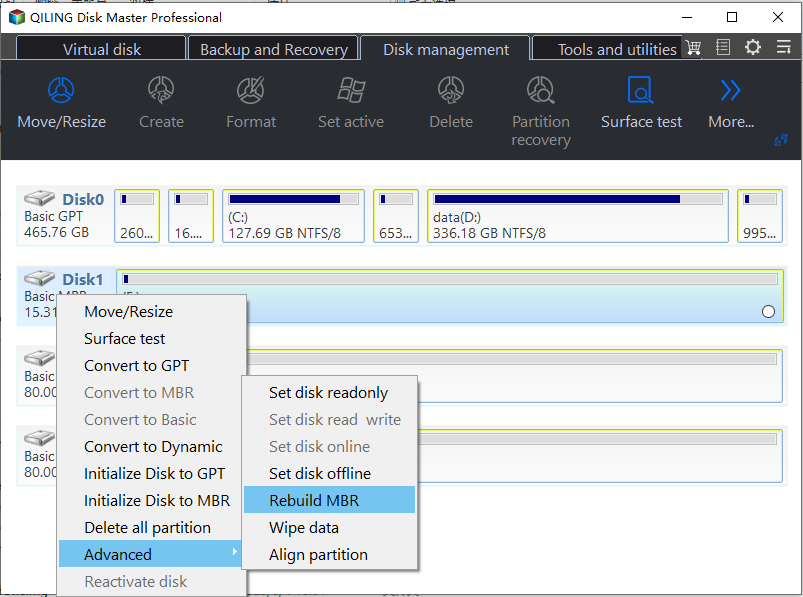
Step 3. In the pop-up window, choose the type of MBR for Windows Server 2008 R2, which is GPT.
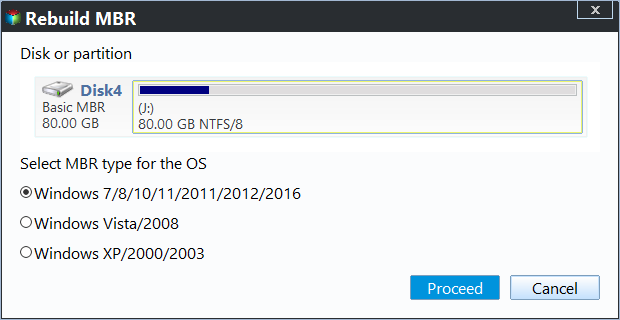
Step 4. You'll return to the main interface. Click "Proceed" to execute the operation.
You can also use the tool to check partition and perform a disk surface test:
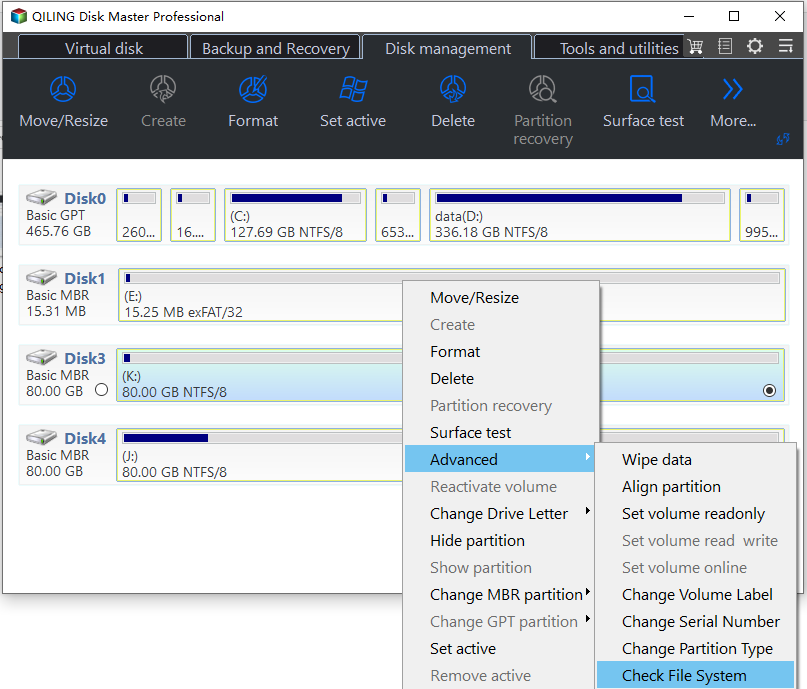
Note: Qiling Disk Master Server offers various useful functions beyond fixing the Master Boot Record (MBR), including cloning Windows Server 2008 R2, extending system partitions without data loss, and more. Its advanced editions, Qiling Disk Master Unlimited and Technician, also feature the ability to create a portable version, allowing you to run Qiling Disk Master from a removable device like a USB flash drive on other computers without installation.
Conclusion
You should now have a basic understanding of how to repair Windows Server 2008 R2 using Command Prompt. If you've identified the possible reasons for boot failure, take measures accordingly, and you can solve the problem as soon as possible. For all methods listed to fix Windows Server 2008 R2, you don't have to try them one by one - just address the underlying issue and you'll be back up and running.
Related Articles
- BOOTMGR is missing in Server 2008 R2
Plan server boot recovery around the storage layout and available backup. - How to Install Windows Server 2008 on USB Flash Drive?
No matter you want to install Windows Server 2008 on USB for a portable Server, install OS or repair the boot issues, you can find the stepwise guide in this article. - How to Delete or Create Windows Server 2022 Recovery Partition
Learn about Windows Server 2022 recovery partition: its purpose, whether it's safe to delete, and how to create one for system recovery. Read on for answers. - Windows Server 2019/2016/2012 Hyper-V Backup Guide
You will learn how to create Windows Server incremental backup in Hyper -V virtual machines with WSB or a third-party tool, and then there will be no more data loss. - Top Three Easy Methods to Block TCP Port 445 in Windows 10/7/XP
WannaCry ransomware run amuck recently. It is important to know how to block/disable/close TCP port 445, 135, 139 opened by system on Windows 7/10/11/Server 2003/2008 step by step. - How to Format SD Card for Nintendo 3DS (XL) with Freeware?
To format an SD card for 3DS usage, you can use the built-in formatting tool on the device. Simply insert the SD card into the 3DS, go to the Homebrew Launcher, and select the "Format SD Card" option. Follow the on-screen instructions to complete the formatting process. - Best Free Software to Format SD Card to exFAT on Windows
This tutorial shows how to format SD card including micro SD card of Android phone like Galaxy S4 to exFAT file system on Windows 7/8/10 in easy and simple steps.
Products
Articles & Tutorials
- Data Recovery
- Data Backup
- File Recovery
- File Backup
- File synchronize
- System Backup and Restore
- Disk and Partition Clone
- Technical articles
- Disk Master Help
- Windows Deleted File and Disk Recovery Tutorials
- Windows File and Data Recovery Tutorials
- More Windows Tutorials for Install, Security, Files, and PC Tips
- Windows Boot, Repair, and Recovery Environment Tutorials
- Windows Backup Tutorials
- Windows Restore Tutorials
- Windows Clone and Migration Tutorials
- Windows Server Backup, Recovery, and Management Tutorials
- Windows Disk, Partition, and Storage Management Tutorials