BOOTMGR Is Missing in Windows Server 2008 R2: Recovery Steps
A server that displays BOOTMGR is missing has failed before its normal services can start. The cause may be boot order, an unavailable RAID virtual disk, an omitted system partition, or damaged startup files. A physical server and a virtual machine require different storage checks before Windows repair.
Schedule a maintenance window and preserve the current configuration. A bootable server is only the first recovery milestone: databases, shares, and scheduled jobs must also be checked.
Check the server storage before writing boot records
- Record the last successful startup and recent changes, especially controller updates, disk replacements, restores, or hypervisor changes.
- On hardware RAID, inspect the controller's virtual-disk state and hardware alerts. Never initialize a degraded array or remove member disks as a boot-repair experiment.
- In a virtual machine, verify that the original OS virtual disk is attached to the expected controller. Do not switch BIOS to UEFI simply because a newer virtual-machine template uses it.
- Remove unnecessary removable media and check the boot order. If the system disk is missing, resolve detection first.
- Confirm which backups exist and when they were tested. An image created after the failure may preserve files but is not necessarily a working restore point.
Open recovery and identify the Windows volume
Boot compatible Windows Server 2008 R2 installation or recovery media. Choose Repair your computer and open Command Prompt in the recovery options. If storage is not visible, load the appropriate storage driver for this environment.
diskpart
list disk
list volume
exit
Match the disk by capacity and layout. Use a command such as dir D:\Windows to identify the installed Windows directory; D: is only an example. If encryption is in use, unlock the volume with the correct recovery credentials before treating an access error as corruption.
For a confirmed legacy BIOS/MBR installation, use bootrec /scanos to inspect recognized installations. If the installation is missing from BCD, run bootrec /rebuildbcd and add the correct one. If legacy MBR code is damaged, bootrec /fixmbr addresses that code. A missing partition table, failed RAID array, or unreadable volume needs a different recovery procedure.
Do not apply instructions that mark a partition active to a GPT installation. Also avoid copying modern BCDBoot options into old recovery media without checking bcdboot /?; available parameters differ.
Restore a verified Qiling system-disk image
Use this option if you already have a compatible Qiling image from before the failure. A new backup cannot recreate an earlier healthy state. Save any newer readable data before restoring, because the selected destination will be overwritten. Use an edition and recovery environment that support this server.
Preparation 1. On a working computer, prepare compatible Qiling recovery media. Keep the image on separate accessible storage, and obtain storage or network drivers required by the server.
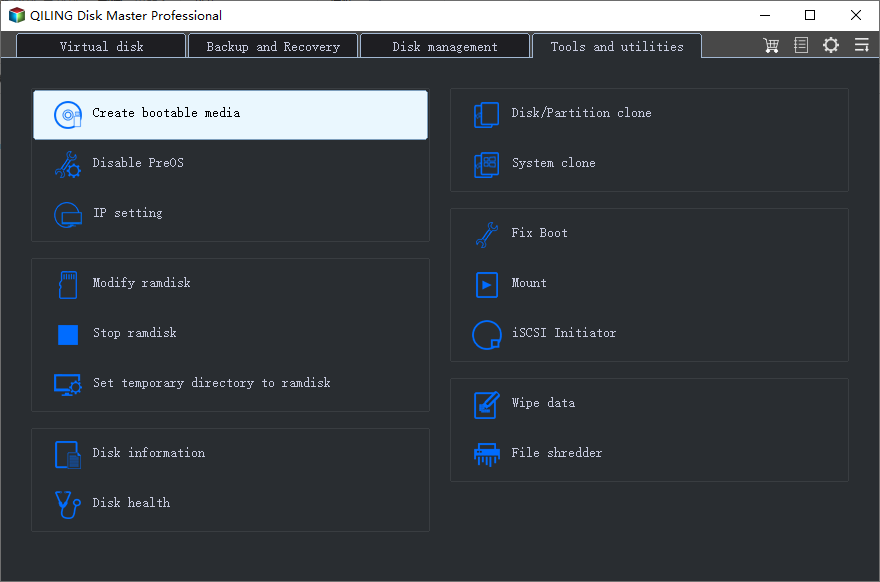
Preparation 2. Boot the server from that media in its original firmware mode. Confirm that both the image location and intended destination disk are visible.
Step 1. Open the restore function and browse to the known-good image. Check its date and the server it belongs to.
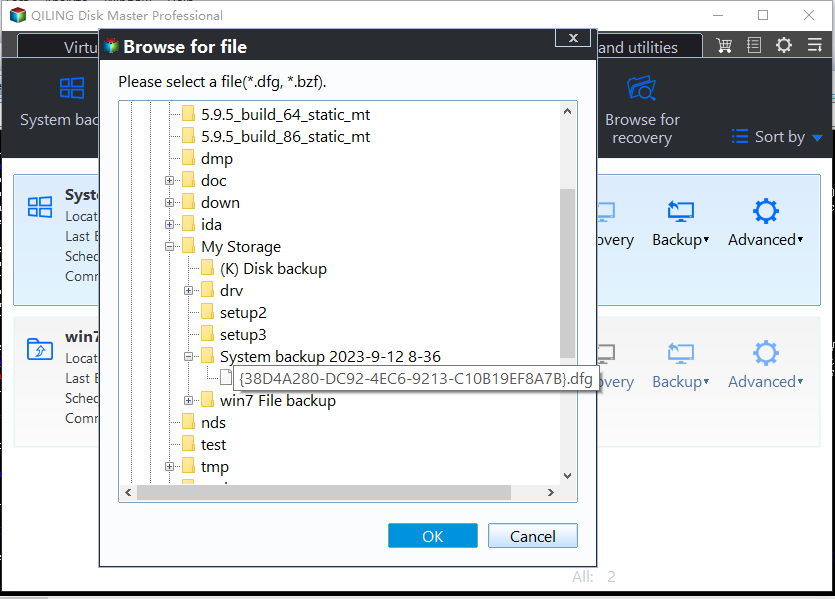
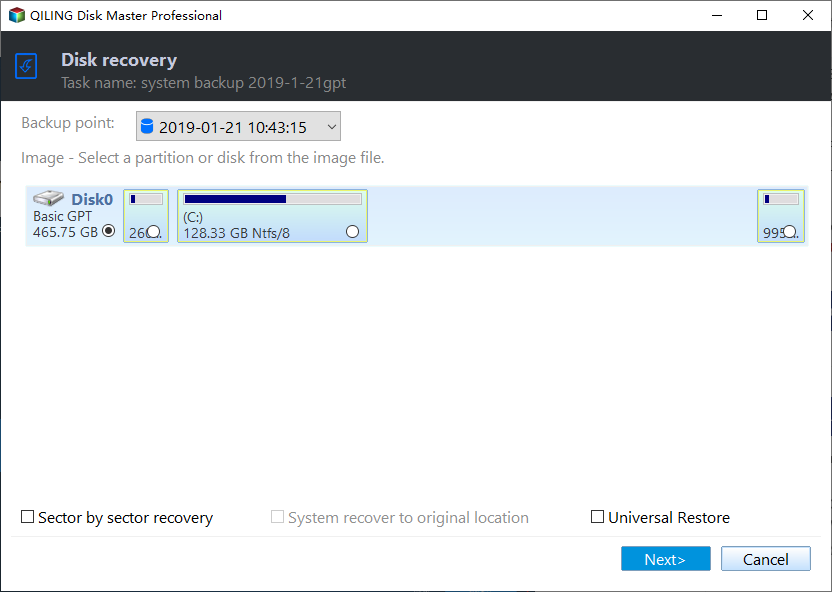
Step 2. Choose the complete system disk from the image when the recovery plan calls for full-disk restoration. This includes its startup partitions rather than C: alone.
Step 3. Select the destination by disk number, capacity, and controller mapping. Review which volumes will be replaced.
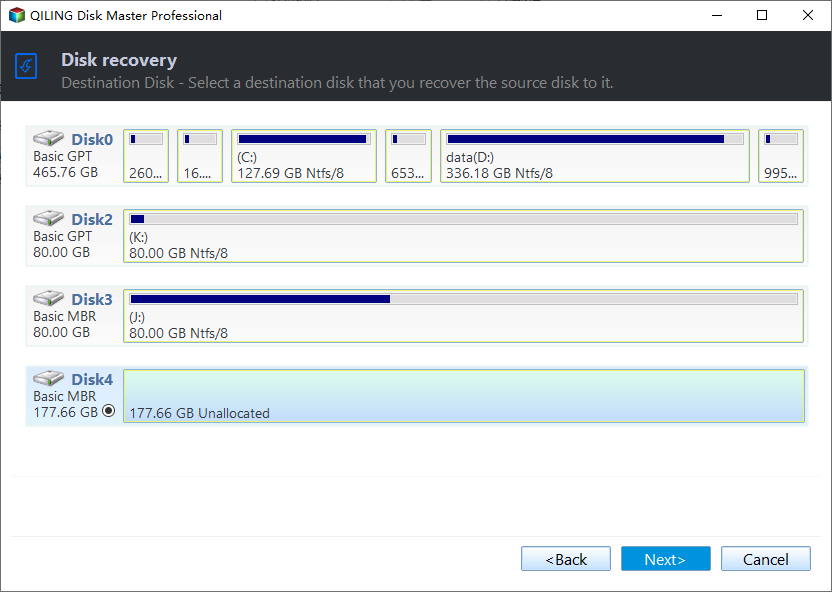
Step 4. Check the final layout and click Proceed. Keep power stable until the operation completes, then remove the recovery media and boot from the restored disk.
Validate services before returning to production
Check Event Viewer, network configuration, shares, application services, and scheduled backups. Coordinate database recovery with the application owner; a disk image alone does not prove transaction consistency. Domain controllers need a supported Active Directory recovery plan rather than casual image rollback.
Retain the original failure records and confirm a second restart succeeds. Plan migration from this legacy operating system separately from emergency startup recovery.
Related Articles
- Windows Server Boot Loop Recovery
Review recovery-media preparation and system-image restoration. - Server Boot BCD Errors
Distinguish missing boot configuration from storage detection failures.
Products
Articles & Tutorials
- Data Recovery
- Data Backup
- File Recovery
- File Backup
- File synchronize
- System Backup and Restore
- Disk and Partition Clone
- Technical articles
- Disk Master Help
- Windows Deleted File and Disk Recovery Tutorials
- Windows File and Data Recovery Tutorials
- More Windows Tutorials for Install, Security, Files, and PC Tips
- Windows Boot, Repair, and Recovery Environment Tutorials
- Windows Backup Tutorials
- Windows Restore Tutorials
- Windows Clone and Migration Tutorials
- Windows Server Backup, Recovery, and Management Tutorials
- Windows Disk, Partition, and Storage Management Tutorials