Fixed: Windows Server 2012 Boot BCD Error
Windows Server 2012 boot BCD error
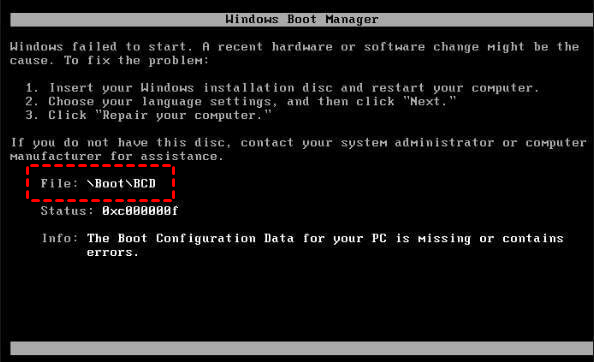
The BCD boot error is a common issue that can occur not only in Windows 8 but also in Windows Server 2008 (R2) and other operating systems like Dell, HP, Lenovo, and Gateway laptops. A boot BCD is a boot configuration data that helps your computer start up. If you encounter a boot BCD error, it's likely due to a problem with the boot configuration data, and you can fix it by following the troubleshooting steps provided in online help posts. These steps can help you resolve the boot failed and Windows boot manager missing issues in Server 2012 R2.
Content navigate
- About boot BCD
- Why you get BCD error in Windows Server 2012?
- How to fix boot BCD error in Windows Server 2012 in simple steps?
- 1. Fix BCD error with Windows installation disc
- 2. Repair BCD error by fixing corrupted MBR
- Summary
About boot BCD
The Boot Configuration Data (BCD) is a firmware-independent database for boot-time configuration data, serving as the new Windows Boot Manager.
In different boot modes, the BCD store's location varies. For traditional BIOS boot, it's at /boot/BCD on the active partition, usually the system partition. In contrast, for UEFI boot, it's located at /EFI/Microsoft/Boot/BCD on the EFI System Partition, leading to errors like UEFI boot error BCD or EFI/Microsoft/Boot/BCD error in Windows Server 2012.
Why do you get BCD error in Windows Server 2012?
This error typically occurs after extending the system partition, causing damage to the Boot\BCD file, and is often triggered by the first restart.
The error occurs after adding some applications or programs, possibly due to malicious third-party software damaging the Boot Configuration Data (BCD) store. This is because the BCD store is set for third-party integration, allowing tools like diagnostics or recovery options to be implemented. As a result, the BCD store may be compromised, leading to the error.
When booting from a USB drive, you may encounter a Boot BCD error if the drive contains corrupted Master Boot Record (MBR) or Boot Configuration Data (BCD) store. Additionally, errors during Server installation can also trigger this issue.
In Server 2012, a BCD error can occur during PXE boot or in SCCM, resulting in errors such as "Recovery. Your PC needs to be repaired", "The Windows Boot Configuration Data file does not contain a valid OS entry", "An error occurred while attempting to read the boot configuration data", and "After multiple tries, the operating system on your PC failed to start, so it needs to be repaired".
To fix the boot BCD error in Windows Server 2012 and Server 2008, you can try running the Bootrec /FixBoot command in the Command Prompt as an administrator, or use the Bootrec /RebuildBcd command to rebuild the BCD store. Additionally, you can try using the BCDEDIT command to manually edit the BCD store, or use the Bootcfg /Rebuild command to rebuild the boot configuration.
How to fix boot BCD error in Server 2012 in simple steps?
If you're lucky enough to have a Windows installation disc or repair disc, you can refer to the steps in the first part. If not, you'll need to see what you've got in the next part.
▶Method 1. Fix BCD error with Windows installation disc
To rebuild the BCD (Boot Configuration Data) for your Windows Server, insert the Windows installation disc and follow these steps: 1. Boot from the installation disc, 2. Select your language preferences and click Next, 3.
1. At the installation interface, select the language, time, and keyboard input, then click Next.
2. Click on "Repair you computer" in the lower left corner.
3. To troubleshoot your computer, go to "Troubleshoot" and select "Command Prompt". Then, type "bootrec /rebuildbcd" and press Enter. Wait for the process to complete.
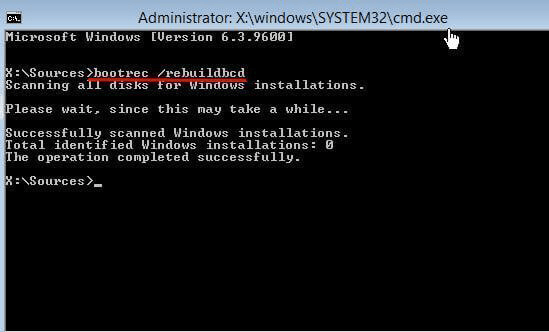
4. Close the command prompt and return to the Choose an option interface. Click on "Continue" and press any key to start the Server. This will prompt the BCD file to be rebuilt, allowing the Server to start properly.
- If that does not work, type following commands first and then rebuild the BCD file.
- bootrec /fixmbr
- bootrec fixboot
- bootrec /scanos
To fix a BCD error in Windows Server 2012 without a disc, you can use a professional tool to create a bootable media and revert the server to a previous state if a backup is available, or use the tool to fix the boot BCD error directly.
▶Method 2. Repair BCD error by fixing corrupted MBR
If the BCD error is caused by a damaged or corrupted MBR, you can use Qiling Disk Master Server to fix it. This software is a disk partition manager that supports all Windows Server editions, including Server 2022, 2012, 2019, 2016, and 2008. It offers both a command-line interface (CUI) and a graphical user interface (GUI) that can be used by both beginners and IT experts to rebuild the MBR.
- ★Preparations:
- A functional PC: Since the Server 2012 is unbootable, you need to prepare a functional Windows-based PC to install Qiling Disk Master Server on.
- A USB flash drive or CD/DVD disc: After installing Qiling Disk Master on a PC, create a bootable media using the software on that same PC to enable booting of the Server 2012.
1. Connect a USB drive to a healthy PC, install and launch Qiling Disk Master Server on it, and create bootable media using the "Make Bootable Media" tool in the "Tools" tab page, following the steps to complete the process, which also allows adding certain drivers for Server 2012 before creating.

2. To install Server 2012, insert the bootable media into the Server 2012 machine, boot it off, and if it falls back to the local disk, change the boot priority to the bootable media in the BIOS.
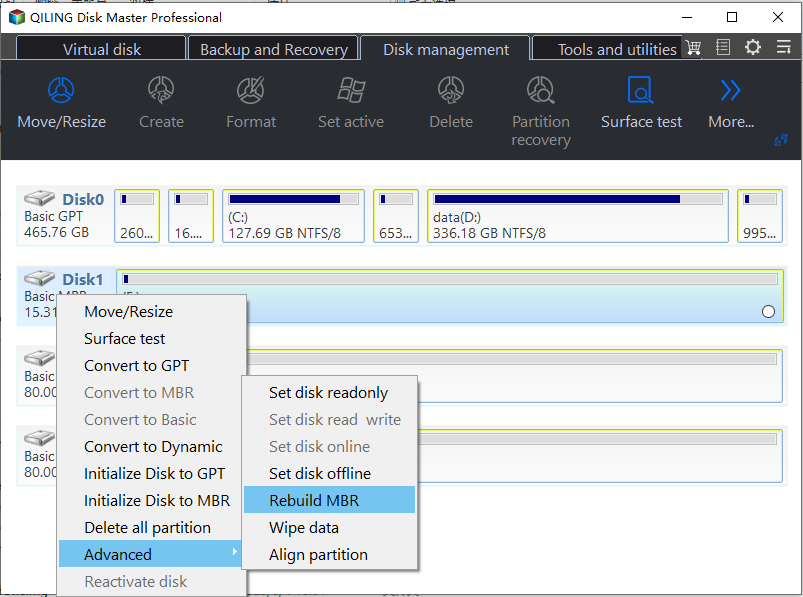
3. Once you login to Qiling Disk Master Server, it will start automatically. To fix the disk, right-click the system disk and select "Rebuild MBR".
4. In the popping up window, select the type of MBR for Windows Server 2012, i.e. Windows 7/8/10/2011/2012 option.
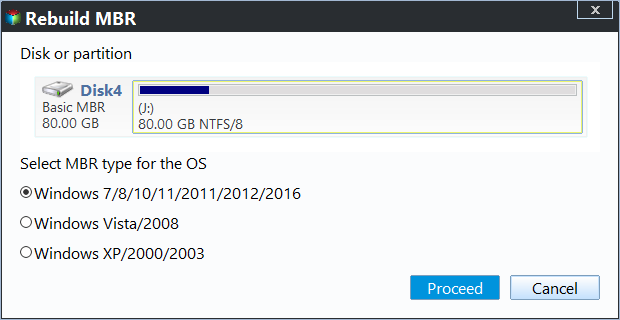
5. Click Proceed to execute the pending operations, then restart your server for repair.
♦After successfully booting Windows Server 2012, you can run CHKDSK to check for any other errors.
♦To fix the boot BCD error in Windows Server 2008, choose the Windows Vista/2008 option in Step 4.
♦If any data loss happens during your operation, you can use the "undo" feature to revert back to the previous state, thereby minimizing the risk of data loss.Recover Data function to retrieve lost data.
Summary
If you encounter a Windows Server 2012 boot BCD error with the message "The boot configuration data for your PC is missing or contains errors," you can resolve it using a Windows installation disc. If the issue is caused by a corrupted Master Boot Record (MBR), you'll need to fix the MBR accordingly. In such cases, a comprehensive software like Qiling Disk Master Server can be helpful, as it can solve various issues for Windows Server versions, including 2012, and even convert MBR to GUID Partition Table (GPT) without data loss.
Qiling Disk Master Unlimited Edition offers unlimited usage within one company, making it a great option for businesses. Additionally, the program includes a useful feature called "Create Portable Version", which allows users to create a portable version of Qiling Disk Master that can be run directly from a removable device on the target computer, eliminating the need for installation.
Related Articles
- How to Fix MBR in Server 2012 (R2) Easily
Learn how to Fix MBR in Server 2012 (R2) Easily with clear steps, key checks, and practical tips. - Solved: Windows Failed to Start File Boot BCD Error
This guide explains Solved: Windows Failed to Start File Boot BCD Error with clear steps, key checks, and practical tips. - Backup Windows.old Folder for Downgrading to Previous Windows Version
After upgrading to Windows 10/8/7, it's better to backup Windows.old folder so that you can downgrade to the previous Windows version at anytime. - Simple Steps to Backup Xbox 360/One HDD for Free
It's important to backup Xbox 360 or Xbox One hard drive (HDD) in case of data loss due to system crashes, hard drive failure or replacement. - How to Use Gutmann Wipe Method to Securely Erase the Disk
This article will introduce the definition of Gutmann wipe and difference between Gutmann and other wipe methods. A stepwise guide will be included as well. - Best Handy Backup Free Alternative for Windows
In this post, you will get the best Handy Backup free alternative and learn how to create disk backup automatically with it in simple clicks.
Products
Articles & Tutorials
- Data Recovery
- Data Backup
- File Recovery
- File Backup
- File synchronize
- System Backup and Restore
- Disk and Partition Clone
- Technical articles
- Disk Master Help
- Windows Deleted File and Disk Recovery Tutorials
- Windows File and Data Recovery Tutorials
- More Windows Tutorials for Install, Security, Files, and PC Tips
- Windows Boot, Repair, and Recovery Environment Tutorials
- Windows Backup Tutorials
- Windows Restore Tutorials
- Windows Clone and Migration Tutorials
- Windows Server Backup, Recovery, and Management Tutorials
- Windows Disk, Partition, and Storage Management Tutorials