How to Fix MBR in Server 2012 (R2) Easily
Corrupted MBR on Windows Server 2012 (R2)
The Master Boot Record (MBR) is accessed first by the system BIOS, which then searches for an active partition. The boot sector is located and the file it points to is executed, after which the NT Loader (Ntldr) takes over, allowing the system to boot.
If your Windows Server 2012 R2 doesn't boot, a possible cause is an error or corrupted file in the first stage of the boot process, which can be caused by various factors such as a bad boot sector, virus infection, or hacker activity, resulting in error messages like Corrupted MBR, Invalid partition table, Error loading operating system, or Missing operating system.
The MBR error is not exclusive to Windows Server 2012 R2 and can affect various versions, including Server 2003, 2008 (R2), 2016, 2019, and 2022. This guide will provide instructions on how to repair the MBR error in Server 2012 (R2).
Two ways to effectively fix an MBR error in Server 2012
The Windows Server operating system has a built-in way to resolve MBR issues using the Recovery Console found in the Windows installation disc. This allows for repair of MBR errors.
Repair a corrupted MBR in Server 2012 via the Recovery Console
Insert the installation CD into your machine and boot the system from the CD by changing the boot order in the BIOS settings.
1. To install the software, insert the installation CD into your machine and configure the BIOS to boot from the CD. This will allow the system to load the installation program from the CD.
2. Select Recovery Console option when prompted.
3. Go to C:WINNT or C:\WINDOWS, and enter the local administrator's password if necessary.
4. In the Command Prompt window, type `fixmbr` and press Enter. You should confirm that you want to proceed by typing `Y` and then pressing Enter.
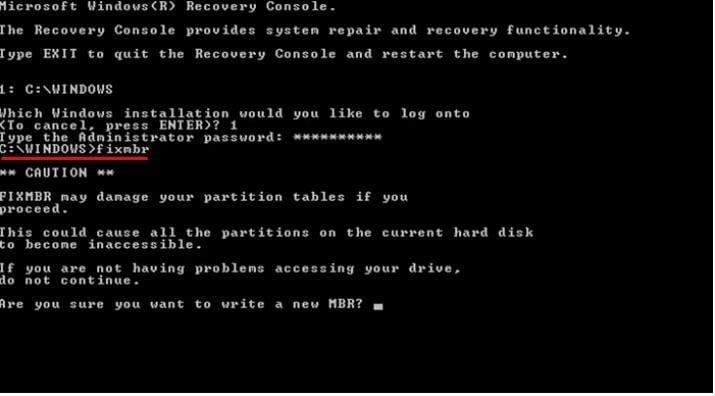
5. Remove the CD and boot as normal from the hard disk.
- Notes:✎...
- If there is an issue with the boot sector, type: FIXBOOT.
- If you have multiple copies of Windows installed on your computer, ensure you are running the correct version to avoid any compatibility or functionality issues.
If you're experiencing an MBR error and don't have the correct Windows installation CD, you can use professional tools as a workaround to fix the issue.
Rebuilding MBR for Server 2012 the easier way
Qiling Disk Master Server Edition is a Windows Server OS-specific hard drive partition manager that allows for easy rebuilding of the MBR table, and also features a "Make Bootable Media" function to ensure bootability in case of machine unbootability.
- Preparations:✎...
- To make a bootable media device such as a USB flash drive or a CD/DVD disc, you would need to create a bootable image of an operating system, such as Windows or Linux, and then write that image to the media device. This process typically involves using specialized software, such as Rufus for Windows or Etcher for cross-platform use, to create the bootable image and then write it to the media device.
- A machine is required to complete the creation of a bootable media device. This machine needs to have Qiling Disk Master Server Edition installed on it.
1. Plug the USB drive to your computer, and install and launch Qiling Disk Master Server Edition. Click on "Make Bootable Media" in the top toolbar and follow the wizard to complete the process, adding specific drivers for Server 2012 if necessary.

2. To set your Server 2012 to boot from the created bootable device, change the boot order in the BIOS to prioritize the created bootable device over the existing hard drive. This will allow the Server 2012 to boot from the bootable device instead of the hard drive.
3. Once logged in, you'll see that Qiling Disk Master Server Edition has started automatically. Next, find the disk that has a corrupted MBR table, right click it, and select Rebuild MBR.
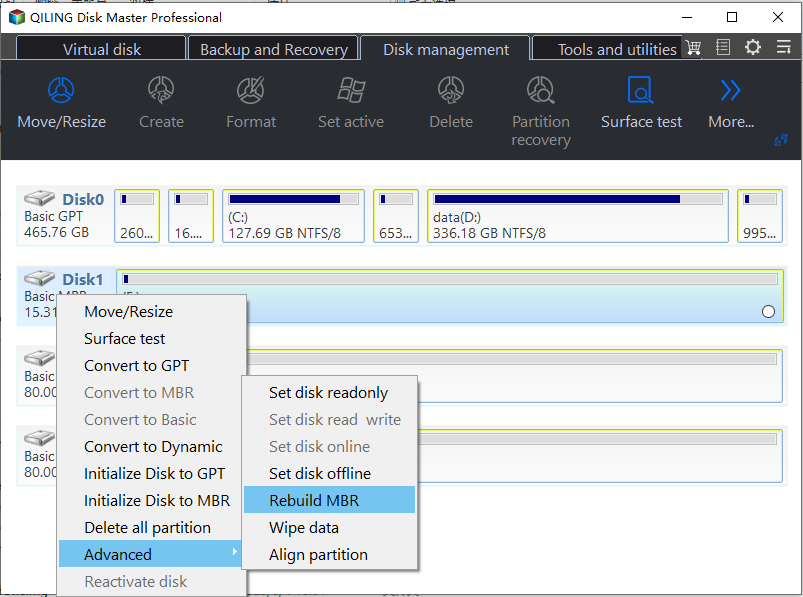
4. Choose the correct type of MBR table for your Windows Server 2012 in the pop-up box, selecting "Windows 7/8/10/2011/2012" as the option.
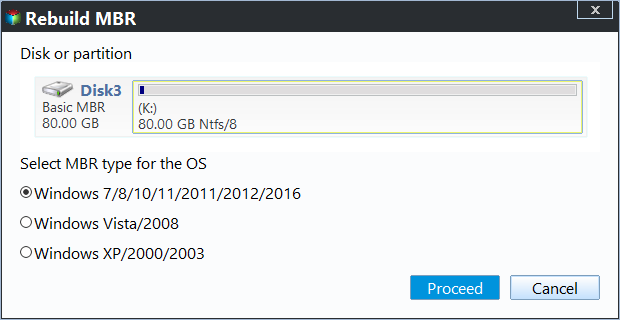
5. Click Proceed to execute the change. Now, wait for the process to be completed.
6. Disconnect the bootable device and restart your Server.
- Notes:✎...
- To fix the MBR in Server 2003/2008(R2), follow the same steps as for Server 2000. Choose the correct MBR type for your system. The steps are the same, but the MBR type may vary.
- You can run CHKDSK in elevated mode after completing steps to check for additional disk errors.
Other tips if Windows Server 2012 is not booting
If the boot problem is not caused by a corrupted MBR, you can try repairing the Server 2012 (R2) boot files. This can be done using the built-in Bootrec tool.
1. To repair your computer, boot from the installation disc and select the "Repair your computer" option in the lower left corner. Then, open a Command Prompt window by choosing the "Advanced" option.
2. You can run a system files check and use the offline options in the prompt.
▪ SFC /OFFBOOTDIR To enable offline repair, specify the location of the offline boot directory by running the command `bcdboot C:\Windows /s C:\OfflineBoot` in the Command Prompt. This command creates a copy of the Windows boot files in the specified directory, which can then be used to boot into the offline repair environment.
▪ SFC /OFFWINDIR To specify the location of the offline Windows directory for offline repair, you can use the following command in the Windows Recovery Environment (WinRE): `bcdboot C:\ /s C:\offline` or `bcdboot C:\ /s D:\offline` (assuming the offline directory is located on drive C: or D:). This command will create a copy of the Windows directory on the specified drive, which can then be used for offline repair and troubleshooting.
3. Remove the CD and reboot the computer.
If you've found an issue with the Boot Configuration Data (BCD) store, you may want to refer to this guide: Windows Server 2012 boot BCD error.
Verdict
Here we introduced two reliable ways to fix the MBR table in Windows Server 2012. You should choose the most suitable method according to your own situation and circumstances. In case anything goes wrong in the future we recommend backing up your Server 2012 on a regular basis.
Qiling Disk Master Server Edition is the perfect specialist tool for any Windows Server issues, offering features like converting an MBR table to a GPT one without data loss in Windows Server 2012, regardless of disk usage.
To enjoy advanced disk management functions on unlimited servers/pcs within one company with just one license, try Qiling Disk Master Unlimited, which also allows creating a portable version on a removable device.
Related Articles
- Fix MBR Server 2008 (R2) Step by Step
You can fix MBR in Windows Server 2008 (R2) using installation CD/DVD or third-party partition manager, Qiling Disk Master Server. - How to Fix Windows Server 2012 Boot BCD Error Easily?
If you encounter the "The Boot Configuration Data for your PC is Missing" issue when booting up Windows Server 2012, here you can learn how to fix the BCD error in Server 2012 or 2012 R2 effectively. - How to Repair Windows Server 2008 R2 using Command Prompt?
Learn how to Repair Windows Server 2008 R2 using Command Prompt with clear steps, key checks, and practical tips. - Top 4 Solutions to Repair Windows 10 BCD Errors Easily
Repair Windows 10 BCD errors with four practical solutions, including Startup Repair, Bootrec commands, BCD rebuild steps, and bootable recovery media. - Create Windows Server 2012 Bootable USB for Repairing
Learn how to Create Windows Server 2012 Bootable USB for Repairing with clear steps, key checks, and practical tips. - Fixed: Disk 1 Unknown Not Initialized in Windows 11/10/8/7
Fix 'Disk 1 unknown, not initialized' in Windows 11/10/8/7 with checks for disk status, connections, drivers, file system errors, and partition recovery options.
Products
Articles & Tutorials
- Data Recovery
- Data Backup
- File Recovery
- File Backup
- File synchronize
- System Backup and Restore
- Disk and Partition Clone
- Technical articles
- Disk Master Help
- Windows Deleted File and Disk Recovery Tutorials
- Windows File and Data Recovery Tutorials
- More Windows Tutorials for Install, Security, Files, and PC Tips
- Windows Boot, Repair, and Recovery Environment Tutorials
- Windows Backup Tutorials
- Windows Restore Tutorials
- Windows Clone and Migration Tutorials
- Windows Server Backup, Recovery, and Management Tutorials
- Windows Disk, Partition, and Storage Management Tutorials