[3 Ways] to Create Windows Sever Hyper-V Incremental Backup
Why Create Windows Sever Hyper-V Backup?
You may know the Hyper-V environment, where high availability and fault tolerance are ensured through features like failover clusters, Live Migration, and replication, allowing virtual machines to run smoothly even in the event of hardware failures or other issues.
Hyper-V incremental backup can minimize virtual machine downtime in scenarios where regular backups are not sufficient, but it's not a substitute for disaster recovery due to potential human errors, virus attacks, or other issues. This requires a separate Hyper-V incremental backup solution.
How Does Windows Server Backup Work with Virtual Machines?
In Windows Server 2008 and 2008 R2, Using Windows Server Backup for incremental Hyper-V backup can be complicated and has many incompatibilities and limitations. To back up Hyper-V virtual machines, one option is to back up from the parent partition, but this requires registering the Microsoft Hyper-V VSS writer with Windows Server Backup, which can be cumbersome. Alternatively, backing up the Hyper-V folder on the hard drive can be simpler, but it may cause the virtual machines to not work properly after the restore.
In Windows Server 2012, Windows Server Backup fully supports backing up Hyper-V virtual machines, requiring only a check of the Hyper-V items when choosing the backup content. Additionally, scheduled backups can be created to automatically back up virtual machines at regular intervals.
I'll show you how to backup Hyper-V virtual machines in Windows Server 2012 (R2) in this article, using the built-in tool or third-party tools. They apply to Windows Server 2016 Hyper-V backup as well.
👉 Windows Server Hyper-V Backup with Windows Server Backup
👉 Windows Server Hyper-V Backup with Qiling Disk Master Server👍
👉 Centralized Backup Solution to backup multiple Hyper-V VMs🔥
Windows Server Hyper-V Backup with Windows Server Backup
Windows Server Backup is not pre-installed in Windows Server, so you need to install it in Server Manager before creating backups. It supports creating Windows Server backup hyper-v incremental by default if run as a scheduled backup, and you can set the incremental backup in Optimize Backup Performance if you find Windows Server Backup not doing incremental backup. Then, follow these steps.
To Backup Hyper-V Virtual Machines in Server 2012:
- Open Windows Server Backup, and click on Backup Schedule to create an automatic backup job.
- The Backup Schedule Wizard will be launched, and in the Select Backup Configuration screen, select Custom to choose the specific Hyper-V virtual machines and other files to be backed up.
- In the Select Items screen, click the Hyper-V virtual machine to include it in the backup.
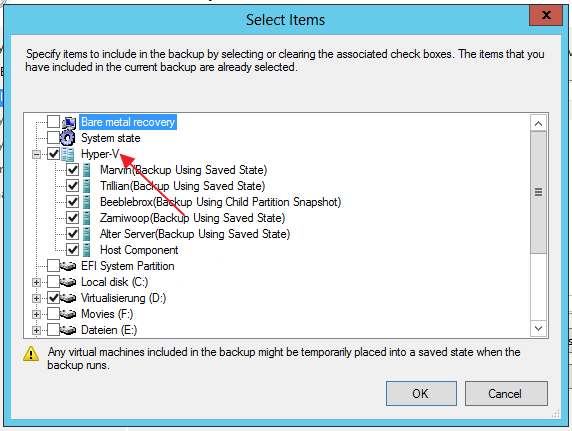
- Note:✎...
- To exclude a specific Hyper-V virtual machine from the backup, you can add the `-VMName` parameter followed by the name of the virtual machine you want to exclude. For example: `Backup-HyperVVM -VMName "VM1"`
- To schedule a daily backup, you can specify the time of day you want the backup to run. For example, you can set it to run every morning at 2 AM or every evening at 10 PM. This way, your backup will run automatically at the same time every day, ensuring that your data is safely backed up regularly.
- Specify the backup destination drive, which can be a dedicated hard disk, a volume, or a shared network folder.
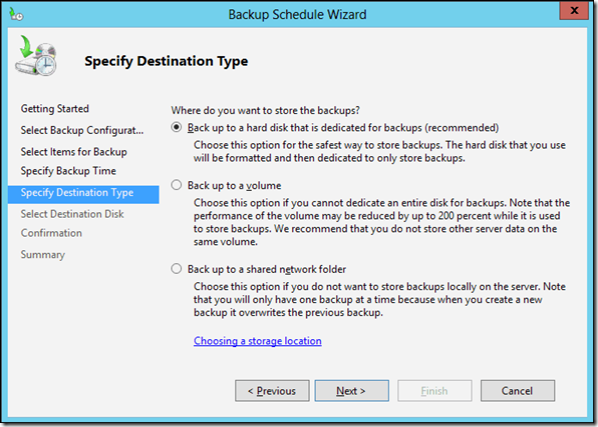
- Confirm the backup schedule and click Finish.
Limitations of Windows Server Backup
Performing Windows Server Hyper-V backups in Windows Server 2012 and later is relatively straightforward, but still has some limitations that may impact the experience.
- Inconvenient to manage backups. Managing backups for 3-5 or more Hyper-V hosts can be a complex task, requiring significant time and resources to ensure all virtual machines are properly backed up.
- Few options for scheduled backup frequency. The scheduled backup frequency is restricted to once a day or more frequently, ideally every half hour.
- Backup targets are limited. Backup targets are restricted to dedicated hard drives, volumes, and network share folders. Additionally, when backing up a Hyper-V host to a network location, it only maintains a single version of the backup, overwriting the old backup each time and functioning as a full backup.
- Servers are easily overloaded. If you have a host with high-density and large-size virtual machines, it's essential to enable scheduled backup tasks using Task Scheduler to prevent server overload. Storing backups on external hard drives can also cause high loads on LAN/SAN/iSCSI networks during working hours, making it crucial to schedule backups accordingly.
- Do not allow you to restore a specific file. If you need to restore specific files, you can create a VHDX file from the backup image and manually copy the desired files. This approach allows you to select the files you need without restoring the entire system.
Windows Server Hyper-V Backup with Qiling Disk Master Server
Qiling Disk Master Server is a Windows Server backup program that supports various virtual machine software, including Microsoft Hyper-V, VMware, and Virtualbox, and is compatible with multiple versions of Windows Server and PC OS.
Qiling Disk Master Server offers an intuitive interface to simplify the process of backing up and restoring Hyper-V virtual machines, making it easier and faster. This software can be installed directly on the Hyper-V host for seamless backup and recovery.
🧱 This software offers multiple backup options, including file, system, disk, partition, and email backups, allowing users to select the most suitable method based on their specific needs.
🧱 This tool allows you to set up automatic backup tasks, with options for daily, weekly, monthly intervals, event triggers, or USB plugged in triggers.
🧱 The app allows you to create backups to various locations, including internal and external hard drives, NAS, cloud drives, SD cards, and USB flash drives.
🧱 It supports restoring virtual machines to physical machines and vice versa, as well as restoring individual files.
To Perform Hyper-V Incremental Backup with Qiling Disk Master:
- To protect unlimited PCs and Servers within one company, IT technicians or small and medium companies can use Qiling Disk Master TechPlus. This software should be downloaded and run on the Hyper-V virtual machine.
- In the main interface, click Backup, then System Backup.

- Note:✎...
- You can also choose from Disk Backup, File Backup, and Partition Backup options based on your requirements.
- For system backup, the program automatically selects system-related partitions as the source, so all you need to do is specify the destination location to save the backup image.

- To create an automatic incremental backup, click Schedule Backup in the lower left corner and then enable it with the desired backup frequency.

- The Backup Scheme section shows that Incremental Backup is selected by default under the Backup Method tab.

✨ Tips:
❤ You can also select Differential Backup here, which creates independent backups. From a restore perspective, differential backup is a bit safer than the other two options. Additionally, you can choose to enable Automatic Backup Cleanup to set up automatic cleanup of old backups and save space on the target disk.
❤ You can customize a task by adding a note, enabling encryption and compression, and setting up email notifications to help you keep track of it.
- Once you have completed all the settings, click on the "Proceed" button to finalize the backup creation process.

Centralized Backup Solution to backup multiple Hyper-V VMs
For enterprise users with multiple VMs to back up, a reliable and agentless solution is ideal. We recommend Qiling Disk Master, a professional Hyper-V backup tool that allows you to easily backup all your virtual machines and perform incremental backups at later times.
This tool is designed for scheduling automated backup tasks for multiple virtual machines, providing users with robust data protection and numerous benefits.
• To ensure comprehensive data protection, a backup schedule should be created to run incremental, full, and differential backups on a daily, weekly, and monthly basis. This includes running a full backup once a month, incremental backups daily, and differential backups weekly.
• Support storing backups in different locations, such as local storage and an external hard drive, ensures that your files are safe from hardware failure, theft, or natural disasters. This multi-location backup approach provides an additional layer of protection and peace of mind, allowing you to recover your data even if one of the backup locations is compromised.
• It supports role-To manage team members' access to accounts, consider implementing a role-based management system. This approach involves assigning different permissions and access levels to team members based on their specific roles within the organization.
• The system allows for the quick and easy restoration of an entire Hyper-V VM from any backed-up point, enabling rapid recovery in case of a disaster or system failure.
Conclusion
To create a Windows Server Hyper-V backup, you can use Windows Server Backup, which is available in Server 2022/2019/2016/2012. However, if you prefer a more straightforward and feature-rich solution, Qiling Disk Master Server is a better option. It offers flexible schedule backup settings, multiple backup targets, and an intuitive user interface, making it easier to set up incremental backups for your Hyper-V host.
Qiling Disk Master is a versatile software that not only serves as a backup tool, but also enables disk cloning and file synchronization. This means it can be used to clone hard drives on Windows Server 2022 and 2016, as well as synchronize files in real-time between Windows servers.
Related Articles
- How to Take Incremental Backup in Windows Server 2008 (R2)
This article will show you the top 2 ways to create incremental backups in Windows Server 2008 (R2) that work even when Windows Server Backup not doing incremental backups. - Full Guide| How to Move Windows 10 to Another Hard Drive
This guide explains Full Guide| How to Move Windows 10 to Another Hard Drive with clear steps, key checks, and practical tips. - How to Put Windows 10 on SSD from HDD without Reinstallation?
If you are trying to put Windows 10 on SSD from HDD, you can try the Qiling Disk Master software, which can help you put your Windows 10, 8, 7 OS on an SSD from HDD without reinstalling everything from scratch. - How to Validate a Windows 10 System Backup Image?
You will learn how to validate a windows 10 system backup image during the backup process or after it's complete. Then, you can revive Windows 10 from system image recovery successfully. - Create Windows 10 Full Backup Easily (2 Free Ways)
This article tells you how to make full backup in Windows 10 and provides you with 2 helpful ways. Click on this article and learn more. - How to Make Your Computer Faster for Gaming [3 Effective and Simple Ways]?
If you find your game applications load slowly, read this post and you can learn how to make your computer faster for gaming in Windows 10, 8, 7. Several different methods are available for your selection.
Products
Articles & Tutorials
- Data Recovery
- Data Backup
- File Recovery
- File Backup
- File synchronize
- System Backup and Restore
- Disk and Partition Clone
- Technical articles
- Disk Master Help
- Windows Deleted File and Disk Recovery Tutorials
- Windows File and Data Recovery Tutorials
- More Windows Tutorials for Install, Security, Files, and PC Tips
- Windows Boot, Repair, and Recovery Environment Tutorials
- Windows Backup Tutorials
- Windows Restore Tutorials
- Windows Clone and Migration Tutorials
- Windows Server Backup, Recovery, and Management Tutorials
- Windows Disk, Partition, and Storage Management Tutorials