How to Validate a Windows 10 System Backup Image (2 Ways)
- How do I validate Windows 10 system backup image?
- Is it necessary to verify Windows 10 backup image?
- Tool for checking whether the backup image file is valid or not
- How to check Windows 10 image file integrity step by step
- Way 1: Verify Windows 10 backup image during the backup process
- Way 2: Check system image after the backup task is complete
- Summary
How do I validate Windows 10 system backup image?
When you need to revive Windows 10 from system image recovery but find it's useless, you may be very upset. Thus, many users may want to validate if the backup task is successful. Just like the user below:
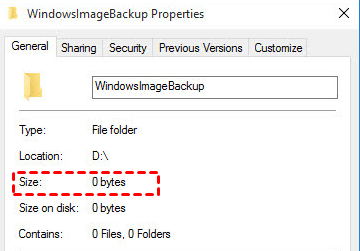
You took a system image backup of Windows 10 to a 3TB drive, but now Windows says the backup is 0 bytes long. To verify if you actually have a backup, you can try checking the Event Viewer or the Windows Backup logs to see if the backup process completed successfully. Alternatively, you can try using a third-party tool to scan the drive and see if the backup files are still present. If you're still unsure, you can try restoring the backup to a test environment to see if it works. However, if you're short on time, you could also try running the backup again to see if it completes successfully.
- Is it necessary to verify Windows 10 backup image?
- Tool for checking whether the backup image file is valid or not
- How to check Windows 10 image file integrity step by step
Is it necessary to verify Windows 10 backup image?
To create a system image in Windows 10, you can use the built-in tool called "Backup and Restore (Windows Backup)" or a third-party software like Qiling Disk Master. This will allow you to save a snapshot of your entire system, including the operating system, installed programs, and personal files, to a external hard drive or network location. This can be a lifesaver in case of a system failure or data loss, and can also be used to transfer your system to a new computer.
The Windows 10 backup image may be invalid due to various reasons, such as a scratched hard drive where the data is stored, or damage to the backup image file itself. In such cases, verifying the backup image is necessary to ensure a successful system image recovery. This verification process is crucial to revive Windows 10 from a system image recovery.
You can validate if a system image backup is valid without actually doing a restore by mounting the backup image with a reliable backup software and then checking it.
Tool for checking whether the backup image file is valid or not
To validate a Windows 10 system backup image, we highly recommend using Qiling Disk Master Standard, a reliable backup and restore software. Its Check Image feature allows you to verify the integrity of your backup images, ensuring they are intact after creating a system image or other backups, and guaranteeing successful data restoration from the backup images. This software can perform various tasks, including checking the integrity of your backup images.
- Make sure the integrity of your backup image file. If any part of the instructions is lost, you may fail to complete the restoration.
- Diagnose the damaged data. If data is partially damaged, the affected files or programs may not function properly, but it's still possible to recover from a backup image.
- Check for any other mistakes in the backup image file.
Qiling Disk Master offers various features beyond the Check Image feature, making it easy to manage backup tasks.
- Auto backup: backup changed data automatically on a regular basis.
- Incremental backup: Instead of backing up all data every time, only backup the changed data since the last backup. This approach reduces the amount of data that needs to be backed up, making the process faster and more efficient.
- Email notification: send you an email to tell you if a scheduled backup is completed successfully or not.
How to check Windows 10 image file integrity step by step
Here you will use Qiling Disk Master Standard to verify Windows 10 backup image. This applies to other Windows versions such as Windows 11, 8, 7, XP, and Vista. You have two options:
Verify backup image during the backup process: If you don't create a system image with this software, it will be a great choice to do this during the backup process.
Check system image after the backup task is complete: If you've already created a system image with this software, you can still check the backup image separately.
Before starting, please download this software and install it on your Windows 10. For server users, please try Qiling Disk Master Server.
Way 1: Verify Windows 10 backup image during the backup process
Step 1. To backup your Windows 10 system using Open Qiling Disk Master, click on the "Backup" and then "System Backup" options. This will automatically select the necessary Windows 10 OS and boot-related partitions required to boot Windows 10.

Step 2. Click where the arrow points and select a destination path to store the backup image, choosing a location such as an external hard drive, USB flash drive, NAS, or network location.

Step 3. To create a system image in Windows 10, click Proceed, and once the backup process starts, click the Advanced button and select the option to Check backup integrity on completion. This ensures that the backup image file is checked after completion, allowing for a successful restoration.
Way 2: Check system image after the backup task is complete
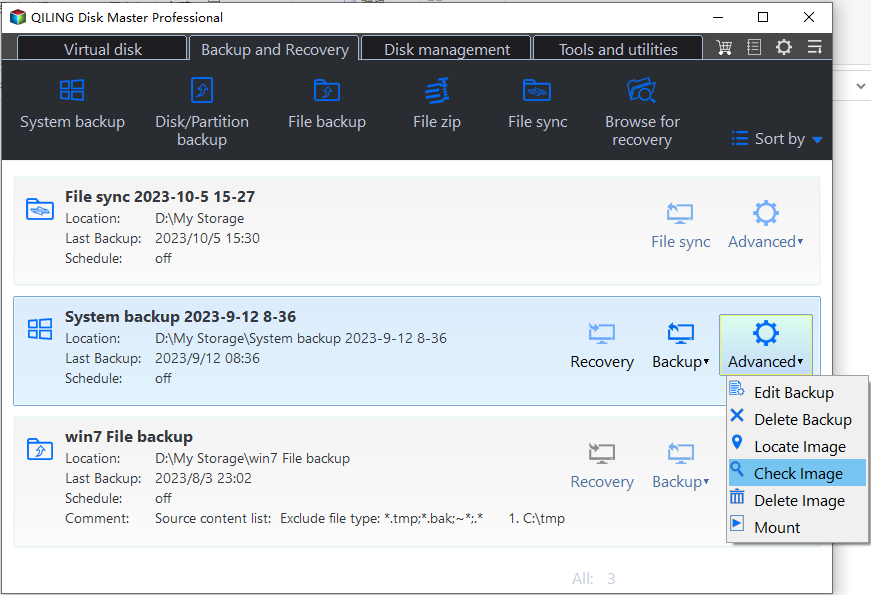
Step 1. Launch Qiling Disk Master and select Check Image. You have two ways in the following:
Go to the Backup tab, select the system backup task, and click Advanced > Check Image.
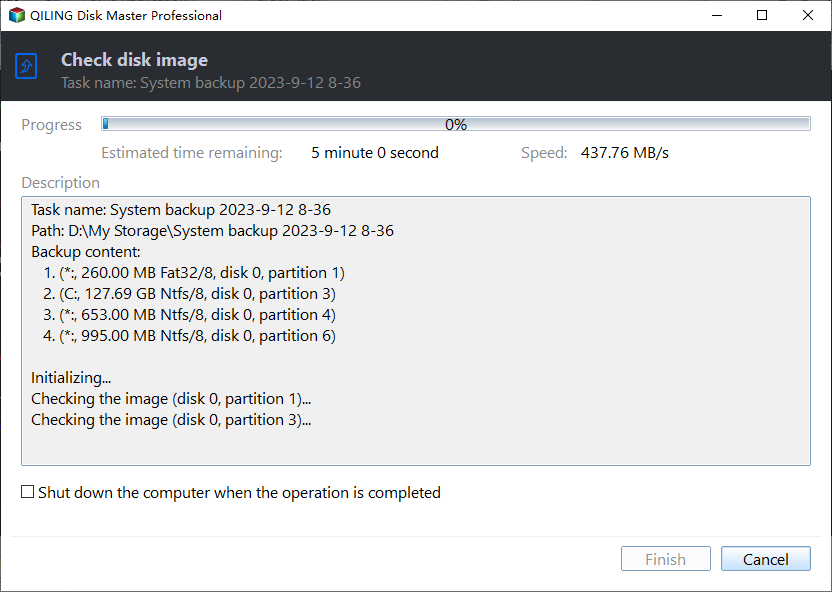
Step 2. It will show you the backup image check progress in the following screenshot. If there is no problem, click Finish.
- Other features you may be interested in this software:
- Create Bootable Media: It helps you create a bootable USB or CD/DVD and allows you to boot from it if your computer fails.
- Disk Wipe: If you want to resell your PC or give it away to your friends, you may need to write zero to the hard drive for complete data erasure, a feature available in Qiling Disk Master Professional or higher.
- Universal Restore: To move Windows 10 to a new computer with different hardware, such as a different CPU or motherboard, you can use the built-in feature, but you'll need to upgrade to the professional version of the software at least. This allows for a smooth transition to the new hardware.
Summary
You can use the "Check Image" tool in Qiling Disk Master Standard to verify the integrity of your Windows 10 system backup image, ensuring it's complete and error-free. This tool allows you to check the backup image after the backup process is complete, providing you with a quick and easy way to validate your backup.
Related Articles
- Create Windows 10 System Image on USB Flash Drive Easily
You will find a simple way to create system image Windows 10/11 on USB flash drive while Backup and Restore shows the drive is not a valid backup location. Learn how to fix and backup Windows 10 to USB easily. - Fix | "The drive is not a valid backup location" in Windows 10, 8, 7
Learn how to Fix | "The drive is not a valid backup location" in Windows 10, 8, 7 with clear steps, key checks, and practical tips. - Best Free Way: Check Backup Image and Ensure Data Integrity
It's better to do an image file checking before restoring important data to your computer. Free backup software - Qiling Disk Master can help you make it. - How to Remove Unwanted Files from C Drive in Windows 10?
To remove unwanted files from C drive in Windows 10 or increase partition capacity of C drive without deleting partition, you can follow these steps. First, you need to free up disk space by deleting unnecessary files and emptying the recycle bin. - Properly Backup VMware Workstation Virtual Machine [4 Ways]
To validate a Windows 10 system backup image, you can use Qiling Disk Master to check backup integrity. It allows you to verify backup images, explore backup content, and restore individual files from backup images. - Easy Way to Create Windows Server 2016 Essentials Client Backup
This guide explains Easy Way to Create Windows Server 2016 Essentials Client Backup with clear steps, key checks, and practical tips.
Products
Articles & Tutorials
- Data Recovery
- Data Backup
- File Recovery
- File Backup
- File synchronize
- System Backup and Restore
- Disk and Partition Clone
- Technical articles
- Disk Master Help
- Windows Deleted File and Disk Recovery Tutorials
- Windows File and Data Recovery Tutorials
- More Windows Tutorials for Install, Security, Files, and PC Tips
- Windows Boot, Repair, and Recovery Environment Tutorials
- Windows Backup Tutorials
- Windows Restore Tutorials
- Windows Clone and Migration Tutorials
- Windows Server Backup, Recovery, and Management Tutorials
- Windows Disk, Partition, and Storage Management Tutorials