How to Create Auto Backup for Computer in Windows 11/10/8/7
What does computer auto backup mean?
Computer auto backup, also known as scheduled backup, is a series of backups created in a consistent and timely manner. This is crucial for preventing data loss due to system crashes, incompatible updates, hardware failures, and other unforeseen events. To avoid the hassle of manually creating backups, you can set up a scheduled backup to run automatically, ensuring your data is protected and up-to-date.
In Windows 10/8/7, the built-in backup utility can create automatic backups, but it has limitations, such as only NTFS formatted partitions being protected. If you want a more flexible and convenient backup solution, consider using a third-party backup software.
Best free auto backup software
Qiling Disk Master Standard is a top-notch free backup software that allows for scheduled backups without limitations, making it an ideal choice for those seeking reliable data protection.
- It supports Windows 11/10/8/7 and many file systems including NTFS, FAT32, FAT16, EXT2, and EXT3.
- You can back up your files to various locations, including an external hard drive, a NAS network location, a DVD, or any other spot that File Explorer recognizes.
- This software offers a user-friendly interface that enables users to schedule backups on a daily, weekly, or monthly basis. Additionally, it integrates with the Windows Task Scheduler, allowing users to run backup jobs according to their schedule.
- Qiling Disk Master allows for incremental backup, which only includes changed or newly added files, saving disk space and time, and this is set as the default for scheduled backups.
- This tool allows you to create a bootable media, which can be used to restore your system in case your computer fails to boot.
How to backup my computer automatically
With Qiling Disk Master, you can create multiple scheduled backups with more backup options in a more flexible way. It allows you to set up and manage various backup plans, giving you greater control over your data protection.
1. Download and install Qiling Disk Master Standard, then open it to set up automatic backups.
2. To perform a system backup using the main interface, click on the "Backup" option, followed by selecting the system backup type from the available options, such as file/folder backup, system backup, partition backup, or disk backup.

3. System Backup will automatically include system-related partitions in the backup, making it easy to select a backup destination location.

4. To schedule a backup, click "Schedule Backup" and choose when you want the backup to run. You can also set up event triggered or USB plug-in backups by upgrading to an advanced version.

To set up a backup scheme, click on "Backup Scheme" and choose from full, incremental, or differential backups. Additionally, you can configure auto-deletion of old backups to prevent disk full issues. Note that differential backup and automatic backup cleanup are features available in Qiling Disk Master Professional or higher versions.
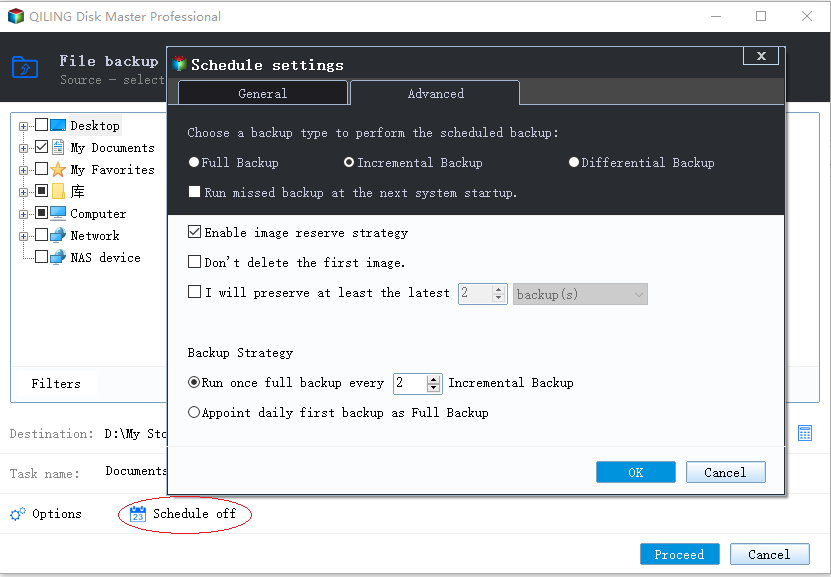
Click "Options" to configure email notification, sector-by-sector backup, compression, etc.
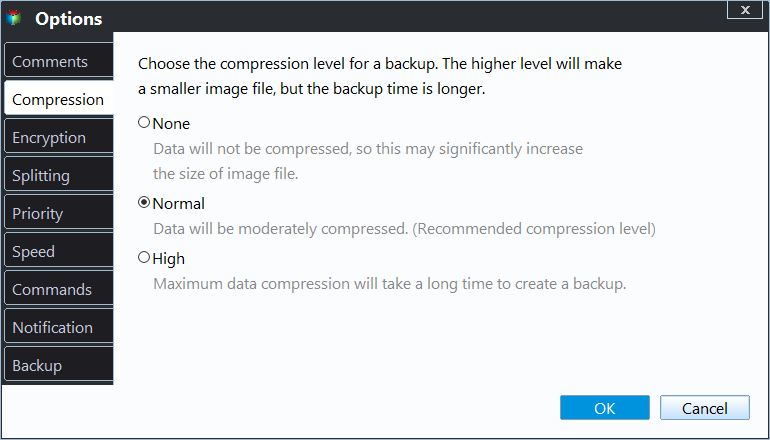
5. To schedule your first backup, click "Proceed" and then "Add the schedule and Proceed now" to run your first backup.
Qiling Disk Master also allows you to backup your hard drive from the command line using the DiskMasterX.exe utility, a paid feature available in the Professional edition. Additionally, it offers cloning capabilities, enabling you to clone your hard drive or operating system to safeguard your data without the need for imaging.
Related Articles
- Does OneDrive Backup Automatically? Your Answer Is Here
OneDrive, a file hosting service from Microsoft, allows users to share and synchronize their files, including a cloud backup feature to store essential data and files. However, OneDrive does not automatically backup files, requiring users to set up scheduled backups themselves. - Top 5 Best External Backup Drive Windows 10 of 1-4 TB Capacity
This guide explains Top 5 Best External Backup Drive Windows 10 of 1-4 TB Capacity with clear steps, key checks, and practical tips. - Why Do My Favorites Keep Disappearing in Outlook 365[Cause & Solution]
The constant disappearance of Outlook Favorites will bring great inconvenience to our work and even lead to the loss of some important information. - How to Fix "Google Photo Lost Photos" Issue (with Prevention Tips)
This guide explains How to Fix "Google Photo Lost Photos" Issue (with Prevention Tips) with clear steps, practical tips, and safer ways to complete the related Windows, disk, backup, or recovery task. - Windows Server Backup Delete Old Backups | 3 Ways
You will learn how Windows Server Backup deletes old backups automatically and corresponding solutions when it fails. All of them are below. - Can Windows Server Backup Work with Volume Greater Than 2TB?
If you don't know how to fix Windows Server Backup greater than 2TB, continue to read this article and learn the possible reasons as well as 6 effective methods.
Products
Articles & Tutorials
- Data Recovery
- Data Backup
- File Recovery
- File Backup
- File synchronize
- System Backup and Restore
- Disk and Partition Clone
- Technical articles
- Disk Master Help
- Windows Deleted File and Disk Recovery Tutorials
- Windows File and Data Recovery Tutorials
- More Windows Tutorials for Install, Security, Files, and PC Tips
- Windows Boot, Repair, and Recovery Environment Tutorials
- Windows Backup Tutorials
- Windows Restore Tutorials
- Windows Clone and Migration Tutorials
- Windows Server Backup, Recovery, and Management Tutorials
- Windows Disk, Partition, and Storage Management Tutorials