Create Windows 10 System Image on USB Flash Drive Easily
Why Create Windows 10 System Image on USB Flash Drive?
If your Windows 10 system fails, you can restore it to normal using either the Recovery Partition or a Windows 10 system image.
When you install Windows on a hard drive, a system reserved partition or recovery partition is created, taking up around 450MB of space, to store WinRE. Additionally, some brand-name computers come with an OEM recovery partition that can help restore the system to its factory settings without a physical installation disk. This partition can take up more space.
Creating a Windows 10 system image on a USB drive is a convenient and reliable way to prepare for system recovery, as it takes up less space compared to a physical drive and can be easily stored or transported. However, sometimes the Windows 10 recovery environment may be missing, making it essential to have a backup plan in place. This is also applicable to other operating systems, such as Windows 11, where creating a system image on a USB drive can provide a more efficient and portable recovery option.
- How to Fix The Drive is Not A Valid Backup Location
- Best Way to Create System Image Windows 10 on USB
How to Fix The USB Drive is Not A Valid Backup Location
You can use Windows 10's built-in tool, Backup and Restore (Windows 7), to create a system image backup.
The process of creating a system image on a USB drive may result in an error, specifically if the USB drive is formatted with FAT32 or if it's formatted with NTFS but the system still refuses to use it as a valid backup location. This is due to the system image being too large to fit on a FAT32 formatted drive, and even if the drive is formatted with NTFS, the system may still not recognize it as a valid backup location.
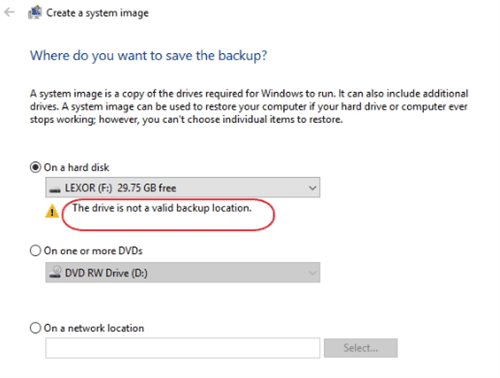
You can fix the issue by creating a folder on your USB drive, sharing it with the Sharing properties, and choosing "On a network location" as the destination to save the Windows 10 system image.
Just do as follows to create Windows 10 system image on USB drive.
1. To access the Backup and Restore feature in Windows 10, type "backup and restore" in the search box, select "Backup and Restore (Windows 7)", and click "Go to Backup and Restore (Windows 7)".
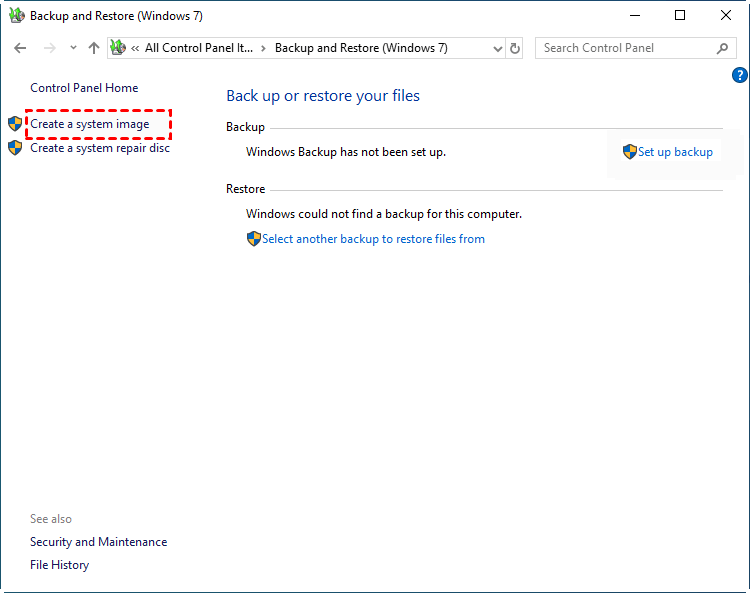
2. To create a system image, click the "Create a system image" option on the left side.
3. To save a Windows 10 system backup on a network location, select "On a network location", click "Select...", input the shared folder on the USB flash drive (like \\192.168.0.58\My Backups), and enter the network credentials, then click "OK" and "Next".
★ Tip: Make sure the USB flash drive is properly inserted into the computer. The program will automatically detect the device.
4. Confirm the backup settings and click Proceed to backup Windows 10 to USB drive.
★ Tip: This method works for Windows 11, with a slight variation in location. Start by going to Start > Settings > System > Storage, then scroll down to Storage Management and select Advanced storage settings. Next, choose Backup options and select Go to Backup and Restore (Windows 7).
Then it will create system image on USB flash drive successfully. If not, please try the following steps and run commands as administrator.
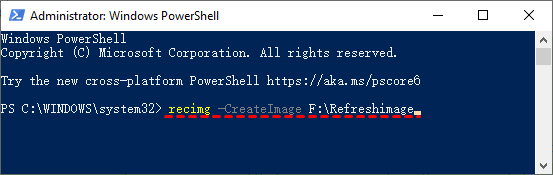
- Create a folder named Refreshimage in the USB drive.
- To open Windows PowerShell as an administrator, press the Windows key + X on the desktop, and then select Windows PowerShell (Admin) from the menu.
- Type recimg -CreateImage DriveLetter>:\Refreshimage and press Enter. (change the USBDriveLetter with your USB drive letter)
Additions:
▶ If you want to access advanced recovery options for troubleshooting or reinstall Windows from USB, you can search for "recovery drive" and create a USB recovery drive, ticking the option to back up system files to the recovery drive. This will allow you to reinstall Windows, but will remove your apps and files.
▶ For more detailed solutions for possible erros, you can refer to can't backup system to USB drive.
Best Way to Create System Image Windows 10 on USB
If you're still having trouble creating a system image backup on a USB drive, you can try using Qiling Disk Master Professional, a tool that works well with USB flash drives on Windows Vista, XP, 7, 8, 8.1, 10, 11, and also supports imaging other devices such as hard disks, NAS devices, external hard disks, SD cards, and SSD drives. It also offers a hard disk cloning feature for safe and easy data cloning.
Please download the 30-Sign up for a day free trial to have a try. Then, follow the steps to backup Windows 10 to USB easily.
1. Connect your USB flash drive to your computer, ensuring it's detected, then launch Qiling Disk Master.
2. On the main interface, select Backup > System Backup.

★Tip:To ensure a smooth and successful installation of Windows 10, it's recommended to have a USB drive with sufficient space (at least 16GB) to accommodate the Windows 10 system image. This will guarantee that the installation process goes without any issues, and you can enjoy a fully functional Windows 10 operating system on your device.
3. Select the USB flash drive as the destination location to save the Windows 10 system image, and optionally edit the Task Name to make it distinguishable from other backups.

★ Tip: The program will automatically select the partitions related to Windows 10 system files and boot files.
4. To create a Windows 10 system image on a USB drive, click "Proceed" to initiate the process. This will allow you to easily create a system image on your USB drive, making it simple to restore your computer to its current state if needed.

★ Tips:Options enable you to encrypt, split, compress the Windows 10 system image, enable email notification, use VSS, sector by sector backup, etc.
☄ Backup ScheduleWindows 10 allows you to backup your data to a USB drive on a regular basis. You can schedule backups to occur daily, weekly, or monthly, or even set up event triggers to initiate backups when specific events occur, such as when you plug in the USB drive. This feature enables you to automate the backup process and ensure your important files are safely stored on an external device.
☄ Backup SchemeThis software allows you to choose between full, incremental, or differential backups, and also enables you to set a retention policy to automatically delete old backup images.
After creating a Windows 10 system image on a flash drive, you'll find it has been successfully created. Take the USB drive to a safe place to keep it secure.
You can create a bootable USB to boot a computer in case it fails one day. Alternatively, if you don't have a USB or CD/DVD, you can create a recovery environment on the current computer, allowing you to access the software in the recovery environment at the next system startup.
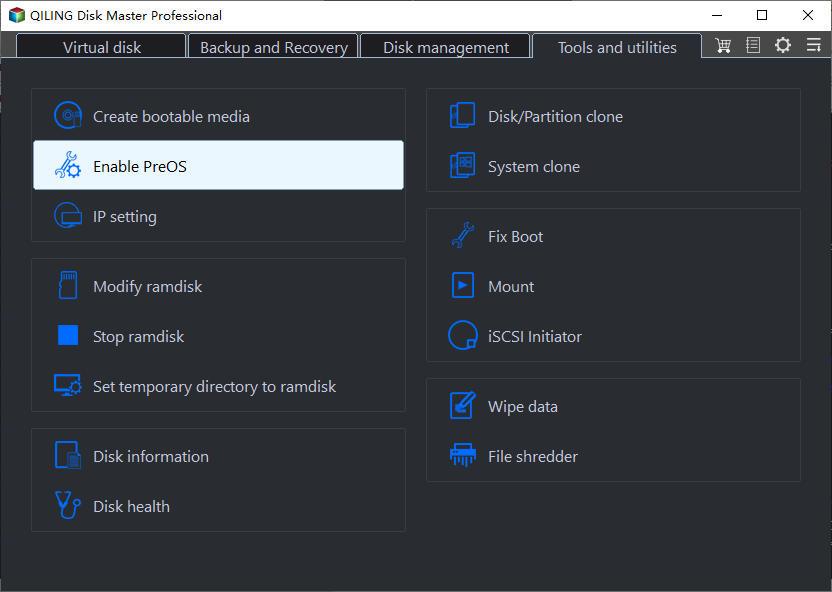
★ Advanced way to create Windows 10 system image
Qiling OneKey Recovery is a specialized software that allows you to create a system image on Windows 11/10/8/7 & Windows Servers, saving it to a local disk, external hard drive, or USB flash drive, and enabling automatic booting. Additionally, it enables the creation of a factory recovery partition to hold the system image.
The Epilogue
After creating a Windows 10 system image on a flash drive, you can create bootable media to boot your computer in case it fails to boot. This allows you to restore the Windows 10 system image back to normal, or even to a new hard drive if the original one fails. This process provides a safety net in case of system or hardware failures.
You can create a Windows 10 system image on a USB flash drive, which will automatically back up your system every time the USB is plugged in, making it a convenient and smart way to keep your system backed up.
To protect unlimited computers within a company, you can use Qiling Disk Master Technician, which allows deploying/restoring system image files on server-side computers to multiple client-side computers over a network using its built-in Qiling Image Deploy tool.
Related Articles
- Solved: Create a System Image Not Working for USB Drive in Windows 7/8/10
- Restore Windows 10 from Recovery USB (4 Ways included)
- Top 2 Ways to Create Windows 10 Recovery Disk or USB Drive
- 2 Ways to Restore Windows 10 System Image to New Hard Drive
- Best Way to Clone Windows 10/8/7 to External Hard Drive
- [Full Guide] How to Restore Windows 7 from System Image Backup
You can restore Windows 7 from a system image backup using two effective methods. If Windows 7 system image recovery doesn't work, you can try using Qiling Backup, a software that allows you to recover your system with just a few clicks.
Products
Articles & Tutorials
- Data Recovery
- Data Backup
- File Recovery
- File Backup
- File synchronize
- System Backup and Restore
- Disk and Partition Clone
- Technical articles
- Disk Master Help
- Windows Deleted File and Disk Recovery Tutorials
- Windows File and Data Recovery Tutorials
- More Windows Tutorials for Install, Security, Files, and PC Tips
- Windows Boot, Repair, and Recovery Environment Tutorials
- Windows Backup Tutorials
- Windows Restore Tutorials
- Windows Clone and Migration Tutorials
- Windows Server Backup, Recovery, and Management Tutorials
- Windows Disk, Partition, and Storage Management Tutorials