How to Put Windows 10 on SSD from HDD without Reinstallation?
Should Windows be on SSD or HDD?
HDD and SSD are two types of hard drives with distinct uses. Some computers use HDD as the primary hard drive, while others use SSD as the boot drive. A few systems have both, with SSD for the operating system and HDD for data storage. If you're unsure which one to install Windows on, check the comparison table to learn about their main differences (advantages and disadvantages) and make an informed decision.
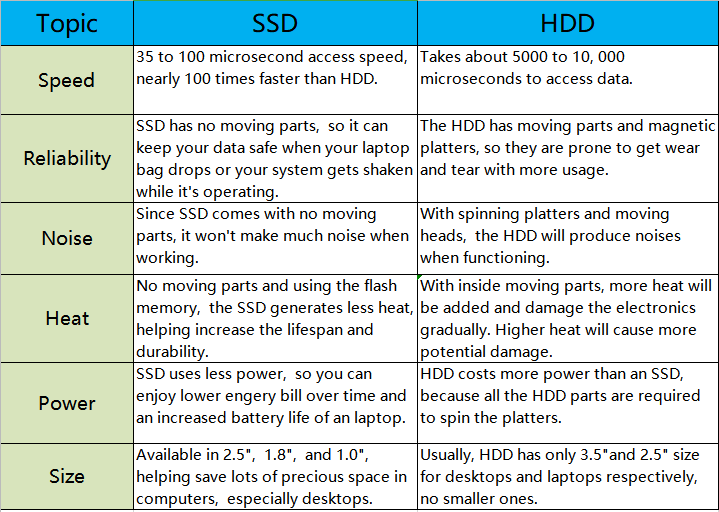
SSDs outshine HDDs in several key areas, including size, speed, power consumption, reliability, and durability. While HDDs are larger, slower, and more power-hungry, SSDs are the clear winner in terms of performance and longevity. Placing the Windows OS on an SSD can provide a noticeable speed boost on your PC, making it the preferred choice for a smoother user experience.
How to put Windows 10 on SSD from HDD?
To put Windows on an SSD from a HDD, you can simply replace the HDD with the SSD, and then install Windows and other programs on the new SSD, which will give you a faster and more efficient computer. This method is a clean install, which means you'll have a fresh start and won't have to deal with any potential issues that might arise from transferring data from the old HDD to the new SSD. This process will indeed take some time and effort, but the end result will be a significantly improved computer performance.
You can easily move Windows OS from HDD to SSD using an OS migration tool called Qiling Disk Master Professional. Its "Migrate OS to SSD Wizard" feature allows you to securely transfer the system partition from one disk to another (HDD/SSD), including Windows 10, and boot from the SSD afterwards. This makes the process much simpler and more straightforward.
Before proceeding, please note:
▸To replace the HDD with the SSD, first connect or install the SSD to your computer and verify it is detected. Next, ensure the SSD comes with an unallocated space, which is larger than the Windows partition on the HDD. This will allow for a smooth transition and minimize potential issues during the upgrade process.
▸If you're upgrading from an MBR HDD to a GPT SSD with Windows 10, ensure your motherboard supports UEFI boot mode to avoid boot issues.
▸If necessary, you can convert SSD to GPT or MBR, making it as same as the partition style of the source HDD.
You can try the demo version and follow these steps to put Windows OS on an SSD from a HDD.
Step 1. Install and run Qiling Disk Master Professional. Click "Tools" > "System Clone".

Step 2. Select an unallocated space on the destination SSD and click "Next".

Step 3. Now you can resize the partition just being created on the SSD drive as you need. Then, click "Next".

Step 4. Click "Proceed" on the top right corner to commit the operation.
Step 5. A note about how to boot OS from SSD or HDD will appear, you can read it and click "Yes".

When the process is finished, the current Windows 11/10/8/7 partition has been transferred to the SSD from the HDD. To boot from the destination disk, you can remove the HDD and install the SSD, or keep both if there's an extra drive bay, requiring you to enter BIOS and move the SSD to the first boot order.
Another feature to put Windows 10 on SSD from HDD
If you want to reinstall Windows OS on an SSD from a HDD, you can move only the system drive to the SSD. Alternatively, you can use the "Clone Disk" feature to move everything, including the OS and personal data, from the HDD to the SSD, which will clone the entire HDD, including all partitions, to the SSD and make the destination disk bootable.

Summary
You can use Qiling Disk Master Professional to migrate Windows 10 from a hard drive to a solid-state drive (SSD), and also use it to align SSD partitions for improved performance. The tool also features a "Wipe Hard Drive" function to free up space on the old HDD after the OS migration. Alternatively, you can use Qiling Disk Master Server for migrating Windows Server OS to an SSD from a HDD.
Related Articles
- 2 Ways: Move Windows Server 2012 to New Hard Drive without Boot Issues
No matter you want to move entire Windows Server 2012 hard drive, or just migrate Windows Server 2012 operating system partition to a new disk, Qiling Disk Master Server can make it easy to move Windows Server 2012 to new hard drive. - HDD to SSD Cloning Freeware Download [Windows 10, 8,7]
You may need HDD to SSD cloning freeware to migrate data when upgrading the disk. Luckily, Qiling Disk Master Standard can clone HDD to SSD on Windows 11, 10, 8, and 7 without losing data. - Cloned Hard Drive or SSD Won't Boot - How to Fix?
If you find the cloned hard drive/SSD won't boot after you clone your Windows 7/8/10/11 hard drive to another HDD or SSD, you can try the solutions listed in this post to make the cloned hard drive bootable successfully. - How to Rebuild RAID Without Losing Data [for RAID 0/1/5]
Learn how to Rebuild RAID Without Losing Data with clear steps, key checks, and practical tips. - Top 4 Ways to Backup Yahoo Mail to Computer
This tutorial provides 4 ways to backup Yahoo Mail to your computer, whether you want to save individual emails or an entire folder. - Complete Guide: Backup Yahoo Mail to Hard Drive (4 Ways)
This guide explains Complete Guide: Backup Yahoo Mail to Hard Drive (4 Ways) with clear steps, key checks, and practical tips.
Products
Articles & Tutorials
- Data Recovery
- Data Backup
- File Recovery
- File Backup
- File synchronize
- System Backup and Restore
- Disk and Partition Clone
- Technical articles
- Disk Master Help
- Windows Deleted File and Disk Recovery Tutorials
- Windows File and Data Recovery Tutorials
- More Windows Tutorials for Install, Security, Files, and PC Tips
- Windows Boot, Repair, and Recovery Environment Tutorials
- Windows Backup Tutorials
- Windows Restore Tutorials
- Windows Clone and Migration Tutorials
- Windows Server Backup, Recovery, and Management Tutorials
- Windows Disk, Partition, and Storage Management Tutorials