Complete Guide: Backup Yahoo Mail to Hard Drive (4 Ways)
Yahoo Mail overview
Yahoo Mail is a widely used online email service for individuals and businesses. Although it stores messages in the cloud, backing up Yahoo Mail to a hard drive gives you a local copy for offline access, migration, and data protection.

Many users need a reliable way to download Yahoo emails for offline access, archiving, or mailbox cleanup. This guide explains several methods to save Yahoo emails to a hard drive.
The necessity to archive Yahoo Mail to hard drive
In today's digital landscape, preserving data has become a crucial endeavor, and archiving Yahoo emails is a common practice. The motivations for downloading Yahoo emails to a hard drive may vary, but the primary reasons include preserving important information, avoiding data loss due to account termination or hacking, and ensuring continuity of communication records. By transferring Yahoo emails to a hard drive, users can safeguard their digital history, maintain a record of important communications, and provide a backup in case of unforeseen events.
1. Archiving Yahoo emails to a computer or local drive provides a reliable backup that is readily accessible.
2. Convenient Offline Access: Users may back up or save Yahoo Mail to their hard drives due to the need for easy or offline access to their emails.
3. Mitigating Account Compromise Risks: In the unfortunate event of a compromised or hacked Yahoo account, data loss can occur due to the lack of backup files for Yahoo emails.
4. Resilience Against Outages and Viruses: Archiving Yahoo Mail to a hard drive serves as a backup plan, providing a safeguard against service disruptions or virus attacks that may affect Yahoo Mail, ensuring continued access to important emails and data.
Users can make informed decisions about safeguarding their valuable data and ensuring uninterrupted access to crucial information by understanding the common reasons for archiving Yahoo emails.
How to download Yahoo emails to hard drive
To back up Yahoo emails to a hard drive on Windows, use one of the methods below. Manual methods are suitable for a few messages, while Outlook or backup software is better for folders or regular backups.
Option 1. Through Copy-Paste
Step 1. Please open Yahoo Mail by typing your Email address and Password.
Step 2. Navigate to the Mail in the top right corner and click on it.
Step 3. Open the email you want to save and copy its content by pressing Ctrl+C on your keyboard.
Step 4. Now, open the MS Word File and Paste your email by pressing the Ctrl+V keys simultaneously.
Step 5. After that, select the Save As option under the File tab.
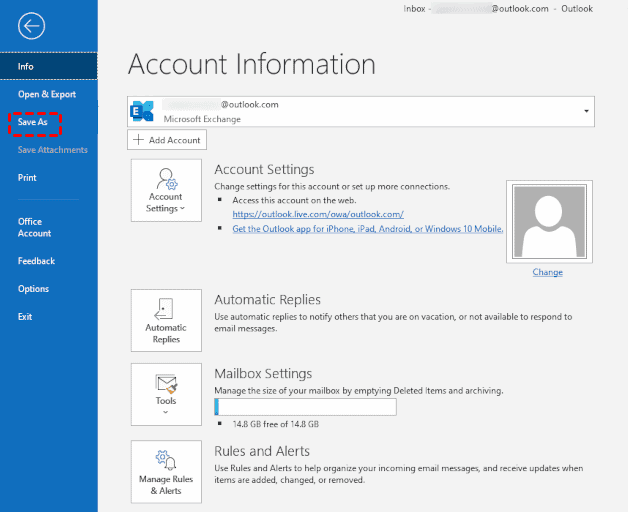
Step 6. In the end, choose the Destination path for the word file and hit the Save button.
Option 2. Print Yahoo email to PDF file
Step 1. Access Yahoo Mail and log in using your credentials.
Step 2. Select the Mail you want to save or backup and click on the More icon.
Step 3. Choose the Print option to save the email as PDF.
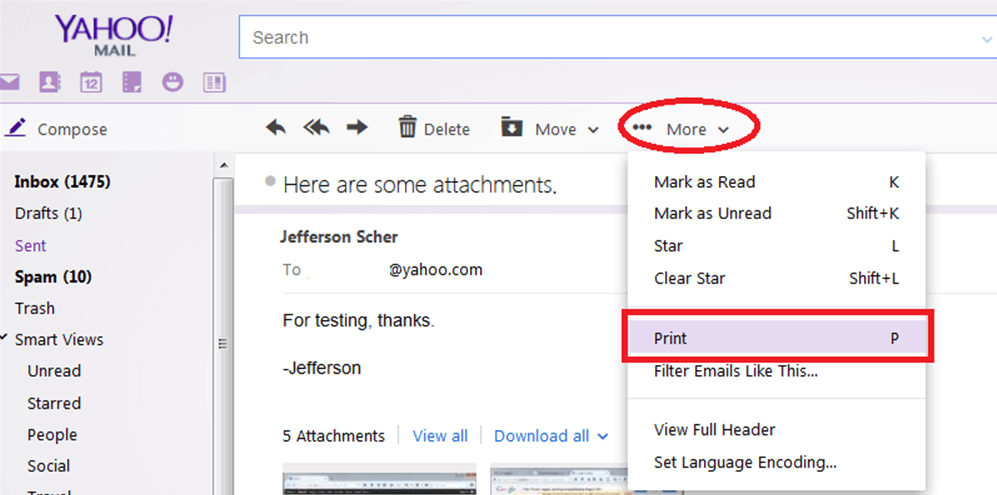
Step 4. Now, on the Print window, choose Save as PDF on the Destination column. Click on Save.
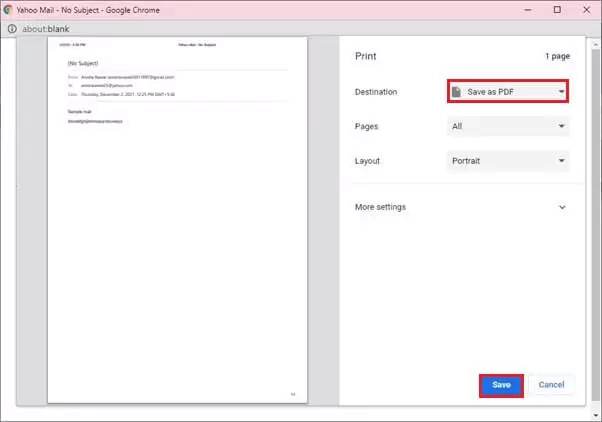
Step 5. Then, you will be asked to name the print file and save it to your target hard drive.
Option 3. Save Yahoo Emails to Computer Using MS Outlook
Stage 1: First, add Yahoo Mail to the Outlook desktop application.
Step 1. Launch the MS Outlook application on your PC by entering your credentials.
Step 2. Locate and click on the Add Account button.
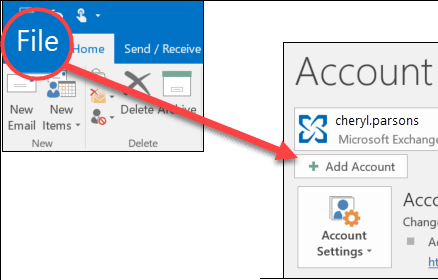
Step 3. Enter your Yahoo email account and click on Connect. Then, enter your Yahoo Mail password, and tap Connect again.
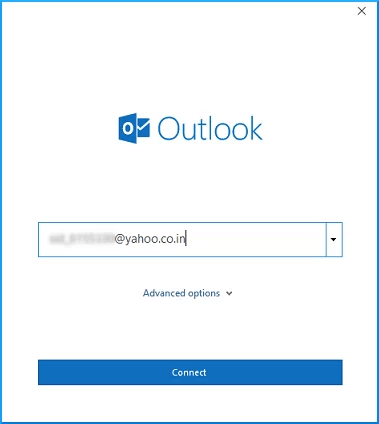
✍Note:
If you have trouble connecting your Yahoo account with Outlook, you may need to use a Yahoo app password instead of your regular account password.
Step 4. Open the Outlook desktop client, and you should see Yahoo Mail in Outlook configured successfully.
Stage 2: Now you can start to export Yahoo emails from Outlook to hard drive.
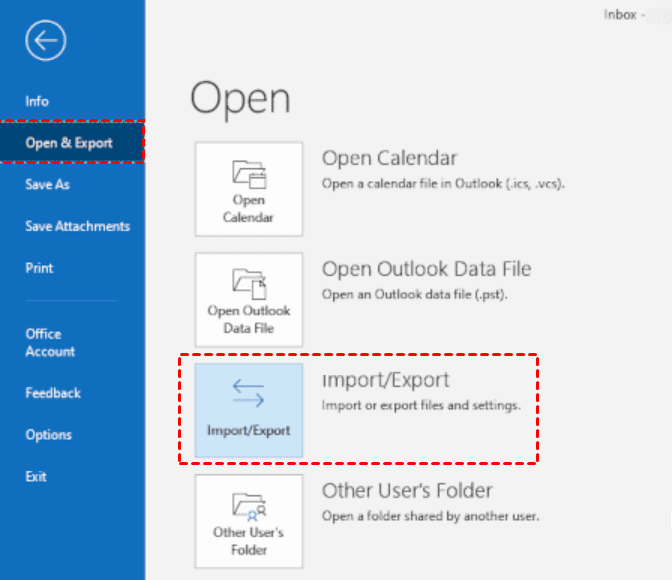
Step 1. To initiate the process, navigate to File > Open & Export > Import & Export.
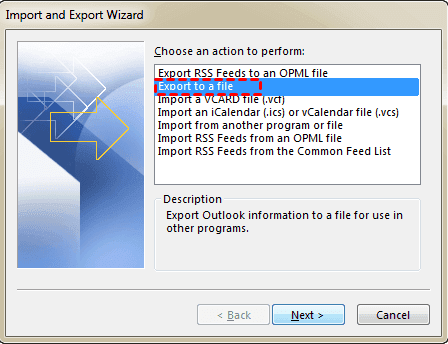
Step 2. Then choose Export to a file and click on Next.
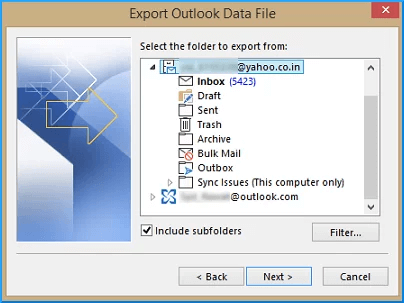
Step 3. Select the specific Yahoo folders you wish to export from, and make sure to tick the "Include subfolders" checkbox. Then, click "Next".
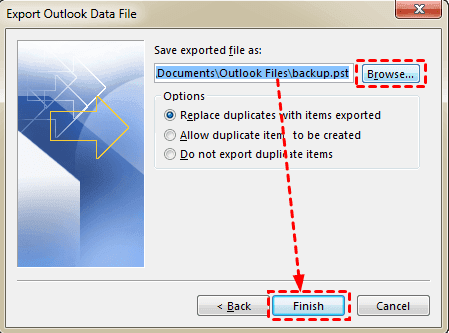
Step 4. Use the default location or browse for a location where you want to save the exported file, and click Finish.
✍Manual methods such as copy-paste, printing to PDF, or exporting through Outlook can save Yahoo emails locally, but they may be slow for large mailboxes and may require repeated operations. If you need automatic or folder-level backup, use dedicated email backup software.
Bonus tip: professional method to backup Yahoo Mail
To avoid the limits of manual methods, you can use Qiling Disk Master Professional to back up Yahoo Mail to a hard drive automatically.
☑It is compatible with all Windows PC operating systems, including Windows 11/10/8.1/8/7/XP/Vista, and also has a server edition for server users.
☑This software supports various email services such as Gmail, Outlook Mail, Yahoo! Mail, iCloud, Zoho Mail, HushMail, GMMX Mail, Hotmail, and others, allowing users to backup their emails, including Hotmail, to a hard drive.
☑You can either create a full copy of your emails at one time or just back up the changes via incremental and differential backup.
Download this software on your computer and follow the steps to back up Yahoo Mail to a hard drive.
Summary
Backing up Yahoo Mail to a hard drive can be done by copy-paste, printing emails to PDF, exporting Yahoo folders through Outlook, or using Qiling Disk Master for automatic mailbox backup.
Related Articles
- Why Your Hard Drive Missing in Windows 10 or 11 and How to Fix It?
If you meet new hard drive disappeared in Windows 10 or hard drive missing Windows 10 after installing, learn how to fix this issue with several practical ways from this post. - How to Change Steam Install Location in Windows 10?
Learn how to change Steam install location on Windows 10/11. Step-by-step guide to move Steam games to another drive or external hard drive without re-downloading, saving disk space on your C drive. - How to Clear A USB Stick on Windows 10/8/7 Permanently?
In this post, you will know how to clear a USB stick on Windows 10 via Command Prompt, or a free partition manager. Choose a proper method to wipe clean your USB stick now. - Easy Steps to Create New Logical Partition in Windows 11/10/8/7
To create a logical partition in Windows 10, there are two methods. One way is to combine Windows Disk Management and Diskpart, which allows you to create a new logical partition. Alternatively, you can use a third-party tool to achieve the same result.
Products
Articles & Tutorials
- Data Recovery
- Data Backup
- File Recovery
- File Backup
- File synchronize
- System Backup and Restore
- Disk and Partition Clone
- Technical articles
- Disk Master Help
- Windows Deleted File and Disk Recovery Tutorials
- Windows File and Data Recovery Tutorials
- More Windows Tutorials for Install, Security, Files, and PC Tips
- Windows Boot, Repair, and Recovery Environment Tutorials
- Windows Backup Tutorials
- Windows Restore Tutorials
- Windows Clone and Migration Tutorials
- Windows Server Backup, Recovery, and Management Tutorials
- Windows Disk, Partition, and Storage Management Tutorials