Fixed: Hard Drive Missing in Windows 10 or 11
- ✍ Contents
- Hard drive disappeared in Windows 10
- 1. New hard drive not showing up in Windows 10
- 2. Hard drive missing after installing Windows 10
- How to fix hard drive missing in Windows 10?
- Fix new hard drive not appearing in Windows 10
- To fix Windows 10 hard drive missing issue caused by Windows 10 installation or Windows 10 update, you can try the following methods: Boot in Safe Mode and check if the hard drive is recognized. If not, try to boot in Last Known Good Configuration.
- 1. Update device drivers in Windows 10
- 2. Reset drive letter
- 3. Run hardware and device troubleshooter
- 4. Backup data and format hard drive
Hard drive disappeared in Windows 10
Users may experience the issue of a missing hard drive in Windows 10, which can occur when a new hard drive is not recognized or after a Windows 10 installation or update.
Situation 1. New hard drive not showing up in Windows 10
When plugging a brand new external hard drive into a Windows 10 computer, it's not uncommon for the drive to not show up in Windows File Explorer. There could be several reasons behind this issue, such as the drive not being properly detected by the operating system, or the disk being set to a different file system that Windows doesn't recognize. In some cases, the drive might be formatted with a file system like exFAT or FAT32, which can cause compatibility issues with Windows 10.
Some external hard drives may not be shipped formatted and ready to use, instead arriving in a blank state. If this is the case, when you connect the hard drive to your Windows 10 computer, it may not appear in the system, making it seem like the drive is missing. In this situation, you'll need to "bring the hard drive out of hiding" by formatting it or taking other necessary steps to make it usable.
Situation 2. Hard drive missing after installing Windows 10
Lots of users said their hard drive missing after installing Windows 10, and some users said their hard drive disappeared after Windows 10 update. Why did that happen?
A hard drive may go missing after installing Windows 10 or a Windows 10 update due to outdated or corrupted hard drive drivers installed on the computer.
How to fix hard drive missing in Windows 10?
In Windows 10, a missing hard drive can be caused by various situations, requiring different approaches to resolve the issue. Whether it's due to a faulty drive, corrupted file system, or incorrect drive configuration, a step-by-step troubleshooting process is essential to recover the missing drive and ensure your system's stability.
Fix new hard drive not appearing in Windows 10
To resolve the issue of a new hard drive not showing up in Windows 10, you should follow these steps to bring the missing hard drive online. This involves checking the disk management utility, ensuring the drive is set to online, and verifying the drive is recognized by Windows.
Step 1. To access Windows Disk Management, press the Windows key and the R key at the same time to open the Run dialog box, then type "diskmgmt.msc" and press Enter.
Step 2. In the Disk Management, you can see that your new hard drive is marked as unknown, not initialized, unallocated. Right click the Disk, and it will display you four bits of information, select "Initialize Disk".
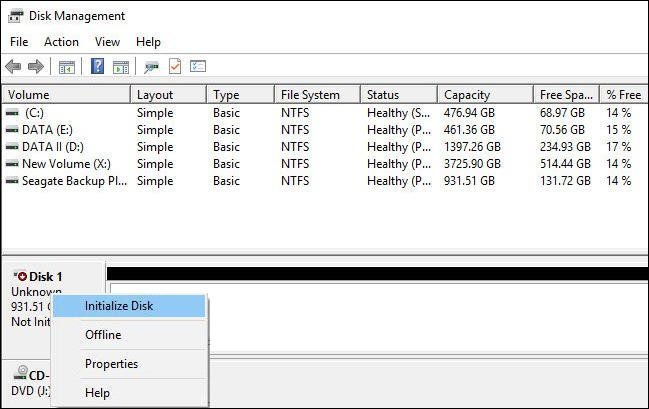
Step 3. You will be prompted to choose the partition style of your disk, select GPT and click OK.

- Tips:✎...
- The MBR partition style has limitations, including a maximum hard drive capacity of 2TB, which GPT does not have. If your hard drive exceeds 2TB, it's recommended to initialize it in GPT partition style to utilize its full capacity, as MBR will not be able to display the full capacity of larger drives.
- GPT partition style needs your computer motherboard supports EFI/UEFI.
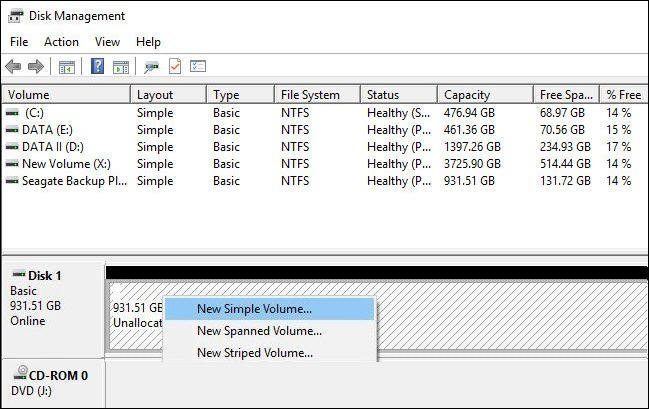
Step 4. After converting the disk to basic, you will be returned to the main interface of Disk Management. Here, you can see the hard drive becomes Basic, Online, Unallocated. To proceed, right-click the unallocated partition and select "New Simple Volume".
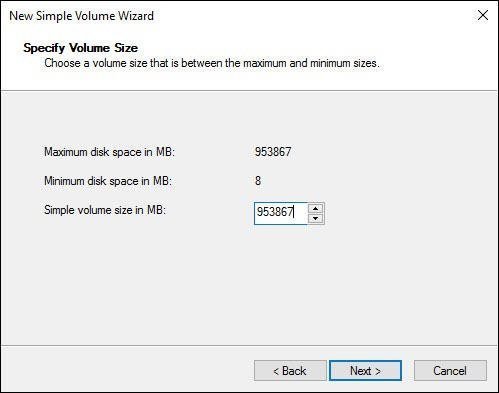
Step 5. Here you will be brought to the New Simple Volume Wizard to guide you on setting up the disk. Select the size of your partition, and since the default number is the full available disk space, we'll set it to the default. Click Next.
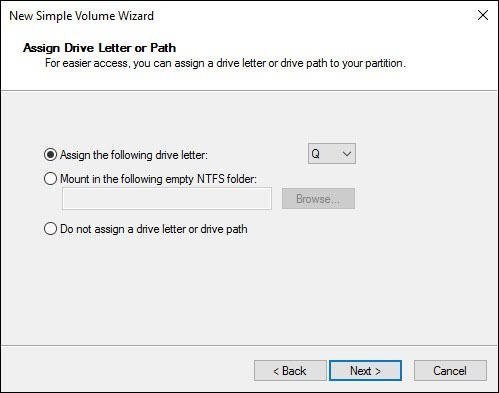
Step 6. Then, assign a drive letter for the drive. You can also use the default one. Click Next.
Step 7. To format the partition, choose a file system (such as FAT32, NTFS, or exFAT) and click "Next".
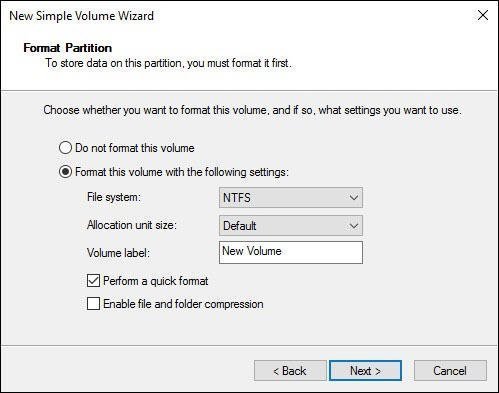
Once the progress is complete, your hard drive will be marked as Basic, Online, and Healthy in Disk Management, and it will also appear in Windows Explorer.
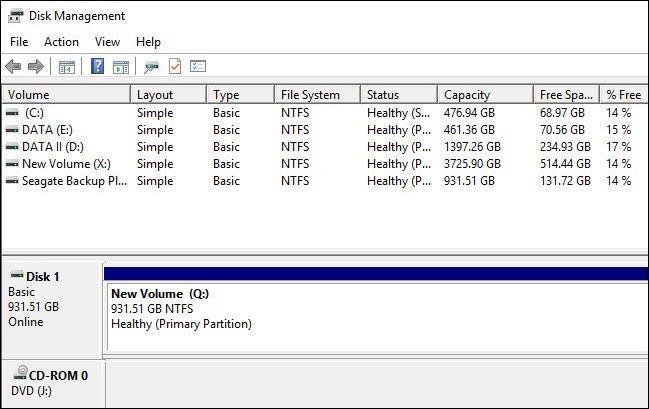
Fix Windows 10 hard drive missing after Windows 10 installation or update
If the hard drive is missing in Windows 10 due to installation or update issues, you can try checking the Disk Management console to see if the hard drive is visible. If not, you can add it manually.
If your hard drive is missing in Windows 10 Disk Management, you can try the following: Check if the hard drive is properly connected to the computer, and ensure that the power cord is securely plugged in. If the issue persists, try restarting the computer and the Disk Management tool.
▶1. Update device drivers in Windows 10
1. To open the Device Manager, click on "This PC" and then select "Manage" from the context menu. From the "Manage" window, click on "Device Manager" to access the Device Manager interface.
2. To update the driver for your device, first expand one of the categories to find the name of your device, then right-click on it and select the "Update Driver" option from the context menu. This will initiate the process of searching for and installing any available driver updates for the selected device.
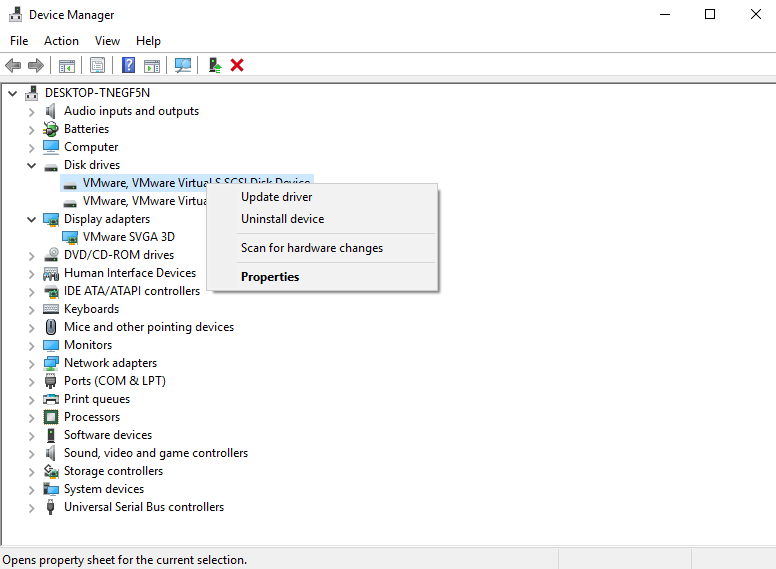
3. Select Search automatically for updated driver software.
If Windows can't find a new driver for your device, you can try searching the manufacturer's website for one. If that doesn't work, you can try reinstalling the driver by going to Device Manager, right-clicking on the device, selecting "Uninstall device", and then restarting your computer. Windows should then automatically reinstall the driver.
->Open Device Manager, right-click the name of the device and select Uninstall.
Restart your PC and Windows will attempt to reinstall the driver.
If your external hard drive is not showing up in Windows 10, don't worry! After restarting your computer, the hard drive may appear in Windows 10. However, if it's still missing in Windows File Explorer, try checking the following methods to locate it.
▶2. Reset drive letter
After upgrading Windows 10, either a primary hard drive or the second hard disk is missing, which can be seen as unallocated space in Disk Management.
1. Right-click on it, select Change drive letter and paths.
2. To add a drive letter or path, click on the "Add" button to open the "Add Drive Letter or Path" window.
3. Select a drive letter.
If a hard drive is missing in Windows 10, you can try assigning a drive letter to the hard drive, reboot your Windows 10, and navigate to "This PC" to see if the missing hard drive shows up in the list.
▶3. Run hardware and device troubleshooter
Running the hardware and device troubleshooter can help resolve the issue of a missing hard drive in Windows 10 by identifying and fixing any hardware or device-related problems that may be causing the issue.
1. Press Windows + R keys simultaneously.
2. Type Control and press Enter to open Control Panel.
3. Type troubleshooting in the search box, open it.
4. Click View all on the left pane.
5. Run the hardware and device troubleshooter, follow the instructions, and it may resolve the issue.
▶4. Backup data and format hard drive
Formatting a hard drive can make it reusable, but it will erase all data on the drive. To avoid losing important files, use a data recovery software to scan the hard drive and back up all data before formatting it using Windows Disk Management or a third-party software.
Qiling Disk Master Standard is a free, all-in-one hard drive partition software that can help you initialize a disk, format a raw partition, and assign a drive letter, making it a great tool to have when dealing with issues like a missing hard drive in Windows 10 or 11. Here's how you can use it.
Step 1. Connect your hard drive to your Windows PC, download Qiling Disk Master Standard, and install it on your Windows PC.
Step 2. Launch the freeware, which will display all hard drives on the Windows PC. The software will show an unformatted hard drive, which is the missing hard drive in Windows 10. Right-click on this unformatted hard drive and select "Format Partition" to recover it.
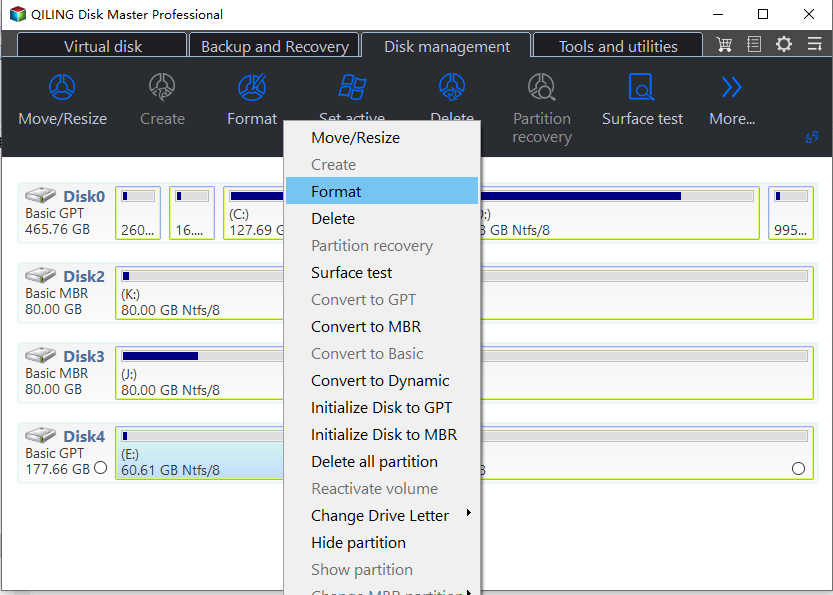
Step 3. You will be brought to the window of "Format Partition" where you can decide to format the partition into FAT32, NTFS, exFAT, Ext2, Ext3, etc.
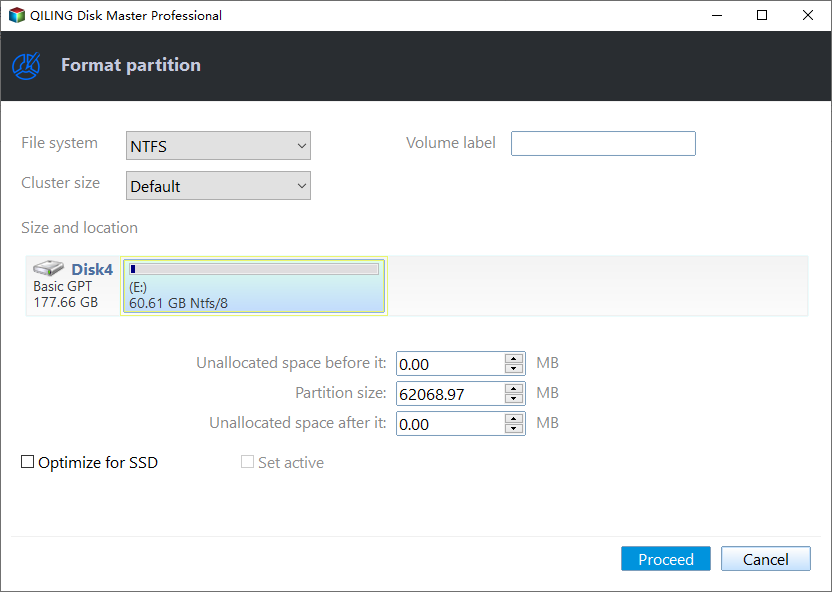
Step 4. After completing the previous step, you will return to the main interface, where you can click the "Proceed" button to initiate the progress.
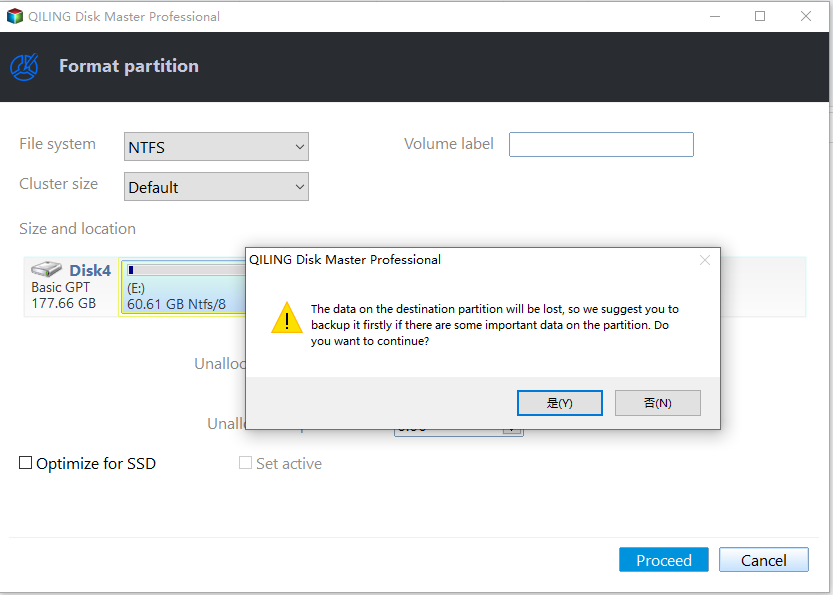
After replacing the missing hard drive, Windows 10 or 11 may automatically detect and show the drive in both File Explorer and Disk Management. This means that the drive will appear in the File Explorer as a drive letter, and in Disk Management as a disk device, allowing you to access and manage its contents.
* Formatting a partition can potentially erase all data on the hard drive. If you have important files on the drive, use data recovery software to try to retrieve them before proceeding with the format.
* Qiling Disk Master is a great partition manager that offers advanced features, including data recovery and conversion of system disk from MBR to GPT, which can be unlocked by upgrading to its Professional edition.
Related Articles
- How to: Clone Internal Hard Drive to External Hard Drive Step-by-Step
Clone an internal hard drive to an external drive step by step for backup, migration, or disk replacement. - How Do I Merge Extended Partition to Primary Partition Simply and Quickly?
If you want to merge extended partition to primary partition and find no way, you can get an easy way to merge two or more partitions without data loss in this article. - Microsoft Surface Data Eraser - Free Tool to Wipe Data
Use Microsoft Surface Data Eraser to wipe Surface devices securely, or choose an alternative if the tool fails. - Transfer Windows 7/8/10 OS (Operating System) to SSD
In order to get faster Windows boot time, you can migrate only OS to SSD drive from HDD. This article brings you a reliable software-Qiling Disk Master, allowing you to transfer only Windows 10, 8, 7 from HDD to SSD without boot issues. - The Best Windows Server 2012 (R2) Disk Cleanup Tool
This article describes how to enable disk cleanup in Windows Server 2012 (R2) as well as the best Windows Server 2012 (R2) disk cleanup tool. Please read on. - How to Perform Windows 7 Disk Defrag Command Line?
If you want to speed up computer, disk defrag is your first choice. In this tutorial, I will show how to perform Windows 7 disk defrag command line step by step.
Products
Articles & Tutorials
- Data Recovery
- Data Backup
- File Recovery
- File Backup
- File synchronize
- System Backup and Restore
- Disk and Partition Clone
- Technical articles
- Disk Master Help
- Windows Deleted File and Disk Recovery Tutorials
- Windows File and Data Recovery Tutorials
- More Windows Tutorials for Install, Security, Files, and PC Tips
- Windows Boot, Repair, and Recovery Environment Tutorials
- Windows Backup Tutorials
- Windows Restore Tutorials
- Windows Clone and Migration Tutorials
- Windows Server Backup, Recovery, and Management Tutorials
- Windows Disk, Partition, and Storage Management Tutorials