Easy Steps to Create New Logical Partition in Windows 11/10/8/7
- Primary Partition, Extended Partition and Logical Partition
- How to Create Logical Partition in Windows 10? (3 Ways)
- Way 1. Create Logical Partition Using Diskpart
- Way 2. Create Logical drive via Disk Management
- Way 3. Create Logical Drive Windows 10 with powerful third-party software
- Create Windows 10 Logical Partition by Converting from Primary Partition
- Issues on Creating Primary Partition in Windows 10
- Conclusion
Primary Partition, Extended Partition and Logical Partition
On an MBR hard drive, there are three types of partitions: Primary partition, Extended partition, and Logical partition. A single MBR disk can have up to 4 Primary partitions or 3 Primary and 1 Extended partition. The Extended partition can contain multiple Logical partitions, with no limit on the number of partitions. In other words, Primary partitions are the main partitions, Extended partitions serve as containers for Logical partitions, and Logical partitions are created within the Extended partition.
Primary partition is used for system files and can be marked as Active, while Logical drive in Extended partition is used for personal data and third-party apps. The GPT partition style avoids this issue by making all partitions Primary. MBR can be converted to GPT if needed.
On an MBR hard drive, if there are already 3 primary partitions, creating a fourth partition will automatically be an Extended partition or Logical partition by default, as the user's computing needs often require more than 4 partitions.
To create a logical partition in Windows 10 without creating a primary partition, you can use the Disk Management tool. Open the tool by searching for it in the Start menu or by typing "diskmgmt.msc" in the Run dialog box, and then right-click on the unallocated space where you want to create the logical partition. Select "New Logical Drive" from the context menu, or use the "New Simple Volume" feature and select the "Logical" drive type from the drop-down menu.
How to Create Logical Partition in Windows 10/11? (3 Ways)
The most reliable and easy-to-follow methods for creating a Logical partition in Windows OS are using DiskPart.exe and Disk Management, which are built-in tools for managing computer hard drives. These functions can complete various basic disk and partition operations.
Qiling Disk Master Professional is a user-friendly partition manager that serves as a reliable alternative to Windows' built-in partition management tools, offering advanced features for managing disk partitions.
Way 1. Create Logical Partition Using Diskpart
To create a logical partition, you first need to create an Extended partition from unallocated space on your hard drive. If there is no available unallocated space, you can shrink a redundant partition to generate some. DiskPart.exe, a disk configuration utility built into Windows, can be used to start this process.
Step 1. To start the Run dialog box, press the Windows key + R. Then, type "diskpart" in the box and press Enter to open Command Prompt.
Step 2. Input following commands in order and each command is followed by.
- list disk
- select disk X (X is target hard drive)
- create partition extended The command `fdisk /dev/sda` creates a partition table on the disk `/dev/sda`. The command `partprobe /dev/sda` updates the kernel's partition table.
- create partition logical size=81920
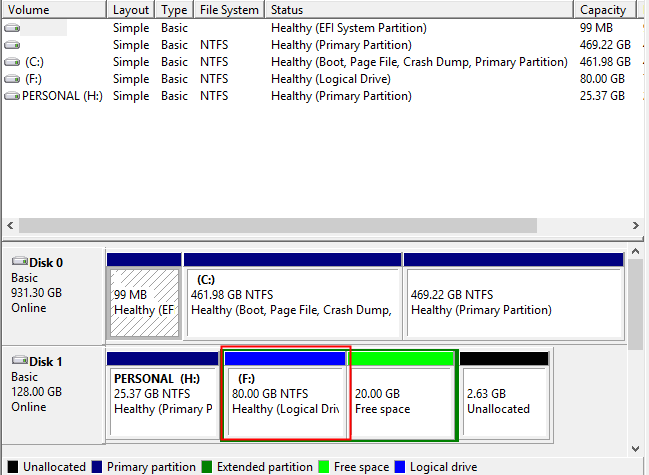
- assign letter=F A Logical volume with drive letter F of 80GB size will be created.
- exit
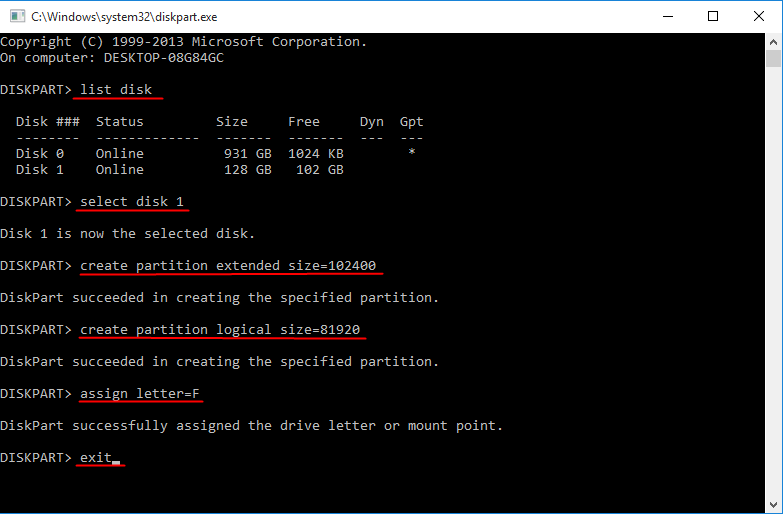
Tips: 1024MB is equal to 1GB, and if you multiply 1024MB by 100, it's equal to 100GB. This formula can be used to create partitions of any size. Also, it's essential to format a new drive before using it.
Way 2. Create Logical drive via Disk Management
You can create a Logical drive in the Extended partition using Disk Management. Open Disk Management, find the Extended partition in green, right-click it, and select "New Simple Volume". Follow the wizard, choosing NTFS as the file system, to create the new Logical partition.
Way 3. Create Logical Drive Windows 10 with powerful third-party software
Qiling Disk Master Professional is an all-around partition manager that enables you to create a Logical drive from an existing redundant Primary partition or Logical partition directly. This tool allows you to specify the drive letter and partition size of the new Logical partition in a single window, making it easy to manage your disk space.
PS.: There is a Demo version for free download.
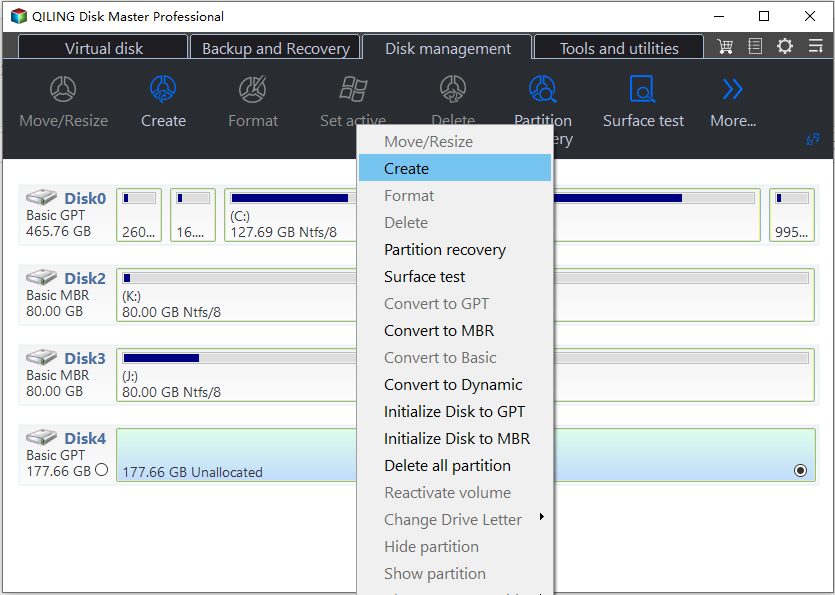
Step 1. Install and start Qiling Disk Master. Right-click the redundant partition and select "Create Partition".
Step 2. In the small window, you can modify the partition size and drive letter of the new drive.
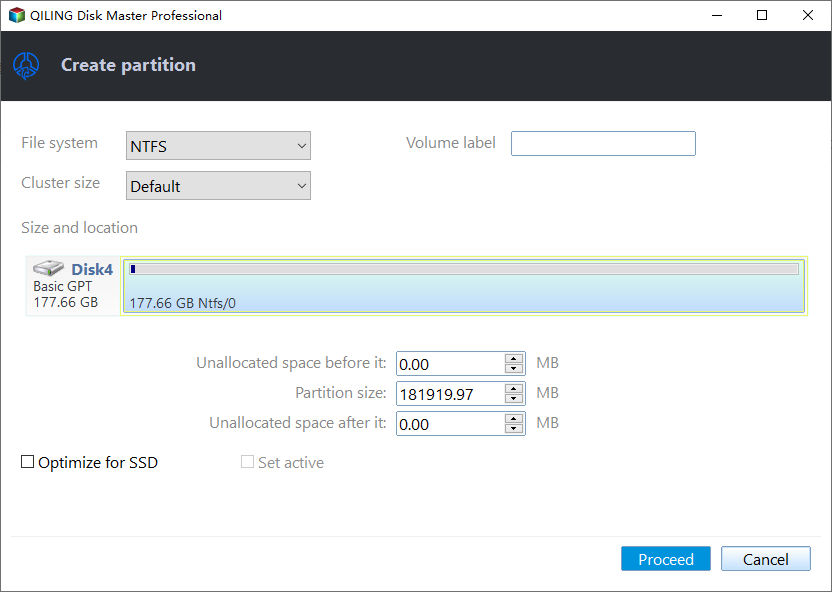
Step 3. Click "Proceed" to start the creation.
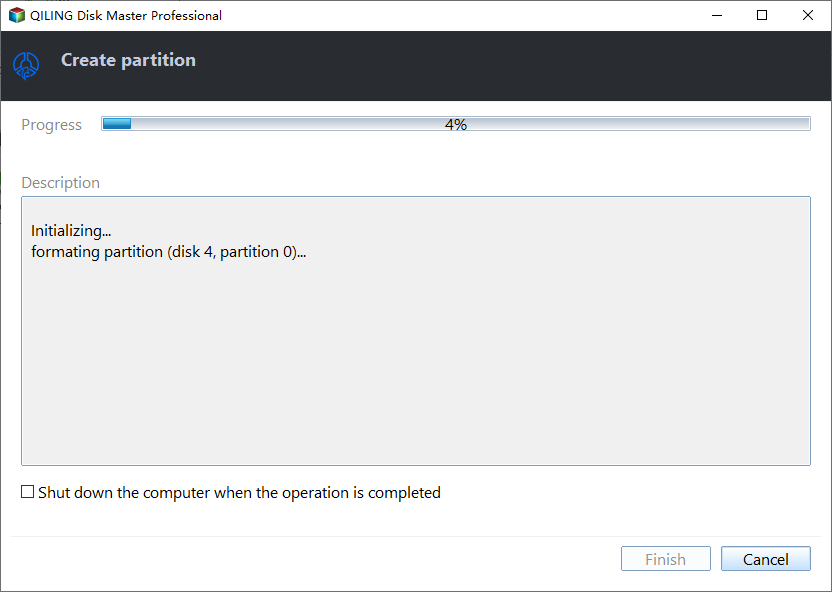
Warning: If you create a partition from the system drive or if the redundant partition contains Qiling Disk Master Professional, a system reboot is necessary.
Create Windows 10 Logical Partition by Converting from Primary Partition
There are multiple ways to create empty and new Logical drives, including using the Disk Management tool, the Diskpart command, and the Disk Management console. Additionally, it is also possible to convert a Primary partition to a Logical drive, providing another option for creating Logical drives.
You can create a new partition in Windows 10 using Disk Management, which will be a Primary partition by default. Then, using third-party software like Qiling Disk Master Professional, you can convert the newly created partition to a Logical partition without losing any data. This process allows you to repurpose an existing Primary partition as a Logical one.
Step 1. Run Qiling Disk Master, right-click the Primary partition you want to convert and select "Convert to Logical Partition".
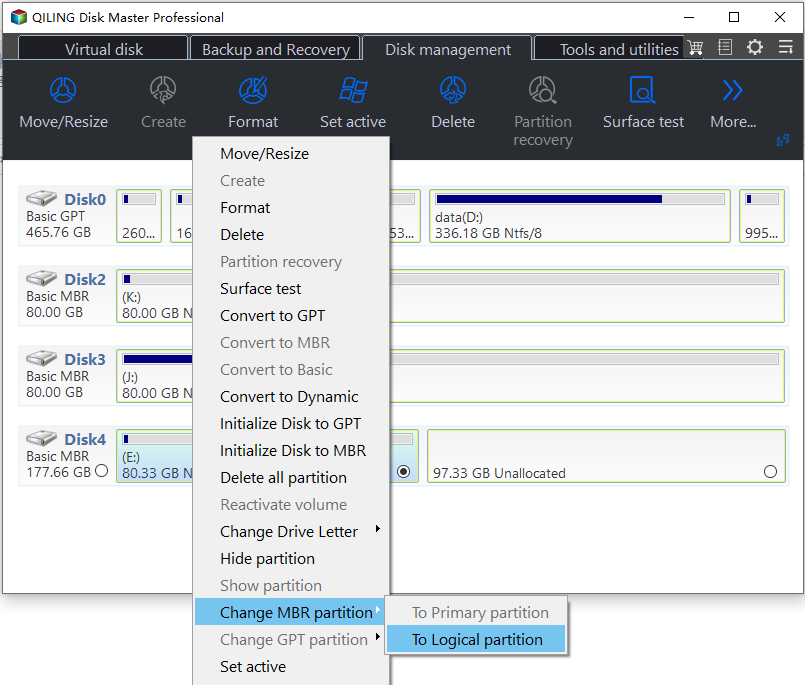
Note: Qiling Disk Master won't let users convert their system partition to Logical, as it could prevent the system from booting.
Step 2. You will waiting for while to execute pending operations.
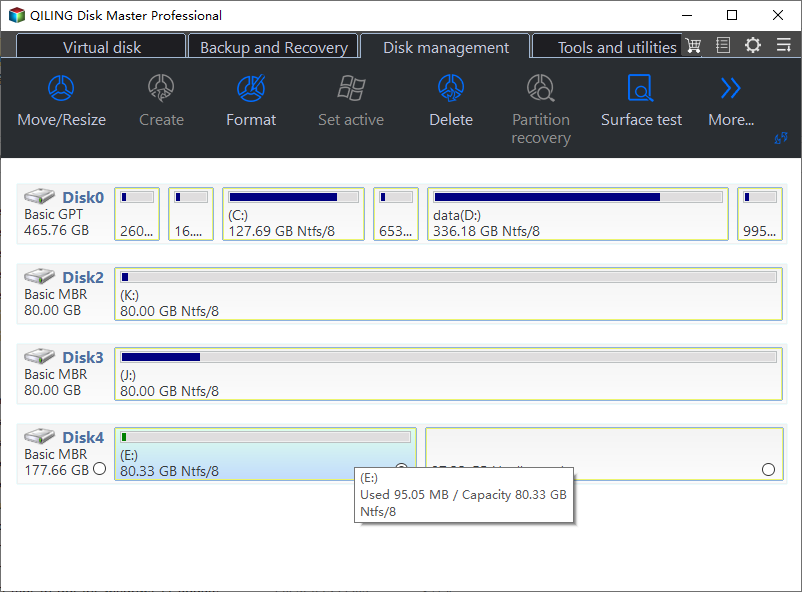
❈Please note❈≈≈≈≈≈≈≈≈≈≈≈≈≈≈≈≈≈≈≈≈≈≈≈≈≈≈≈≈≈≈≈≈≈≈≈≈≈≈≈≈≈≈≈≈≈≈≈≈≈≈≈≈≈≈≈≈≈≈≈≈≈≈
▸One can convert a Logical drive to a Primary partition using Qiling Disk Master Professional, provided there are less than 3 Primary partitions on the MBR hard drive.
▸This method can be used to create an Extended Logical partition in Windows 7, as the software is also supported by Windows 10, 8/8.1, 7, XP, and Vista.
▸Qiling Disk Master provides a Server edition that allows creating logical partitions on Windows Server operating systems, including Server 2008, Server 2012, Server 2016, and Server 2019.
≈≈≈≈≈≈≈≈≈≈≈≈≈≈≈≈≈≈≈≈≈≈≈≈≈≈≈≈≈≈≈≈≈≈≈≈≈≈≈≈≈≈≈≈≈≈≈≈≈≈≈≈≈≈≈≈≈≈≈≈≈≈≈≈≈≈≈≈≈≈≈≈≈≈≈
Issues on Creating Primary Partition in Windows 10
Some users have reported issues with creating Primary and Logical partitions in Windows 10 using Disk Management. When attempting to create a Primary partition, an error message may appear stating that the disk already contains the maximum number of partitions, preventing a new volume from being created in the unallocated space.
The issue arises from the limitation of MBR disks, which can only be divided into 4 Primary partitions or 3 Primary partitions and 1 Extended partition. If you try to create more Primary partitions than allowed, Disk Management will warn you and convert the Basic MBR disk to a Dynamic disk, which is not what most users want. However, if you have mistakenly converted to a Dynamic disk, you can convert it back to a Basic disk without losing any data.
- Delete one Primary partition to reduce the partition amount;
- To convert an MBR disk to a GPT disk, follow these steps: First, open the Disk Management tool by pressing the Windows key + R, typing "diskmgmt.msc," and pressing Enter.
- To optimize disk space, merge primary partitions to reduce the number of partitions, and then create a new primary partition.
The last method is safe and most acceptable, and you can ask the same software - Qiling Disk Master for help.
Step 1. Launch Qiling Disk Master, right-click on a target primary partition and select "Merge Partitions".
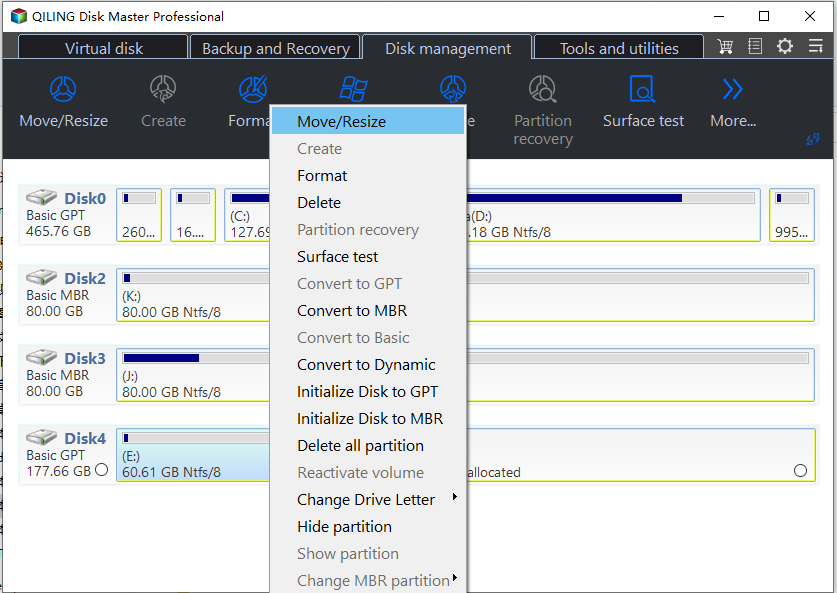
Step 2. In the pop-up dialog, select the other Primary partition and choose the D drive as the target partition.
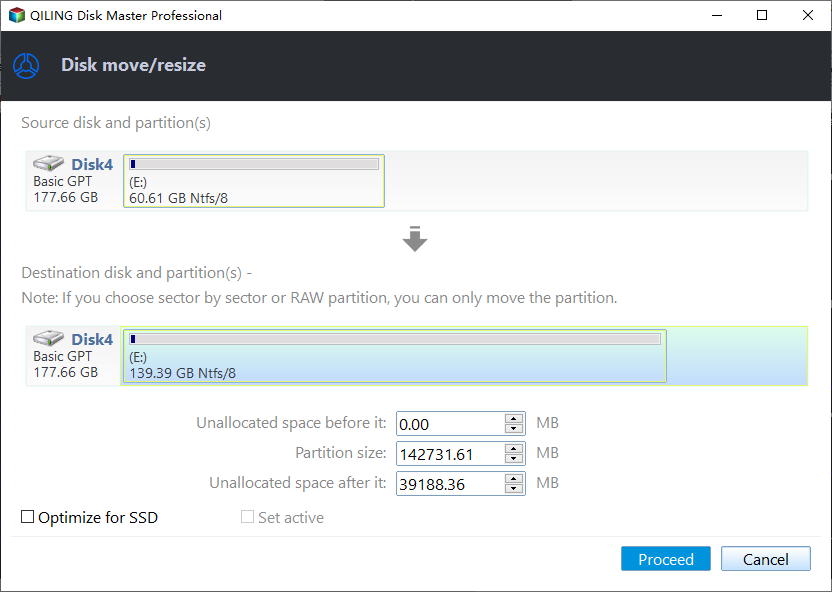
Step 3. Click "Proceed" to execute the operations.
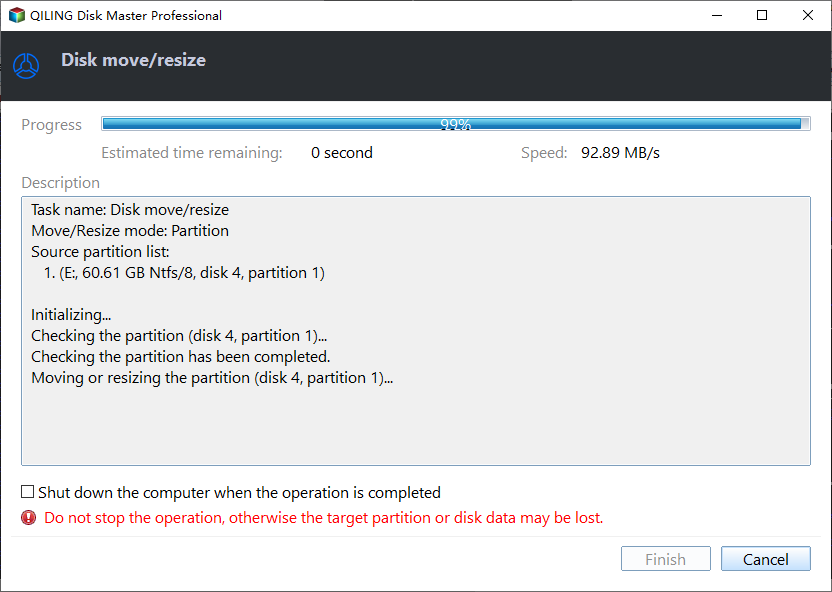
Note: This process will not cause data loss because all data will be stored in a folder in the target Primary partition, allowing you to change the settings to merge data to the E drive if needed. However, it's a good idea to backup important files before taking any actions.
Verdict
Dealing with various issues in daily computing is inevitable, just like figuring out how to create a Logical partition in Windows 10. To ensure a safe computing experience, it's wise to have one or two reliable partition tools at hand.
Qiling Disk Master is a versatile tool that offers various features beyond just converting between Primary and Logical drives. It can also convert file systems from NTFS to FAT32, convert boot disks between MBR and GPT without deleting partitions, and migrate an operating system to an SSD with secure boot capabilities.
Related Articles
- Convert Primary Partition to Logical in Windows 7 with Ease
If you are in need of converting primary partition to logical in Windows 7, read this article patiently to get effortless methods. - Solved: Not Possible to Format Hard Drive to exFAT
To create a logical partition in Windows 10, you can use Disk Management or DiskPart to shrink an existing partition and create a new one. Qiling Disk Master offers an easier way to manage partitions with a graphical interface. - NTBackup Server 2012: How to Back up Files in Windows Server
In this post, you will learn how to back up files through NTBackup Server 2012. Besides, we will also share another better backup tool to back up anything more easily in Windows Server 2003, 2008 (R2), 2012 (R2), 2016, 2019 and 2022. - What is NTBackup and How to Use It in Windows 10/8/7?
NTBackup is a built-in tool in early Windows OS and has been replaced since Vista. But you can still use it in Windows 10 if you have BKF files to restore. - Windows Unable to Repair Drive-Fix It Right Now!
Fix Windows was unable to repair the drive, learn why drive repair fails, and use CHKDSK or backup tools to protect data. - Fix Windows Update 0x80080005 Error in 7 Effective Methods
To manage disk partitions in Windows 10, you can use Qiling Disk Master to create, resize, merge, format, or delete partitions without losing data. It supports all partition types on both MBR and GPT disks.
Products
Articles & Tutorials
- Data Recovery
- Data Backup
- File Recovery
- File Backup
- File synchronize
- System Backup and Restore
- Disk and Partition Clone
- Technical articles
- Disk Master Help
- Windows Deleted File and Disk Recovery Tutorials
- Windows File and Data Recovery Tutorials
- More Windows Tutorials for Install, Security, Files, and PC Tips
- Windows Boot, Repair, and Recovery Environment Tutorials
- Windows Backup Tutorials
- Windows Restore Tutorials
- Windows Clone and Migration Tutorials
- Windows Server Backup, Recovery, and Management Tutorials
- Windows Disk, Partition, and Storage Management Tutorials