Fix Windows Update 0x80080005 Error in 7 Effective Methods
- User Case
- What Causes Windows 10 0x80080005 Error?
- How to Fix Error Code 0x80080005 on Windows
- Method 1. Run Windows Update Troubleshooter
- Method 2. Reset Windows Update Components Manually
- Method 3. Take Ownership of System Volume Information Directory
- Methos 4. Scan Your System for Issues
- Method 5. Turn off Your Firewall Temporarily
- Method 6. Uninstall Third-party Software
- Method 7. Upgrade with the Media Creation Tool
- Create a System Backup to Avoid Future Windows Update Errors
- Conclusion
User Case
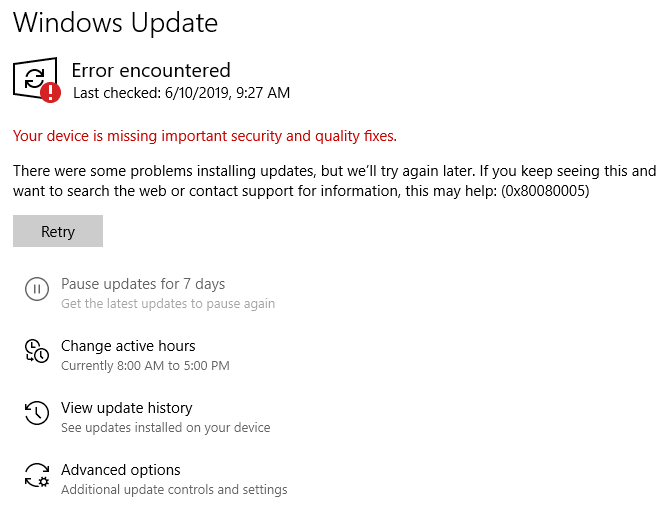
Windows Update Error Code 0x80080005
"I'm experiencing issues with Windows Update 21H2, receiving the error message '0x80080005' when trying to install updates. I've run the troubleshooter, but it didn't detect or resolve the issue. This problem seems to be affecting other areas of my Windows experience, such as the Microsoft Store being unable to download anything, Windows Security showing a blank page, and Developer mode not downloading. I'd appreciate any help or guidance you can offer to resolve this issue."
- Question from Microsoft
What Causes Windows 10 0x80080005 Error?
Windows 0x800800050x80080005 is an error code reported by many users when trying to run Windows Update. It prevents the operating system from downloading and applying the latest updates, which may cause serious problems in the long run. The error is often caused by issues with the Windows Update service, corrupted system files, or problems with the Microsoft account. To fix the issue, users can try restarting the Windows Update service, running the System File Checker tool, or resetting the Windows Update components. Additionally, checking the Microsoft account and ensuring it is properly configured can also resolve the issue.
◑ The computer cannot access the System Volume Information folder. -- Antivirus software is blocking the Background Intelligent Transfer Service (BITS), preventing system security descriptors from accessing the System Volume Information folder.
◑ The Windows Update components are not functioning properly A Windows Update error 0x80080005 occurs when certain services are not functioning correctly during the update process, leading to the display of this specific error code.
◑ The Windows Update service is not working – Although this is one of the most unlikely reasons, it has been reported by users.
◑ Missing or corrupt system files System files are crucial for a device's smooth operation. If any of these files are damaged or deleted, Windows Update may fail.
How to Fix Error Code 0x80080005 on Windows
The 0x80080005 error can be frustrating, but fortunately, there are several ways to resolve it. To fix this issue, you can try running the Windows Update Troubleshooter, checking for corrupted system files, and ensuring that your Windows account is set to the correct date and time.
- Method 1. Run Windows Update Troubleshooter
- Method 2. Reset Windows Update Components Manually
- Method 3. Take Ownership of System Volume Information Directory
- Methos 4. Scan Your System for Issues
- Method 5. Turn off Your Firewall Temporarily
- Method 6. Uninstall Third-party Software
- Method 7. Upgrade with the Media Creation Tool
Method 1. Run Windows Update Troubleshooter
To resolve the Windows Update 0x80080005 error, start by running the Windows Update Troubleshooter, which is specifically designed to fix all update-related issues.
- Press the Windows key and the "I" key together to open the Settings app.
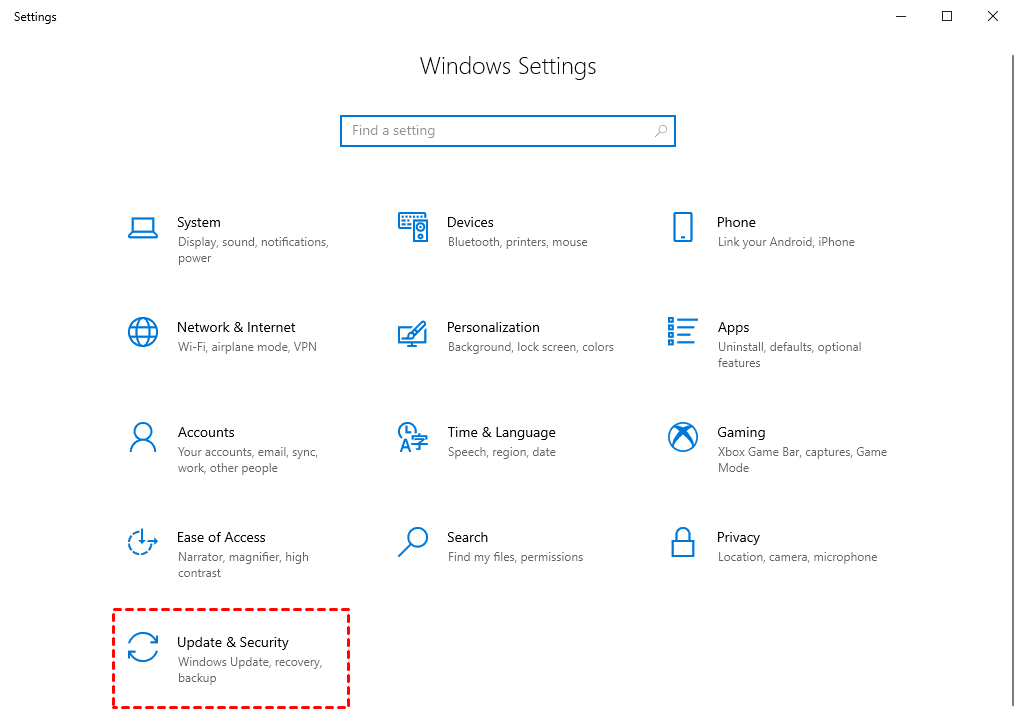
- Navigate to the Update & Security section.
- Now select Troubleshoot from the menu on the left and click Additional troubleshooters from the menu.
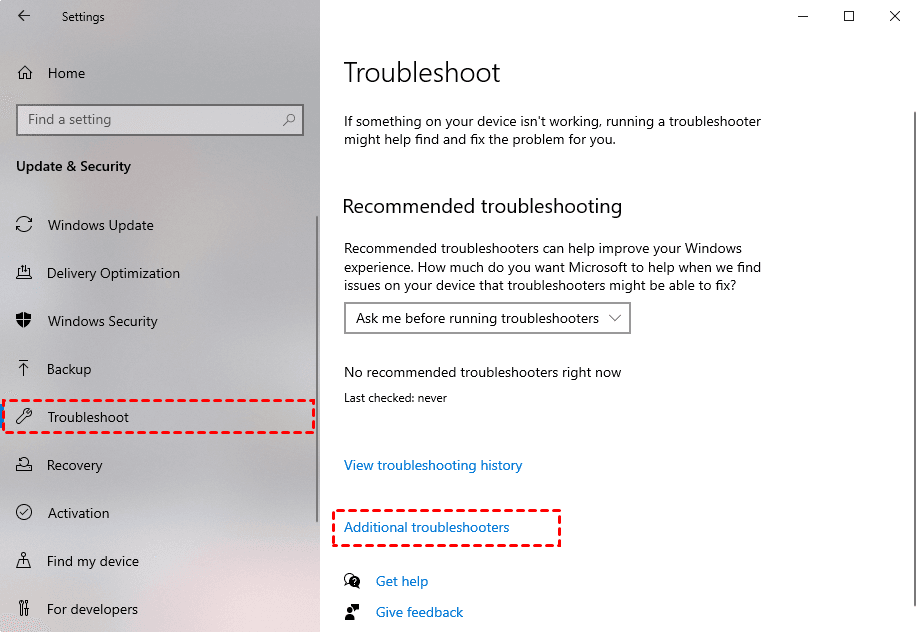
- Click on the Start button, then click on the Settings icon, then click on Update & Security, then click on Troubleshoot, then click on Additional troubleshooters, then click on Windows Update, then click on Run the troubleshooter.

- The program will automatically detect the problem and follow instructions to repair it, then restart your PC and try to run Windows Update immediately after completing the troubleshooter.
Method 2. Reset Windows Update Components Manually
The Windows 10 0x80080005 error is often caused by issues with Windows Update components, and can be resolved by resetting Windows Update components to clear the cache and fix common issues that may cause this error.
- Type "command" in the search box, select the first search result, and click "Run as administrator".
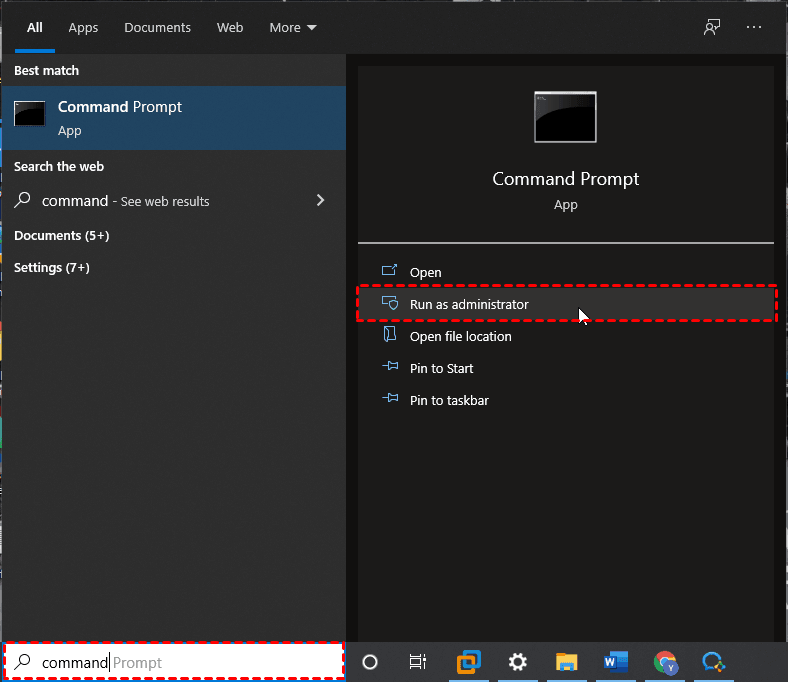
- Now type or paste the following commands one by one and press Enter after each to run them. Running the first 4 commands will stop the BITS, Cryptographic, MSI Installer, and the Windows Update Services, the last 2 commands will rename the SoftwareDistribution and Catroot2 folder:
- net stop wuauserv
- net stop cryptSvc
- net stop bits
- net stop msiserver
- ren C:\Windows\SoftwareDistribution SoftwareDistribution.old
- ren C:\Windows\System32\catroot2 catroot2.old
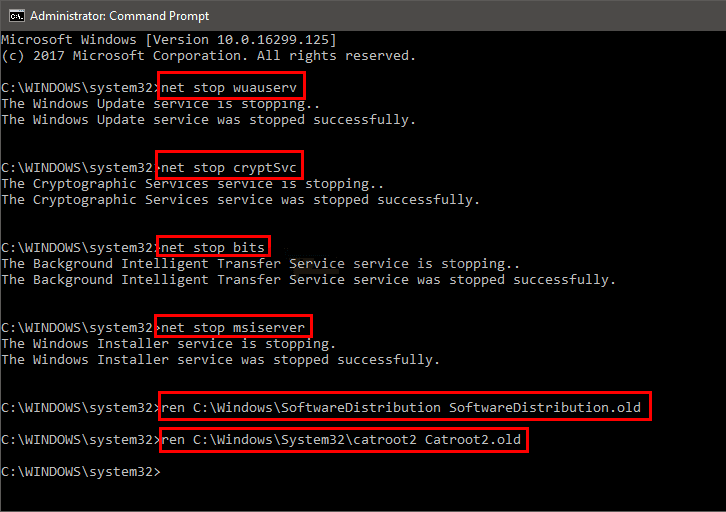
- Then run these commands to start the BITS, Cryptographic, MSI Installer, and the Windows Update Services that you have disabled:
- net start wuauserv
- net start cryptSvc
- net start bits
- net start msiserver
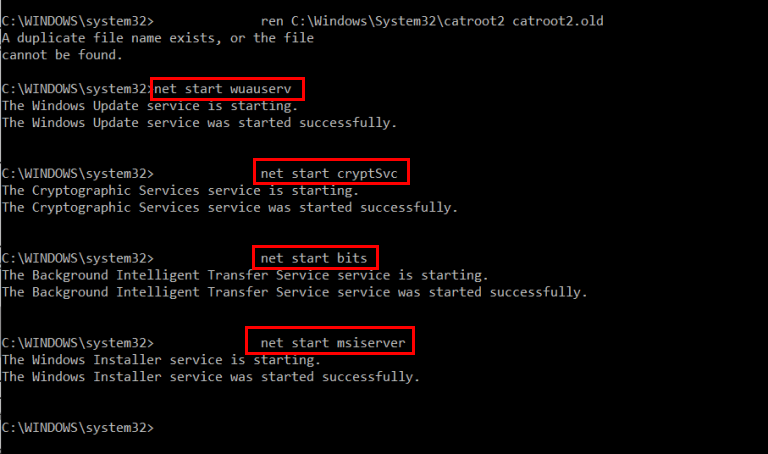
- Exit the Command Prompt and restart your PC. Then, try to run Windows Update to see if it resolves the issue.
Method 3. Take Ownership of System Volume Information Directory
Users receive error 0x80080005 when Windows tries to access the System Volume Information Directory, but can resolve the issue by adjusting system permissions.
- Press the Win + X keys together and select Windows PowerShell (Admin) from the list of options.
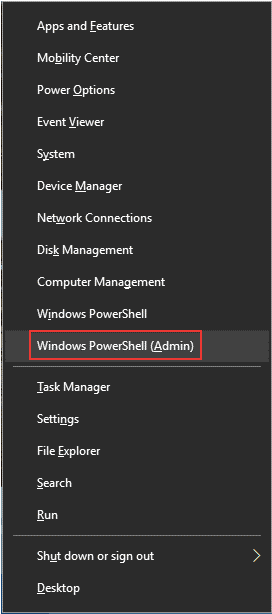
- Then type the following command and press Enter:
- cmd.exe /c takeown /f "C:System Volume Information*" /R /D Y && icacls "C:System Volume Information*" /grant:R SYSTEM:F /T /C /L
- Then reboot your computer and try Windows Update again.
Methos 4. Scan Your System for Issues
Data corruption on the hard disk or operating system can cause Windows Update to malfunction, resulting in an error code like 0x80080005, likely due to a missing or damaged file essential for updating program components.
When it comes to damaged system files, use SFC (System File Checker). To fix HDD errors, you can use CHKDSK (Check Disk). For more serious problems with the component store of the Windows image, turn to DISM (Deployment Image Servicing and Management).
#1. Run SFC Scan
- Type "command" in the search box, select the first search result, and click "Run as administrator".
- Type the following command and press Enter:
- sfc /scannow
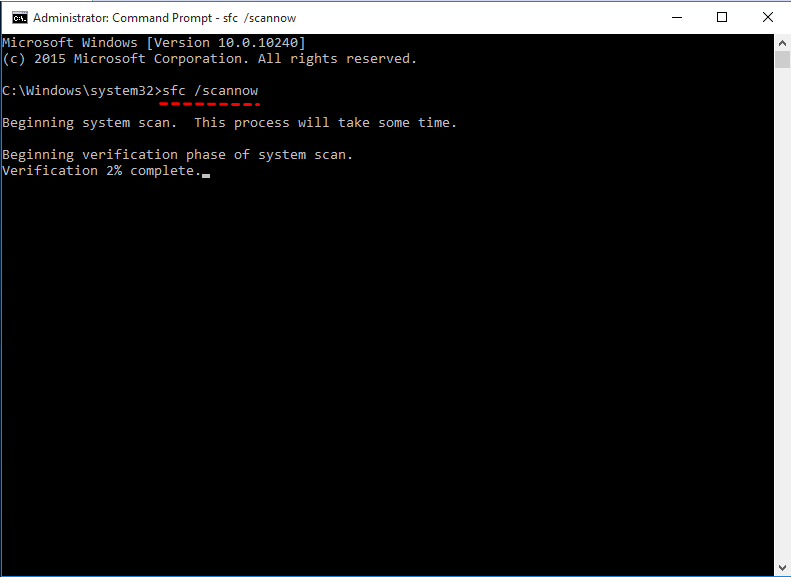
- Wait patiently for the SFC command to perform a system scan and fix any problems. Once the scan is complete, restart your PC and run Windows Update to see if the error 0x80080005 still occurs.
#2. Run a CHKDSK Scan
- Type "command" in the search box, select the first search result, and click "Run as administrator".
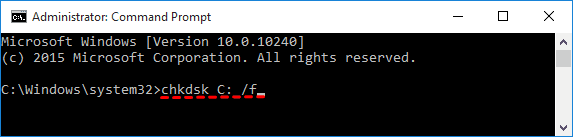
- To run a disk check on your C drive, type `chkdsk c: /f` and press Enter, replacing "c:" with the correct partition letter if your operating system is not installed on the C drive.
#3. Run the DISM Scan
- To run a command as an administrator, start by opening the search box, typically located in the taskbar or by pressing the Windows key + S. Type the command you want to run in the search box, and select the first search result. Once the command is open, right-click on the application or executable and select "Run as administrator" from the context menu.
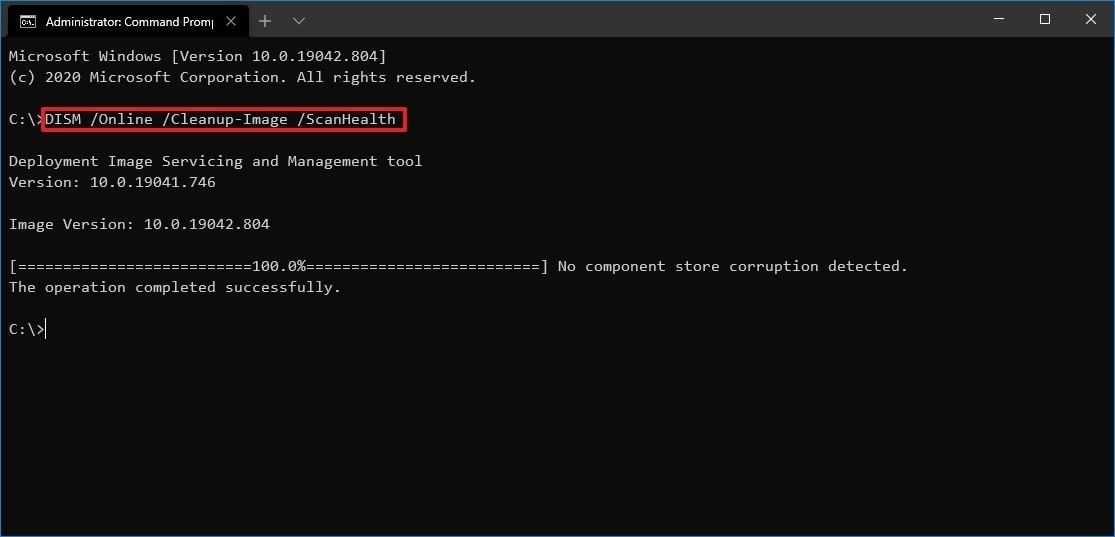
- To open the Command Prompt window, type in the following command and press Enter:
- DISM /Online /Cleanup-Image /ScanHealth
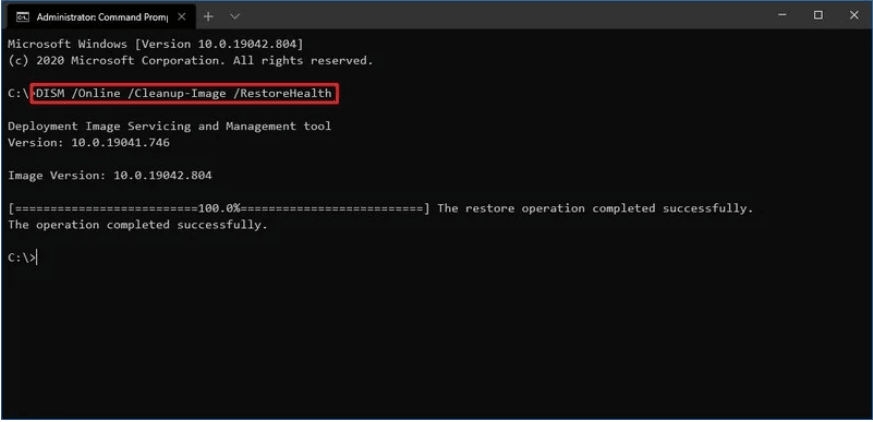
- DISM /Online /Cleanup-Image /RestoreHealth
- DISM /online /cleanup-image /restorehealth
- After running the SFC scan, reboot your PC, and then try Windows Update. If the problem persists, run the SFC scan again to see if it resolves the issue.
Method 5. Turn off Your Firewall Temporarily
Windows Update may be blocked by a firewall, typically due to changed default settings or third-party firewall applications. To resolve this, you can temporarily disable the firewall to allow the update, then re-enable it afterwards. This ensures your computer remains secure.
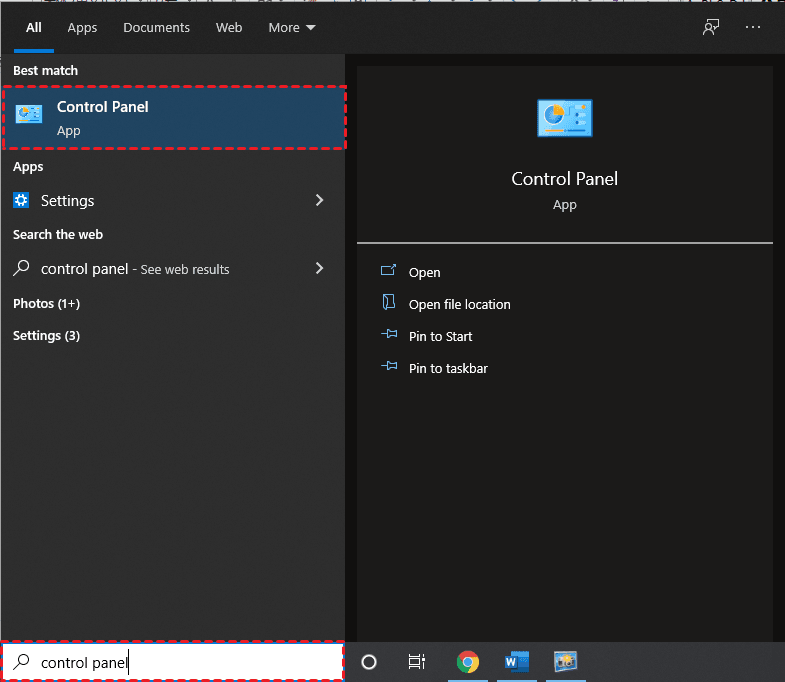
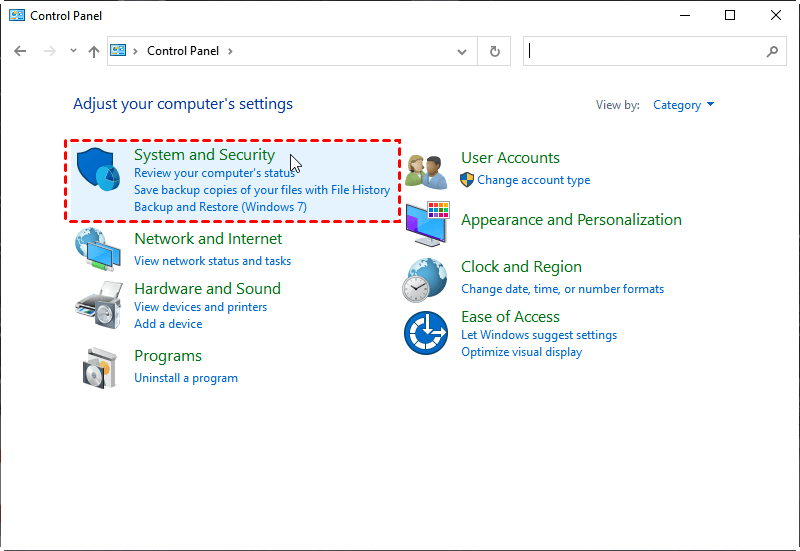
- To access the Windows Control Panel, type "control panel" in the search box and click on the first search result. This will open the Control Panel window, where you can find various settings and tools to manage your computer.
- Click on System and Security.
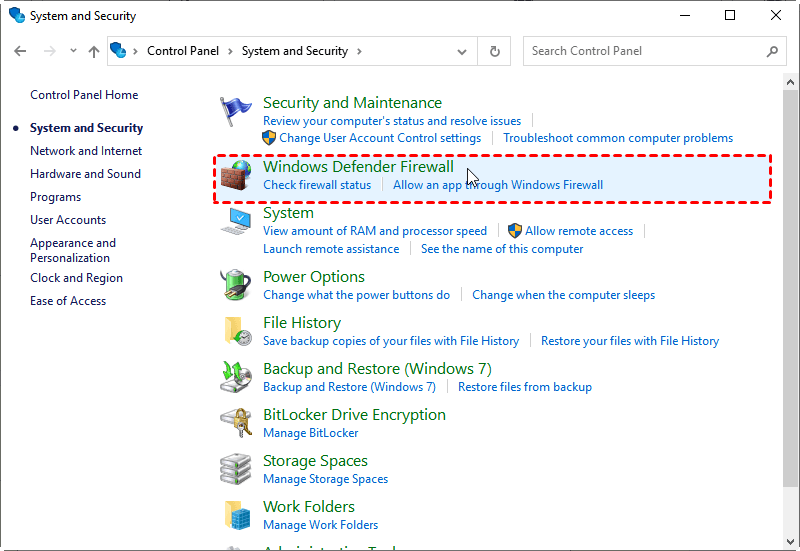
- Find and click Windows Defender Firewall.
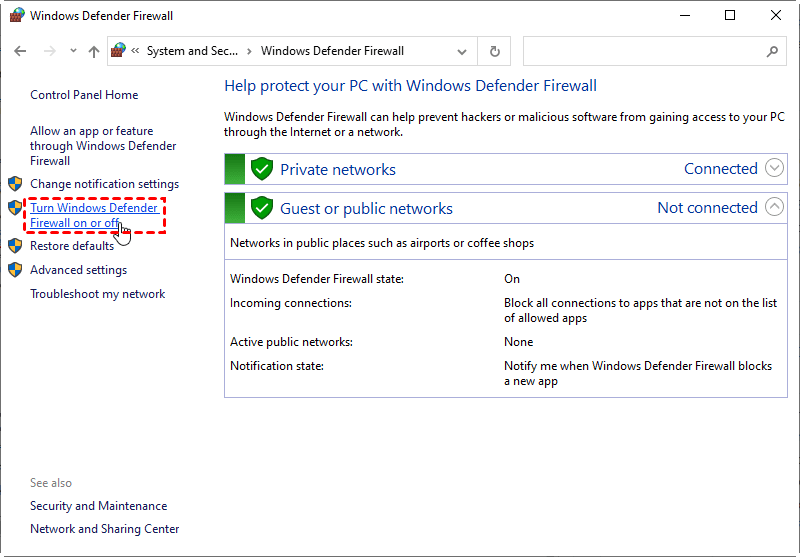
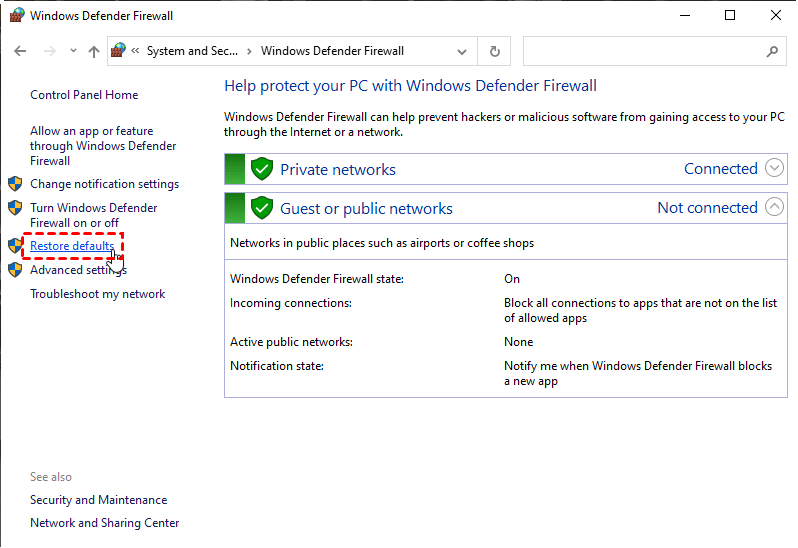
- Click on "Turn Windows Defender Firewall on or off" on the left panel.
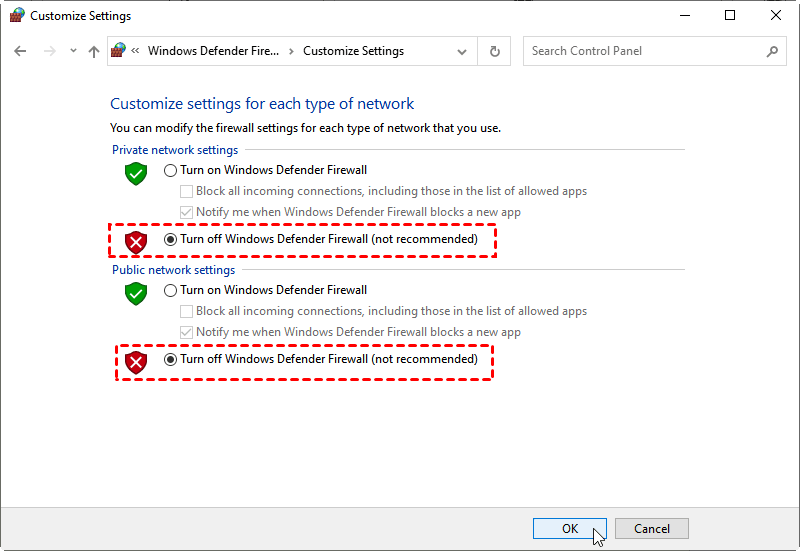
- Go to Windows Defender Firewall settings, turn off Private network settings and Public network settings, and click OK to confirm.
- Try running Windows Update again. After the update is complete, go to Control Panel -> Windows Defender Firewall -> Restore defaults to restart Windows Defender Firewall.
Method 6. Uninstall Third-party Software
Incorrect third-party firewall settings or any program that can access the Internet may prevent Windows updates, leading to error codes like 0x80080005.
If you've recently installed new software on your PC and are experiencing the Windows Update 0x80080005 error, try uninstalling the new software to see if it resolves the issue. This could be the cause of the problem.
- Press the Windows key + I key together to open the Settings app.
- Navigate to Apps section.
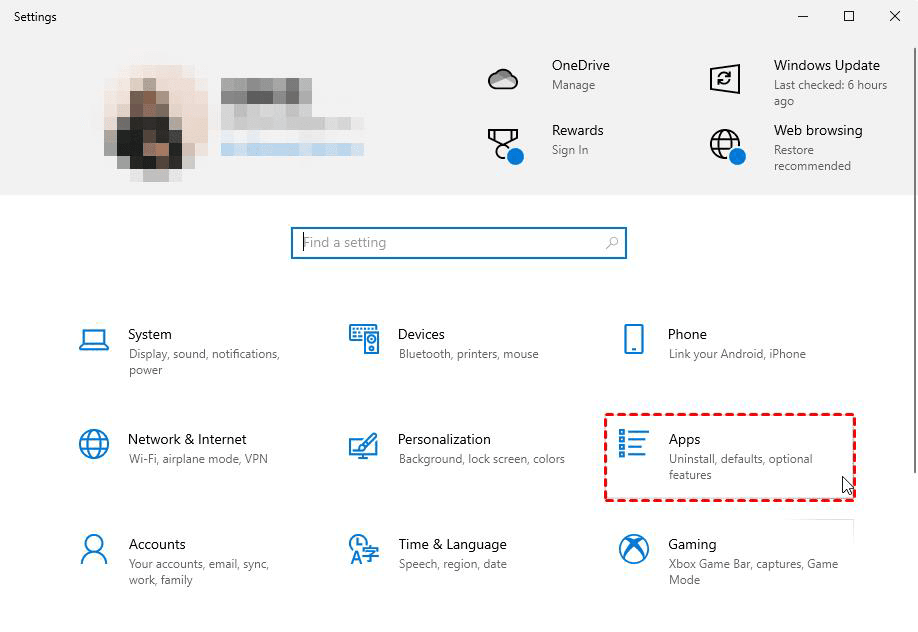
- In the Apps & features section, set Sort by to Install date (newest first).
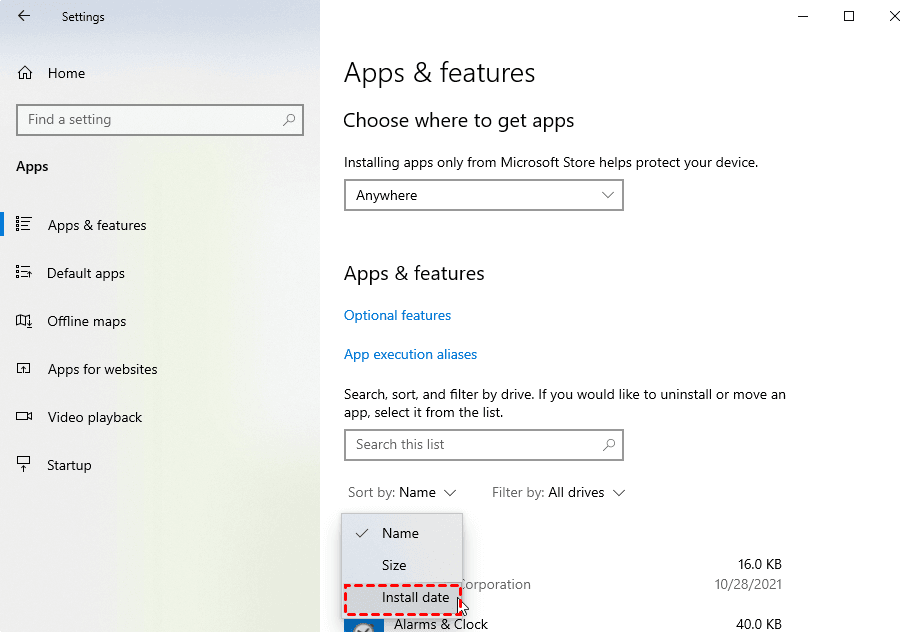
- To remove a suspicious program, pick the first program in the list and click the "Uninstall" button. If you have installed multiple programs recently, delete all of them.
- Then reboot your PC and try running Windows Update.
Method 7. Upgrade with the Media Creation Tool
The Media Creation Tool can be used for updates, preserving files, apps, and settings while completely reinstalling the operating system.
- Download the Media Creation Tool.
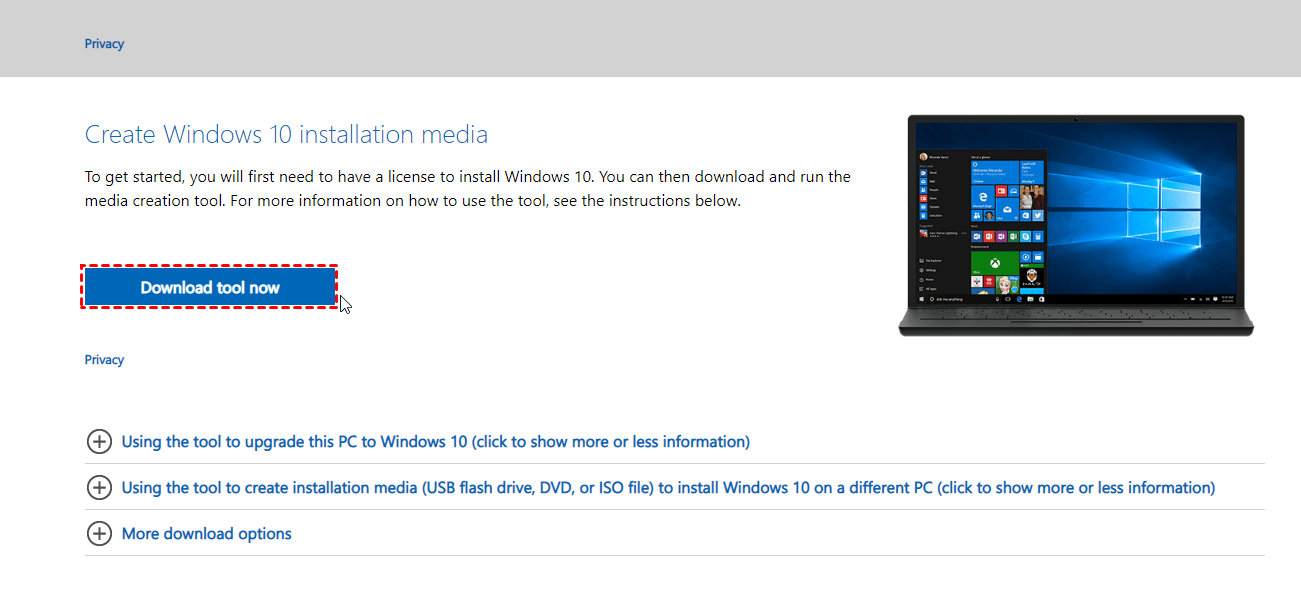
- After Windows 10 is downloaded, accept the license agreement.
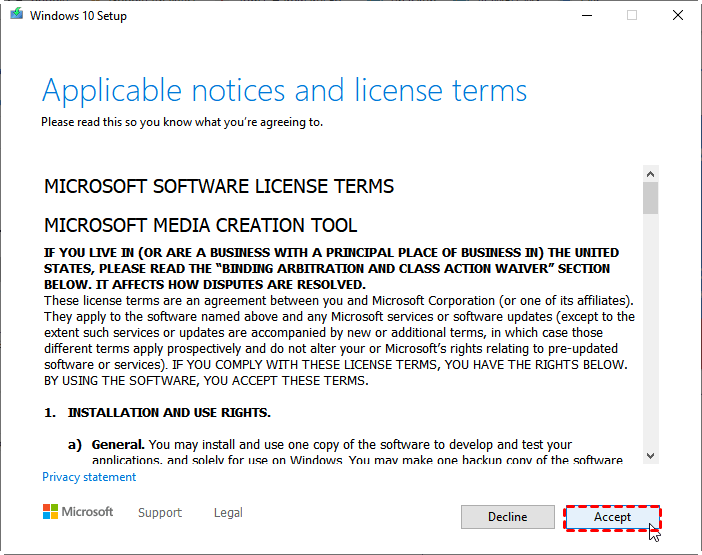
- Run the tool and select Upgrade this PC now and click on Next.

- Wait while the update downloads the necessary files. Follow the instructions until you reach the Ready to install screen. Click Change what to keep.
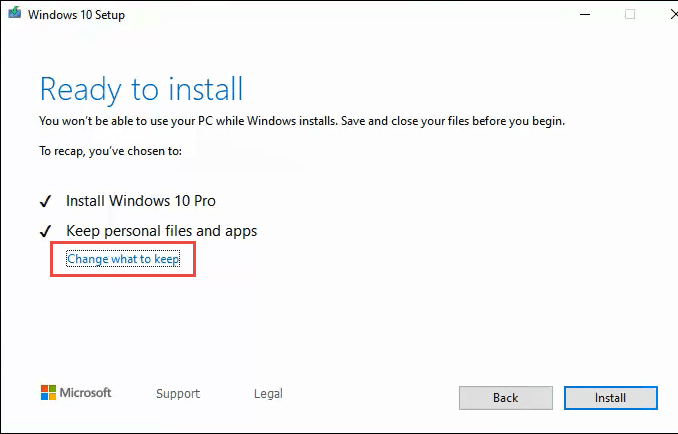
- Select the "Keep personal files and apps" option and click on "Next".

- The installation process will begin. Please follow the on-screen instructions to complete it. Once the installation is finished, the latest version of Windows will be installed, and the problem should be resolved.
Create a System Backup to Avoid Future Windows Update Errors
If you're experiencing the Windows 10 update error 0x80080005, try using one of the methods above to resolve the issue. This error is just one of the common problems that can occur during Windows updates. Other users have also reported issues such as file missing after Windows 10 update, Windows 10 upgrade getting stuck at 0% or 99%, Windows Mark of the Web Security Feature Bypass public vulnerability, and blue screen after installing KB5021233.
In cases where system problems arise, a system backup is the quickest solution. I recommend using a free system backup software, specifically Qiling Disk Master Standard, which is designed for Windows 11/10/8.1/8/7/Vista/XP. It's user-friendly and has a simple interface, making it easy to understand and use its backup function.
❆ You can back up files, system, partitions and disks on your computer. You can back up files, system, partitions and disks on your computer.
❆ Create a backup to a local disk, external device, cloud disk, NAS, or network shared folder.
❆ The software allows for automatic backup scheduling, offering 5 modes: Daily, Weekly, Monthly, Event triggers, and USB plug in, with the latter two available after an upgrade.
❆ You can choose from various backup methods, including full backup, incremental backup, and differential backup, with differential backup being available in the Professional edition.
To back up your system, download and install a freeware, launch it, click "Backup" and "System Backup", and select the backup destination, preferably an external disk.
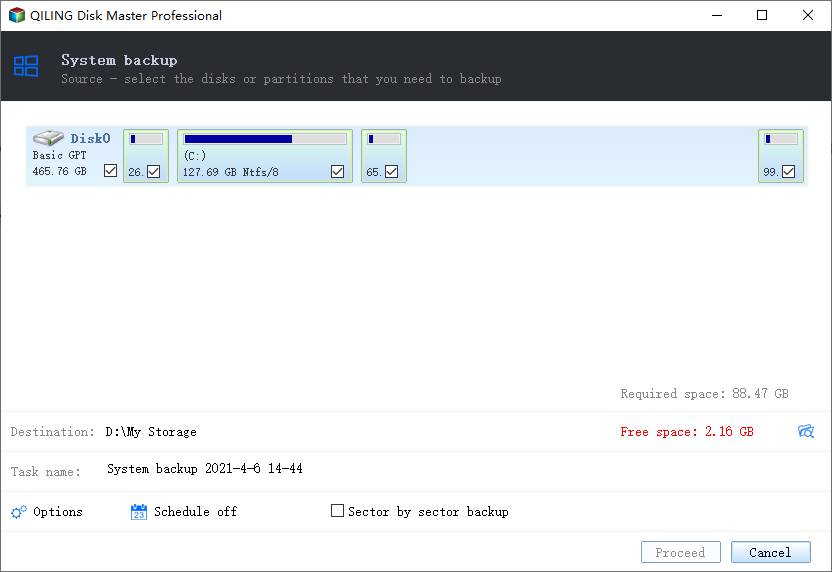
Other Useful Settings:
✭ To compress and split the backup file, and add comments to the backup, click on the "Options" button. This allows you to select the backup destination and add additional features such as email notifications and encryption by upgrading to an advanced version.
✭ The backup method can be selected based on individual needs, and old backups can be deleted to free up disk space while keeping the latest backup versions.
Conclusion
We hope you can solve the Window Update 0x80080005 error with the methods provided in this article, but to protect your system and data, it's essential to make a habit of backing up your system, and a trustworthy backup software like Qiling Disk Master can be a good option.
If you encounter other Windows Update errors, such as the 0xc0000005 error, and have a system backup created with this software, you can restore your computer to a working state immediately to protect your data and system.
Related Articles
- How to Fix or Reset Windows Update in Windows 10, 11 (6 Methods)
If you get stuck downloading Windows Update in Windows 10/11, try following methods to fix it or reset Windows Update components. Also, here are some effective tips if you receive serious errors after upgrading. - 5 Methods to Fix Windows 11 Taskbar Not Working After Update
If you encounter Windows 11 taskbar not working after update, this article can help you easily solve this problem. Remember to back up your computer in advance to prevent unexpected data loss when changing device settings. - How to Migrate Windows 7 from HDD to SSD for Free?
The Qiling Disk Master Standard allows you to migrate Windows 7 to SSD drive without reinstalling Windows. And you don't need to worry that you cannot boot from the new disk after migrating Windows OS from HDD to SSD. - How to Shrink Volume in Windows 7?
Learn how to Shrink Volume in Windows 7 with clear steps, key checks, and practical tips. - Three Ways to Safely Move Programs to Another Drive on Windows 11
When the C drive is full and makes your PC run slow, moving programs to another drive on Windows 11 can be a good idea. Here, we'll share the process to do it via Settings, Steam Mover and a third-party software. - 3 Ways: Set up OneDrive Automatic Backup Windows 11
In this post, you can learn three simple ways to set up OneDrive automatic backup on Windows 11. Follow the graphical tutorial to easily complete the task.
Products
Articles & Tutorials
- Data Recovery
- Data Backup
- File Recovery
- File Backup
- File synchronize
- System Backup and Restore
- Disk and Partition Clone
- Technical articles
- Disk Master Help
- Windows Deleted File and Disk Recovery Tutorials
- Windows File and Data Recovery Tutorials
- More Windows Tutorials for Install, Security, Files, and PC Tips
- Windows Boot, Repair, and Recovery Environment Tutorials
- Windows Backup Tutorials
- Windows Restore Tutorials
- Windows Clone and Migration Tutorials
- Windows Server Backup, Recovery, and Management Tutorials
- Windows Disk, Partition, and Storage Management Tutorials