File Missing after Windows 10 Update (1809)? Let's Recover!
- The issue: Windows 10 update deleted my files
- What does Microsoft Windows reply?
- Recover lost files in Windows 10 with simple ways
- Go back to previous build in Windows 10
- Fix Windows 10 update deleting files with System Restore
- Restore files via Windows.old folder
- Get deleted files back in Windows 10 via comprehensive recovery tool
- Foster a good habit of regular backup
- Summary
The issue: Windows 10 update deleted my files
Since the Fall update of Windows 10, users have reported that their documents and files are missing without any warning. Specifically, many users have found that files located in the C:/Users/Username/Documents folder are disappearing, with the location remaining the same but the size and contents changing, as if the files have been deleted.
Some users have tried to recover lost files after the update, but a significant number of files have been overwritten, likely due to being removed or deleted early in the upgrade process. Microsoft is still working to fix this issue, but their priority is to minimize the impact on the largest number of computers.
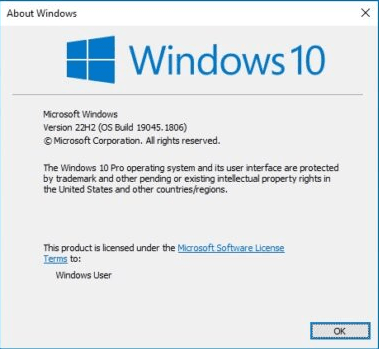
Microsoft's Windows 10 22H2 update, released in 2022, built upon the features introduced in the 2021 Windows 10 21H2 update, and did not include any new features.
What does Microsoft Windows reply?
Microsoft suspended the rollout of the Windows 10 October 2018 Update (version 1809) and published an announcement stating that they had tools to help users recover their files, implying that the update caused file loss issues.
Windows Insiders, if you're experiencing the "missing files after update" issue with the October 2018 Fall update, you can contact Microsoft support for assistance, as this build is no longer available for manual download. -Dona Sarkar, October 6, 2018
Users who were missing files are also suggested to call Microsoft support at +1-800-MICROSOFT or find a local number in their area for assistance. They can get help with recovering their files.
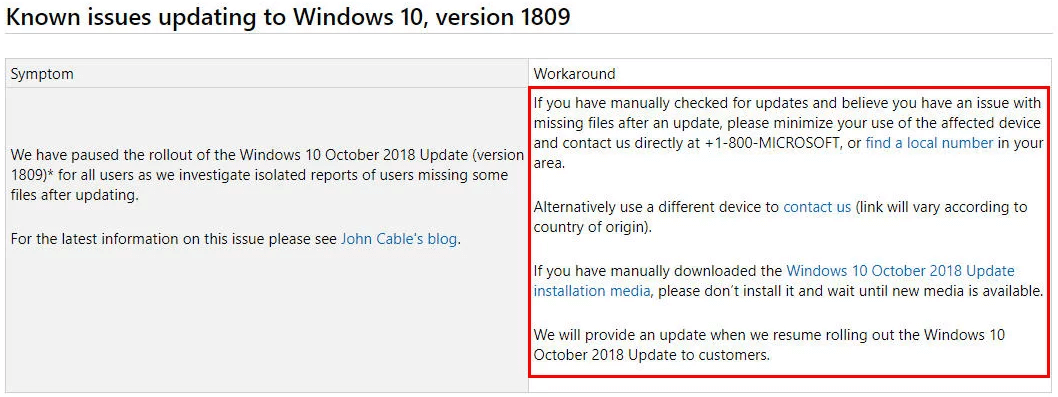
Users who have downloaded the installation should not start it until a fix is shipped, and those currently installing the update should cancel and stop the progress. To resolve the issue, users can restart the Windows Update service via the Services Manager, which can be accessed by typing "service.msc" in the Start menu.
The Windows 10 October 2018 update was hastily pulled by Microsoft just days after its release, but the damage had already been done, with many users taking to social media to share their frustrations. For those who experienced the issue of missing files after upgrading to Windows 10, the question remains: what can be done to retrieve them?
Recover lost files in Windows 10 with simple ways
Several efficient ways to find the lost files are introduced below. Try and see if any of them helpful.
Go back to previous build in Windows 10
To go back to an earlier build in Windows 10, go to Start > Settings > Update & Security > Recovery, then click the "Get started" button under "Go back to an earlier build".
If the roll back method doesn't help due to no files being found, it's recommended to try alternative methods to resolve the issue.
Fix Windows 10 update deleting files with System Restore
If you've regularly made system restore points for Windows 10, you're in luck - you can potentially recover missing files through this method.
1. To access System Restore from the Windows 10 Search box, type "System Restore" and select it from the search results. Then, select "Create a restore point" from the given list, and a dialogue box titled "System Properties" will appear.
2. Click on System Protection and then System Restore.
3. Follow the on-screen instructions and select the proper restore point when prompted. Click Next to start restoring.
Tips: If system restore doesn't work, you may need to enter Safe Mode, where only essential parts are loaded, and try again from there.
If you don't have any restore points created or the Windows 10 restore points have gone, you can try to use the System File Checker (SFC) tool to scan and replace corrupted system files, which might resolve the issue.
Restore files via Windows.old folder
Windows creates a folder called Windows.old on the local drive C: and stores all the data from the previous version there after each update. This folder is available for 10 days, so be sure to check the date. You can easily navigate to it, and here are the steps to start.
1. To access the Windows.old folder, go to This PC, then click on Local Disk (C:), and finally, navigate to the Windows.old folder.
2. After a Windows 10 Update (version 1809), you can find missing files in the Windows.old folder, specifically under the Users directory. This folder contains copies of files that were present before the update.
3. Copy them to a desired place and done.
Tips: for more detailed steps with screenshots, please refer to how to restore windows.old files in Windows 10.
If you're having trouble restoring your Windows to a previous state, you may find that it's too late because the Windows.old folder has been automatically deleted. In this case, a reliable and professional data recovery tool may be a wise move to recover your lost data.
Get deleted files back in Windows 10 via comprehensive recovery tool
Deep Data Recovery is a professional and clean tool that can recover over 200 file types, including photos, videos, and documents, from scenarios such as deletion, disk formatting, and system crashes.
Deep Data Recovery offers a high data recovery rate. You can download it on Windows 11, 10, 8, 7, or Windows Server computers to recover deleted, lost, and removed files in just 3 steps, even after a Windows 10 update version 1809.
1. To recover lost data, launch Deep Data Recovery on your PC, select the partition containing the desired files, and click Start Scan.

2. To quickly find the files you're looking for, you can search for their filenames in the search bar. Alternatively, you can run a Quick Scan and Deep Scan to see all deleted and lost files.

3. Go to the Deleted Files/Raw files folder, click "Recover", and save the recovered files in a new path.

Foster a good habit of regular backup
Losing important data can be really painful and the update process can go wrong, causing errors like Windows Update 0x80080005 or blue screen error 0xc000021a after installing updates like KB5021233.
To avoid costly data disasters, it's essential to develop the habit of backing up critical data, such as working files and projects, and irreplaceable memories. Always create a backup before taking any data-related action, and be aware that even with backups, restoring files may not always retrieve all of them due to potential overwriting issues.
Qiling Disk Master Standard is a free backup software that offers system, disk, file, and file sync backup options, with support for various storage destinations, including internal disks, USB drives, external drives, cloud drives, NAS, and network shares, and can run on Windows 11/10/8/7/XP/Vista.

Restoring a backup image is a straightforward process with a user-friendly graphical interface. Additionally, users can selectively restore individual files if needed.

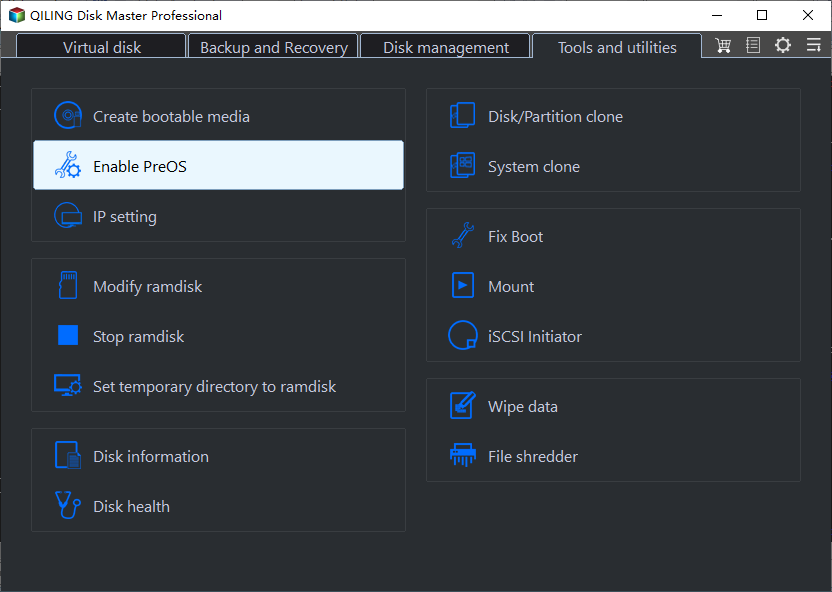
Qiling Disk Master offers a Professional edition for advanced users, which includes features like restoring NTFS permissions during image restore, restoring system images to dissimilar hardware, and setting up automatic old backup deletion with Backup Scheme, as well as creating a recovery environment in advance, with the caveat that the recovery environment becomes invalid if the C drive is compromised.
To protect unlimited computers within your company, you can use Qiling Disk Master Technician, which allows deploying or restoring system image files on multiple client-side computers from a server-side computer over a network using its Qiling Image Deploy tool.
Summary
If you're experiencing issues with missing files after a Windows 10 update in 2018, consider one of the four possible solutions provided to recover your data. To avoid potential data loss in future updates, take proactive steps to protect your files by giving them an extra layer of security, ensuring you're prepared for any similar issues that may arise.
Related Articles
- Top Two Ways to Recover Lost Partition in Windows 10
- How to Recover Lost Files in Windows 10 Efficiently?
This guide explains Top Two Ways to Recover Lost Partition in Windows 10 How to Recover Lost Files in Windows 10 Efficiently with clear steps, key checks, and practical tips. - Solved| Windows 10 Update Missing Files 2018 (Version 1809)
This guide explains Solved| Windows 10 Update Missing Files 2018 (Version 1809) with clear steps, key checks, and practical tips. - 4 Solutions to Active Partition Not Found in Windows 10
This guide explains 4 Solutions to Active Partition Not Found in Windows 10 with clear steps, key checks, and practical tips. - How to Create A File History Backup? Full Guide About File History
This article provides instructions on creating a File History backup for various Windows systems, including Windows 8, 10, and 11. Additionally, a recommendation for another file backup software is made to cater to further backup needs. - How to Create a Local Backup of My 1Password Vault?
Learn how to Create a Local Backup of My 1Password Vault with clear steps, key checks, and practical tips.
Products
Articles & Tutorials
- Data Recovery
- Data Backup
- File Recovery
- File Backup
- File synchronize
- System Backup and Restore
- Disk and Partition Clone
- Technical articles
- Disk Master Help
- Windows Deleted File and Disk Recovery Tutorials
- Windows File and Data Recovery Tutorials
- More Windows Tutorials for Install, Security, Files, and PC Tips
- Windows Boot, Repair, and Recovery Environment Tutorials
- Windows Backup Tutorials
- Windows Restore Tutorials
- Windows Clone and Migration Tutorials
- Windows Server Backup, Recovery, and Management Tutorials
- Windows Disk, Partition, and Storage Management Tutorials