5 Solutions to Active Partition Not Found in Windows 10
- The issue: active partition not found
- How to fix no active partition found in Windows 10 efficiently
- Solution 1: Check if the Windows installation hard drive is detected by BIOS
- Solution 2: Set BIOS to default settings
- Solution 3: Repair system files via Startup Repair
- Solution 4: Repair MBR via CMD
- Solution 5: Set the system partition active
- Further reading: backup Windows in case that errors occur
- To sum up
The issue: active partition not found
An active partition The active partition is a designated partition on a hard drive that serves as the bootable partition and contains the operating system, allowing the computer to start up. Only one partition can be set as active, and issues with it can prevent the computer from booting successfully. If the active partition is not found, it can cause problems, such as the computer not starting up.
On your HP laptop, try pressing any key when prompted, then immediately press and hold the Shift key while pressing the F2 key to enter the BIOS settings. Look for the Boot Order or Drive Order setting and change it to prioritize the correct drive. Save changes and exit BIOS. If the issue persists, try resetting the BIOS to its default settings. If still not resolved, consider running a disk check or using a bootable USB to repair the issue. If none of these steps help, it might be a hardware issue with your laptop's storage drive.
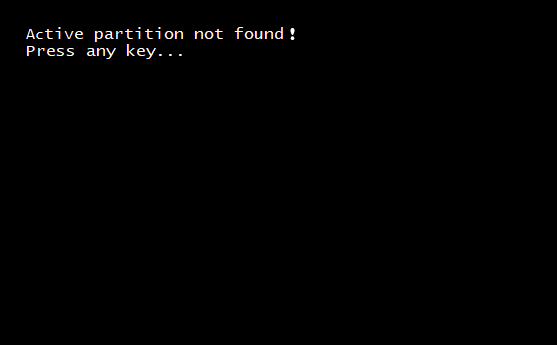
The error "Active partition not found! Press any key…" is likely caused by a problem with the boot process, which can be due to a faulty BIOS, a corrupted boot sector, or an issue with the boot order. This error message is displayed when the system is unable to find the active partition, which is the partition that contains the operating system.
- Windows installation hard drive is not detected by BIOS.
- BIOS settings are set improperly.
- System files are damaged or lost.
- The Master Boot Record (MBR) disc has been damaged.
- Windows boot files in system partition are no longer active…
To fix the boot partition not found error efficiently, you can try the following steps: Boot from a live USB or CD, then use a tool like Boot-Repair or GParted to repair or recreate the boot partition. If the issue persists, try reinstalling the GRUB bootloader, or use a tool like EasyBCD to create a new bootloader entry.
How to fix no active partition found in Windows 10 efficiently
The issue of Windows 10 active partition not found can be resolved through five effective solutions. Firstly, users can try to repair the boot configuration by running the built-in Command Prompt command "bootrec /fixboot" or "bootrec /fixmbr".
👉 To resolve the issue, check if the Windows installation hard drive is detected by the BIOS. This can be done by entering the BIOS settings (usually by pressing F2, F12, or Del) and checking if the hard drive is listed under the "Boot" or "Storage" section.
👉 Solution 2: Set BIOS to default settings
👉 Solution 3: Repair system files via Startup Repair
👉 Solution 4: Repair MBR via CMD
👉 Solution 5: Set the system partition active
To safeguard your PC from system errors, it's a good idea to backup your Windows beforehand.
Solution 1: Check if the Windows installation hard drive is detected by BIOS
1. To access the BIOS, restart the computer and immediately start pressing a specific key until you enter the BIOS settings. The key to press can vary, but common ones include Esc, Del, F2, F8, F10, or F12, and will be displayed on the initial screen before the Windows logo appears.
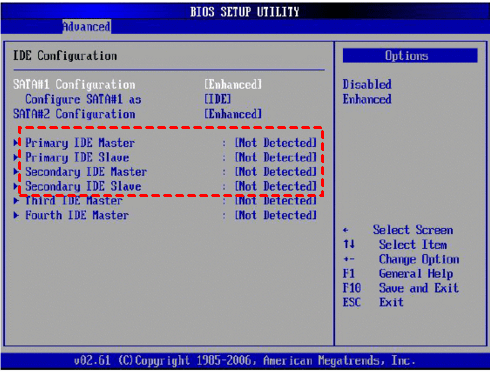
2. To check if the IDE channels are detected, go to the BIOS settings, find the Primary IDE Master, Primary IDE Slave, Secondary IDE Master, and Secondary IDE Slave options under the Advanced tab, and verify if they are detected or not.
3. If the BIOS doesn't detect the hard drive, it's shown as "None/Not Detected", you can select "None/Not Detected" to "Auto" and restart the computer to see if the error is fixed. If the system disk information is displayed after IDE Master/Slave, it means the BIOS can detect the hard drive, and you can try other solutions.
Solution 2: Set BIOS to default settings
1. To fix the issue, restart your PC and enter the BIOS settings. In the BIOS settings, navigate to the Boot Order section and set the USB drive as the first boot device.
2. Press the F9 key and confirm with OK or Yes to restore the default BIOS settings.
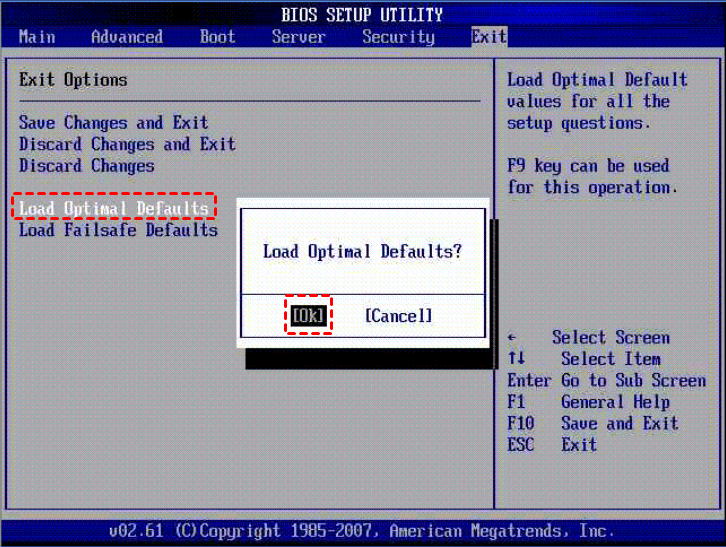
✎ Tips: On some machines, you may find the "default settings" option under the Security, Initialize, or Reset tab, where you can look for an option like Restore Factory Defaults or Reset All Settings.
3. Press F10 to save and exit, then restart your PC to see if the active partition not found error is resolved.
Solution 3: Repair system files via Startup Repair
1. Insert Windows 10 installation media and boot your computer from it.
2. Choose the correct time and keyboard type and click Next.
3. In the next screen, choose Repair your computer.
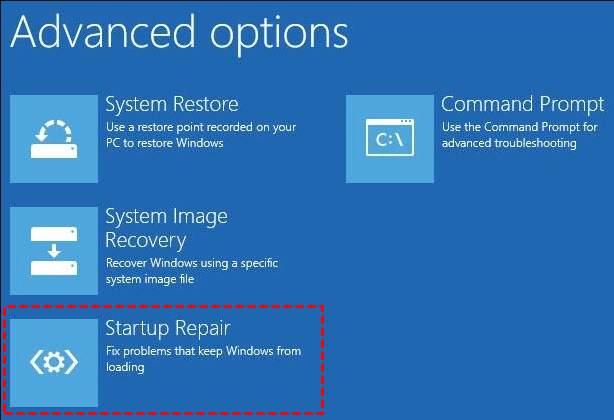
4. Go to Troubleshoot > Advanced options > Startup Repair. Wait for the repair process to complete.
Solution 4: Repair MBR via CMD
A corrupted Master Boot Record (MBR) can cause boot issues, such as "Active partition not found, press any key...", by disrupting the Partition Table and executable code needed for a smooth OS boot. Repairing the corrupted MBR may resolve these issues.
1. Insert Windows 10 installation media and boot from it.
2. To access the Command Prompt, go to the "Repair your computer" option, then select "Troubleshoot", followed by "Advanced options" and finally "Command Prompt".
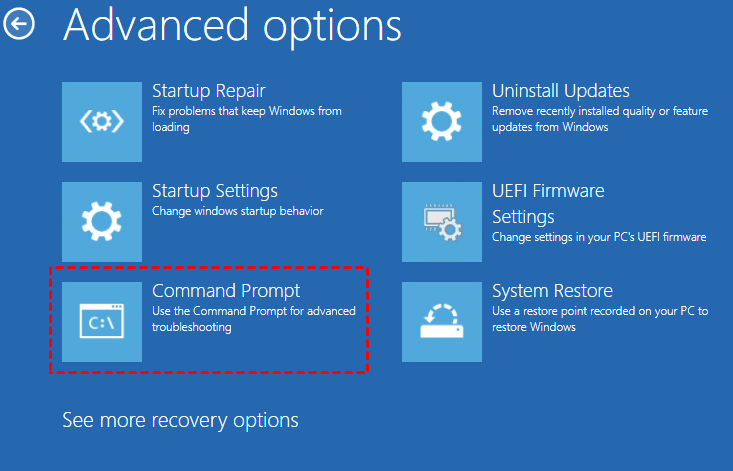
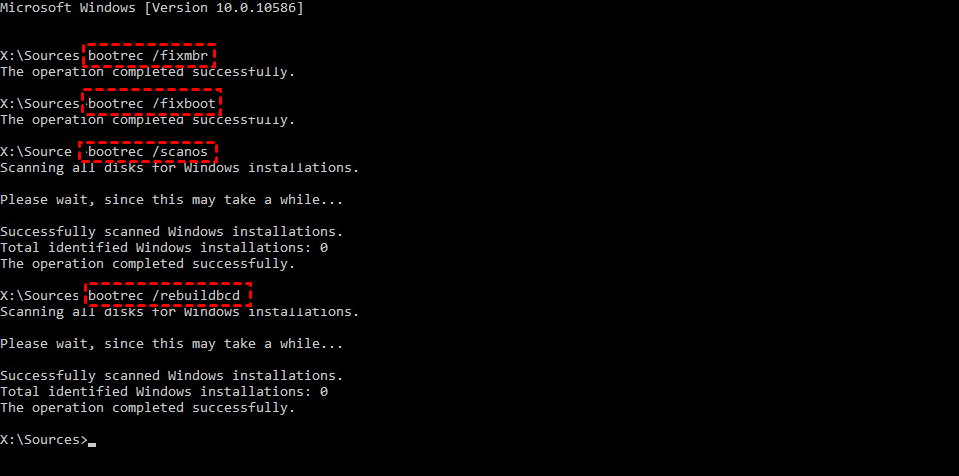
3. Run the commands listed below, pressing Enter after each one.
- bootrec.exe /fixmbr
- bootrec.exe /fixboot
- bootrec.exe /scanos
- bootrec.exe /rebuildbcd
Solution 5: Set the system partition active
1. Open Command Prompt as mentioned in Solution 4.
2. In Command Prompt, type following commands and press Enter after each:
- diskpart
- list disk
- select disk 0 (replace 0 with your computer's primary disk)
- list partition
- select partition 1 (replace 1 with the system partition's number on your computer)
- active
- exit
3. restart your computer to see if the problem is solved.
If all other solutions fail, you can try system restore Windows 10 from boot if you have created restore points before.
Further reading: backup Windows in case that errors occur
Apart from the active partition not found error, you may encounter other unexpected errors, and system restore can be a last resort to fix your issues. To avoid this, it's necessary to backup Windows regularly, and the best free backup software, Qiling Disk Master Standard, offers all-around backup solutions.
▶ Backup all kinds of data
You're allowed to backup your operating system, internal or external hard drives, and a specific partition on a hard disk, as well as documents, pictures, and videos using the File Backup feature.
▶ Keep backup versions up-to-date
You can set your backup tasks to run automatically every day, as the data on your computer changes, by using the Schedule feature to run them on a regular basis.
▶ Increase backup speed
You can do incremental and differential backups to save time and storage space by only backing up changed data. This way, you only need to keep the most recent backup and the last full backup, making it easier to recover in case of data loss.
This freeware supports all Windows PC operating systems, including Windows 11, 10, 8.1, 8, 7, Vista, and XP, and can be downloaded for a try.
To protect your computer, use the "Disk Master" feature in Qiling, which can help you recover your system in case of a problem. This feature can be activated by using the "Boot" function, which allows you to boot from a backup or a safe environment.
1. To create bootable media, insert a USB drive or CD/DVD into your computer. Then, download a bootable media creation software, such as Rufus or Unetbootin, and follow the on-screen instructions to create a bootable drive.

✍Tip: With Qiling Disk Master Professional, you can also create a recovery environment to perform system backup restore or other backups restore operations when the system crashes.
2. Perform system backup when the computer is in good condition.

To sum up
If you're experiencing the issue of an active partition not being found in Windows 10, you can try the five solutions provided in this article to resolve the problem. To be prepared for potential errors, it's a good idea to regularly back up Windows using Qiling Disk Master. Additionally, you can use Qiling Disk Master as a free PC clone software to upgrade your hard drive on your computer. Trying it now can help you discover more features and benefits.
Related Articles
- Cloned SSD Won't Boot in Windows 10/8/7 - How to Solve?
Read this article to learn how to fix cloned SSD won't boot on Windows 11/10/8/7. If you don't want to get trapped, try an alternative in Windows to clone HDD to SSD without booting problem. - How to Make Dell/HP/Lenovo Recovery Partition Bootable?
You may want to make the HP/Dell/Lenovo recovery partition bootable in different situations. Here you'll learn how to do it and you can create a recovery boot drive for Windows 10/7 in another way. - How to Reinstall Windows 10 without CD?
Learn how to Reinstall Windows 10 without CD with clear steps, key checks, and practical tips. - How to Do with "SMART Status Bad, Backup and Replace" | Guide
When failed to boot computer with Pri Master Hard Disk SMART Status BAD error, you should backup important data to another location before the hard drive fails completely. - Fix 99% or 100% High CPU Usage Issue in Windows 10 Fall Creators
If your Windows PC slows down with high CPU usage after the Windows 10 Fall Creators update, - How Can You Transfer Files from an SD Card to a Desktop Computer?
This guide explains How Can You Transfer Files from an SD Card to a Desktop Computer with clear steps, key checks, and practical tips.
Products
Articles & Tutorials
- Data Recovery
- Data Backup
- File Recovery
- File Backup
- File synchronize
- System Backup and Restore
- Disk and Partition Clone
- Technical articles
- Disk Master Help
- Windows Deleted File and Disk Recovery Tutorials
- Windows File and Data Recovery Tutorials
- More Windows Tutorials for Install, Security, Files, and PC Tips
- Windows Boot, Repair, and Recovery Environment Tutorials
- Windows Backup Tutorials
- Windows Restore Tutorials
- Windows Clone and Migration Tutorials
- Windows Server Backup, Recovery, and Management Tutorials
- Windows Disk, Partition, and Storage Management Tutorials