How to Change Steam Install Location in Windows 10?
Can I change Steam install location to another drive?

You have run out of space on your D drive and want to move your Steam games to your almost empty E drive. You can try moving the Steam folder to the E drive, which should allow you to download new games. To do this, you'll need to move the Steam folder from the D drive to the E drive, and then update the Steam library to point to the new location. This should resolve the "not enough space" issue and allow you to download new games. Would you like me to provide more detailed steps?
Why we need to change Steam install location?
Steam is a digital distribution platform for video games developed by Valve, launched in September 2003 as a standalone software client to provide automatic game updates, and later expanded to include third-party publisher games.
Many Steam users face the issue of insufficient drive space due to the growing size of games with updates. This not only slows down installed games but also prevents new game installations. As a result, users often move their Steam library to another drive, especially when upgrading from a traditional Hard Disk Drive (HDD) to a Solid-State Drive (SSD), which offers significantly faster data transmission speeds and improved loading times.
How to change Steam install location step by step?
If you're running low on drive space, there are two effective ways to move Steam to another drive. To resolve this issue, you can follow the steps carefully outlined in the paragraphs that follow, which will guide you through the process of relocating Steam to a more spacious drive.
│Method 1. Transfer Steam Games to another drive via Steam Settings
To change the Steam install location, you can't use the copy-paste method, which can lead to boot file loss and prevent the game from running successfully. However, Steam now offers a built-in feature that allows you to move games one by one from one drive to another, making it easier to relocate your games without any issues.
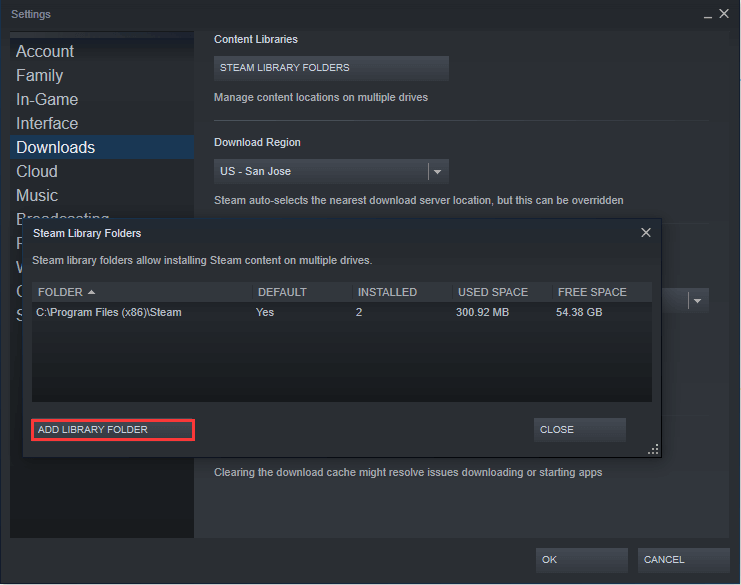
1. To access your Steam library folders, launch Steam first, then navigate to "Settings" and select "Steam Library Folders".
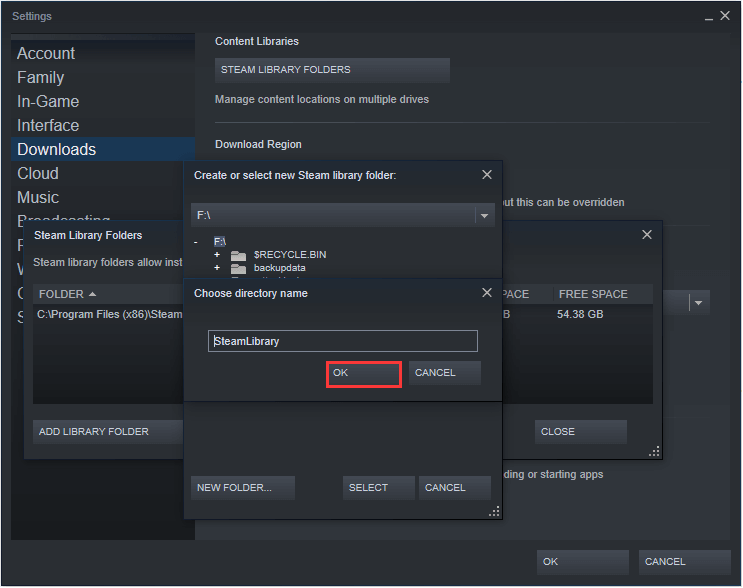
2. Click on "ADD LIBRARY FOLDER", select a target drive, hit "NEW FOLDER" and write a directory name.
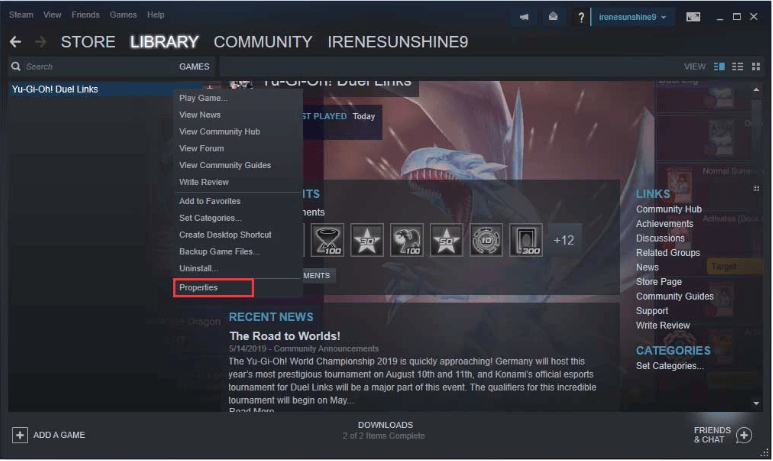
3. To move a game, return to the main window, right-click on the game you want to move, and select "Properties".
4. Click on "4. Click on Local Files" and select "MOVE INSTALL FOLDER" to proceed.
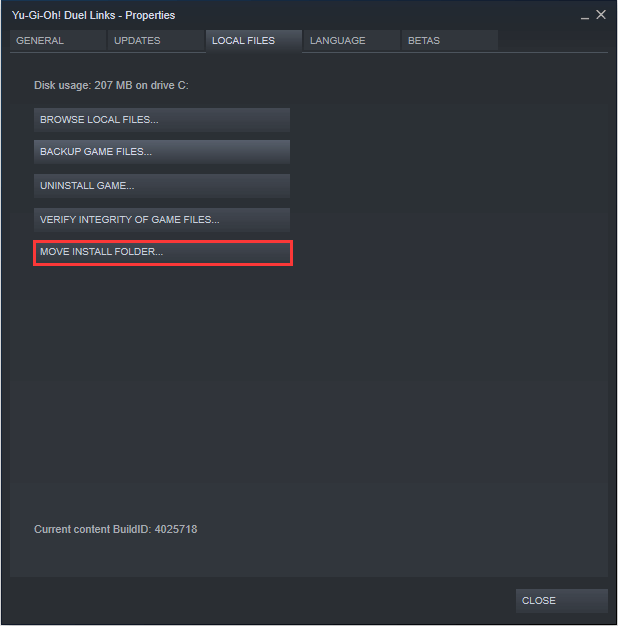
5. Hit "MOVE FOLDER" to start the transfer.
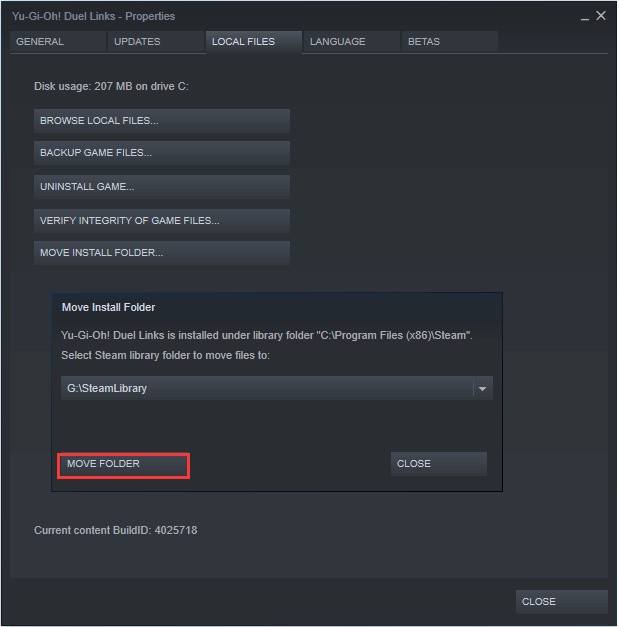
6. In a few seconds, the process can be completed. Click on "Close" to quit.
Note: Using this method, you can move individual games from one drive to another, similar to Steam Mover, but only one game at a time. If you want to move multiple games, you'll need to repeat the process. Unfortunately, this method isn't suitable for moving the entire Steam library to another drive at once.
│Method 2. Use Qiling Disk Master to move Steam games to another drive
I highly recommend using Qiling Disk Master Professional, a powerful third-party utility that can move the entire Steam library to another drive without data loss, and even restore games to their original location, all with a simple and easy-to-follow process.
If you want to upgrade your gaming experience by replacing your HDD with a faster SSD, you can either clone your existing HDD to the SSD or allocate free space on the SSD to extend the size of your partition. This will allow you to enjoy faster loading times and smoother gameplay.
To move Steam games to another drive without re-downloading, you can try the demo version for a free trial. This will allow you to test the process without any hassle. The rest of the process involves creating a new Steam library on the desired drive, moving the game files to the new library, and updating the game's shortcut to point to the new location.
Steam has been successfully moved to another drive, and it can now be run directly without any data loss.
Sum up
To change the Steam install location, you can use either Steam Settings or Qiling Disk Master, depending on your needs. If you only need to move one or two games, the Steam Settings should suffice. However, if you want to move the entire Steam library or other installed programs, Qiling Disk Master is the better choice. This tool allows you to move any installed applications, and for Windows Server users, Qiling Disk Master Server is recommended for moving applications.
Related Articles
- Fixed: Missing Operating System Error in Dell (4 Ways Included)
This guide explains Fixed: Missing Operating System Error in Dell (4 Ways Included) with clear steps, key checks, and practical tips. - How to Move OneDrive from C Drive to D Drive in Windows?
If you're still wondering how to move OneDrive from C drive to D drive, you've come to the right place. In the post, I'll provide the 2 most reliable ways to help move OneDrive from C to D without data loss. - Best Way to Move OS to A New Samsung SSD without Reinstalling
This tutorial explains how to move OS to a new Samsung SSD without reinstallation in simple steps with professional data migration software. - How to Move Partition with GParted in Windows 10, 8, 7?
Moving partition with GParted helps you to merge partitions. This article will illustrate you how to perform it. - Windows Needs More Space to Update – How Do I Do?
This guide explains Windows Needs More Space to Update – How Do I Do with clear steps, key checks, and practical tips. - The Windows RE Image Was Not Found - Fix It Right Now!
You will learn how to fix the Windows RE image was not found error effortlessly and how to reimage your computer. Scroll down to learn more and find the solutions working for you.
Products
Articles & Tutorials
- Data Recovery
- Data Backup
- File Recovery
- File Backup
- File synchronize
- System Backup and Restore
- Disk and Partition Clone
- Technical articles
- Disk Master Help
- Windows Deleted File and Disk Recovery Tutorials
- Windows File and Data Recovery Tutorials
- More Windows Tutorials for Install, Security, Files, and PC Tips
- Windows Boot, Repair, and Recovery Environment Tutorials
- Windows Backup Tutorials
- Windows Restore Tutorials
- Windows Clone and Migration Tutorials
- Windows Server Backup, Recovery, and Management Tutorials
- Windows Disk, Partition, and Storage Management Tutorials