Fix Dynamic Disk Missing/Offline in Windows 10/8.1/8/7 [Case Study]
Case study: dynamic disk missing failed or offline
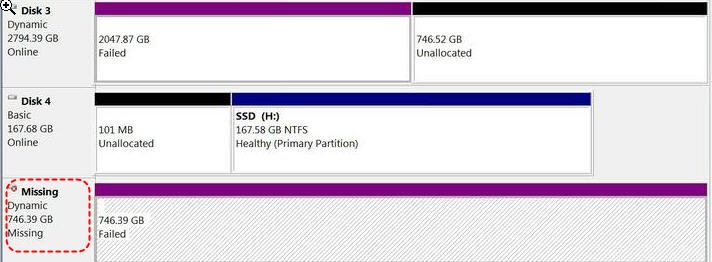
Case 1: I recently installed a 3TB SanDisk disk on Windows 7. After installation, the hard drive showed the wrong capacity, so I converted it to GPT and could see the full size. However, it was divided into two partitions, one with 2TB and one with 0.7TB. Since I wanted to merge them into one partition, I converted the disk from basic to dynamic. Everything worked until a sudden power failure occurred. When the computer booted again, CHKDSK launched automatically, but the hard drive was not visible in Windows. In Disk Management, the 0.7TB disk volume appeared as missing.
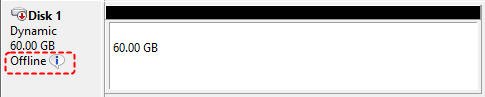
Case 2: Another common situation is that a dynamic disk appears as Offline after being moved from another computer, disconnected unexpectedly, or affected by disk errors. Before formatting or initializing the disk, check the connection and try to reactivate it in Disk Management.
Why dynamic disk shows missing or offline?
A dynamic disk may display a "Missing" or "Offline" status because of corruption, sudden power loss, loose connection, failed foreign disk import, I/O errors, or disk metadata damage. When this happens, the disk may not be accessible in File Explorer.
How to fix the missing dynamic disk easily in Windows PC?
To fix a dynamic disk that is missing or offline in Windows, you can reactivate it in Disk Management or Command Prompt to get it back to an Online or healthy status.
Note: Only dynamic disks can be reactivated or brought online with these options.
1. To reactivate a dynamic disk using Windows Disk Management
Step 1. Right-click "This PC/My Computer" and select "Manage". Then go to "Storage" > "Disk Management". Right-click the missing or offline dynamic disk and select "Online" or "Reactivate Disk".
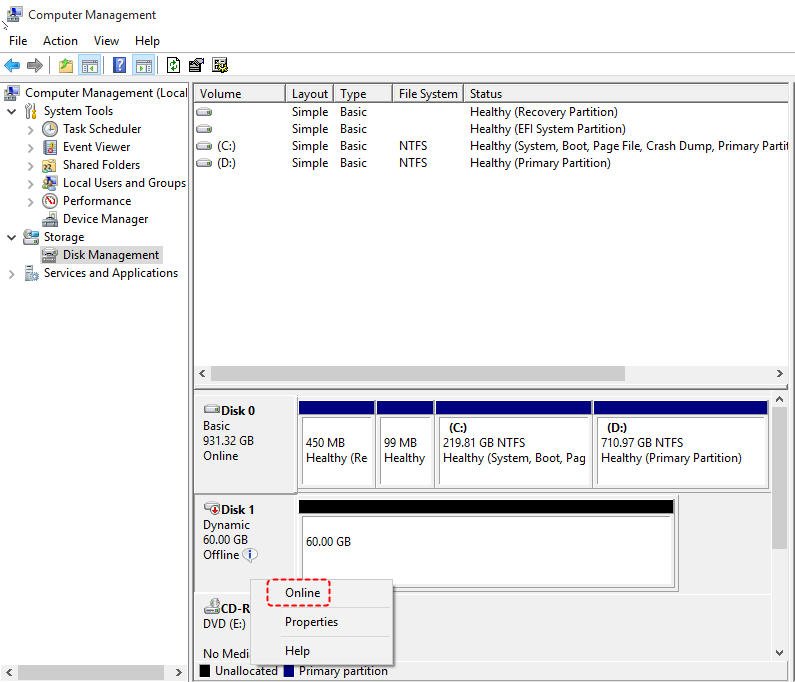
Step 2. If the disk shows up in Disk Management as Online and has a primary partition marked as Healthy, it indicates that the disk is in an online and healthy state.

2. To reactivate missing or offline dynamic disk via Command Prompt
Step 1. Press the "Win + R" keys on your keyboard, then type "cmd" and right click the Command Prompt icon to select "Run as administrator" to open the Command Prompt Window.
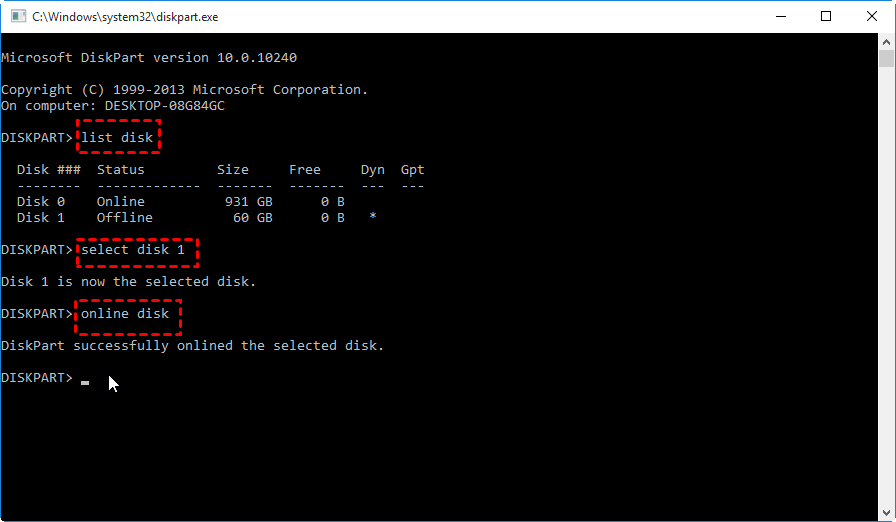
Step 2. In the Command Prompt window, type "diskpart" and press "Enter". Then execute the following commands.
- list disk
- select disk n (replace n with the target dynamic disk number)
- online disk
Tip: If your dynamic disk has I/O errors on a region of the disk, you may see an "Error" indicator on the dynamic disk. If the errors are temporary, you can reactivate the disk to return it to an Online status.
Run Chkdsk.exe to verify the file system structure is intact.
To check file system errors, run "chkdsk x: /f" in Command Prompt, where "x" is the drive letter of the volume you want to check. The "/f" option fixes detected errors. You can also use the same online/reactivate steps in supported Windows Server versions.
Further study: How to better manage the Dynamic Disk?
If you want to manage dynamic disks and volumes more easily, use a professional dynamic disk manager like Qiling Disk Master Professional. It can help create, resize, move, and manage dynamic volumes more safely.
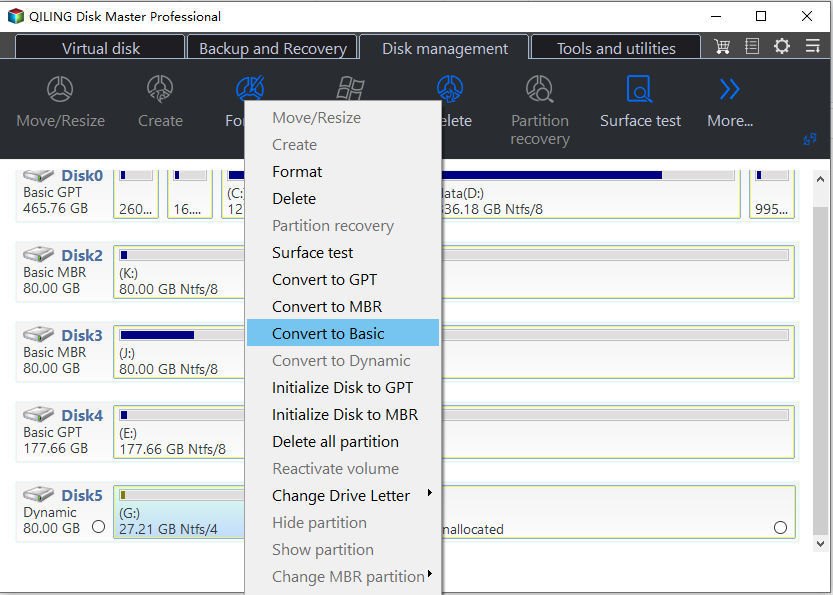
The Qiling Dynamic Disk Manager tool supports operations such as shrinking volumes, deleting volumes, adding drives to RAID, and removing drives from RAID. It provides both basic and advanced dynamic disk management features.
①"Resize Volume" can help free up unallocated space or enlarge a specific volume to address low disk space issues, particularly for the system volume.
②Format Volume is a feature that enables you to easily and safely modify your drive's settings, including changing the File System or Cluster Size, or updating the Volume Label.
③The "Move Volume Slice Wizard" allows you to transfer a volume slice from one disk to another, which is useful when you want to extend the system volume but there's no contiguous unallocated space available, or when other volumes need to be shrunk to free up space.
Qiling Dynamic Disk Manager allows you to convert a dynamic disk to a basic disk without losing data, which is useful when you want to avoid deleting all volumes as required by Disk Management.
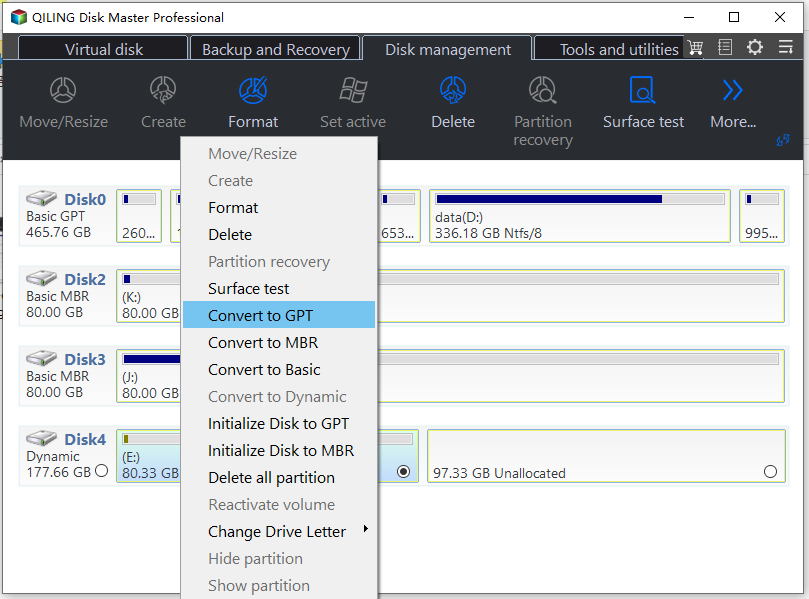
To sum up
This article explains how to resolve dynamic disk missing or offline issues and recommends Qiling Disk Master for easier dynamic disk and volume management. For Windows Server, use Qiling Disk Master Server.
Related Articles
- Should I Convert to Dynamic Disk in Windows 7/8/10?
This guide explains Should I Convert to Dynamic Disk in Windows 7/8/10 with clear steps, key checks, and practical tips. - How to Fix Dell Laptop Won't Turn On | 2024 New💡
If your Dell laptop will not turn on, this guide explains common causes and practical solutions to help get the laptop working again. - Should I Select Disk Cleanup Compress Your OS Drive? Your Answer Is Here [2024 Full Guide]
Choosing 'Disk Cleanup Compress Your OS Drive' can help free up space on your drive, but it's essential to understand what happens when you compress your OS drive under disk cleanup. This article provides specific instructions and guidance on this process, so keep reading to learn more. - Does Deleting a Partition Erase All the Data? | Solid Way to Recover
Deleting a partition can indeed erase all the data stored on that partition, as it essentially removes the file system and formatting associated with it. However, the data itself is not immediately lost and can often be recovered using specialized software or techniques. - Windows 11 Install: Windows Cannot be Installed To This Disk GPT
If you are not able to upgrade because of Windows 11 install: windows cannot be installed to this disk GPT error, then here is how you can fix it. You can either change to UEFI or change the Partition File style. It will allow you to upgrade to Windows 11 without loss of data. - 5 Best Windows (11) Disk Utilities Free Download 2022 [Free & Paid]
This page presents the top 5 free and paid Windows disk utilities for managing hard drive partitions and optimizing disk performance in Windows 11/10/8/7. You can download a reliable Windows disk utility to manage your internal or external hard drives with ease, as presented on this page.
Products
Articles & Tutorials
- Data Recovery
- Data Backup
- File Recovery
- File Backup
- File synchronize
- System Backup and Restore
- Disk and Partition Clone
- Technical articles
- Disk Master Help
- Windows Deleted File and Disk Recovery Tutorials
- Windows File and Data Recovery Tutorials
- More Windows Tutorials for Install, Security, Files, and PC Tips
- Windows Boot, Repair, and Recovery Environment Tutorials
- Windows Backup Tutorials
- Windows Restore Tutorials
- Windows Clone and Migration Tutorials
- Windows Server Backup, Recovery, and Management Tutorials
- Windows Disk, Partition, and Storage Management Tutorials