Should I Convert to Dynamic Disk in Windows 7/8/10/11?
Should I convert to dynamic disk?
Converting a basic disk to a dynamic disk can provide more flexible volume management, such as spanned, striped, mirrored, and RAID-5 volumes. However, it is not necessary for every user and may cause compatibility issues in some situations.
♦When downgrading your Windows operating system;
♦If you have multiple operating systems on your computer, converting the disk to dynamic may cause boot or compatibility problems.
♦Converting a basic disk to a dynamic disk may make unknown or OEM partitions inaccessible if they are not compatible with the new disk type.
♦Your Windows operating system does not support dynamic disks.
You may consider converting a basic disk to a dynamic disk, except in specific situations. Before making the switch, it's essential to have a good understanding of both storage types, including their characteristics and use cases. Understanding the differences between basic and dynamic disks will help you make an informed decision about whether to convert your basic disk to a dynamic one.
Basic VS Dynamic disk
A basic disk is a type of disk that contains partitions, such as primary partitions and logical partitions, and supports both Master Boot Record (MBR) and GUID Partition Table (GPT) partition styles. It typically consists of one set of contiguous extents on a single disk, and is the storage type most often used with Windows.
Dynamic disks allow for the creation of volumes that span multiple disks, such as spanned and striped volumes, and also support fault-tolerant volumes like mirrored and RAID-5, in addition to supporting both MBR and GPT partition styles.
Dynamic disks offer greater flexibility for volume management because Windows stores dynamic volume information in a disk database. They are supported by many Windows versions, but Microsoft recommends keeping the number of dynamic volumes manageable for stability and maintenance.
How to convert to dynamic disk without losing data in Windows 7/8/10/11?
To convert a basic disk to a dynamic disk in Windows 10/8/7, you can use the Disk Management tool or Qiling Disk Master Professional. This process allows you to change the disk type from basic to dynamic, which can be useful for various disk management tasks.
Disk Management
To convert a basic disk to a dynamic disk, many users first choose Disk Management. The steps are as follows:
Right click This PC, choose Manage to enterComputer Management.
Choose Disk Management under Storage.
Right-click the basic disk and choose Convert to Dynamic Disk.
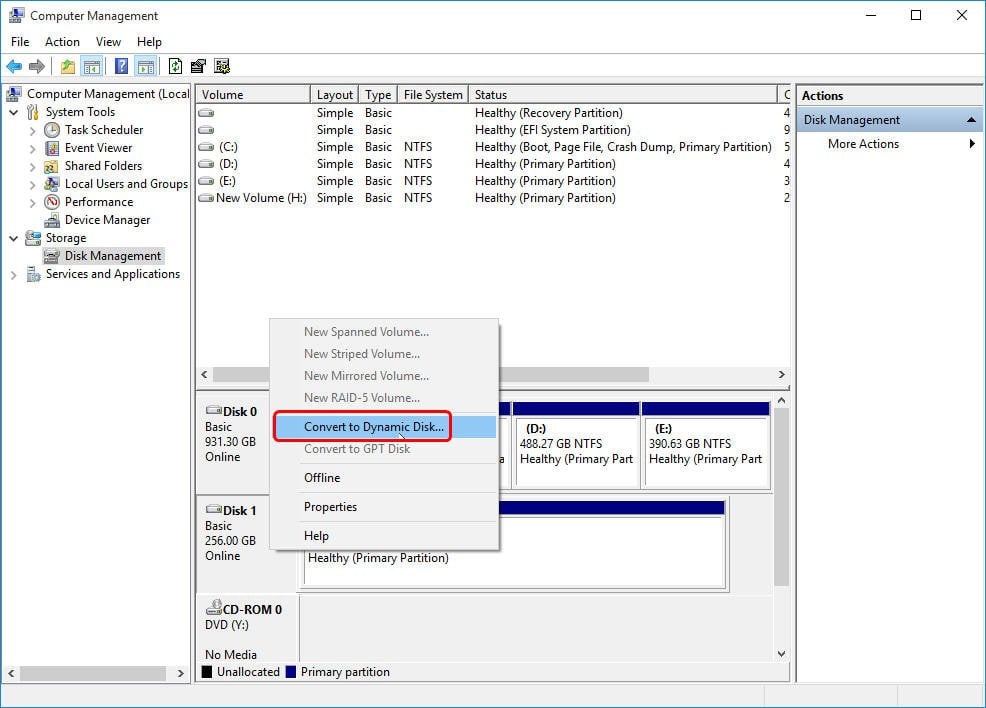
Then follow the prompted information to convert.
Some limitations of Disk Management to be aware of: Converting a dynamic disk to a basic disk can be tricky, as the "Convert to Basic Disk" option is sometimes greyed out. To overcome this, you may need to delete all partitions on the dynamic disk, which can result in data loss or require backing up to other locations, a time-consuming and annoying process.
Qiling Disk Master Professional
Qiling Disk Master Professional is a reliable and flexible software that converts disks between basic and dynamic formats without data loss, offering comprehensive management of dynamic or basic disks and volumes for Windows operating systems.
The Qiling Dynamic Disk Manager allows you to resize, extend, shrink, create, and delete dynamic volumes with just a few clicks. You can also move volume slices and add drives to RAID, among other features. To convert to a dynamic disk, simply use the built-in tool provided by the software.
Important: In case of unexpected data loss, it's a good idea to regularly backup all data on your basic disk to prevent loss.
1. To convert a disk to dynamic, open Qiling Disk Master Professional and access its Dynamic Disk Manager wizard by clicking Dynamic Disk. Then, click "Convert" in the top toolbar and select the "Dynamic Disk Converter" option.
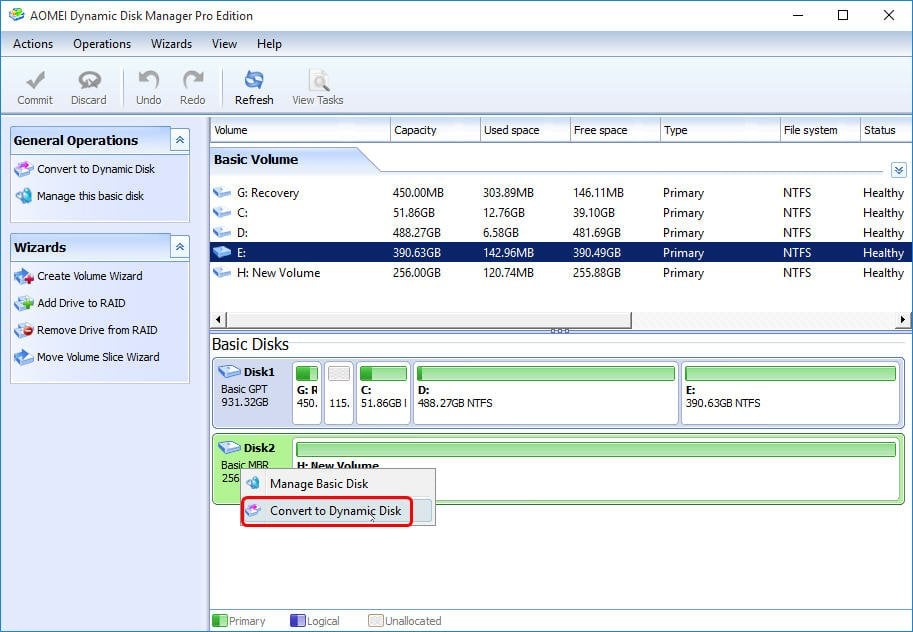
2. Tick the Basic disk (Disk 2), and then hit OK.
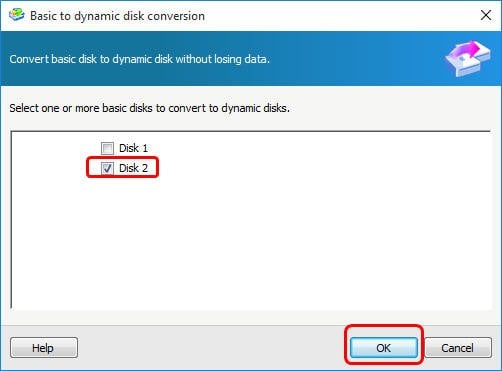
3. Select the basic disk, click "Convert to Dynamic", and then click "Commit" to confirm the change. Review the pending operation carefully before applying it.

4. To commit the pending operation of converting Basic to Dynamic disk, press Proceed.
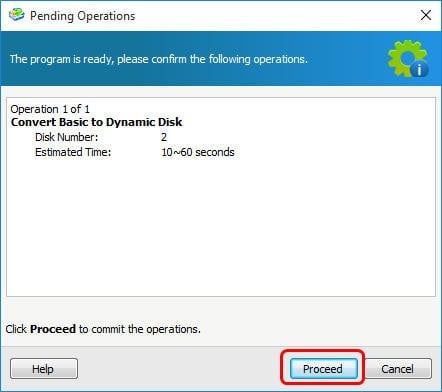
5. After a few seconds, you will see the task progress is completed.
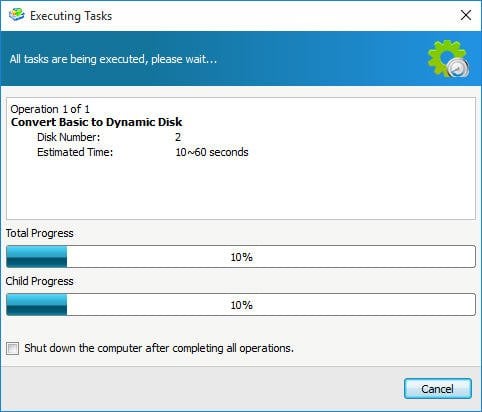
Tip: Converting a basic disk to dynamic normally keeps existing data, but you should still back up important files before changing disk type.
Whether you should convert to a dynamic disk depends on your needs. If you need spanned, striped, mirrored, or RAID-5 volumes, a dynamic disk can help. If you need maximum compatibility or multi-boot support, a basic disk is usually safer. Qiling Disk Master can also help convert a dynamic disk back to basic when needed.
Related Articles
- How to Partition C Drive [Step-by-Step Guide]
Learn how to Partition C Drive with clear steps, key checks, and practical tips. - Partition SSD for Windows 10 Installation, Full Guide with Pictures
This guide explains Partition SSD for Windows 10 Installation, Full Guide with Pictures with clear steps, key checks, and practical tips. - How Can I Remove Write Protection From USB, Help
Sometimes the USB will be write-protected, and this article will give you a beginner's guide on how to remove write protection from USB so that you can format or modify it again. - Formatting Stuck in Disk Management? Try Qiling Partition Format!
Learn how to formatting Stuck in Disk Management Try Qiling Partition Format safely, including what to check before formatting, wiping, or deleting data. - How to Resize Partitions with Windows XP Partition Manager Software
This article will provide some useful tips to perform Windows XP partition management, like resize, move, merge, create, extend or shirk partitions. - How to Apply Wipe Data/Factory Reset on Android
Wipe Data/Factory Reset is a feature on Android devices that allows users to completely erase all data, settings, and applications, returning the device to its original factory settings.
Products
Articles & Tutorials
- Data Recovery
- Data Backup
- File Recovery
- File Backup
- File synchronize
- System Backup and Restore
- Disk and Partition Clone
- Technical articles
- Disk Master Help
- Windows Deleted File and Disk Recovery Tutorials
- Windows File and Data Recovery Tutorials
- More Windows Tutorials for Install, Security, Files, and PC Tips
- Windows Boot, Repair, and Recovery Environment Tutorials
- Windows Backup Tutorials
- Windows Restore Tutorials
- Windows Clone and Migration Tutorials
- Windows Server Backup, Recovery, and Management Tutorials
- Windows Disk, Partition, and Storage Management Tutorials