3 Methods: Convert MBR to GPT without Deleting Your Partitions
- Can I convert my MBR disk to GPT without deleting my partitions?
- About MBR and GPT
- 3 Ways of converting MBR to GPT without deleting your partitions
- Way 1. Change disk to GPT without data loss via a free GUI tool [Recommended]
- Way 2. Change MBR to GPT via command line utility Gptgen.exe
- Way 3. Convert MBR to GPT using MBR2GPT in Windows 10
- Final words
Can I convert my MBR disk to GPT without deleting my partitions?
You want to convert your 3TB MBR hard drive to GPT without deleting any partitions, but the "Convert to GPT Disk" option is greyed out. To proceed, you'll need to delete all partitions from the hard disk, which will allow you to convert it to GPT. This will not erase your data, but rather remove the partition structure, allowing you to recreate the partitions with the GPT scheme. This is a safe and reversible process, and you can restore your original partitions once the conversion is complete. Would you like me to guide you through the steps?
About MBR and GPT
Before attempting to convert MBR to GPT without deleting your partitions, you may want to review the differences between MBR and GPT, which can be summarized in a screenshot.

To utilize a large disk beyond 2TB, create additional partitions or encounter the error "Windows cannot be installed to this disk. The selected disk has an MBR partition table." On EFI systems, Windows can only be installed to GPT disks, so converting the disk from MBR to GPT is a viable option. However, if the disk is already GPT-partitioned but the OS doesn't support GPT partitions (such as Windows XP 32bit or Windows 2000), converting the GPT disk to MBR is necessary.
3 Ways of converting MBR to GPT without deleting your partitions
To convert a drive to GPT partition style without losing data or deleting partitions, ensure your operating system supports GPT. Then, choose one of the methods available to make the conversion.
Way 1. Change disk to GPT without data loss via a free GUI tool [Recommended]
Qiling Disk Master Standard is a free tool that converts MBR disks to GPT while keeping all partitions intact, making it suitable for Windows 11/10/8.1/8/7. Its user-friendly interface makes it easy to operate, even for those new to disk management, and its strong technology support enables conversions from MBR to GPT without deleting partitions.
✐ Now, free download it and check out the detailed steps given below.
Step 1. Install and run the software. In the home interface, right-click the MBR disk and select "Convert to GPT".
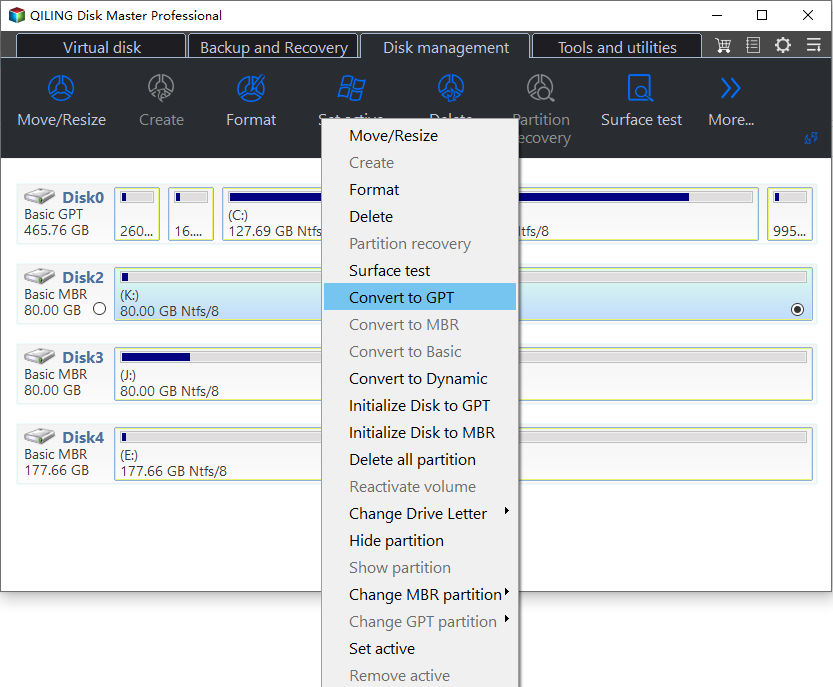
After a while, the large disk has been successfully converted to GPT, and all partitions on the disk remain intact, with no data loss.
- Notes:✎...
- If you need to convert a disk that contains an operating system to GPT or MBR, you should upgrade to the Professional version.
Way 2. Change MBR to GPT via command line utility Gptgen.exe
Gptgen is a command-line utility that can convert a hard disk from MBR to GPT. It is intended for advanced users, so make sure you have a full backup before using it.
1. Download Gptgen from its official website and unpack it.
2. Run Command Prompt as an administrator.
3. To execute the command, type `gptgen.exe -w .\\physicaldrive n`, where "n" is the number of the selected drive.
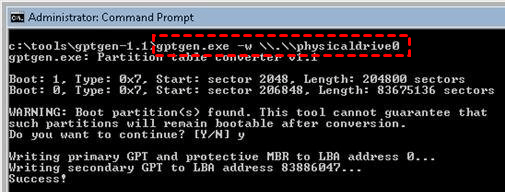
When you receive the message "This tool cannot guarantee that such partitions will remain bootable after conversion" and "Do you want to continue? [Y/N]", simply type "y" to continue the operation.
- Notes:✎...
- Apart from Windows, Gptgen is suitable for Linux.
- Gptgen does not support the conversion of dynamic disks from MBR style to GPT.
- It's recommended to back up important data and the operating system to prevent data loss due to incorrect operations.
Way 3. Convert MBR to GPT using MBR2GPT in Windows 10
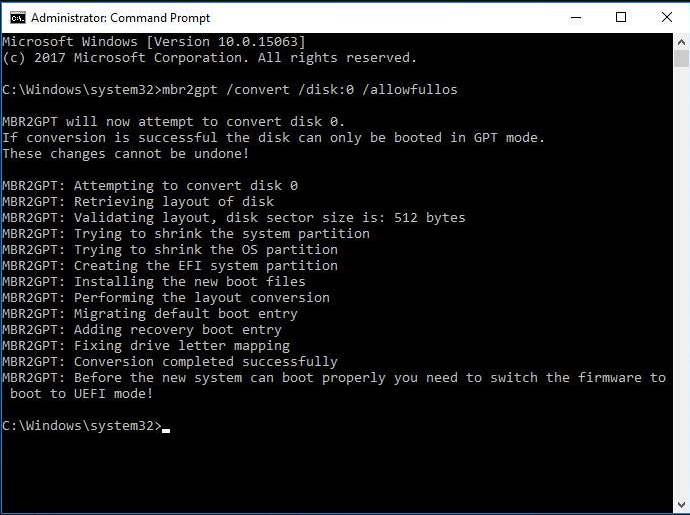
If your computer is running Windows 10 version 1703 or later, you can convert an MBR disk to GPT using the MBR2GPT utility without losing any data. To do this, follow the steps to complete the conversion on the MBR disk where the OS is installed.
1. To run Command Prompt as administrator, press the Windows key + R to open the Run dialog, type "cmd" and press Enter. This will launch the Command Prompt with administrator privileges.
2. To convert a disk to GPT using the command prompt, type "mbr2gpt /convert /disk n /allowfullos" in the command prompt window. This command will initiate the conversion process, and the system will automatically restart.
- Notes:✎...
- "n" is the number of the hard drive that you need to convert to GPT.
- If there is a BitLocker-To convert a BitLocker encrypted volume on the disk, suspend the BitLocker protection before converting the disk. After conversion, delete the existing protectors and recreate them to resume BitLocker protection.
- It is recommended to confirm that your device supports UEFI/EFI boot before converting and reconfiguring the firmware after the operation, as this may void the warranty or cause other issues.
- The MBR2GPT.exe file is specifically designed to convert the system disk from Master Boot Record (MBR) to GUID Partition Table (GPT) format. However, if you attempt to use it on a data disk, you may encounter an error message stating that MBR2GPT cannot find the operating system, indicating that it's not intended for data disks.
Final words
Converting an MBR disk to GPT without deleting partitions is a straightforward process that can be achieved through three utilities. Users can choose the most suitable tool based on their specific needs, allowing them to change their MBR disk to GPT without losing any data.
If you're unfamiliar with command lines, Qiling Disk Master is a great option for converting MBR to GPT without data loss. For those with computer knowledge, Gptgen is a reliable choice. If your disk and system meet the requirements, MBR2GPT is also a viable option. Qiling Disk Master not only converts MBR to GPT without deleting partitions but also offers additional features such as cloning MBR or GPT hard drive, cloning partition, and migrating OS to SSD.
Related Articles
- Solved: The Selected Disk is of the GPT Partition Style in Windows
This guide explains Solved: The Selected Disk is of the GPT Partition Style in Windows with clear steps, key checks, and practical tips. - How to Fix MBR2GPT Error in MBR to GPT Conversion in Windows 10?
If you faced "MBR2GPT error" when convert MBR to GPT, try alternative Qiling Disk Master, which can make disk conversion between MBR and GPT easily and safely. - Is UEFI with GPT or MBR?
This guide explains Is UEFI with GPT or MBR with clear steps, key checks, and practical tips. - Fixed: 64GB Flash Drive/SD Card/Memory Stick Only Showing 32GB in Windows 7/8/10
On this page, we will tell why your 64GB flash drive only shows 32GB as well as how to restore the USB flash drive back to full capacity without losing data. - Change File System between NTFS and FAT32 without Formatting
This guide explains Change File System between NTFS and FAT32 without Formatting with clear steps, key checks, and practical tips.
Products
Articles & Tutorials
- Data Recovery
- Data Backup
- File Recovery
- File Backup
- File synchronize
- System Backup and Restore
- Disk and Partition Clone
- Technical articles
- Disk Master Help
- Windows Deleted File and Disk Recovery Tutorials
- Windows File and Data Recovery Tutorials
- More Windows Tutorials for Install, Security, Files, and PC Tips
- Windows Boot, Repair, and Recovery Environment Tutorials
- Windows Backup Tutorials
- Windows Restore Tutorials
- Windows Clone and Migration Tutorials
- Windows Server Backup, Recovery, and Management Tutorials
- Windows Disk, Partition, and Storage Management Tutorials