Is UEFI with GPT or MBR?
The debate between GPT (GUID Partition Table) and MBR (Master Boot Record) has been a recurring topic in PC tech forums. With the release of Windows 11, attention has shifted to the role of MBR/GPT in the operating system. Some predict that GPT disks will eventually replace MBR disks, while others disagree with this notion.
Microsoft has made UEFI a required part of Windows 11, which means users may need to choose a GPT disk for the operating system. The reason for this is that UEFI is a more modern and secure boot system compared to MBR, and GPT is the file system that works with UEFI. In short, UEFI and GPT are designed to work together, and MBR is not compatible with UEFI, making it the less desirable choice for Windows 11 users.
Basics of GPT & MBR
First, let's learn some basics about MBR and GPT.
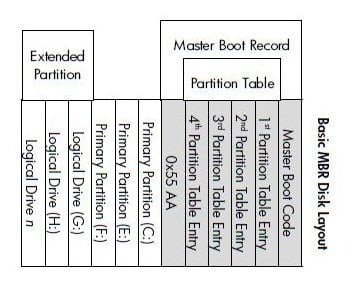
The MBR (Master Boot Record) disk is a type of disk that contains a boot sector at the beginning, which holds a partition table with information about file system partitions and boot codes to execute commands.
The MBR partition table has a 4-byte limit, allowing for up to 2TB capacity, and can only store information for 4 primary partitions, making it suitable for drives with up to 4 primary partitions.
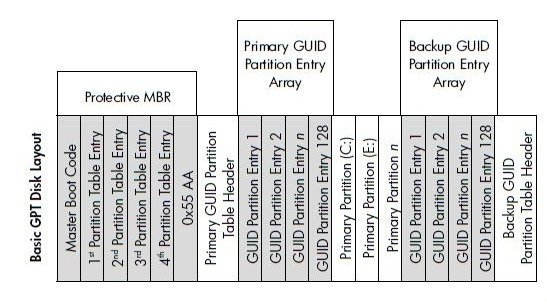
A GPT disk uses Globally Unique Identifiers (GUID) to partition, and its beginning is called the "Protective MBR" for compatibility with BIOS computers. This allows GPT disks to be used on systems that only recognize the Master Boot Record (MBR).
The GPT partition table has no limits on capacity and the number of partitions, allowing for larger disks (up to 18TB) and more partitions (up to 128).
Basics of UEFI & BIOS
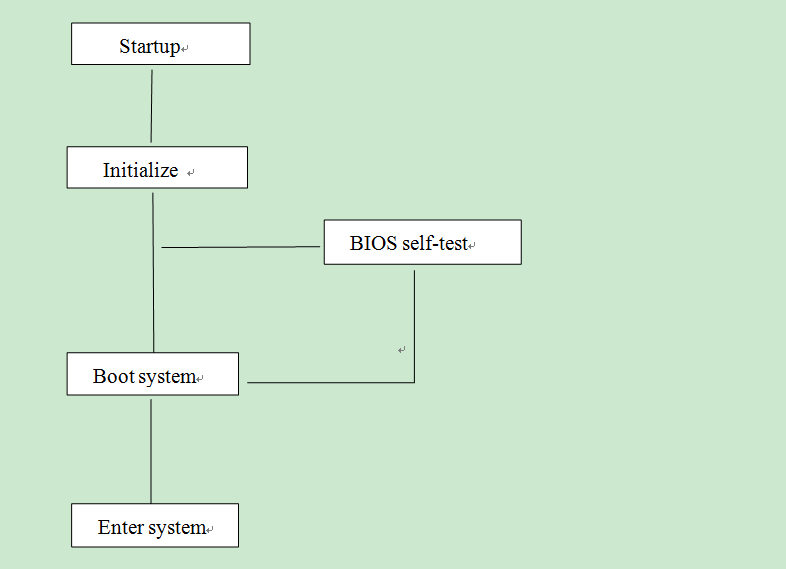
BIOS and UEFI are two firmware interface standards that serve as the first layer of software to run when a computer is powered on. Their primary functions include performing a power-on self-check, managing the startup process to locate the boot program, and providing essential system services to the operating system and boot program.
The BIOS (Basic Input/Output System) is the first program that runs when a PC boots up. It is stored in the ROM (Read-Only Memory), EEPROM (Electrically Erasable Programmable Read-Only Memory), or flash memory of the motherboard.
▶ The progress of BIOS Legacy mode:
1. BIOS POST (Power on Self-Test).
2. The BIOS reads the first sector of the boot device into memory, which contains the master boot record (MBR).
3. The BIOS checks if the MBR end flag bit is 55AAH, if not, it tries other boot devices, and if none meet the requirements, it displays "NO ROM BASIC" and terminates.
4. When a boot device is detected that meets the requirements, the BIOS transfers control to the Master Boot Record (MBR) of that device.
5. The process starts with the boot program being initiated according to the boot code in the Master Boot Record (MBR).
The predecessor of UEFI was the Intel Boot Initiative, developed by Intel in 1998, which was later renamed to EFI (Extensible Firmware Interface). Intel later handed over this specification format to the UEFI Forum for promotion and development in 2005, and it was renamed to UEFI (Unified EFI).
The UEFI system directly identifies and initializes hardware, using the loading EFI driver to save time. Additionally, UEFI is fully 32- or 64-bit, abandoning the 16-bit real mode, and allows for the maximum addressing of the processor, enabling any information to be stored at any memory address.
▶ The progress of UEFI mode:
1. Pre-EFI initialization module operates, and self-checks.
2. The process involves loading the DXE (EFI driver execution environment), enumerating, and then loading an EFI driver, which can be stored in the device's ROM or in the EFI System Partition (ESP).
3. To find the boot program in ESP and boot the operating system through it, you would typically look for a specific program or code stored in the Extended System Partition (ESP) that is responsible for loading and executing the operating system. This program is usually referred to as a boot loader, and its primary function is to locate and load the operating system into memory, allowing it to run.
UEFI boot mode may be faster than BIOS because it skips certain steps, such as the BIOS initialization process.
Does UEFI use GPT or MBR?
The firmware on the motherboard, after the power-on self-test, finds the boot program in either Legacy mode (BIOS + MBR) or UEFI mode (UEFI + GPT), but UEFI requires an EFI driver, which can only be created on a GPT disk, leading to a 'Cannot be installed to this disk' error when using traditional installation methods.
• BIOS+GPT: 64-bit systems can utilize GPT partition tables on hard disks as data storage, but the system itself must be 64-bit based.
• UEFI+MBR: In Windows 11, you can't set UEFI to Legacy mode, which means traditional MBR boot is not supported. However, you can still use UEFI mode to boot from a traditional MBR disk, but you'll need to configure UEFI to recognize the disk as a UEFI disk. This can be done by creating a UEFI bootable USB drive and using the built-in UEFI firmware settings to configure the disk as a UEFI disk.
Convert disk from MBR to GPT without data loss
If your Windows needs a GPT disk to boot, but your current system disk is an MBR disk, you'll need to convert it to GPT style. This can be done using Disk Management, but it will delete all partitions and data, so make sure to back up the target disk first.
Qiling Disk Master Professional is a powerful tool that allows Windows users to convert their system disk from MBR to GPT without losing data, unlike the built-in Disk Management feature which requires a clean target disk for conversion. This makes it a convenient option for users who want to upgrade their disk format without compromising their data.
Step 1. To convert a disk to GPT, launch Qiling Disk Master, right-click the system disk, and select "Convert to GPT" from the main interface or click the target disk and choose "Convert to GPT" from the right column.
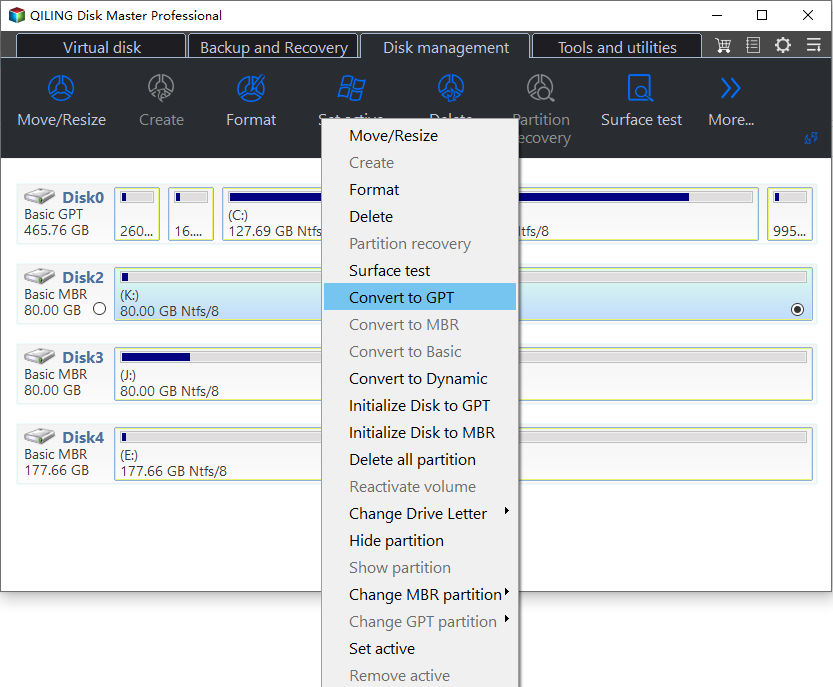
Step 3. Finally, waiting for a moment to execute the converting operations.
Compared to the Windows tool, using this tool to execute the conversion is relatively straightforward for users.
Change boot mode between BIOS and UEFI
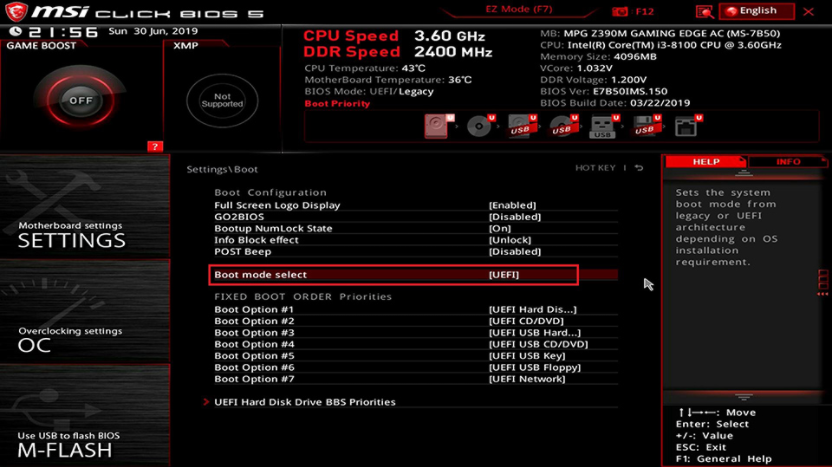
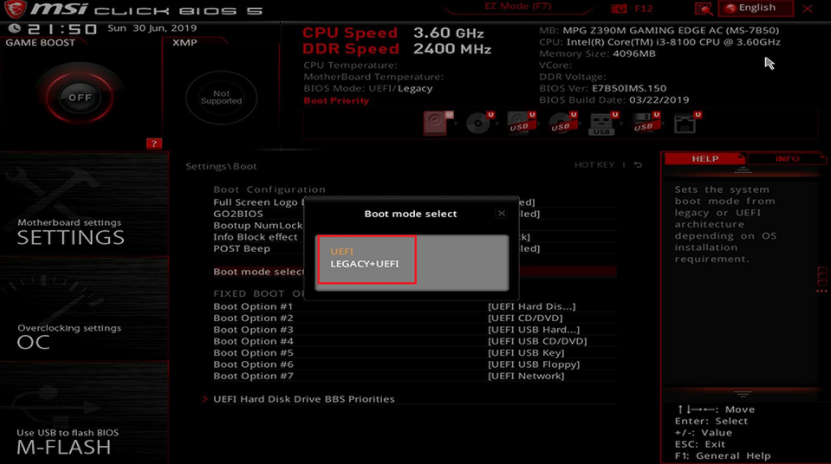
To change the boot mode, simply reboot your PC and press a specific key (usually DEL, F2, or F12) to access the settings board.
Step 1. You can find the Legacy/UEFI boot mode configuration under the Boot tab. Please disable Legacy and enable UEFI.
Ending
UEFI with GPT or MBR is determined by the Windows OS version, so it's essential to check compatibility before initializing a disk. Not all Windows OS support UEFI mode, and Qiling Disk Master can assist with converting GPT to MBR without data loss. Additionally, the tool allows for OS migration without reinstalling, cloning disks or partitions, moving programs, and securely erasing SSDs.
Related Articles
- Install Windows 10 on a GPT partition
Match UEFI boot mode and GPT layout during Windows 10 setup. - How to Convert MBR to GPT during Windows Installation
Learn to convert MBR to GPT during Windows installation via Command Prompt and a handy tool to convert the disk without losing data. - Are UEFI and GPT Required to Install Windows 11?
In this post, you'll learn whether UEFI and GPT are required for Windows 11 installation. Also, the ways to set boot mode as UEFI and to change disks from MBR to GPT will be introduced. - MBR or GPT, Which Is Better for 3TB Hard Drive?
To add more free space to your PC, you can set your 3TB hard drive to either MBR (Master Boot Record) or GPT (GUID Partition Table) mode, depending on your specific needs. This guide will walk you through the process to help you make an informed decision and set up your hard drive accordingly. - Is UEFI with GPT or MBR?
Learn how UEFI works with GPT or MBR disks and choose the right partition style for Windows boot. - Convert Basic Disk to Dynamic |When and How?
Convert a basic disk to dynamic disk when advanced Windows volume features are needed. - How to Solve Convert to Basic Disk Greyed Out Question?
Fix Convert to Basic Disk greyed out and choose a safe way to change disk type without data loss.
Products
Articles & Tutorials
- Data Recovery
- Data Backup
- File Recovery
- File Backup
- File synchronize
- System Backup and Restore
- Disk and Partition Clone
- Technical articles
- Disk Master Help
- Windows Deleted File and Disk Recovery Tutorials
- Windows File and Data Recovery Tutorials
- More Windows Tutorials for Install, Security, Files, and PC Tips
- Windows Boot, Repair, and Recovery Environment Tutorials
- Windows Backup Tutorials
- Windows Restore Tutorials
- Windows Clone and Migration Tutorials
- Windows Server Backup, Recovery, and Management Tutorials
- Windows Disk, Partition, and Storage Management Tutorials