MBR or GPT, Which Is Better for 3TB Hard Drive?
- About 3TB Hard Drive
- MBR vs. GBT
- Why choose GPT for 3TB hard drives?
- How to Convert MBR to GPT for 3TB hard drives?
- ► Method1. Convert a 3TB hard disk to GPT via Diskpart.exe
- ► Method 2. Switch from a 3TB MBR disk to GPT via Disk Management
- Method 3. Convert a 3TB hard disk to GPT with MBR2GPT.exe
- ► Method 4. Change MBR to GPT without data loss via a handy tool
- Conclusion
About 3TB Hard Drive
With the advancement of technology, larger hard disk capacities have become available, eliminating the need for low-capacity warnings. Hard drives can now hold up to several terabytes, with 3TB being a common size.
When you get a 3TB hard drive, you'll be prompted to choose between MBR (Master Boot Record) and GPT (GUID Partition Table) formatting. The default choice is usually GPT, which is recommended for larger hard drives like the 3TB Seagate Desktop, Western Digital Caviar Green, or Hitachi Deskstar 7K3000, because GPT can support larger disk sizes and more partitions than MBR. This is the reason why you need to choose GPT for your 3TB hard drive.
MBR vs. GBT
Before formatting your hard drive, it's essential to understand the concepts of Master Boot Record (MBR) and GUID Partition Record (GPT). The MBR is a small sector at the beginning of a hard drive that contains information about the partitions on the drive, while the GPT is a newer, more flexible partitioning scheme that provides additional features and capabilities.
MBR The Master Boot Record (MBR) is a conventional disk partition style that has been in use since its first publication. It records information about the hard disk, including the size and location of all partitions.
GPT The GUID Partition Table (GPT) is a superior alternative to the traditional Master Boot Record (MBR). It allows for the creation of partitions with distinct permissions, ensuring data safety by preventing the cloning of the entire disk. The unique GUID of each partition guarantees that data is safely stored and protected, making GPT a reliable and efficient disk partition style.
MBR has limitations, supporting only partitions smaller than 2TB. It can have 4 primary partitions or 3 primary and 1 extended partition. In contrast, GPT has no size or capacity limitations, allowing for more partitions. However, GPT is only compatible with UEFI boot systems and not suitable for movable devices.

Why choose GPT for 3TB hard drives?
Based on the official information from Microsoft, if you try to upgrade to Windows 11 To install Windows 11, you need to have Windows 10 installed on your computer, use the "Check for Update" feature, and have a GPT hard disk. Additionally, your computer's firmware must be set to UEFI boot mode.
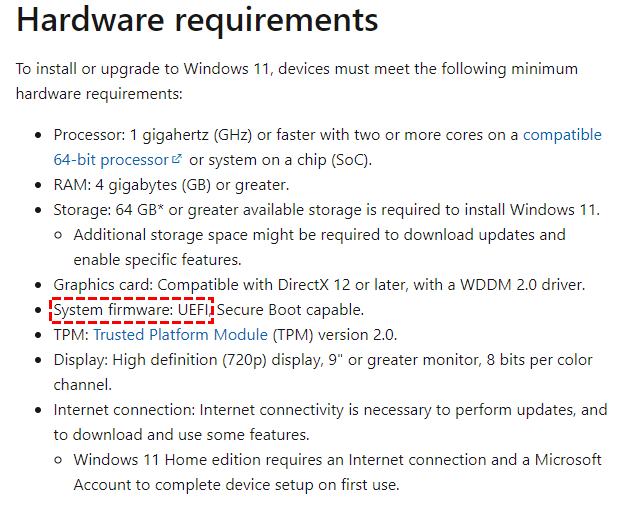
(From Microsoft news)
When choosing a partition style, consider the properties of your hard disk, taking into account the differences between Master Boot Record (MBR) and GUID Partition Table (GPT) to make an informed decision.
When dealing with disks smaller than 2 TB, MBR is a suitable choice for management. However, for larger disks exceeding 2 TB that require additional partitions, GPT is the preferred option, offering advantages over MBR.
To convert a 3 TB hard drive from MBR to GPT, you can try using a third-party disk management tool or the built-in Disk Management tool in Windows. If you're using a Windows 10/11 system, you can also use the built-in MBR2GPT tool. This tool can convert the disk to GPT without losing any data, but it's essential to back up your data first to ensure it's safe.
How to Convert MBR to GPT for 3TB hard drives?
To resolve the issue of a 3TB hard drive being recognized as only 2TB and having an unallocated space of around 750GB, there are three possible solutions. Firstly, you can use the built-in Disk Management tool in Windows to convert the disk to GPT, which will allow the system to recognize the full capacity of the hard drive. Secondly, you can use a third-party software, such as Qiling Partition Master, to convert the disk to GPT. Thirdly, you can use a bootable USB drive with a Linux system to convert the disk to GPT.
► Method1. Convert a 3TB hard disk to GPT via Diskpart.exe
To convert MBR to GPT using Diskpart, follow these steps: Open Command Prompt as Administrator, type 'diskpart' and press Enter, then type 'list disk' and press Enter to list all disks, type 'select disk X' (replace X with the number of the disk you want to convert), then type 'convert gpt' and press Enter. This will convert the selected disk from MBR to GPT.
Step 1. To open the Diskpart program, click the "Start" menu, type "diskpart" in the search box, and press enter to open the Diskpart program.
Step 2. In the Diskpart, input the following commands and hit "Enter" each time.
• list disk (To let the info of all hard disks appear.)
• disk * To convert a disk, select the disk you want to convert from the list, which is numbered starting from 1. The "*" symbol represents the current selection. You can choose the disk you want to convert by typing the corresponding number. For example, if you want to convert the 3rd disk, you would type "3".
• clean (To delete all partitions on the hard disk.)
• convert gpt (To convert the MBR disk to GPT.)
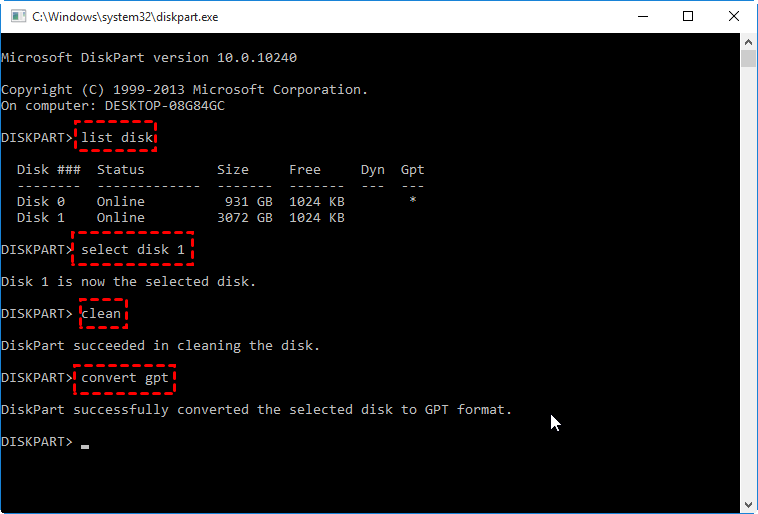
Note: This method allows for conversion between MBR and GPT, but comes with a significant data loss since all existing partitions on the target hard disk must be deleted.
► Method 2. Switch from a 3TB MBR disk to GPT via Disk Management
Disk Management is a Windows utility that allows users to manage disks and partitions, enabling tasks such as changing drive letters, resizing partitions, formatting disks, and converting MBR to GPT.
Tip: You can back up any important data before this operation.
Step 1. To delete an existing partition on a hard drive, go to "This PC", then "Manage", and finally "Disk Management". From there, right-click on the target partition and select "Delete Volume". This will erase the existing partition, making way for a new one to be created.
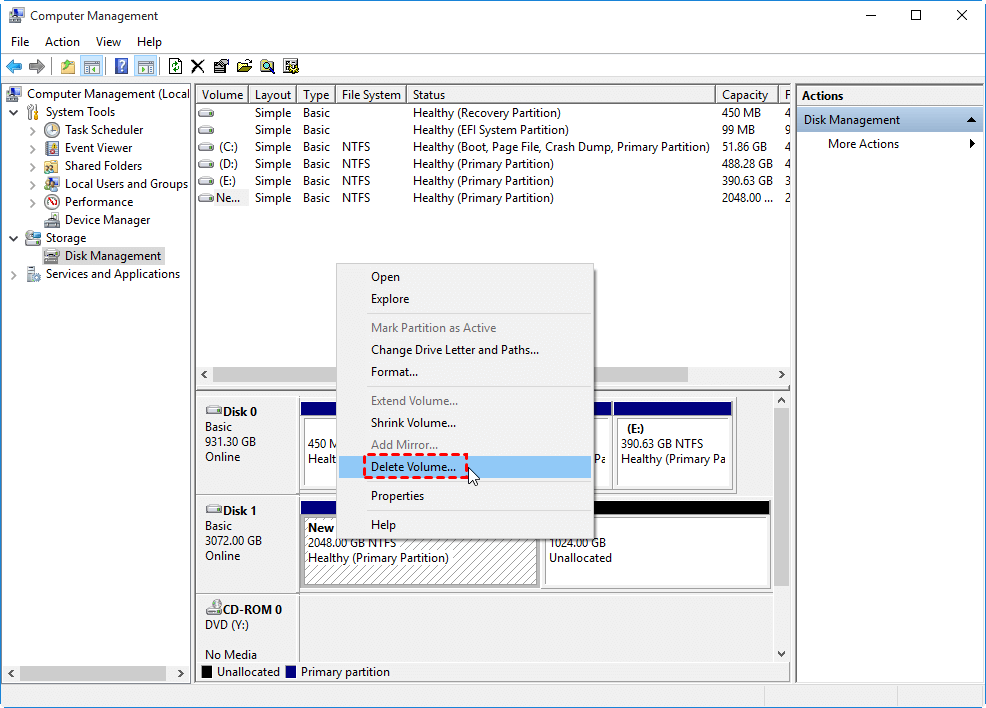
Step 2. To convert a MBR disk to a GPT disk, right-click the disk and select "Convert to GPT Disk". This process may take a few minutes to complete.
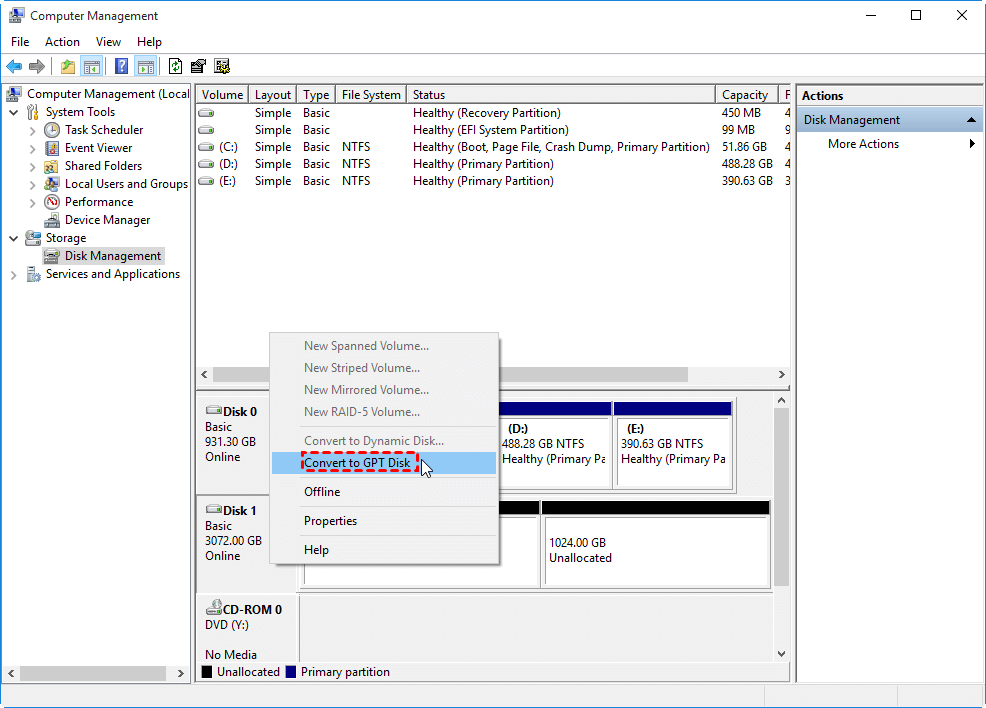
Note: If the "Convert to GPT Disk" option is greyed out, it means you haven't deleted all partitions on the hard disk, so you need to perform the partition deletion to proceed.

Method 3. Convert a 3TB hard disk to GPT with MBR2GPT.exe
MBR2GPT.exe is a Windows built-in tool that safely converts a Master Boot Record (MBR) to a GUID Partition Table (GPT) without harming stored data. It's suitable for Windows 10 versions 1730 and later, and users familiar with PC settings can attempt the conversion using this tool.
Step 1. To access the Advanced Startup menu, click on the "Start" button, then click on "Power", and while holding the "Shift" key, click on "Restart".
Step 2. Then, select "Troubleshoot", "Advanced options" and "Command Prompt" in turn.
Step 3. In Command Prompt, input the commands below and press "Enter" each time.
• mbr2gpt /validate
• mbr2gpt /convert
► Method 4. Change MBR to GPT without data loss via a handy tool
Since all of the mentioned methods have limitations, many users would like to search for a practical and easy tool to convert MBR to GPT. Here, you can ask the help of Qiling Disk Master Professional.
The utility's "Convert to GPT" feature allows for seamless conversion of a disk from MBR to GPT without deleting any partitions or damaging the computer's OS, ensuring data safety throughout the process.
They can also partition their hard drive, manage disk space, clone the whole disk to another hard drive, and clean up unwanted files from the PC.
Download the demo and experience the best disk manager for converting partition styles!
Step 1. Install and launch Qiling Disk Master Professional Edition. Right-click on the target disk and choose the "Convert to GPT" function or click the disk and choose "Convert to GPT" from the right column.
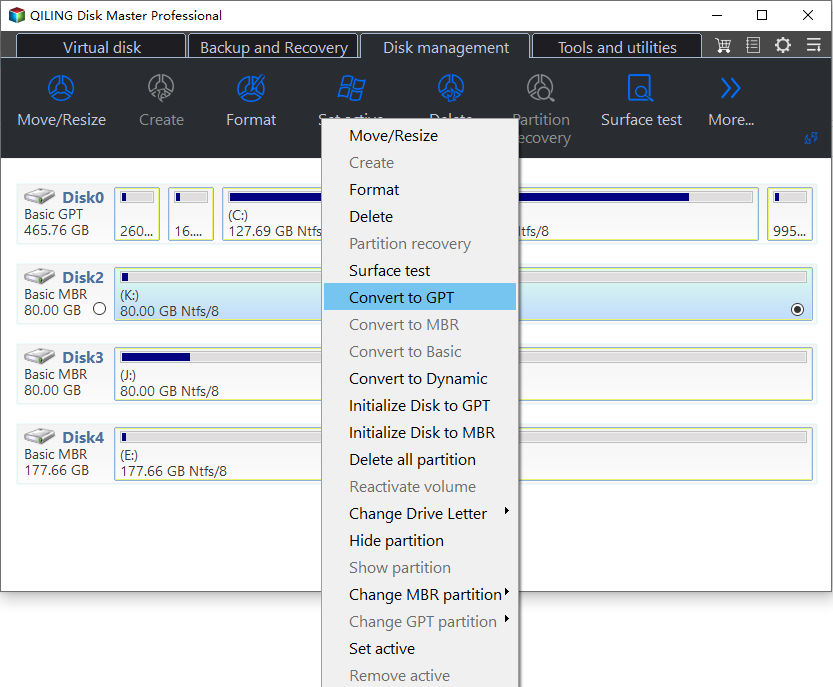
Step 2. Please wait for the process to be completed.
Note: To successfully boot into Windows, you may need to enter BIOS settings to change the boot mode from Legacy to UEFI.
Conclusion
For a 3TB hard drive, you have the option to choose between MBR (Master Boot Record) and GPT (GUID Partition Table). Fortunately, with tools like Diskpart, Disk Management, MBR2GPT.exe, and Qiling Disk Master professional, converting MBR to GPT is a straightforward process that can be easily accomplished.
Qiling, a professional disk and partition manager, has helped millions of Windows users resolve various disk and drive issues. With its capabilities, you can move installed programs without reinstalling them, securely erase SSD or HDD to protect your privacy, and even assist with the installation of Windows 11.
Qiling Disk Master is designed for Windows Server users, providing a reliable solution for protecting disks and data.
Related Articles
- MBR vs GPT: Which One Is Better for You?
This guide explains MBR vs GPT: Which One Is Better for You with clear steps, key checks, and practical tips. - Upgrade to Windows 11: What You Need to Know?
This guide explains Upgrade to Windows 11: What You Need to Know with clear steps, key checks, and practical tips. - Fixed: 64GB Flash Drive/SD Card/Memory Stick Only Showing 32GB in Windows 7/8/10
On this page, we will tell why your 64GB flash drive only shows 32GB as well as how to restore the USB flash drive back to full capacity without losing data. - GPT to MBR Converter Software - Free Download
While GPT is the new standard and is gradually replacing MBR, MBR is still the most compatible and is still necessary in some cases. If you are confused with GPT to MBR conversion, read this page patiently. - Is UEFI with GPT or MBR?
This guide explains Is UEFI with GPT or MBR with clear steps, key checks, and practical tips. - How to Convert FAT32 to NTFS Windows 10 without Data Loss?
Follow the steps to convert FAT32 to NTFS Windows 10 without losing data or formatting. Three methods are listed for changing FAT32 to NTFS.
Products
Articles & Tutorials
- Data Recovery
- Data Backup
- File Recovery
- File Backup
- File synchronize
- System Backup and Restore
- Disk and Partition Clone
- Technical articles
- Disk Master Help
- Windows Deleted File and Disk Recovery Tutorials
- Windows File and Data Recovery Tutorials
- More Windows Tutorials for Install, Security, Files, and PC Tips
- Windows Boot, Repair, and Recovery Environment Tutorials
- Windows Backup Tutorials
- Windows Restore Tutorials
- Windows Clone and Migration Tutorials
- Windows Server Backup, Recovery, and Management Tutorials
- Windows Disk, Partition, and Storage Management Tutorials