Windows 10 Disk Management - The Most Helpful User Guide
Overview of Windows 10 Disk Management
Windows 10 is a popular Operating System by Microsoft, offering improvements over Windows 8, including the return of the Start Menu, virtual desktops, Cortana voice assistant, Xbox app and streaming, and Edge browser.
Disk Management is a built-in tool in Windows 10 that allows users to manage hard disk partitions without rebooting the system or experiencing any interruptions, making it a convenient tool for Windows 10 users.
Help in Windows 10 Disk Management
As a Windows 10 user, you're likely familiar with using Disk Management to manage your hard disk partition and troubleshoot common issues. This tool allows you to initialize a new drive, extend a basic volume, shrink a basic volume, and more, making it a valuable resource for maintaining your computer's storage setup.
| Create, delete & format partition | Change drive letter and paths | Mark partition as active |
| Explore partition to view files | Extend & Shrink partition | Add mirror |
| Initialize a brand new disk | Convert empty disk to MBR/GPT | Convert empty dynamic disk to basic |
How to open Disk Management in Windows 10?
To open Disk Management in Windows 10, you can use one of the following methods: right-click on "This PC" or "Computer" and select "Manage," type "Disk Management" in the Windows search bar, press the Windows key + X and select "Disk Management," or use the command prompt by typing "diskmgmt.msc" and pressing Enter.
◤ Way 1. Open Disk Management via "This PC"
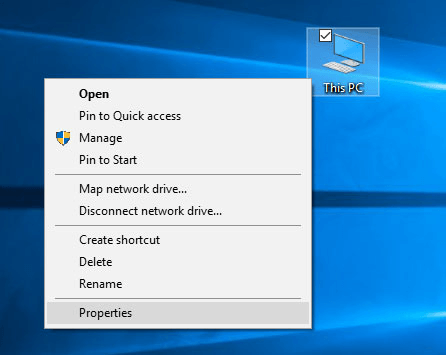
Right-To access Disk Management, click "This PC" on the desktop, and choose "Manage" in the context menu, which will open the Computer Management window, then select and click Disk Management on the left.
◤ Way 2. Open Disk Management via "Run"
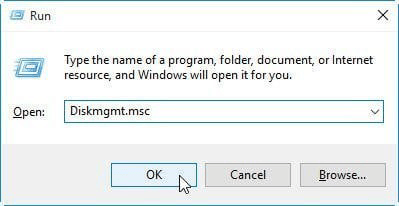
To open the Disk Management tool, press the Windows key and R key simultaneously, which will open the "Run" window. Then, type "Diskmgmt.msc" in the empty box and press the Enter key (or tap OK).
◤ Way 3. Open Disk Management via "Search"
To access the Disk Management tool, click on the Start button, then click on the Search icon, type "disk management" in the search box, and select "Disk Management" from the list of results.
◤ Way 4. Search and enter
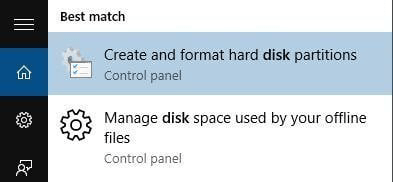
To access the Disk Management tool, type "disk management" in the Search box and select "Create and format hard disk partitions" from the search results.
How to Use Disk Management in Windows 10
Windows 10 users often face the issue of low disk space warning, particularly on the system partition. To resolve this, extending the volume is a highly effective solution. Additionally, some users may want to create a new partition, as many disks only have a large C drive. In this scenario, shrinking the volume to create a new drive is a viable option. This article will guide you through the process of extending volume and shrinking volume to create a new drive using Disk Management.
1. Extend C drive via Disk Management with adjacent unallocated space
To extend the C drive, you can use the Disk Management tool. If there is an adjacent unallocated space behind the C drive, follow these steps: Open Disk Management, right-click on the C drive, and select "Extend Volume." Select the unallocated space behind the C drive and click "Add" to extend the C drive.
Step 1. To quickly open the Run dialogue, press the Windows key and the R key at the same time on your keyboard. This will open the Run dialogue, allowing you to type commands and access system functions.
Step 2. Input diskmgmt.msc and hit Enter to open Disk Management.
Step 3. Right-click C drive and choose "Extend Volume".
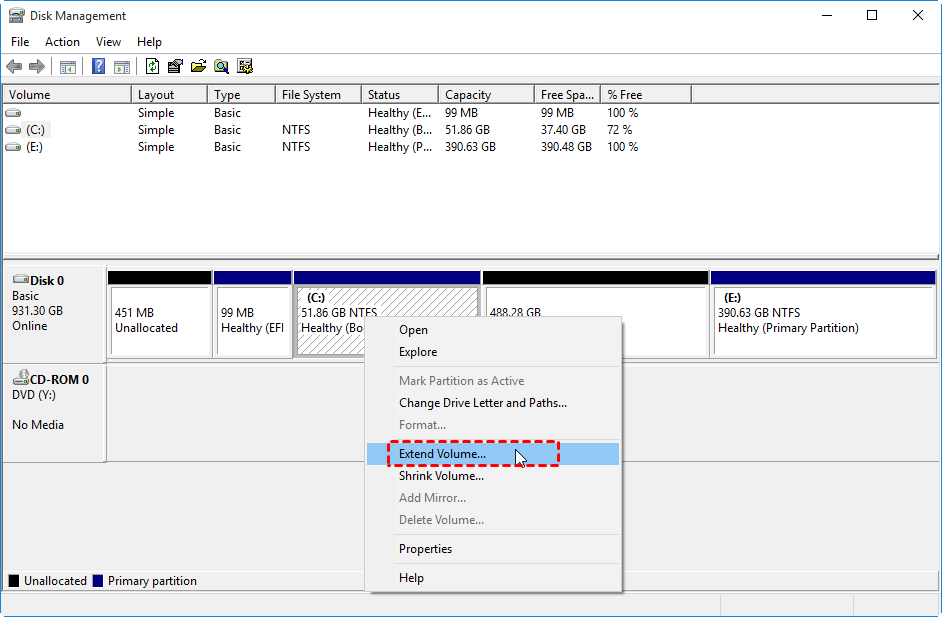
Step 4. Follow the prompts that will appear to complete this operation.
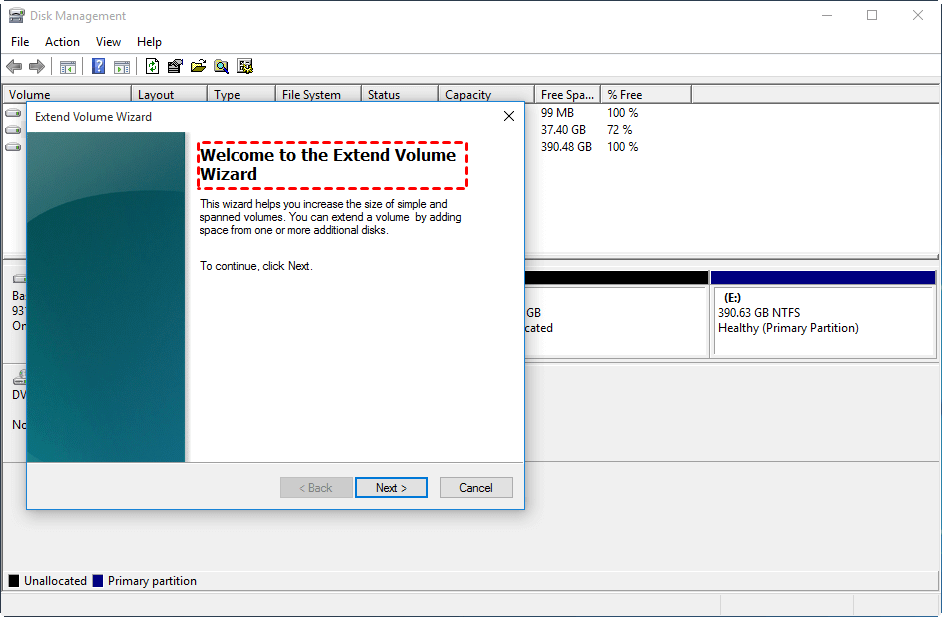
Note: If the Extend Volume option is greyed out and unclickable, it's because Windows 10 requires contiguous unallocated space behind the partition you're trying to extend.
2. Create a new partition in Disk Management from C drive
To create a partition from C drive using Disk Management, you need to create unallocated space first and then create a new partition based on it.
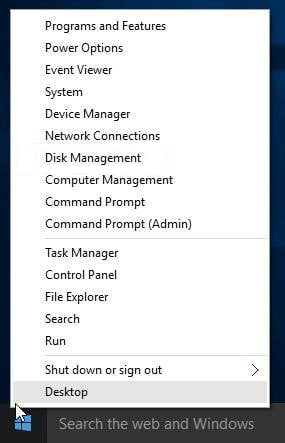
Step 1. Press the "Windows + X" and select "Disk Management" from the menu.
Step 2. Select the "Format" option from the context menu that appears.
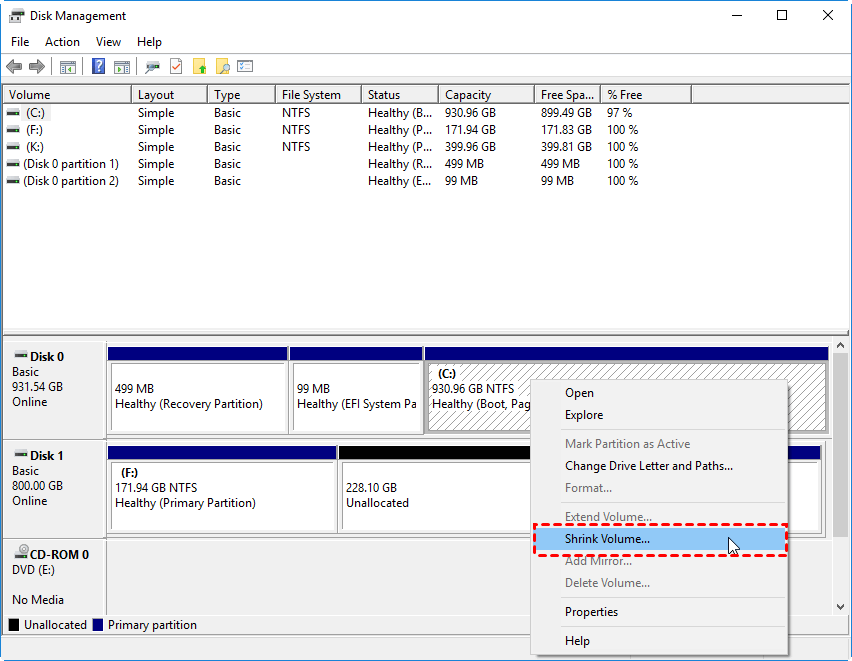
Step 3. Select "Shrink Volume" from the context menu that appears.
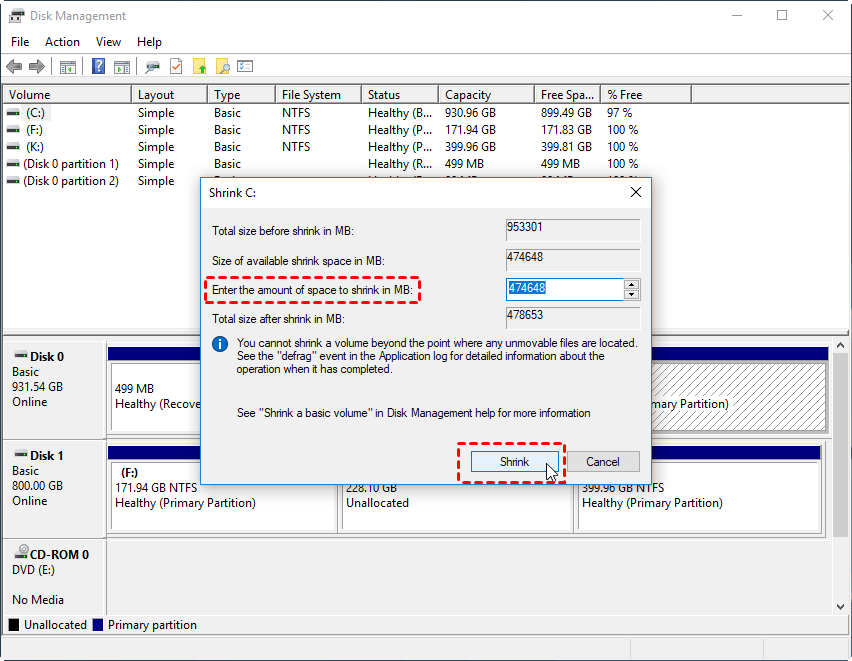
Step 4. In the Shrink window, enter the amount of space you want to allocate to the new partition in megabytes (MB), then click "Shrink".
Step 5. Once Disk Management has completed the shrinking process, you'll see a black area labeled "Unallocated" which is now available for use.
Step 6. Right-click the unallocated space and select "New Simple Volume" from the context menu that appears.
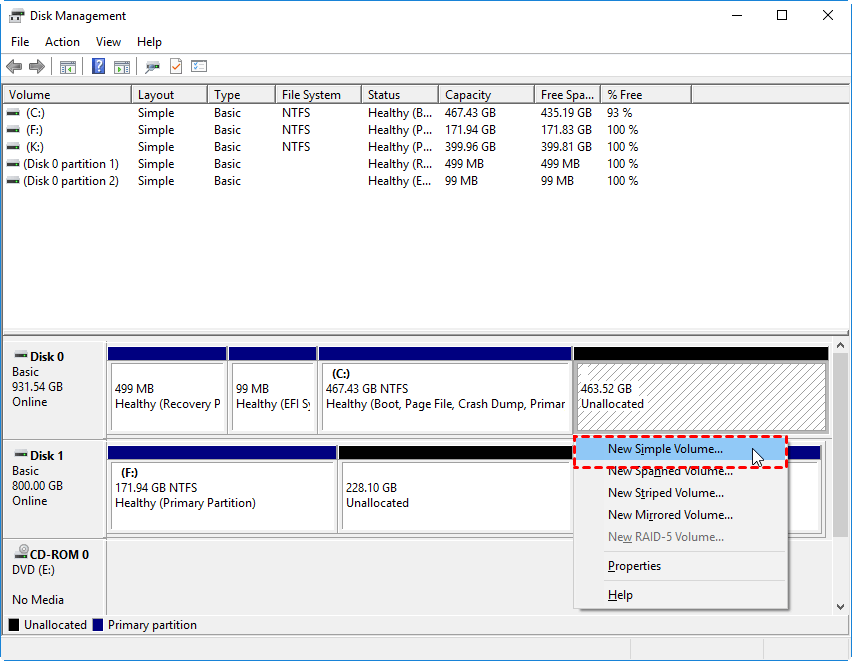
Step 7. To create a new simple volume, follow the prompts in the New Simple Volume Wizard to assign a drive letter, format the new partition, and complete the creation process.
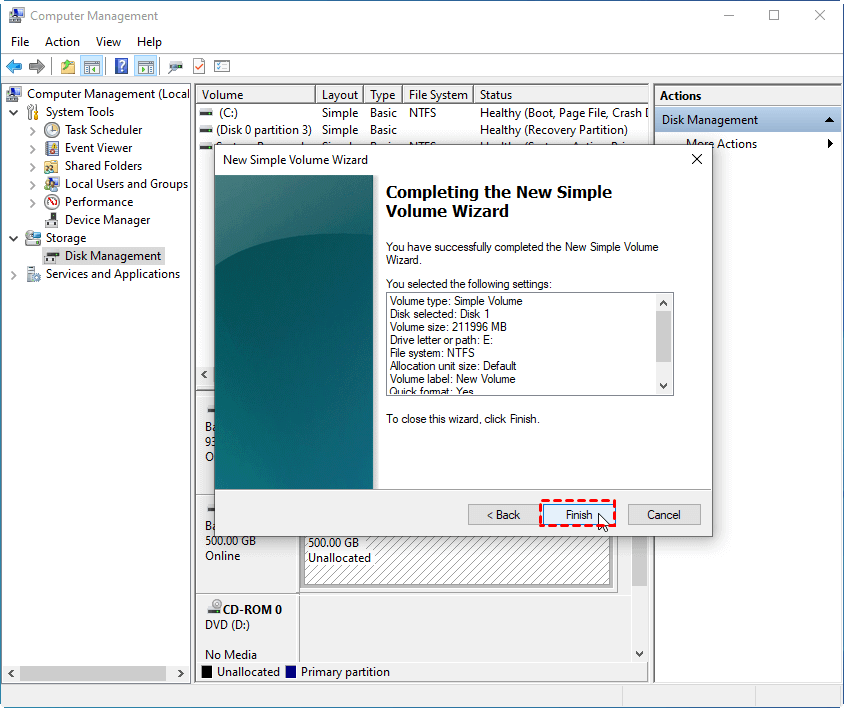
Initializing, deleting, and formatting a disk or partition using Disk Management is a straightforward process. Simply select the disk or partition, right-click it, and choose the desired operation - such as initializing, deleting, or formatting - and follow the on-screen instructions step by step. This process is just as easy as extending a volume, making it a user-friendly task.
If you're unable to enlarge a partition due to lack of contiguous unallocated space on your hard drive, you can delete the partition behind the one you want to extend, and then add the generated unallocated space to the target volume using the "Extend Volume" option. However, be aware that this approach may lead to other issues, such as "shrink volume greyed out", "the disk not showing up in Disk Management", or "cannot initialize the disk".
Better one-in-all disk manager for Windows 10
Windows 10's built-in Disk Management utility has its limitations, prompting the need for a more capable disk manager. Fortunately, Qiling Disk Master Standard is a powerful and free tool that can overcome the shortcomings of the built-in partition manager, and is compatible with Windows XP, Vista, 7, 8, 10, and even the latest Windows 11.
Qiling Disk Master allows you to extend a partition, even if there is no unallocated space next to it, in Windows. You can also use it to resize or move a partition and enlarge it with adjacent unallocated space, whether on the left or right side. Additionally, the software can help you enlarge a partition without any unallocated space on the hard drive.
The following contents will show you how to extend partition successfully with this disk manager in Windows 10 within two different situations.
▶ Case 1: Extend partition when there is non-contiguous unallocated space [FREE]
We recommend using the "Merge Partitions" feature of Qiling Disk Master, which can combine two adjacent partitions or non-contiguous unallocated space into another existing partition.
- Before you do:✎...
- You can merge one or more parts of unallocated space into a partition, allowing you to reclaim space and make better use of your disk storage.
- " System Reserved" partition could not be merged.
- If there are running applications in the partition you are going to operate, Qiling Disk Master will suggest you close them or perform the operation under PreOS Mode.
- If there is no unallocated space on the disk, please go to Case 2. In this case, the disk is completely full and there is no space to create a new partition.
Step 1. Download Qiling Disk Master Standard.
Step 2. Install and launch Qiling Disk Master, right-click on the partition you need to extend (e.g. D Drive) and choose Move/resize Partitions.
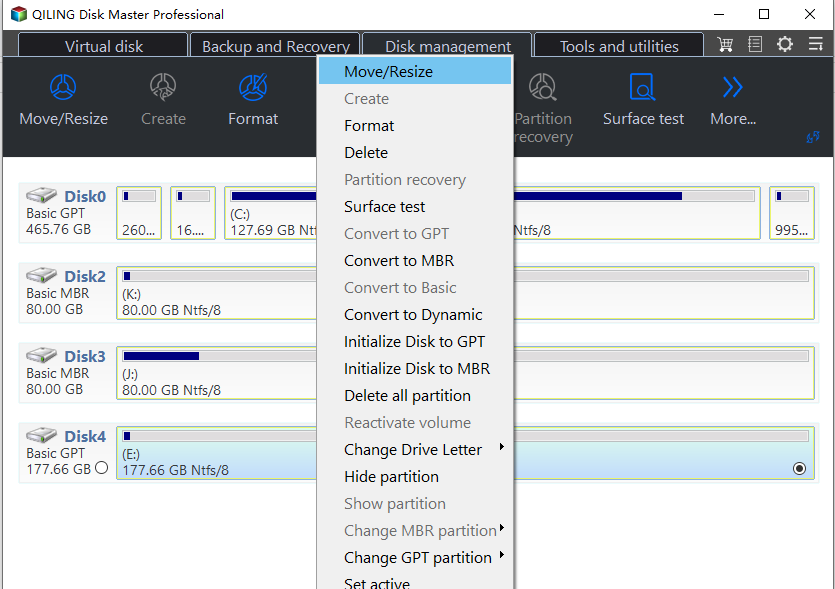
Step 3. Now you can preview the unallocated space that has been added to C drive. To save the change, click the Proceed button in the top left corner.
▶ Case 2: Extend partition when there is no unallocated space [Advanced]
When there is no unallocated space on the disk, try using the "Allocate Free Space" option to move free space from one partition to another.
- Before you do:✎...
- If you have 4 primary partitions on an MBR disk and you want to split one of them, the partition being split will be converted to a logical partition automatically.
- The program does not allow splitting the system or boot partition if one disk has four primary partitions, unless one of the other partitions is converted from primary to logical, allowing the system partition to be split and the new generated partition to be set as logical.
-
To access the advanced function, you must upgrade Qiling Disk Master Standard to the Professional edition.
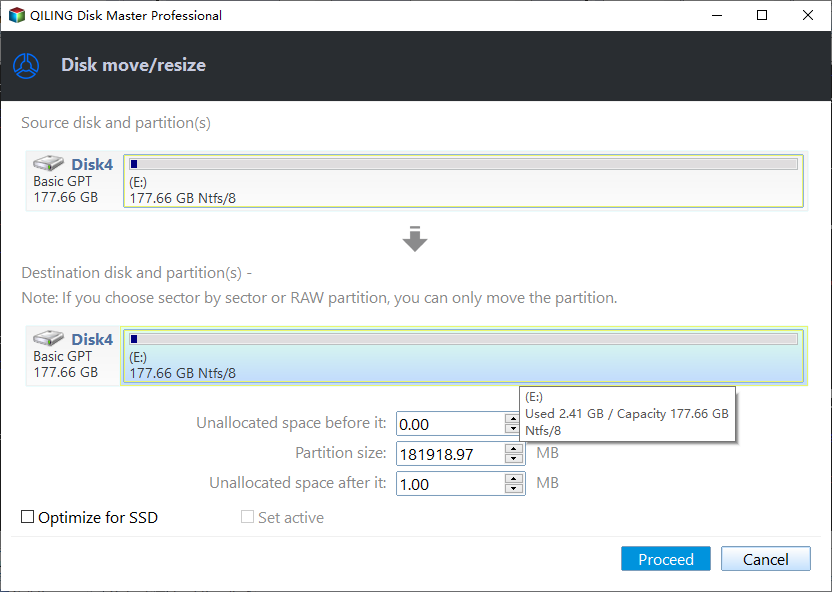
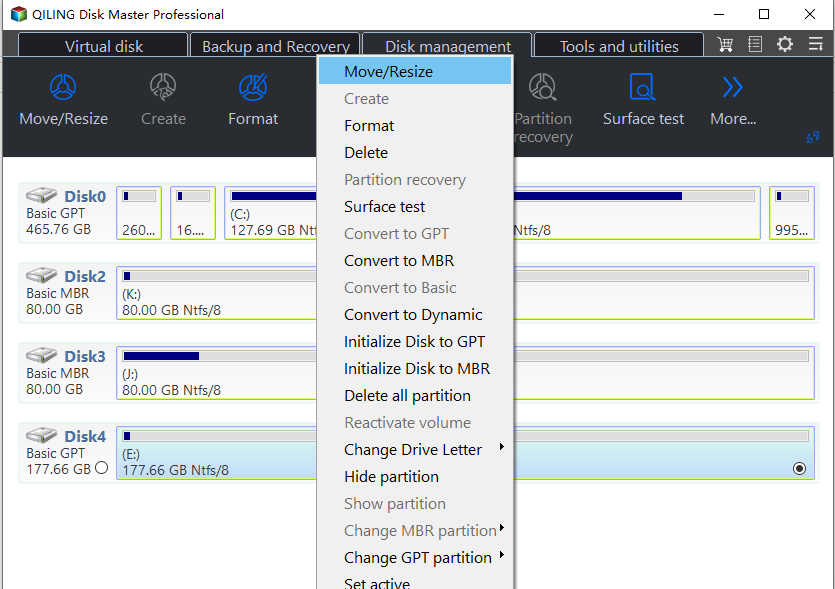
Step 1. To free up space on your hard drive, right-click a partition that has enough space, such as the D partition, and select the "Move/resize" option.
Step 2. Enter the size of free space you would like to add to the C drive.
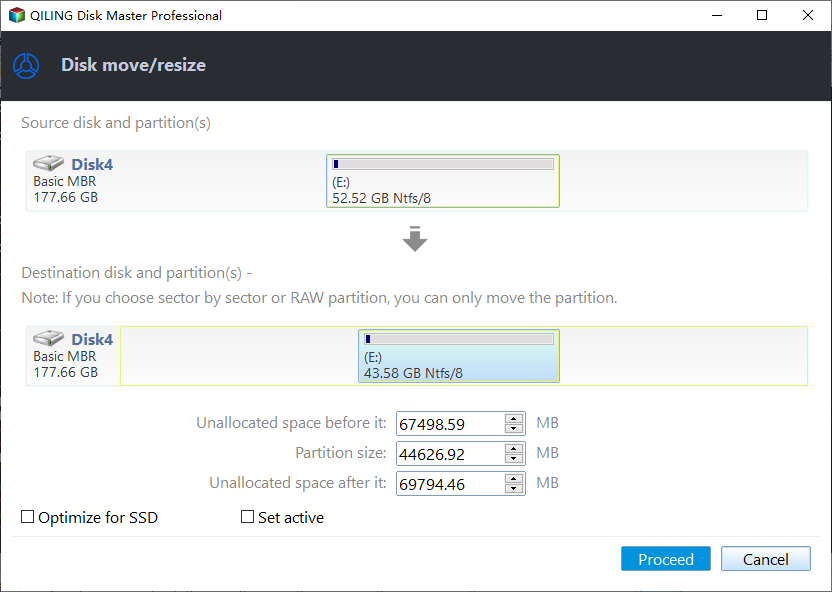
Step 3. Now you can preview that some free space has been allocated to C drive from D partition. Click Proceed to save the changes, then you will extend partition C.
Note: If the C drive runs out of free space, you can use Disk Cleanup to free up space, or move installed applications to another drive for more storage.
Qiling Disk Master Pro VS Windows 10 Disk Management
Qiling Disk Master should be a great Windows disk manager that can totally replace Disk Management in Windows 10, offering more features and flexibility. It allows users to resize partitions, merge non-adjacent partitions, and create a bootable USB drive, among other functions, making it a more comprehensive tool for managing disks. In comparison to Windows Disk Management, Qiling Disk Master provides a more user-friendly interface and a wider range of options for disk management, making it a suitable replacement.
| Features | Qiling Disk Master Pro | Windows 10 Disk Management |
| Create partition, delete partition, format partition, change drive letter |

|
|
| Extend/Shrink NTFS partition |
|
|
| Extend/Shrink FAT32 partition |
|

|
| Merge partitions, merge unallocated space, move partition |
|
|
| Allocate free space from one partition to another |
|
|
| Converting a Master Boot Record (MBR) to a Globally Unique Identifier Partition Table (GPT) or vice versa without data loss is possible using various methods. One approach is to use a third-party tool like Qiling Disk Master, which can convert MBR to GPT or GPT to MBR without deleting any data. |
|
|
| Convert dyanmic disk to basic disk without data loss |
|
|
| To convert a primary partition to a logical partition without losing data, the following steps can be taken: Identify the primary partition to be converted, note its starting sector and size. Create a new primary partition with the same size and starting sector as the original. |
|
|
| Convert NTFS to FAT32 without formatting |
|
|
| Migrate OS to SSD or HDD |
|
|
| Make Windows PE bootable disc |
|
|
| Recover lost/deleted partition |
|
|
| Clone disk/partition |
|
|
| Move folder / Apps |
|
|
| Schedule defrag disk partition |
|
|
| Test Disk Speed |
|
|
| Change serial number, change partition type ID |
|
|
Qiling Disk Master Professional is more powerful than Windows Disk Management in Windows 10, 8, 7, and 11. If Windows Disk Management can't solve your issue, consider using this great disk management tool instead. You can download it for free to try it out.
Conclusion
In Windows 10's Disk Management, you can make some basic adjustments, but Qiling Disk Master offers more flexibility in managing disks on your Windows PC, making it easier to manage your disks efficiently.
Related Articles
- How to Replace Laptop Hard Drive and Reinstall OS
This tutorial shows how to replace laptop hard drive and reinstall operating system step by step. You can also use Qiling Disk Master to replace a hard drive without reinstalling Windows. - Restore BIOS Based System Recovery Points to UEFI Based Computer
Learn how to restore BIOS based system recovery points to UEFI based computer in Windows 10/8.1/8/7 without reinstalling system and applications. - Samsung Data Migration Does Not Start: Fixes and Alternative
This guide explains Samsung Data Migration Does Not Start: Fixes and Alternative with clear steps, key checks, and practical tips. - Best Samsung SSD Clone Software to Migrate OS and Data Easily
Try the best Samsung SSD clone software to migrate system and data easily in Windows 11, 10, 8, 7. Follow the step-by-step guide to ensure secure boot after cloning. - Three Reliable Hard Disk Defragment Software for Windows
You can find three hard disk defragment software for Windows 10, 8, 7 from this article. Including built-in tools in Windows and a third-party software. - Why Your Hard Drive Missing in Windows 10 or 11 and How to Fix It?
If you meet new hard drive disappeared in Windows 10 or hard drive missing Windows 10 after installing, learn how to fix this issue with several practical ways from this post. -
Disk Management Tools for Windows 11
Compare Windows 11 disk tools and choose the right option for partition tasks.
Products
Articles & Tutorials
- Data Recovery
- Data Backup
- File Recovery
- File Backup
- File synchronize
- System Backup and Restore
- Disk and Partition Clone
- Technical articles
- Disk Master Help
- Windows Deleted File and Disk Recovery Tutorials
- Windows File and Data Recovery Tutorials
- More Windows Tutorials for Install, Security, Files, and PC Tips
- Windows Boot, Repair, and Recovery Environment Tutorials
- Windows Backup Tutorials
- Windows Restore Tutorials
- Windows Clone and Migration Tutorials
- Windows Server Backup, Recovery, and Management Tutorials
- Windows Disk, Partition, and Storage Management Tutorials