[New Guide] How to Run Disk Speed Test on Windows 10 PC
A computer's disk is a crucial component that serves as a storage device, holding data, the operating system, and applications in a non-volatile memory.
Computers run slowly when completing many activities due to sluggish hard drives, which can cause them to stop or hang, whereas systems with faster RAM and disk speed remain unaffected. This is why Solid-State Drives (SSDs) are in high demand.
To conduct a disk speed test on a Windows 10/11 PC, you can use the built-in Command Prompt or PowerShell to run the `fsutil` command. First, open Command Prompt or PowerShell as an administrator, then type `fsutil file query=free` to check the free space on the drive.
2 tools for disk speed test on Windows 10
In this part, we'll introduce 2 speed-test tools for you, one is from a professional disk management program, and the other is from Microsoft.
Tool 1. Disk Speed Test from Qiling Disk Master
The "Disk Speed Test" function of Qiling Disk Master Professional is a recommended tool for users to easily test disk speed with a clear interface and user-friendly operations, making it suitable for Windows OS versions including Windows 11/10/8/8.1/7/XP.
The platform offers a user-friendly interface that doesn't require technical expertise to understand various data. It provides two test modes: "Simple Mode" and "Pro Mode", allowing users to choose the most suitable option based on their needs.
The tool provides detailed notes on all data, making it easy to read test results. Additionally, it allows users to export the test results in three ways: copying to the clipboard, exporting to text, or exporting to a screenshot, giving users flexibility in how they use the results.
We'll introduce 2 test modes separately.
1. Simple Mode
Step 1. Download and run Qiling Disk Master. Click "Test"--> "Disk Speed Test".
Step 2. In the new window, select a test partition and start the test in simple mode, which is the default. You can stop the test at any time during the test.
After clicking the "Start Test" button, the software initiates a test to measure the hard disk's speed, displaying real-time read and write speeds according to the system.
When the test is finished, you can see the read/write speed of the drive you selected.
Step 3. The results can be exported in three ways: copying to the clipboard, exporting to a text file, or exporting to a screenshot. You can choose a location to save the test result.
2. Pro Mode
Step 1. After you click "Expert Mode", you can see the window of this mode. Select the drive you need to test.
Step 2. Next to the drive selection, you can set the speed, size, test number, and test duration according to your needs.
Step 3. Then you can set the "Test Mode", " Block Size", "Queue Number", and "Thread Number".
Step 4. When you start the test, the "Read" and "Write" will show the speed in MB/s.
When the test is over, you can export the result as the Pro Mode. The program will also provide some advice on disk management, which you can choose to run or ignore based on your preferences.
2. DiskSpd from Microsoft
Considering the demand for disk speed tests, Microsoft released a disk speed tool called DiskSpd in 2020 to help users measure the performance of their storage devices.th It is a free and open-source command-line storage benchmarking tool for Windows that generates various queries against files, partitions, or storage devices and displays the results as text in the command-line interface or as an XML file.
Don't worry, we'll guide you through the process. We'll start with the download, then move on to running it, and finally, show you how to read the result.
▶ Section 1. Download
1. Check the storage space's health.
2. Check resource usage to avoid other programs breaking the test.
Now let's start!
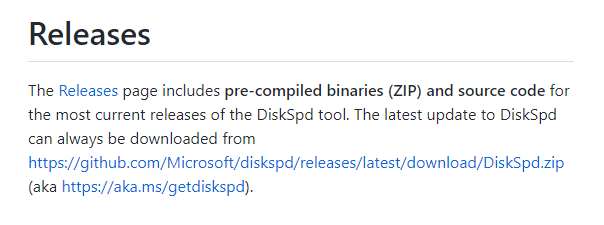
Step 1. You can download the DiskSpd tool directly from the GitHub repository that contains the open-source code.
Step 2. To extract the files from the zip folder, open the folder and select the "Extract all" option from the "Compressed Folder Tools" tab, then confirm a path to extract the files.
Once you have completed the steps, you can start the tool from Command Prompt.
▶ Section 2. Use DiskSpd to do a hard drive speed test
Before running the performance test, it's recommended to close all current apps and ensure the storage health is in excellent condition.
Now, open Command Prompt and start the test!
Step 1. Search Command Prompt, right-click the best match and select the "Run as administrator" option.
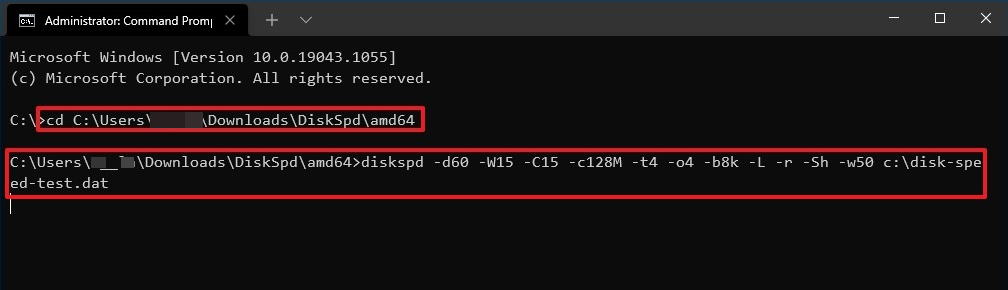
Step 2. Type the following command to navigate to the folder containing the DiskSpd tool and press "Enter":
cd \PATH\TO\TOOL (eg. cd C:\Users\username\Downloads\DiskSpd\amd64)
To run the DiskSpd.exe file, navigate to the destination of the DiskSpd.exe file and type the command "DiskSpd".
Step 3. Type the following command and press "Enter" to run the DiskSpd to test the read/write performance of the target disk on Windows 10:
diskspd -d60 -W15 -C15 -c128M -t4 -o4 -b8k -L -r -Sh -w50 c:\disk-speed-test.dat
You must type each parameter correctly for the command to run correctly.
This command will run the test without showing you the test result, if you need to see a result file, you need to use the following order: `pytest -k "test_name" --junit-xml=result.xml`
diskspd -d60 -W15 -C15 -c128M -t4 -o4 -b8k -L -r -Sh -w50 c:\disk-speed-test.dat > c:\drive-test-results.txt
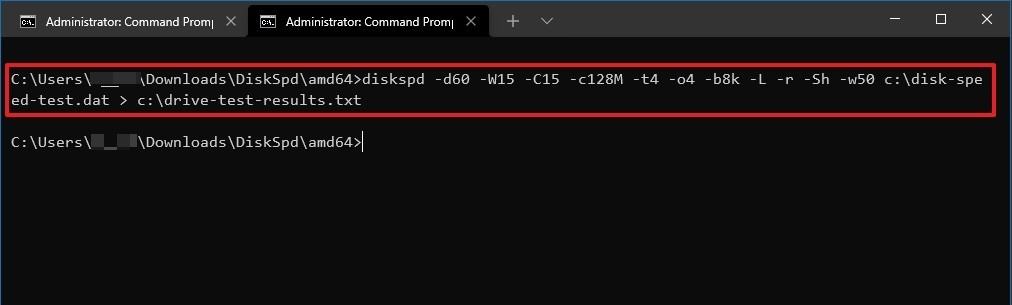
Update the location and filename for the target data file and the file to store the benchmark results in the command. The test results will be saved in a text file.
-d60 — The command will stress the hard drive for 60 seconds.
-W15 — Set the warm-up time before the test begins.
-C15 — Set the cool-down time after the test.
-c128M — Customize the size of the file to create for testing.
-t4 —The number of threads to use, which can be set to one per available core in the processor.
-o4 — The number of outstanding I/O requests per target per thread, also known as the "I/O queue depth", is a measure of how many I/O operations a thread can have pending at any given time for a specific storage target. This value is typically set by the system administrator or the device driver and can be adjusted to optimize performance based on the workload and storage characteristics.
-b8k — Defines the size of the block (default is 64K).
-L — Measures latency statistics.
-r — This script produces random I/O, but you can override this with the "-s" option to change the behavior.
-Sh — Disables software and hardware write caching.
-w50 — To balance write and read requests during a test, assign a percentage value between 0 and 100. A value of 100 means the test will consist of only write requests, while 0 means only read requests. For example, setting the value to 50 will split the test evenly between write and read requests. This allows you to tailor the test to your specific needs by adjusting the percentage.
c:\disk-speed-test.dat — The command is used to specify the path where the target file for the test will be stored.
▶ Section 3. Read the Diskspd result
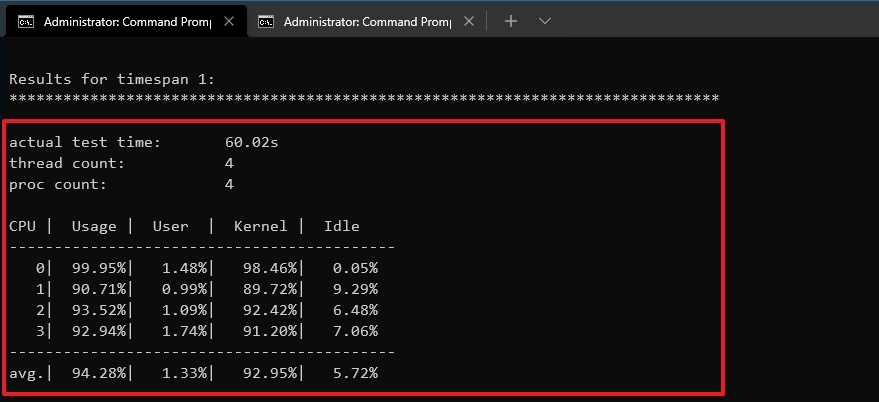
When the performance test is completed, the results are displayed on the screen. The summary section shows the command settings you chose, including duration, warm-up and cool-down intervals, latency data, and other test details.
The result shows the time taken to finish the test, number of threats, and number of processors.
◤ Total IO: The program displays the number of reads and writes performed by each thread, showing the average performance in MB/s, and the total number of reading/write operations completed in a second, along with the total input/output within that time period.
The total result from the MiB/s displays the average speed of reading/writing.
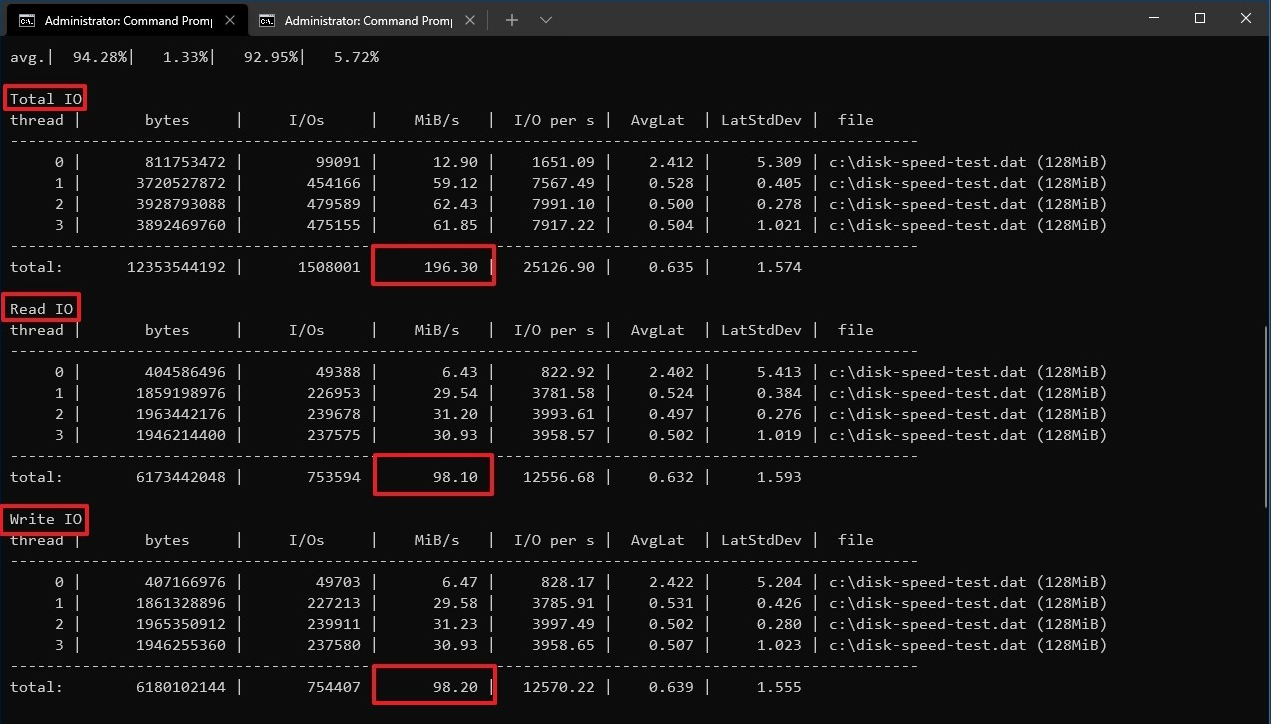
◤ Read IO & Write IO: The page displays read statistics per thread and write statistics, along with a table at the bottom showing latency information.
Final lines
In Windows, running a disk speed test typically requires some technical knowledge, making it a task that may not be user-friendly. However, using software like Qiling Disk Master can make the process easier, and it also offers additional features such as defragmenting disks and aligning partitions, allowing for direct management of the device after the test. This makes it a more accessible option compared to the DiskSpd test.
This tool can perform various functions such as cloning a disk, migrating an OS, and moving programs, in addition to its primary functions. It also has a Server Edition for managing server devices.
Related Articles
- 3 Steps to Extend System Partition Before Upgrading to Windows 10
This guide explains 3 Steps to Extend System Partition Before Upgrading to Windows 10 with clear steps, key checks, and practical tips. - How to Restore/Format USB to Full Capacity in Windows 10/8/7?
If your USB drive does not show full capacity, here you can know why and learn how to format it to full capacity in Windows 11/10/8/7 via 2 different methods. - How to Increase C Drive Space from D Drive?
Learn how to Increase C Drive Space from D Drive with clear steps, key checks, and practical tips. - How to Make Unallocated Space Contiguous to Extend Partition?
This article will tell how to make unallocated space contiguous to system partition or other partitions, then you can extend volume successfully. - How to Fix Windows Stuck on Diagnosing Your PC -10 Ways👍
Find practical fixes for How to Fix Windows Stuck on Diagnosing Your PC -10 Ways, including disk, partition, file system, or Windows troubleshooting steps. - 6 Ways to Fix Winload.efi Missing on Windows 11/10
This guide provides essential information about the common Windows 11/10 error 'Winload.efi Missing.' It offers solutions and insights into the causes of this issue, helping you resolve it effectively.
Products
Articles & Tutorials
- Data Recovery
- Data Backup
- File Recovery
- File Backup
- File synchronize
- System Backup and Restore
- Disk and Partition Clone
- Technical articles
- Disk Master Help
- Windows Deleted File and Disk Recovery Tutorials
- Windows File and Data Recovery Tutorials
- More Windows Tutorials for Install, Security, Files, and PC Tips
- Windows Boot, Repair, and Recovery Environment Tutorials
- Windows Backup Tutorials
- Windows Restore Tutorials
- Windows Clone and Migration Tutorials
- Windows Server Backup, Recovery, and Management Tutorials
- Windows Disk, Partition, and Storage Management Tutorials