[Guide]: How to Run Hard Drive Test in Windows 10
Why need to run hard drive test in Windows 10?
Using a Windows computer can be frustrating due to various issues like hard disk errors, crashes, or other bad behavior. These problems can arise from a range of factors, including improper shutdowns, the use of faulty software, or even a virus attack, making it difficult to identify and resolve the root cause.
Hard disk errors can lead to serious issues, such as system crashes, hard drive failures, data loss, and other unexpected problems. To prevent these heavy consequences, it's essential to check your hard drive for errors in Windows 11/10/8/7. Fortunately, there are effective methods to do so, which will be outlined in the following text.
3 ways: How to run hard drive test Windows 11, 10, 8, 7
To perform a hard drive error check on Windows 11/10/8/7, here we provide you with three different ways, including Windows built-in tools and free third-party utility. You can choose any way according to your needs.
│Method 1. Check hard drive error with Windows Properties
Here’s how you can perform a hard drive error check in Windows 10: To perform a hard drive error check via Windows Properties, simply right-click on the Start menu, select Disk Management, and then select the disk you want to check. From there, you can right-click on the disk and select Properties, and then click on the Tools tab to run the Check disk utility. This will scan your hard drive for errors and fix any issues it finds.
1. Click on This PC item on the desktop.
2. To scan a hard drive, right-click on it and select the "Properties" option from the context menu.
3. Select the Tools tab, then click the Check button.
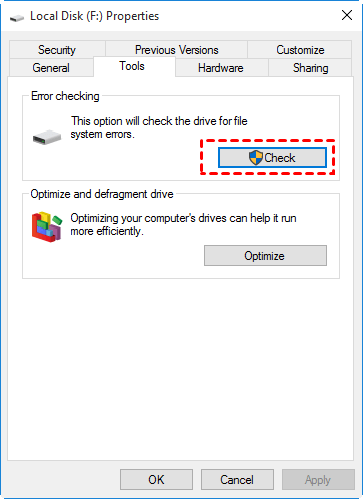
After Windows has completed the hard drive error check, restart your PC to see if the issue has been resolved.
│Method 2. Check and repair disk errors with Command Prompt
Command Prompt is a built-To check and repair disk errors, you can use the `chkdsk` command in a command-line program.
● To run the Command Prompt as an administrator, navigate to the Start menu, type "CMD" in the search bar, right-click on the Command Prompt result, and select "Run as Administrator".
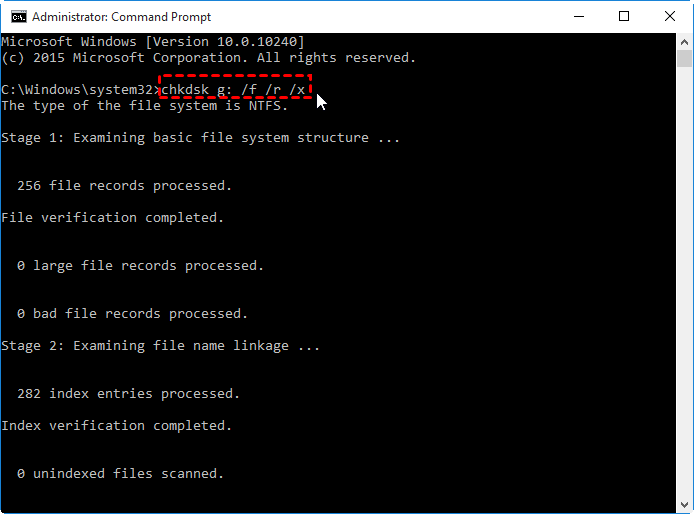
● To do a hard drive test and fix errors in Windows 10, type "chkdsk g: /f /r /x" and hit Enter, replacing "g" with the drive letter of the disk you want to check.
The command will run CHKDSK to check and repair errors on the G: volume, fixing any issues it finds, locating bad sectors, recovering readable information, and forcing the drive to dismount before starting the process.
There are many other commands you need to know:
✍ chkntfs/c. To schedule a volume check on Windows using NTFS, you can use the built-in tool "chkdsk" to schedule a disk check for the next system restart. This can be done by typing the command "chkdsk /f /x" in the Command Prompt, but to schedule it for the next restart, you can use the command "chkdsk /f /x /c" followed by the drive letter of the volume you want to check. For example, "chkdsk /f /x /c c:" would schedule the check for the C: drive.
✍ chkdsk/i. Use with NTFS only. Run a less thorough check of index entries, which reduces the time required to run chkdsk.
✍ chkdsk/b. The command clears the list of bad clusters on the volume and re-scans all allocated and free clusters for errors, and is only compatible with NTFS file systems.
✍ chkdsk*.*. This command checks all files on a FAT disk in the current directory for non-contiguous data and displays a status report. It then lists the files that match the specified file criteria and have non-contiguous blocks.
✍ chkdsk/?. If the covered commands don't meet your needs, you can display help with all commands to explore other options.
You may receive the following return codes:
✍ 0: no errors were found.
✍ 1: errors were found and fixed.
✍ 2: The system performed disk cleanup, such as garbage collection, or did not perform cleanup because the /f option was not specified.
✍ 3: Errors could not be fixed, or errors were not fixed because the /f option was not specified, or the disk could not be checked. The /f option is used to specify that the system should attempt to fix any errors that it encounters.
│Method 3. Hard disk diagnostic tool for Windows 10
If you're looking for a simpler way to test your hard drive in Windows 11/10/8/7, Method 3 is a great choice. It offers a more straightforward approach to hard drive testing, making it a good option for those who find the other methods too complicated.
Qiling Disk Master Standard is a powerful and easy-to-use disk partition manager that helps test and repair hard drive health, find errors, corruption, and bad sectors, and improve performance.
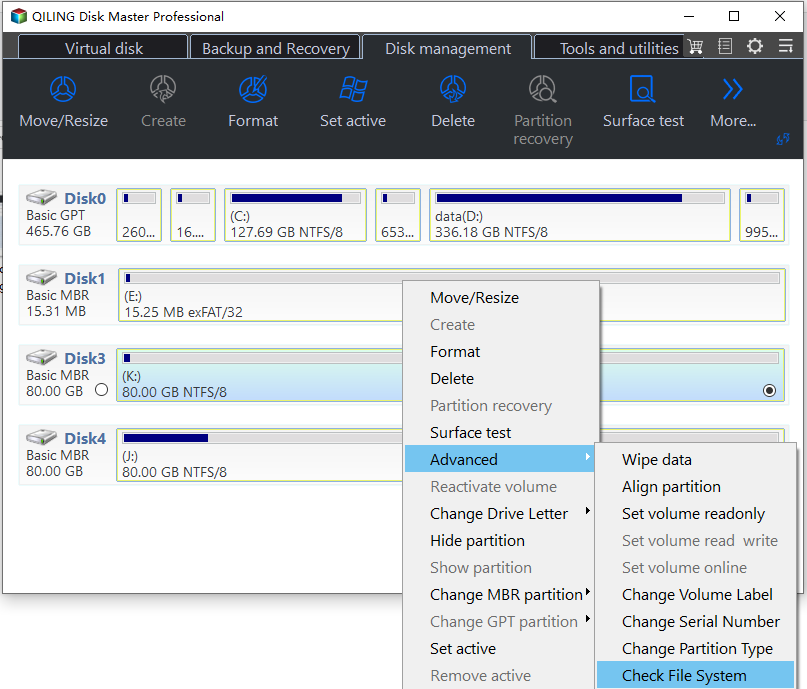
Step 1. Download Qiling Disk Master Standard, install it to your Windows PC and launch it. Right-click the drive you need to check, select Advanced -> Check Partition.
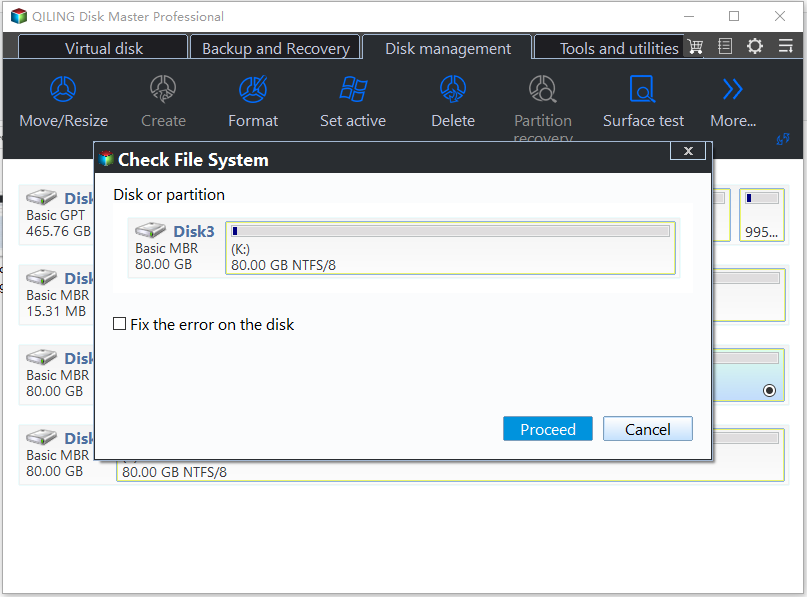
Step 2. Select a way in the pop-up window. Click Proceed to run it.
In addition to checking partitions, the tool can also check disk health. To do this, you can follow these steps:
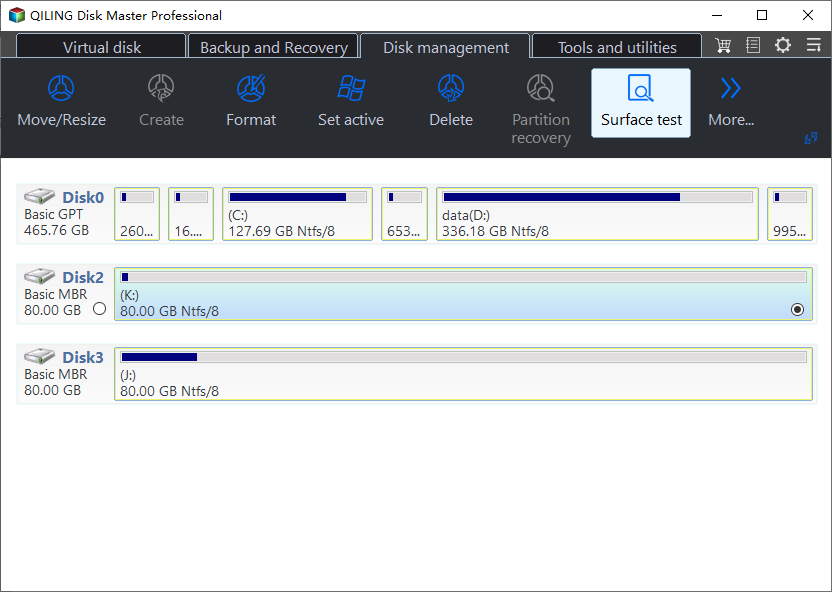
Step 1. To test a disk, click on the disk you want to test, then go to "Test" > "Disk" > "Disk Surface Test".
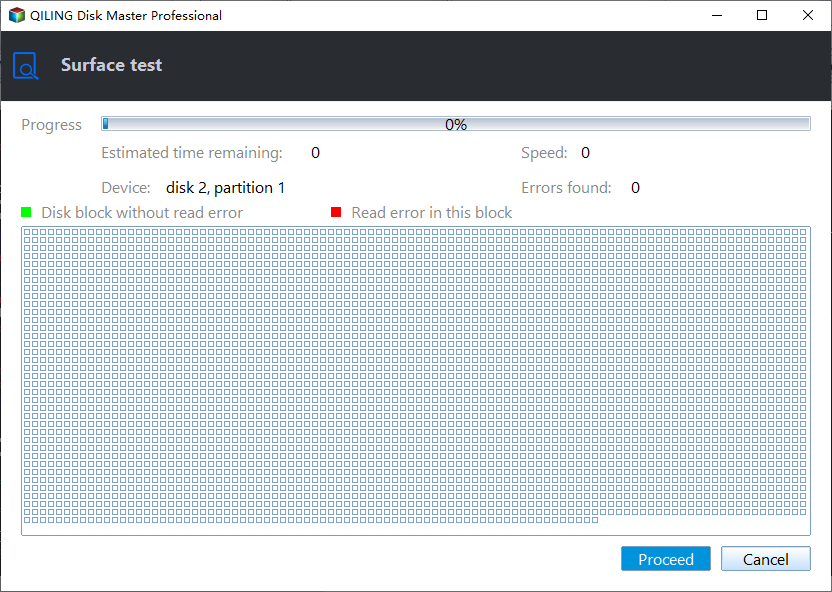
Step 2. To run the progress, check the box in front of "Quick Check" and click "Start".
Conclusion
Running a hard drive test in Windows 10 is simpler with Qiling Disk Master Standard. This tool not only tests the hard drive but also offers various features, including formatting, resizing, and deleting partitions, as well as rebuilding the Master Boot Record (MBR), making it a convenient and all-in-one solution.
Qiling Disk Master Server is a tool designed for Windows Server users, providing a comprehensive solution for disk management and maintenance. It offers various features, including disk partitioning, formatting, and deletion, as well as disk imaging and cloning.
Related Articles
- Windows 10 Disk Management - The Built-in Disk Partition Manager
In this tutorial, you will learn what is Windows 10 Disk Management, how to open it as well as how to use it for disk partition management. Moreover, a better Disk Management tool will be introduced to help manage disk partitions more conveniently in Windows 11, 10, 8, 7. - How to Use DiskPart Commands in Windows 10?
DiskPart is a command-line utility in Windows 10/11, enabling you to perform disk partition operations with commands. Learn how to use DiskPart commands with typical examples here. - Fixed: 100% Disk Usage on Windows 10 Task Manager (2019)
To fix 100% disk usage on Windows 10 Task Manager, you can refer to 9 effective and easy methods in this post and try one or more. - How to Extend Volume with Disk Management in Windows?
This post shows how to extend volume in Windows Disk Management and solutions for extend volume greyed out. - The Boot Configuration Data Store Could Not Be Opened [6 Ways]
Here are some quick and easy solutions for the boot configuration data store could not be opened error, which can get your system up and running again in just a few minutes. - How to Boot from USB on HP Laptop on Windows 11/10 [Step-by-Step Guide]
To test hard drive health in Windows 10, you can use built-in tools like CHKDSK and WMIC, or specialized software like Qiling Disk Master to check for bad sectors, monitor drive temperature, and assess overall disk health.
Products
Articles & Tutorials
- Data Recovery
- Data Backup
- File Recovery
- File Backup
- File synchronize
- System Backup and Restore
- Disk and Partition Clone
- Technical articles
- Disk Master Help
- Windows Deleted File and Disk Recovery Tutorials
- Windows File and Data Recovery Tutorials
- More Windows Tutorials for Install, Security, Files, and PC Tips
- Windows Boot, Repair, and Recovery Environment Tutorials
- Windows Backup Tutorials
- Windows Restore Tutorials
- Windows Clone and Migration Tutorials
- Windows Server Backup, Recovery, and Management Tutorials
- Windows Disk, Partition, and Storage Management Tutorials