How to Extend Volume with Disk Management in Windows?
Windows Disk Management
Disk Management is a built-in Windows utility introduced after fdisk to manage hard disks and partitions. It allows users to initialize disks, create volumes, format partitions, and perform tasks such as extending or shrinking volumes in supported Windows versions.
Use Disk Management to extend volume
As your hard disk fills up with data, especially on the C drive, you may experience slower performance or low disk space warnings. Cleaning temporary files can help, but extending the volume is often a more direct way to add usable space.
In Disk Management, you can extend a volume only with unallocated space that is directly behind it on the same disk. If the unallocated space is not adjacent or is on the left side, Extend Volume will be unavailable.
▪ Open Disk Management.
▪ Check whether there is unallocated space directly behind the volume you want to extend.

▪ Right-click the target volume and choose "Extend Volume".
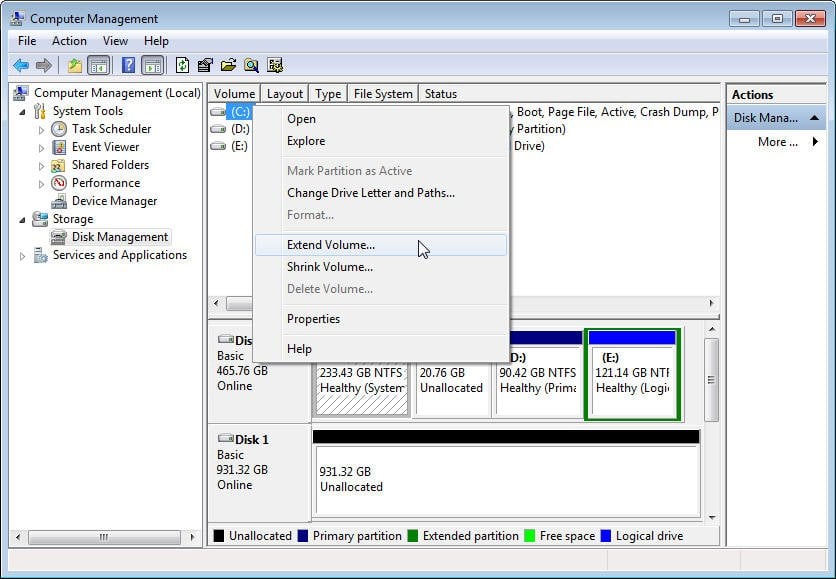
However, if the unallocated space is not right next to the target partition, Extend Volume will be greyed out and you cannot click it.

Disk Management has clear limitations. If there is no adjacent unallocated space, shrinking another volume may not help because the new unallocated space appears behind the volume being shrunk. You also cannot shrink a volume beyond the point where unmovable files are located. In this case, third-party freeware is often recommended.
Extend volume with Qiling Disk Master
Qiling Disk Master Standard is a free disk management software that offers powerful functions to control hard disks and partitions easily, supporting Windows 7/8/10/XP/Vista. With Qiling, you can easily extend a volume by following these simple steps.
Step 1. Install and launch Qiling Disk Master, then check the target partition and the available unallocated space on the same disk.
Step 2. In the main interface, click the target volume, choose the related resize or merge option from the right-hand side, and select "Merge Partitions" when needed.
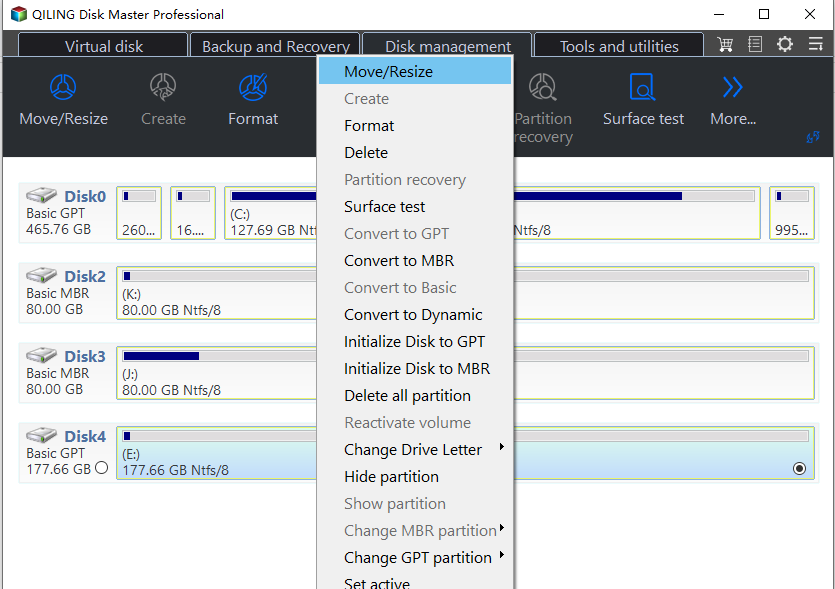
Step 3. Tick the unallocated space you want to add and click Proceed.
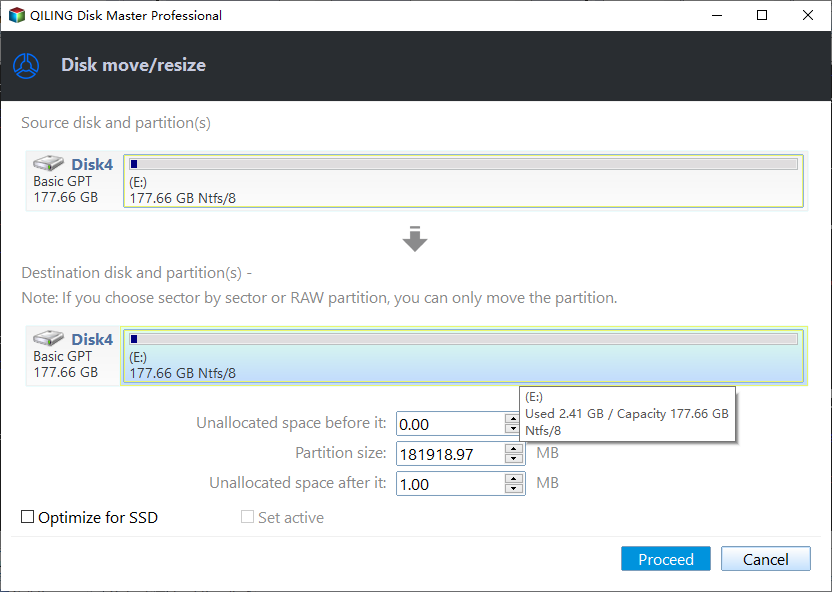
Compared with Disk Management, Qiling Disk Master Standard can add one or more unallocated spaces on the same disk to the target volume more flexibly and without deleting partitions.
Related Articles
- How To Convert Guid Partition Table (GPT) To Master Boot Record (MBR)?
How to convert guid partition table to MBR is a problem that many computer users may be encountered. You can find three ways to solve the problem from here. - How to Check If It's UEFI or BIOS on Your PC?
Learn how to Check If It's UEFI or BIOS on Your PC with clear steps, key checks, and practical tips. - Upgrade BIOS to UEFI Before You Want to Convert MBR to GPT
This guide explains Upgrade BIOS to UEFI Before You Want to Convert MBR to GPT with clear steps, key checks, and practical tips. - Cannot Convert Partition Between Primary and Logical
Situations that a partition cannot be converted to primary/logical. - How to Stop Disk Checking and Stock CHKDSK on Startup in Windows 11
It is a very time-consuming process when chkdsk runs automatically every time startup of Windows 11 - looking for solutions on how to stop disk checking in windows 11. Here is a detailed guide for you to stop chkdsk on startup. - How to Fix System and Compressed Memory 100 Disk Usage (7 Fixes)
If you receive a 100 disk usage problem caused by the System and compressed memory, you can solve this high CPU issue now. We provide you with 9 fixes to fix the System and compressed memory high disk usage in Windows 11/10/8/7. Read on and solve your problems now.
Products
Articles & Tutorials
- Data Recovery
- Data Backup
- File Recovery
- File Backup
- File synchronize
- System Backup and Restore
- Disk and Partition Clone
- Technical articles
- Disk Master Help
- Windows Deleted File and Disk Recovery Tutorials
- Windows File and Data Recovery Tutorials
- More Windows Tutorials for Install, Security, Files, and PC Tips
- Windows Boot, Repair, and Recovery Environment Tutorials
- Windows Backup Tutorials
- Windows Restore Tutorials
- Windows Clone and Migration Tutorials
- Windows Server Backup, Recovery, and Management Tutorials
- Windows Disk, Partition, and Storage Management Tutorials