Upgrade BIOS to UEFI Before You Want to Convert MBR to GPT
What is BIOS and UEFI?
BIOS (Basic Input/Output System) and UEFI (Unified Extensible Firmware Interface) are two firmware interfaces used in PCs. When you start your computer, one of them initializes the components and boots the Windows OS installed on the hard drive. Understanding the definitions and differences between them is essential before setting the interface.
BIOS stands for Basic Input-When a computer starts up, the BIOS (Basic Input/Output System) activates and initializes the various hardware components, ensuring they're functioning properly. It then hands off control to the operating system or another boot loader, which takes over to manage the system. The BIOS relies on the Master Boot Record (MBR) disk, which has a limitation of supporting disks smaller than 2 TB.
UEFI (Unified Extensible Firmware Interface) is an updated version of the traditional BIOS, offering several advantages. Unlike Legacy BIOS, UEFI is compatible with GPT and supports hard drives up to 9.4 ZB, making it a more efficient and scalable option. Additionally, UEFI shortens boot times and features Secure Boot, a security enhancement that ensures the integrity of the boot process, making it a better choice than traditional BIOS.
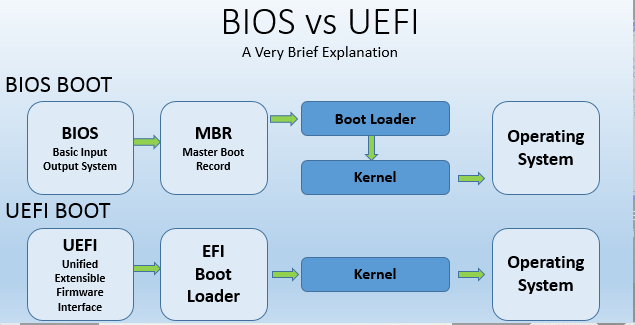
UEFI outperforms BIOS and is now a requirement for running Windows 11, as Microsoft has stated that upgrading from Windows 10 to Windows 11 using the "Check for Update" feature requires a UEFI-enabled motherboard.
To upgrade your Windows 10 to Windows 11 or have a better PC user experience, you should update your BIOS to UEFI. This will allow you to take advantage of Windows 11's new features and improve your overall PC performance.
How to convert BIOS to UEFI correctly?
As you can see, you can gain many benefits by upgrading BIOS to UEFI. Then, how can we upgrade successfully? Read on and do as follows.
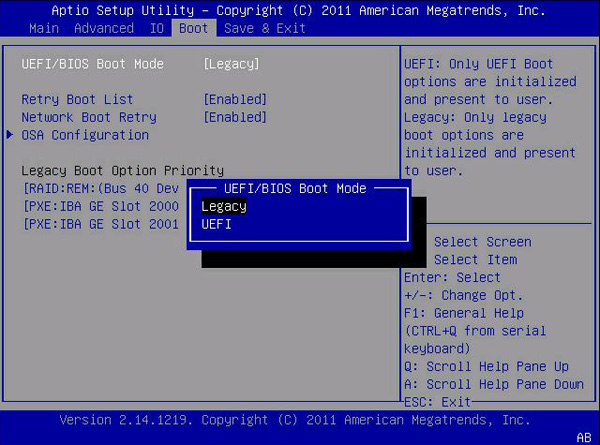
Step 1. Reboot your PC and press the key indicated on the screen (usually F2, F12, Del, or Esc) to enter the BIOS settings. Once you're in, look for the option to disable Secure Boot and save your changes.
Step 2. Go to the "Boot" tab.
Step 3. Change Legacy to UEFI as the screenshot above shows.
Convert MBR to GPT without losing data
After upgrading the BIOS to UEFI, you can convert a MBR disk to GPT and reinstall Windows, among other things. This process can be done in various specific situations, as outlined in the table below.
|
Operating System |
Data Access |
System Boot |
|
Windows XP 32-bit |
Not Support GPT |
Not Support GPT |
|
Windows XP 64-bit |
Support GPT |
Not Support GPT |
|
Windows Vista 32-bit |
Support GPT |
Not Support GPT |
|
Windows Vista 64-bit |
Support GPT |
Support GPT(Need UEFI) |
|
Windows 7 32-bit |
Support GPT |
Not Support GPT |
|
Windows 7 64-bit |
Support GPT |
Support GPT(Need UEFI) |
|
Windows 8 32-bit |
Support GPT |
Not Support GPT |
|
Windows 8 64-bit |
Support GPT |
Support GPT(Need UEFI) |
Here, you can try three methods to convert MBR to GPT. One method is to use the built-in Windows feature, which can be accessed by typing "mbr2gpt" in the Command Prompt.
▶ Convert MBR to GPT via Diskpart
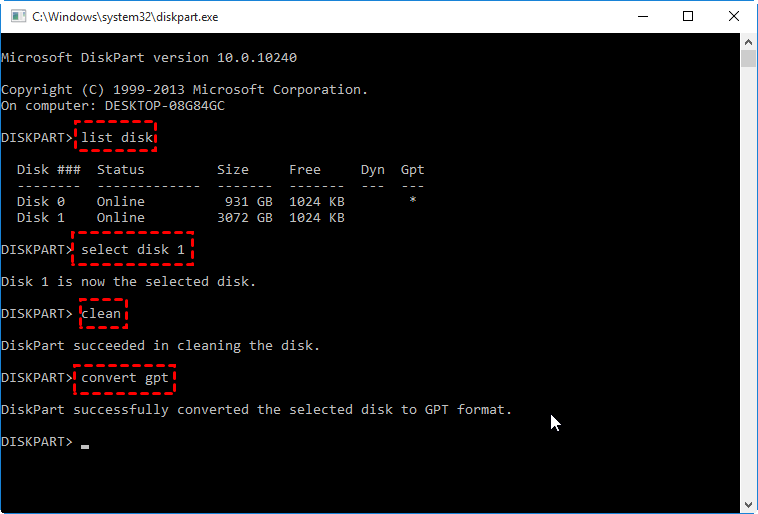
Diskpart is a command-line tool on Windows that allows users to perform various disk management operations, such as formatting disks, shrinking or extending volumes, changing drive letters, and even converting MBR to GPT.
Step 1. Press the "Windows" key, type "DiskPart" in the search box, and press "Enter". Click "Yes" to run the Diskpart tool.
Step 2. Type the commands below and press "Enter" each time.
• list disk (to see all the disk on your PC)
• select disk n To convert a drive letter to a drive path in Windows, you can use the `subst` command. The syntax is `subst [drive_letter:] [drive_path:]` where `n` is the drive letter or the target drive you want to convert.
• clean (to delete all the partitions on the selected disk.)
• convert mbr/ convert gpt (to perform the conversion between GPT and MBR)
▶ Convert MBR to GPT with Disk Management
You can also try another built-To convert MBR to GPT in Disk Management, go to the Disk Management window, select the disk you want to convert, right-click on it, and choose "Convert to GPT disk". Follow the prompts to confirm the conversion. Note that this process will erase all data on the disk, so make sure to back up any important files before proceeding.
Step 1. To convert a drive from MBR to GPT, right-click on "This PC", select "Manage", then "Disk Management". Choose the target drive and if the "Convert to GPT disk" option is available, select it. If not, delete all partitions on the drive first.
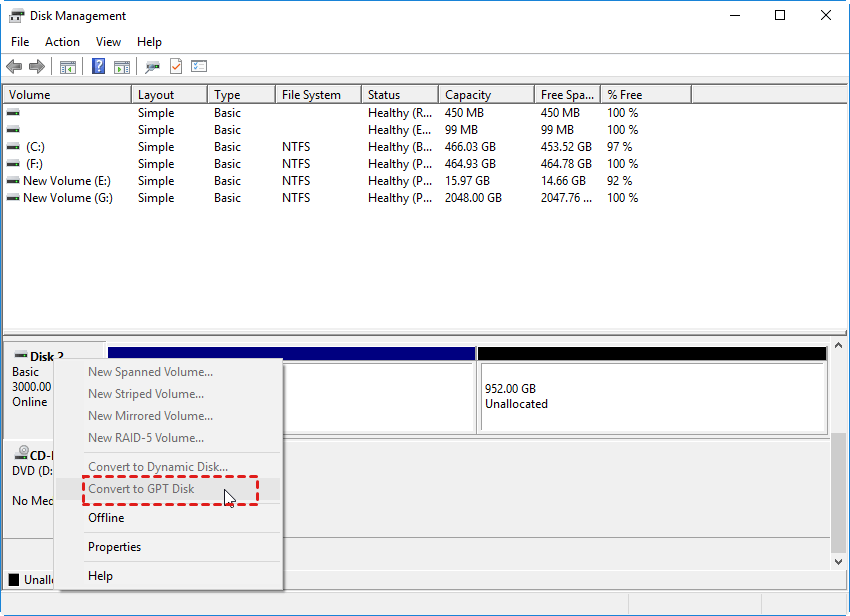
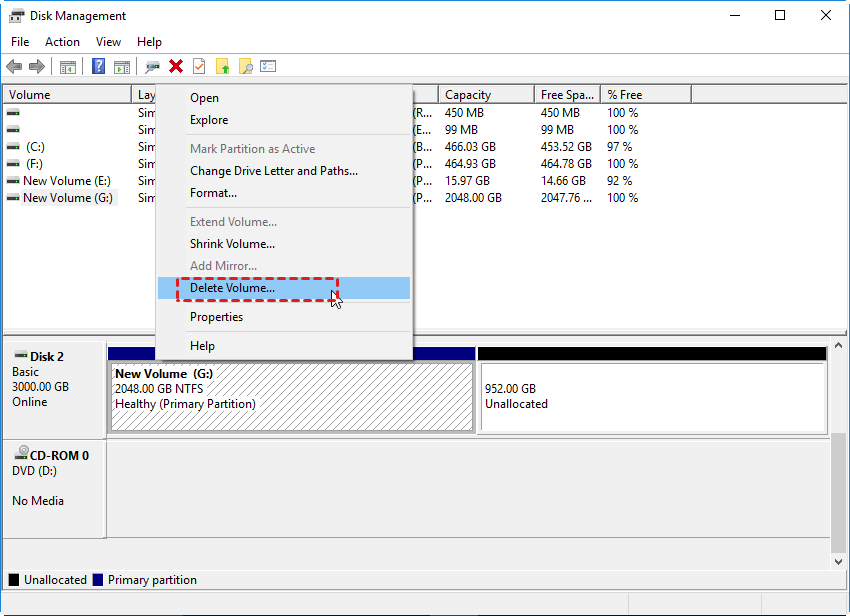
Step 2. Right-click the partition on the target disk, then select "Delete Volume" to remove it.
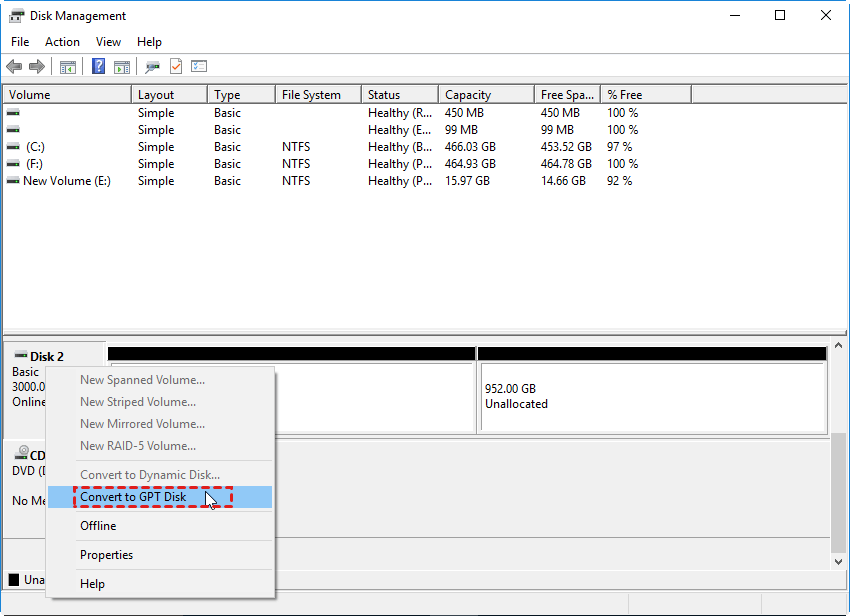
Step 3. When all partitions are removed from the target disk, it will show as "Unallocated". Right-click the disk and select "Convert to GPT Disk".
▶ Convert MBR to GPT using a third-party software
Since both Diskpart and Disk Management have limitations, they may not be the best options for converting MBR to GPT. Diskpart is too complicated for computer novices, while Disk Management requires deleting all partitions on the disk, which may not be desirable. In such cases, a third-party powerful tool is recommended to achieve this conversion.
I recommend using Qiling Disk Master Professional, a highly-efficient and easy-to-use partition management software, to assist in converting MBR to GPT with user-friendly operations.
With Partition Assistant, you can easily convert between MBR and GPT, create, delete, merge, split, resize, and move partitions, all while ensuring the security of your data.
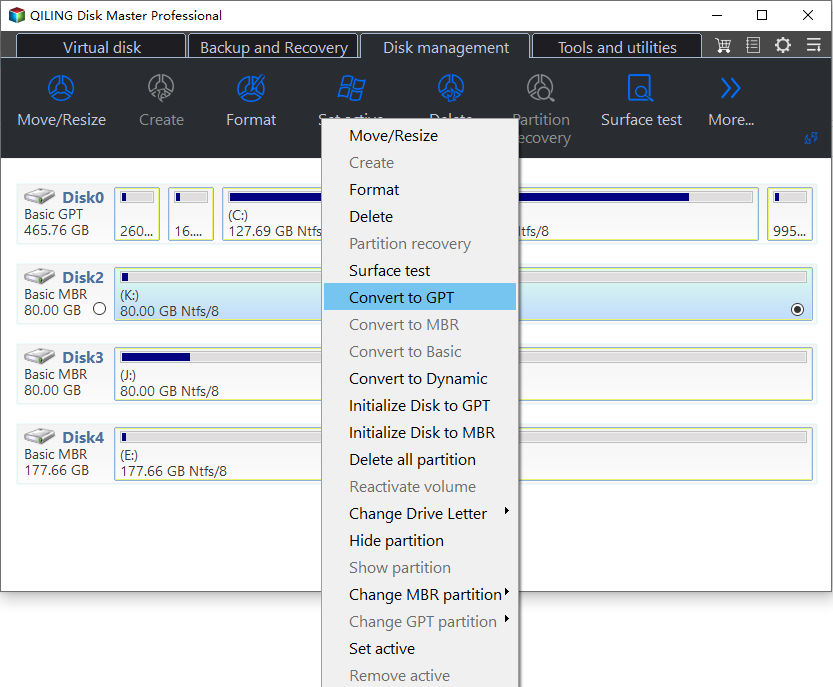
Step 1. Install the software, right-click the MBR disk you want to change, and choose Convert to GPT or click the disk and choose Convert to GPT from the right column.
Step 2. Waiting to operate and then your disk will be changed into GPT disk style.
Note: You can also manage your PC with other functions, including allocating free space, moving apps, and using the Disk Clone Wizard.
Conclusion
BIOS (Basic Input/Output System) and UEFI (Unified Extensible Firmware Interface) are two different systems that manage the boot process of a computer. While BIOS is an older system, UEFI is a newer, more secure, and feature-rich alternative. Fortunately, it is possible to upgrade from BIOS to UEFI, and the process typically involves using a third-party software utility like Qiling Disk Master Professional, which can convert the Master Boot Record (MBR) to a GUID Partition Table (GPT) in just three steps. This utility is compatible with Windows 11/10/8/8.1/7 XP and can also be used on servers.
Related Articles
- Quick Ways On How To Extend C Drive In Windows 11 Without Formatting
This guide explains Quick Ways On How To Extend C Drive In Windows 11 Without Formatting with clear steps, key checks, and practical tips. - How to Find and Recover Missing Space on Hard Drive in Windows
Learn how to Find and Recover Missing Space on Hard Drive in Windows with clear steps, key checks, and practical tips. - How to Fix Windows 11 Error 0xc0000005? Answer Is Here!
Resolve fix Windows 11 Error 0xc0000005 Answer Is Here with focused Windows checks and practical repair options. - How to Format DVR Hard Drive for PC
Learn four ways to format a DVR hard drive for PC use, including a hard drive formatter, Disk Management, File Explorer, and CMD. - How to Format M.2 SSD in Windows 10 [Detailed Instruction]
If you don't know how to format your M.2 SSD in Windows 10, we'll show you how to do that. Continue reading this article and format your SSD to your desired file system in no time. - How to Move Windows 11 to Another Drive | Ultimate Guide🔥
Learn how to Move Windows 11 to Another Drive | Ultimate Guide🔥 with clear steps, key checks, and practical tips.
Products
Articles & Tutorials
- Data Recovery
- Data Backup
- File Recovery
- File Backup
- File synchronize
- System Backup and Restore
- Disk and Partition Clone
- Technical articles
- Disk Master Help
- Windows Deleted File and Disk Recovery Tutorials
- Windows File and Data Recovery Tutorials
- More Windows Tutorials for Install, Security, Files, and PC Tips
- Windows Boot, Repair, and Recovery Environment Tutorials
- Windows Backup Tutorials
- Windows Restore Tutorials
- Windows Clone and Migration Tutorials
- Windows Server Backup, Recovery, and Management Tutorials
- Windows Disk, Partition, and Storage Management Tutorials