How to Check If It's UEFI or BIOS on Your PC?
Overview of UEFI and (Legacy) BIOS
Before moving forward, we need to know the definitions of both UEFI and BIOS. In the following paragraphs, I'll explain what are UEFI and BIOS in the most explicit words.
What is UEFI?
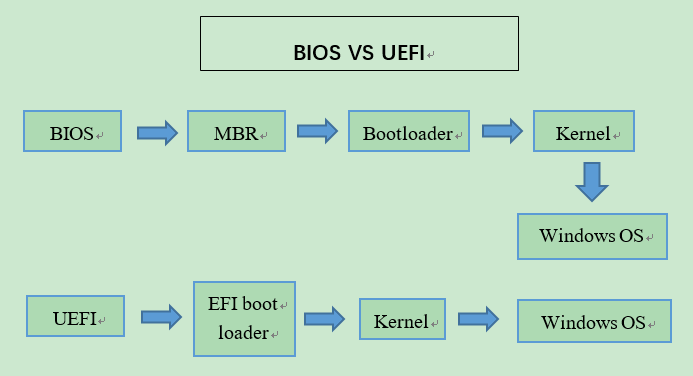
UEFI (Unified Extensible Firmware Interface) is a newer system and boot mode that replaces the traditional BIOS. It comes with its own boot manager, enabling faster startup times, improved networking support, and the ability to handle larger partitions on hard disks. Additionally, UEFI provides enhanced security features to protect against bootkit and other malware attacks during the startup process.
What is (Legacy) BIOS?
The BIOS (Basic Input Output System) is a classic boot mode and a small software stored on a non-volatile chip on the motherboard that guides the OS to boot up and configure system hardware, including hard drive, keyboard, mouse, processor, memory, and more.
Although BIOS has been around for many years and helps the OS interact with hardware, it still has some limitations. For instance, it typically requires booting from a disk with an MBR (Master Boot Record) partition style, which can only support 4 primary partitions or 3 primary partitions plus 1 extended partition, and has a maximum storage capacity of 2TB.
How to check if your PC is using (Legacy) BIOS or UEFI?
To determine whether your PC is running on BIOS or UEFI, check if your computer is booting in UEFI mode, which requires a UEFI firmware and a GPT partition style, or if it's running in legacy BIOS mode, which requires a BIOS firmware and an MBR partition style. This distinction is crucial for upgrading from Windows 10 to Windows 11, as the latter requires UEFI boot mode and GPT partition style.
In System Information
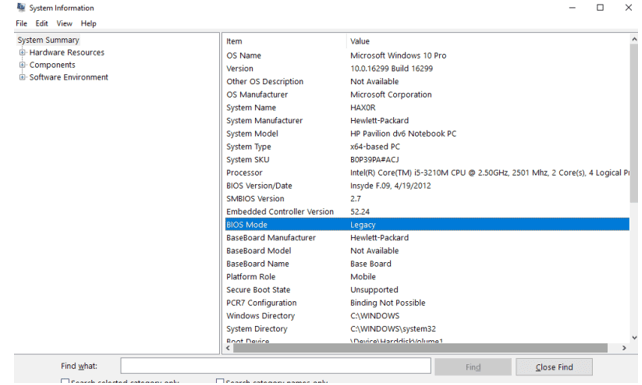
To check if your PC is using BIOS or UEFI on Windows 10, you can find out by entering the System Information window.
1. Open start menu in Windows 10.
2. Search for "System Information" and hit the "Result".
3. The "System Summary" tab under the BIOS settings shows whether the computer is running in Legacy BIOS mode or UEFI boot mode, with "Legacy" indicating Legacy BIOS and "UEFI" indicating UEFI boot mode.
In setupact.log
You can check the setupact.log file to see if your PC is using BIOS or UEFI by looking for specific keywords in the log file, such as "BIOS" or "UEFI". This can provide more detailed information about the boot process and help determine whether your PC is using BIOS or UEFI.
1. Run File Explorer.
2. 192.168.
%SystemRoot%\Panther
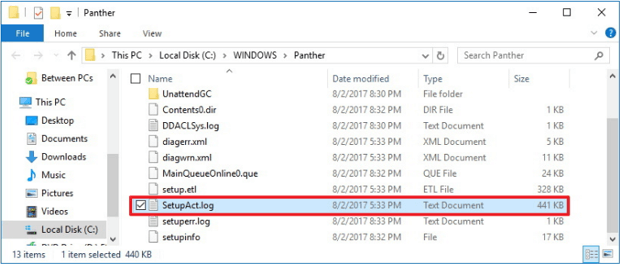
3. Open the setupact.log file with the Notepad app.
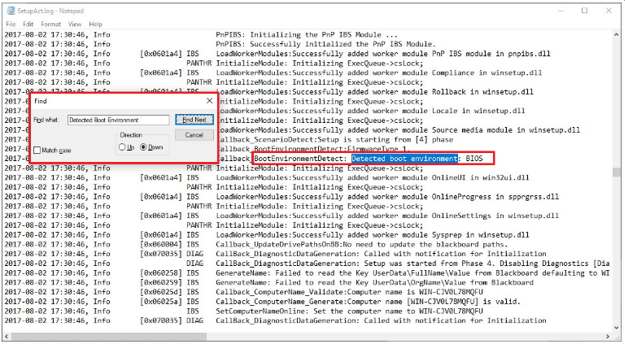
4. Press "Ctrl + F" to run "Find".
5. In "Find", search for "Detected Boot Environment".
If the result is "Callback_BootEnvironmentDetect: Detected boot environment: BIOS", then your computer is running on Legacy BIOS.
If the result shows "Callback_BootEnvironmentDetect: Detected boot environment: UEFI", it indicates that your PC is booting in UEFI mode.
How to switch between UEFI and BIOS?
To switch between UEFI and Legacy BIOS, you can follow these steps:
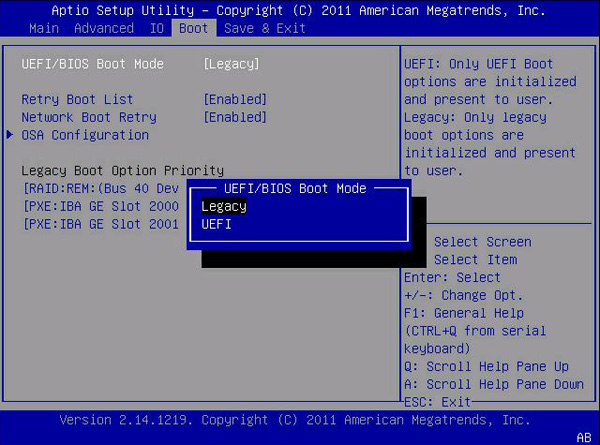
1. To enter the EFI Setup menu during your computer's startup, press a specific key. For laptops, it's usually the Del key, while for desktops, it's often F2. If neither works, try pressing Esc, which should give you a full menu and allow you to select the BIOS Setup.
2. Under the Boot tab, you can find the UEFI/BIOS Boot Mode option, which allows you to switch between UEFI and Legacy modes.
How to convert between MBR and GPT without data loss?
To get your computer to boot normally, you need to match the boot mode with the right partition style: UEFI with GPT and BIOS with MBR. This is also a requirement for upgrading Windows 10 to Windows 11 directly. If your boot mode and partition style don't match, you might need to convert the partition style to get everything working properly.
When it comes to converting between MBR and GPT partition styles, many people rely on Windows built-in utilities like Disk Management and DiskPart. However, these tools require deleting all existing partitions on the target disk, resulting in severe data loss.
Luckily, Qiling Disk Master Professional can help with various disk operations, including MBR to GPT conversion, primary to logical disk conversion, and SSD 4k alignment, without any bundleware or annoying popup ads.
Here, we take MBR to GPT conversion for example.
Step 1. Install and launch Qiling Disk Master Professional, then right-click on the target disk and select "Convert to GPT".
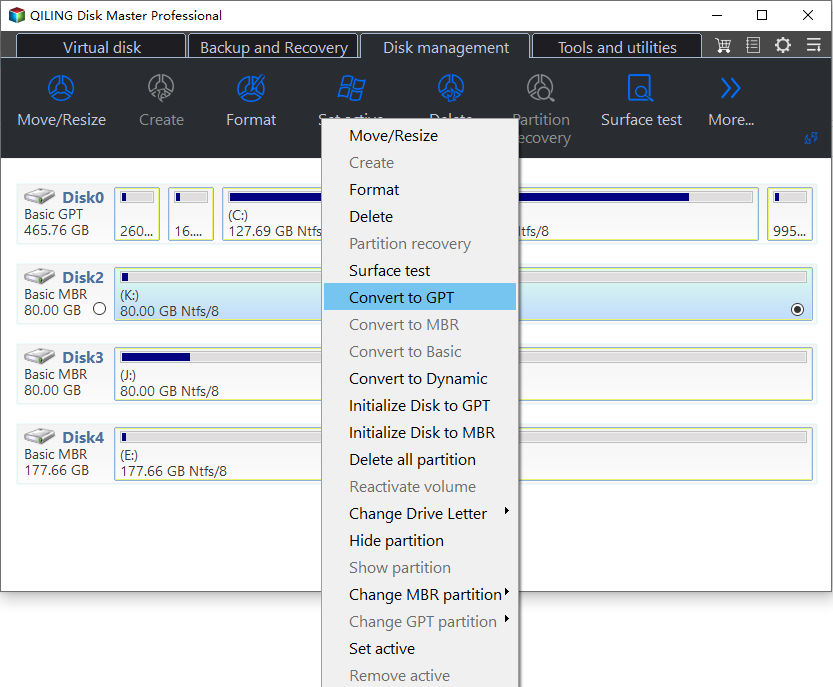
Step 2. The Disk master tool needs time to convert the partition to GPT. Please wait a while for the process to complete.
Converting a disk from MBR to GPT is a straightforward process that can be completed in just 2 steps, making it much easier than using Disk Management or DiskPart. During the conversion, you won't need to delete any partitions, making the process even more efficient.
Conclusion
To determine if you have UEFI or BIOS in Windows 7, 8, 10, or 11, you can check the System Information or look for setupact.log. However, to make Windows bootable, you need to match the boot mode with the corresponding partition style, which may require converting between MBR and GPT. A utility like Qiling Disk Master Professional can help you do this conversion without data loss, and if you're using it on a server, be sure to try the server edition.
Related Articles
- Best Free GParted Windows Alternative Tool
Gparted Windows alternative tool - Qiling Partition Master makes everything simple and easy for you to manage Windows partition and space. 3 simple steps fix all complex partition management problems with this tool. - HDD Regenerator Free Alternative on Windows 10/8/7
This guide explains HDD Regenerator Free Alternative on Windows 10/8/7 with clear steps, key checks, and practical tips. - 4 Methods to Hide or Unhide Partition in Windows Server
In this tutorial, I will show you five methods to hide or unhide partitions in Windows Server. If you have confidential materials that restrict someone from accessing your hard drive, this article will guide you to place all critical files on a hard disk and hide it. No data deletes. - Check This Guide to Learn How to Check RAM Speed Windows 10
RAM speed can reflect your computer status. However, some users might don't know how to check RAM speed. In this article, we will introduce two ways for you to check RAM speed in Windows 10. - How to Fix Hard Drive Won't Boot [Top 6 Fixes🏅]
If your hard drive will not boot and shows a disk boot failure message, follow this guide to check causes and try practical startup fixes. - How Big Is Baldur's Gate 3: File Size on PC/PS5
Check Baldur's Gate 3 file size on different platforms and learn simple ways to free up space if your PC or console storage is low.
Products
Articles & Tutorials
- Data Recovery
- Data Backup
- File Recovery
- File Backup
- File synchronize
- System Backup and Restore
- Disk and Partition Clone
- Technical articles
- Disk Master Help
- Windows Deleted File and Disk Recovery Tutorials
- Windows File and Data Recovery Tutorials
- More Windows Tutorials for Install, Security, Files, and PC Tips
- Windows Boot, Repair, and Recovery Environment Tutorials
- Windows Backup Tutorials
- Windows Restore Tutorials
- Windows Clone and Migration Tutorials
- Windows Server Backup, Recovery, and Management Tutorials
- Windows Disk, Partition, and Storage Management Tutorials