What Is UEFI Boot Mode - UEFI vs BIOS
What is UEFI boot mode?
UEFI is a software interface between an OS and platform firmware, replacing Legacy BIOS, and allows for up to 9.4ZB usable space on a hard disk, supporting booting from a GPT partition-style hard disk.
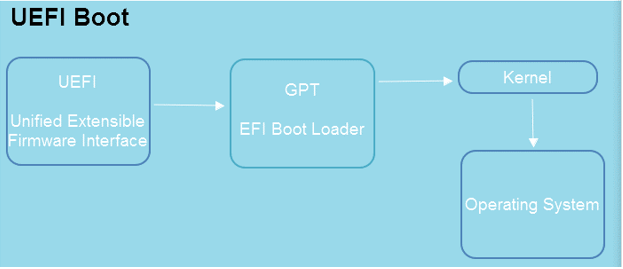
How is UEFI different from Legacy BIOS?
Legacy BIOS boot mode is a traditional boot mode that was common before Windows 8, offering good compatibility with older devices and systems. It supports hard drives in MBR format, with a storage limit of less than 2TB, and allows for 4 primary partitions or 3 primary plus 1 extended partition, in contrast to UEFI which supports more partitions and is compatible with most modern operating systems.
How to know the type of the boot mode on your PC?
If you still don't know how to figure out the exact boot mode of your computer, then, follow the tutorial below.
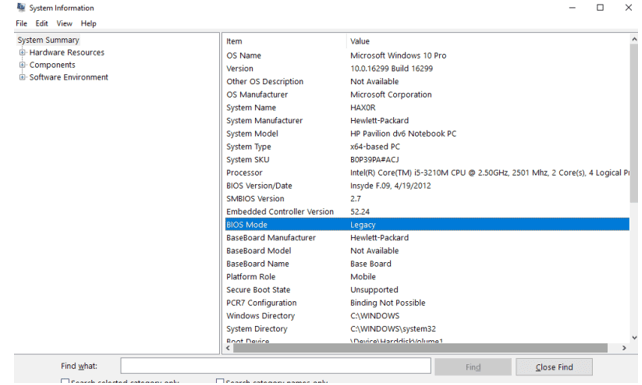
1. To view system information, type "system information" in the search bar on the lower left of the interface and press "ENTER".
2. In the popup window, the value under "Item" for "Bios Mode" is checked to show either "Legacy" or "UEFI".
Why should we switch between UEFI and Legacy BIOS?
UEFI and Legacy BIOS both provide a stable way for your OS to boot. However, sometimes, you need to make a conversion between these 2 boot modes. For example, if you want to upgrade from Windows 10 to Windows 11 with the "Check for Update" feature, UEFI is required as well as a hard disk in GPT partition style. Or sometimes, you purchased a 3TB SSD but your computer runs on Legacy BIOS with the system disk in MBR, in this case, only 2TB of storage space can be recognized. So, to make full use of the hard drive, you have to convert Legacy to UEFI.
How to switch between UEFI and Legacy BIOS?
You can switch between UEFI and Legacy BIOS on a computer, but keep in mind that the process might vary slightly depending on the specific device.
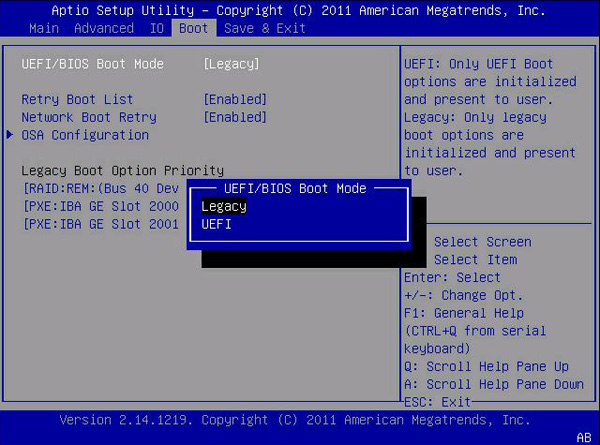
1. To enter the BIOS menu, press the designated BIOS key (usually Del for desktops and F2 for laptops) as soon as your PC starts up. If you're unsure, pressing Esc may provide a guide on which key to press.
2. Under the Boot tab, you can switch between UEFI and BIOS boot modes using the UEFI/BIOS Boot Mode option.
Why and how to convert MBR to GPT?
The MBR (Master Boot Record) and GPT (GUID Partition Table) are two types of partitioning styles, each with its own unique features. In some cases, it may be necessary to convert MBR to GPT or vice versa for various reasons, such as upgrading or downgrading a system's partitioning scheme.
Windows 11 only supports UEFI boot mode and GPT partition style if upgrading from Windows 10 using the "Check for update" feature.
You want to make full use of the 3TB of storage space on a hard disk while only 2TB of storage space on an MBR hard disk can be recognized by your PC.
To convert a disk from MBR to GPT, you can use Windows built-in utilities like Disk Management and DiskPart, but this will require deleting all partitions on the target disk, resulting in potential data loss unless a backup is made beforehand.
To prevent data loss, I recommend using Qiling Disk Master Professional, a powerful disk management utility that can convert between MBR and GPT in a few clicks without deleting any partitions. It also offers features like primary disk to logical disk conversion and NTFS to FAT32 conversion.
Step 1. Install and launch Qiling Disk Master Professional, right-click on the hard disk you want to convert and select "Convert to GPT".
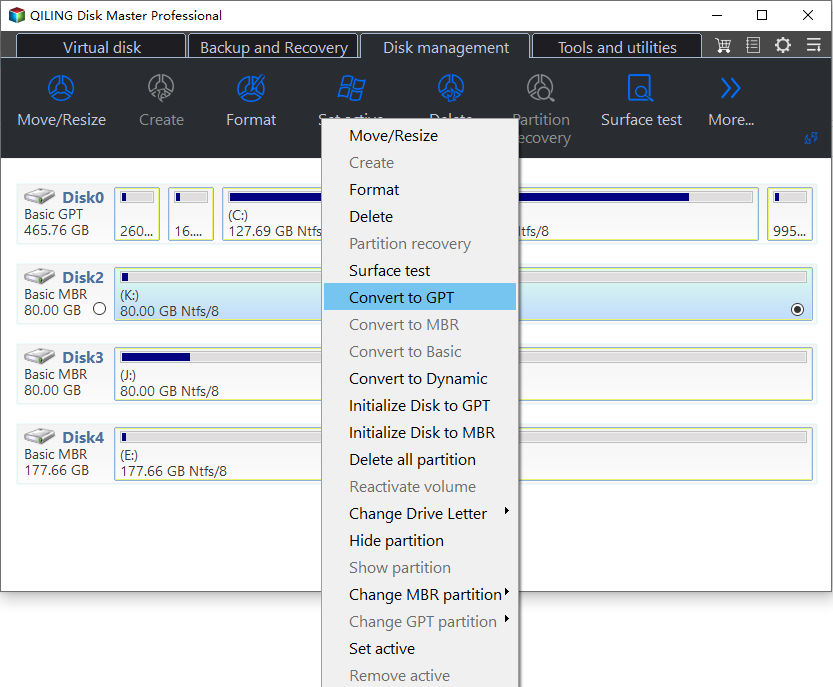
Step 2. Wait for a moment untill finishing operation of the conversion.
It might take several seconds before it's completed
Conclusion
UEFI boot mode and Legacy boot mode are two different boot modes for computers. UEFI boot mode uses the GUID Partition Table (GPT) for disk partitioning, while Legacy boot mode uses the Master Boot Record (MBR). The two modes have distinct features, with UEFI offering faster boot times and improved security, while Legacy is more compatible with older systems. To switch between the two modes, users can typically access the BIOS settings and select the desired boot mode. For those who need to convert between GPT and MBR, a third-party converter like Qiling Disk Master Professional can be used, which is compatible with Windows 7/8/8.1/10/11/XP and also has a Server edition for servers.
Related Articles
- How to Run CHKDSK Without Admin Rights
Learn how to Run CHKDSK Without Admin Rights with clear steps, key checks, and practical tips. - How Do I Install APK on Windows 11, Sideload Android Apps Successfully [2023 Guide]
Learn how to install APK files and sideload Android apps on Windows 11 with clear steps for users at different experience levels. - Internal Drive vs External Hard Drive. Which is better?
Compare internal and external hard drives by usage, portability, backup needs, gaming needs, budget, and storage capacity before choosing one. - How to Repair C Drive [5 Proven Ways]
Learn how to Repair C Drive with clear steps, key checks, and practical tips. - How to Upgrade PS5 SSD [Step-by-step Guide]
Learn how to choose a compatible PS5 SSD and upgrade it step by step to expand storage, install more games, and improve loading performance.
Products
Articles & Tutorials
- Data Recovery
- Data Backup
- File Recovery
- File Backup
- File synchronize
- System Backup and Restore
- Disk and Partition Clone
- Technical articles
- Disk Master Help
- Windows Deleted File and Disk Recovery Tutorials
- Windows File and Data Recovery Tutorials
- More Windows Tutorials for Install, Security, Files, and PC Tips
- Windows Boot, Repair, and Recovery Environment Tutorials
- Windows Backup Tutorials
- Windows Restore Tutorials
- Windows Clone and Migration Tutorials
- Windows Server Backup, Recovery, and Management Tutorials
- Windows Disk, Partition, and Storage Management Tutorials