How to Open Disk Management in Windows 11, 10, 8, 7, XP or Vista [4 Ways]?
What is Disk Management?
Disk Management is a Microsoft Windows utility that was first introduced in Windows XP and replaced the fdisk command. It allows users to view and manage hard disks and their associated partitions, enabling tasks such as initializing disks, creating volumes, and formatting volumes as FAT32 or NTFS file systems. Since its introduction, the tool has undergone updates, with new features added in Windows 7 and later versions.
▪ Extend and shrink volumes: You can shrink an existing volume to create unallocated space, then use that space to create or extend another volume when the layout allows it.
▪ Simpler partition creation: You can create basic volumes and, on dynamic disks, create spanned or striped volumes directly.
▪ Convert disk: If you need more than four primary partitions on an MBR disk, Windows may prompt you to convert the disk to dynamic or use GPT depending on your system and disk layout.
How to: open Disk Management in Windows 11, 10, 8, 7, XP, or Vista
Here are several ways to open Disk Management on a Windows PC. Although Disk Management is not usually shown as a desktop app, you can access it through Computer Management, Run, Command Prompt, or Control Panel.
Way 1. Through Computer Management
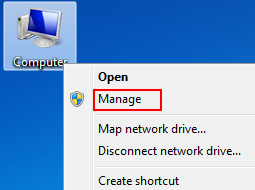
Step 1. Right-click Computer →Manage.
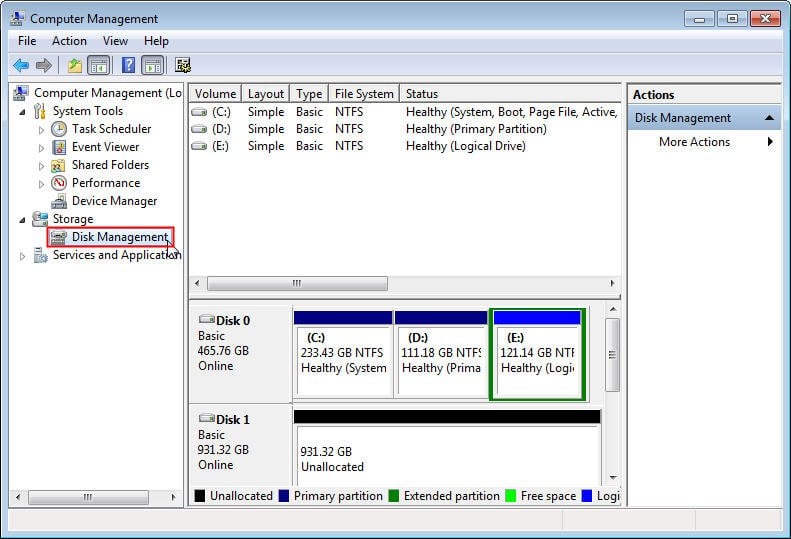
Step 2. Choose Disk Management on the left.
Way 2. Via Run
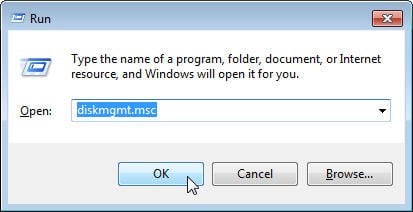
Step 1: Press Windows+ R.
Step 2: Type diskmgmt.msc → OK.
Way 3. By Command Prompt
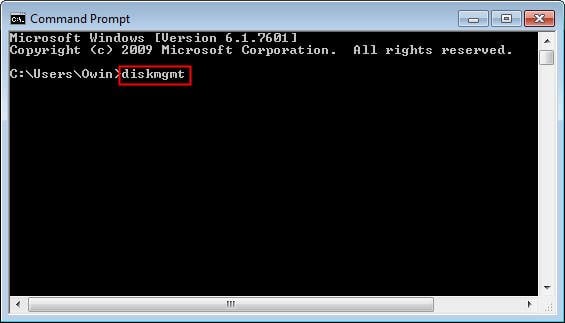
Step 1. To open the Command Prompt, click the Start menu, type "cmd" in the search box, and then press Enter.
Step 2. Type diskmgmt.msc → Enter.
Way 4. From Control Panel
Step 1. Click Start menu → Control Panel.
Step 2. Select System and Security.
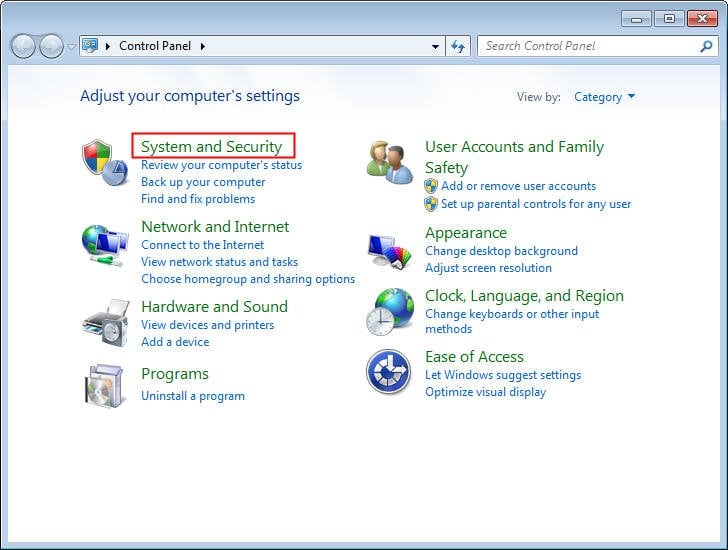
Note: The "System and Security" section is only found in Windows 10/8/7, whereas in Windows Vista it's called "System and Maintenance" and in Windows XP it's referred to as "Performance and Maintenance".
Step 3. Under Administrative Tools, click the option as shown below. That's it!
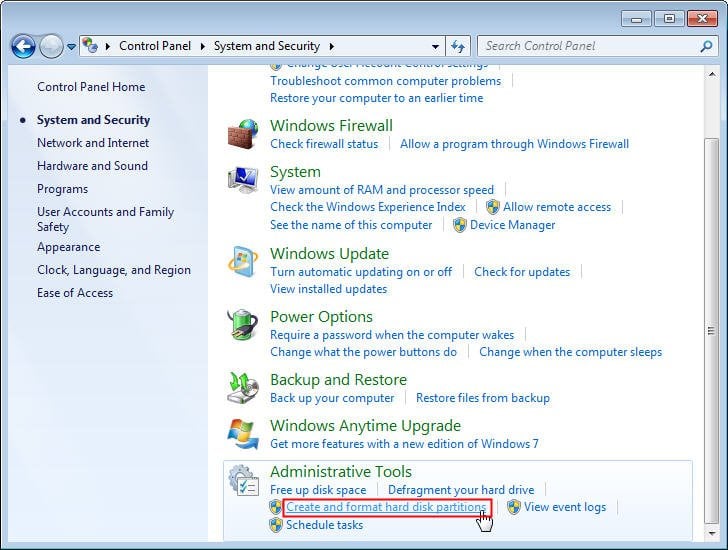
You can also search for "Disk Management" from the taskbar search box, or right-click the Start button in newer Windows versions and choose "Disk Management" directly. After opening it, you can view disks, create volumes, format partitions, change drive letters, and perform other basic disk tasks.
A better disk management tool
In Windows Disk Management, users may find the "Extend Volume" and "Shrink Volume" options greyed out due to layout or file system limits. Extending a partition requires unallocated space directly to its right, while shrinking a volume may be restricted by unmovable files. When these limits block your task, a more flexible disk management tool can help.
Qiling Disk Master Standard is a free disk partition management software that allows users to easily control and manage hard disks and partitions with its powerful functions.
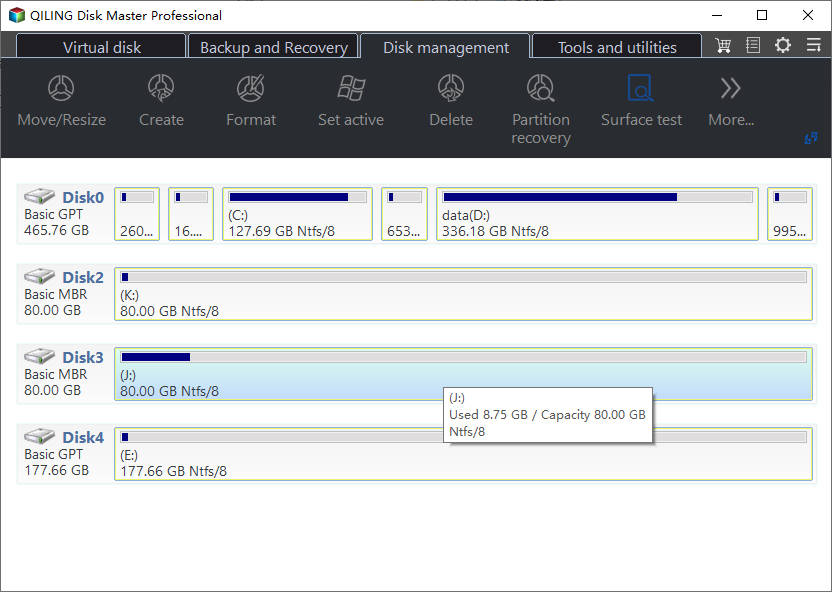
With its clear main interface, it is easy to view the status of every partition. The software provides utilities such as resizing partitions, merging partitions, and more, helping overcome the limits of Windows built-in Disk Management. Most operations can be completed with a few clicks.
Related Articles
- Benchmark Helps You Know SSD Performance Clearly
This post explains what an SSD benchmark is and introduces three SSD benchmark tools and measurement rules to help you understand your SSD's performance. - Professional Software to Partition Hard drive in Windows 7/8/10/11
This tutorial will introduce you the professional partitioning software to help you Partition/Create/Delete/Format/Resize hard drive before installing Windows. - [Quickly Solved] Cannot Delete Partition in Windows 11, 10, 8, 7
This guide explains Cannot Delete Partition in Windows 11, 10, 8, 7 with clear steps, key checks, and practical tips. - 2 Free Ways to Create Partition Windows 10 without Losing Data
This guide explains 2 Free Ways to Create Partition Windows 10 without Losing Data with clear steps, key checks, and practical tips. - The Media Is Write-Protected? How to Fix It in Windows
This article provides clear, professional instructions on how to remove write protection from the media. It explains why the media is write-protected and offers detailed instructions on how to remove the write protection. Overall, this article is very helpful and easy to follow. - There Is Not Enough Space on C Drive to Extract This Package [Solved]
If you get an error saying there is not enough space on C drive to extract a package, this tutorial shows how to solve the problem and increase C drive space in Windows 7, 8, or 10.
Products
Articles & Tutorials
- Data Recovery
- Data Backup
- File Recovery
- File Backup
- File synchronize
- System Backup and Restore
- Disk and Partition Clone
- Technical articles
- Disk Master Help
- Windows Deleted File and Disk Recovery Tutorials
- Windows File and Data Recovery Tutorials
- More Windows Tutorials for Install, Security, Files, and PC Tips
- Windows Boot, Repair, and Recovery Environment Tutorials
- Windows Backup Tutorials
- Windows Restore Tutorials
- Windows Clone and Migration Tutorials
- Windows Server Backup, Recovery, and Management Tutorials
- Windows Disk, Partition, and Storage Management Tutorials