Professional Software to Partition Hard drive in Windows 7/8/10/11
As storage capacity grows, many users need a better way to organize large hard drives. A clear partition layout can separate the operating system, programs, and personal files, making storage easier to manage and helping the computer run more efficiently.
Before installing Windows, it is helpful to partition the hard drive properly. Creating a separate system partition can keep the operating system independent from personal data, reduce the risk of accidental data loss, and make future maintenance easier.
Introduction to Disk Partition
A partition, also known as a volume, is a separate section of a physical disk. It can store an operating system, programs, personal files, or backups. For example, the C drive can hold Windows, while the D drive can store documents, photos, and other data.
This layout makes files easier to organize and manage. It also improves data protection because problems on one partition are less likely to affect files stored on another partition.
Way to partition a hard drive
Partitioning a hard drive usually includes creating, deleting, formatting, resizing, or moving partitions. Windows Disk Management can handle some basic tasks, but it has limits when you need to resize partitions flexibly or manage older systems.
For more complete partition management, you can use Qiling Disk Master Professional. It works with Windows 7, 8, 10, and 11 and helps manage hard drive partitions more efficiently.
How to partition a hard drive in Windows 8/7/10/11?
First, download the partition software. The following sections explain the main partition operations step by step.
A: Resize Partition
Resizing a volume means extending or shrinking an existing partition. This is useful when the system drive, usually the C drive, is almost full while another partition still has enough free space. Shrinking a larger partition and extending the system drive can improve storage balance and system performance.
This partitioning software can resize hard drive partitions without data loss and can also help adjust BitLocker partitions. The example below shows how to change partition size and optimize disk space distribution.
Step 1: Launch Qiling Disk Master, right-click the D drive, and select "Resize/Move Partition". In the next window, drag the partition bar or enter the desired size manually.
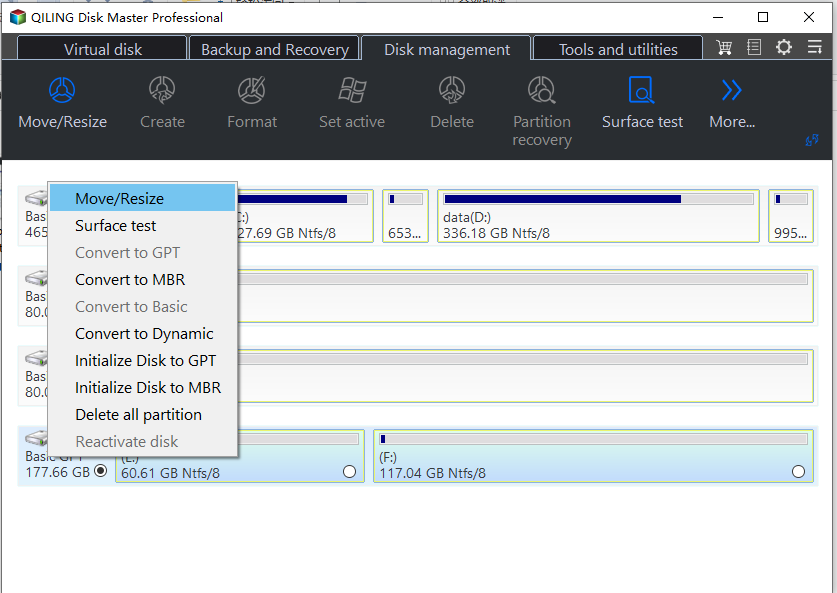
Step 2: Drag the partition bar to create unallocated space from the D drive. This unallocated space can then be added to the C drive to increase its capacity.
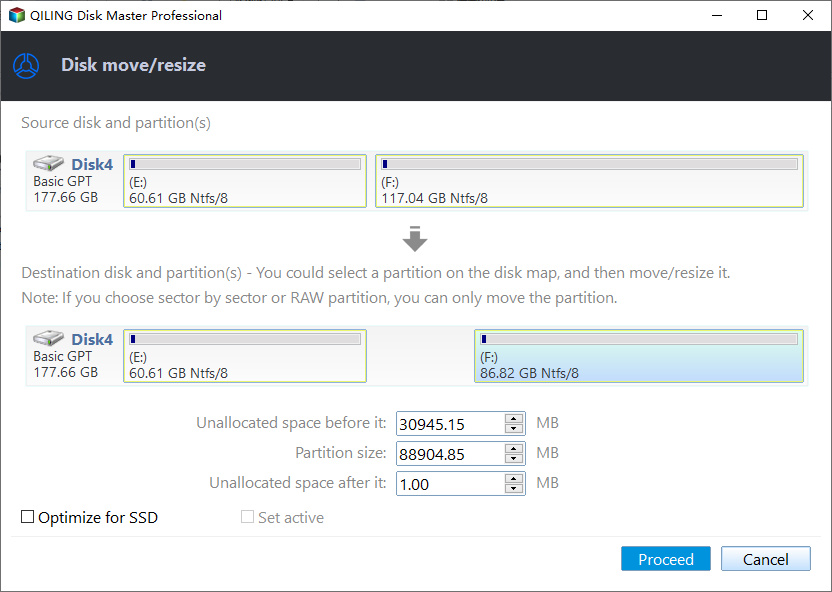
Step 3: Preview the changes, then click "Proceed" on the toolbar to apply them.
B: Create Partition
Create with a snap-in tool
To create a new partition with Disk Management, right-click "My Computer", select "Manage", and open "Storage" > "Disk Management". Right-click unallocated space, choose "New Simple Volume", and follow the wizard to finish the process.
This method works only when unallocated space already exists. If all disk space has been allocated, use Qiling Disk Master to shrink an existing partition and create space for a new one.
Create with Qiling Disk Master
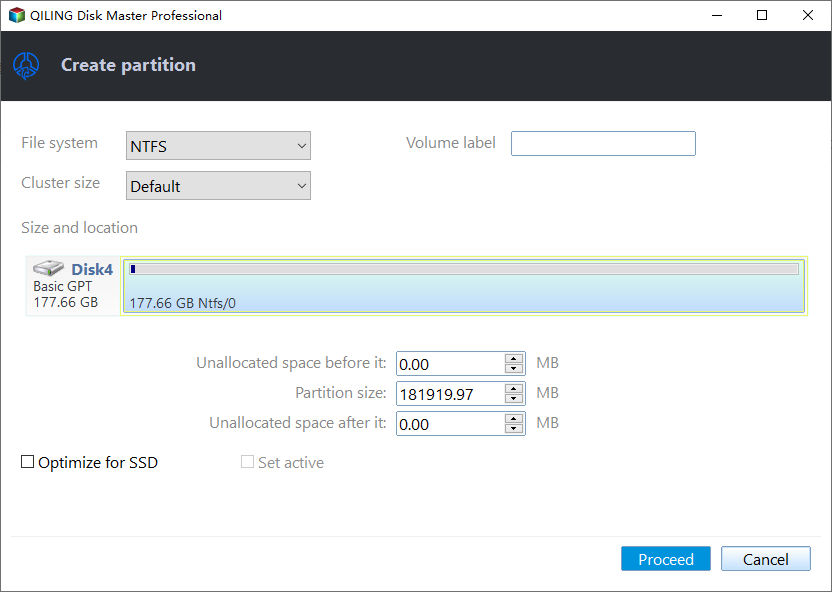
This all-in-one software can create a new volume from unallocated space or from unused space inside an existing partition. The latter option is helpful when no unallocated space is available.
Open the main console, right-click the E: drive, and select "Create" from the menu. Move the slider to adjust the new partition size, or enter a specific size and drive letter. Finally, click "Proceed" to apply the changes.
C: Delete Partition
You can delete an unnecessary partition to free up space for other uses. Disk Management can delete a partition, but deleted data may still be recoverable. If you need to remove data permanently, use Qiling Disk Master to wipe the partition during deletion.
To delete a partition, right-click the target partition and select "Delete". Note that the system boot volume cannot be deleted like a normal data partition; use the "Wipe Hard Drive" function only when you are sure the data is no longer needed.
D: Format Partition
Formatting a drive deletes existing data, so back up important files before you continue. This is especially important when changing file systems between NTFS and FAT32.
To format a drive, you can use Windows built-in tools or Qiling's partition manager. In the partition manager, right-click the target drive and choose "Format".
Summary
Qiling Disk Master Pro Edition helps partition hard drives on laptops and desktops. It supports creating, deleting, formatting, and resizing partitions, and also provides a schedule defrag feature to help maintain hard drive performance.
Related Articles
- Qiling Disk Master Full Version Free Download with Serial Code/Key
Qiling Disk Master 7.2 includes new partition management features. Learn how to download and use the full version safely. - Samsung Format Utility Download Free [With Guide] 🚩
This guide explains Samsung Format Utility Download Free 🚩 with clear steps, key checks, and practical tips. - SanDisk Format Solution: Format SanDisk to The Best Performance on Your Own
This guide explains SanDisk Format Solution: Format SanDisk to The Best Performance on Your Own with clear steps, key checks, and practical tips. - 5 Best SD Card Formatter FAT32 Free Download for Windows
This page collected 5 reliable SD card formatter software that helps you to format all types of SD cards to FAT32 for free. Follow to download the best free SD Card formatter FAT32 software and set the desired file system to your SD card on Windows now. - Fix Unable to Shrink C Drive on Windows 11/10/8/7
Learn why Windows cannot shrink the C drive beyond a limit and how to free space, move unmovable files, or use partition software to shrink the C partition safely. - Quick Guide: Unlock Dell Laptop Without Password
If you forgot your Dell laptop password, this guide explains several ways to regain access, including recovery options and password reset methods.
Products
Articles & Tutorials
- Data Recovery
- Data Backup
- File Recovery
- File Backup
- File synchronize
- System Backup and Restore
- Disk and Partition Clone
- Technical articles
- Disk Master Help
- Windows Deleted File and Disk Recovery Tutorials
- Windows File and Data Recovery Tutorials
- More Windows Tutorials for Install, Security, Files, and PC Tips
- Windows Boot, Repair, and Recovery Environment Tutorials
- Windows Backup Tutorials
- Windows Restore Tutorials
- Windows Clone and Migration Tutorials
- Windows Server Backup, Recovery, and Management Tutorials
- Windows Disk, Partition, and Storage Management Tutorials