2 Free Ways to Create Partition Windows 10 without Losing Data
Why should I create partition Windows 10?
On a typical Windows 10 computer, multiple partitions are created, such as the System C drive for system data and separate drives like D, E, F, and G for non-system files. However, when a new PC is first set up, it usually comes with only one partition made by the manufacturer, requiring all types of files to be stored in this single partition.
If you need to reinstall the operating system or experience system crashes, formatting the system drive will erase all system and personal data. Additionally, storing too many files on the system drive can cause your computer to run slowly and make management difficult.
So, now, you can tell that it is literally necessary to create more than one partitions in Windows 10. If you're a novice and have no idea how to create new partitions, don't worry, because, in the following contents, I will use the most explicit words to provide the top 2 ways to create new partition Windows 10.
3 Methods to create partition in Windows 10
In Windows 10, there are three methods to create new partitions: using DiskPart's command line to manually create partitions, utilizing Windows' built-in Disk Management program to create new volumes, or employing powerful third-party software to create multiple partitions simultaneously.
Note: MBR and GPT are two types of disk management systems that determine how many partitions can be created on a disk. MBR allows for 3 primary partitions plus 1 extended partition or 4 primary partitions, while GPT supports up to 128 primary partitions. If the disk type doesn't meet your needs, you can convert between MBR and GPT before creating partitions.
Create partitions Windows 10 DiskPart
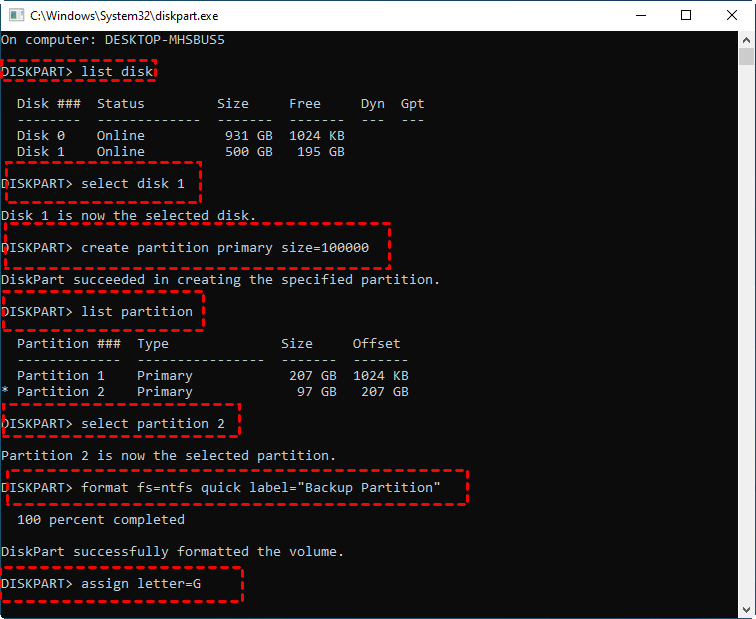
To create a partition using DiskPart in Windows 10, open the Command Prompt as an administrator, type "DiskPart," and press Enter. Then, type "list disk" to view a list of available disks, and select the disk you want to create a partition on by typing "select disk [number]". Next, type "list partition" to view the existing partitions, and then type "create partition primary size=[size] [drive letter]" to create a new partition.
Warning: Improper execution of system operations can lead to serious system errors, including irreversible data loss. It's recommended to back up essential data before proceeding.
1. Type "diskpart" in the search box on the taskbar and hit "ENTER". This will open the Disk Management utility, where you can create, delete, and manage partitions on your computer's hard drive.
2. To bring up all available disks on your PC, type "list disk" in the command prompt.
3. Type "select disk 'x'" and hit ENTER, where "x" represents the disk number.
4. To create a partition of size 10000 in one command, you can use the following command: create partition primary size=10000. This will create a primary partition of size 10000.
5. Type "list partition" and you can see the number of the partition you're going to create.
6. Type "select partition 'y'" and hit "ENTER". "y" stands for the partition number. The command will prompt you to enter the partition number you want to delete.
7. To format the partition in NTFS, type `format fs=ntfs quick label="Backup Partition"` and press the "ENTER" key.
8. To assign a drive letter to the partition you created, type "assign letter=G" in the command prompt.
Use Disk Management
If you find DiskPart too complicated, you can use the Windows inbuilt program Disk Management instead. It's also free and allows you to perform tasks like shrinking partitions, creating new simple volumes, deleting partitions, and more.
1. To access the Device Manager, right-click on "This PC" on your desktop and select "Manage".
2. Click on "Disk Management" on the left in the popup window.
3. Find the disk partition and right-click on it.
4. Select "Shrink Volume".
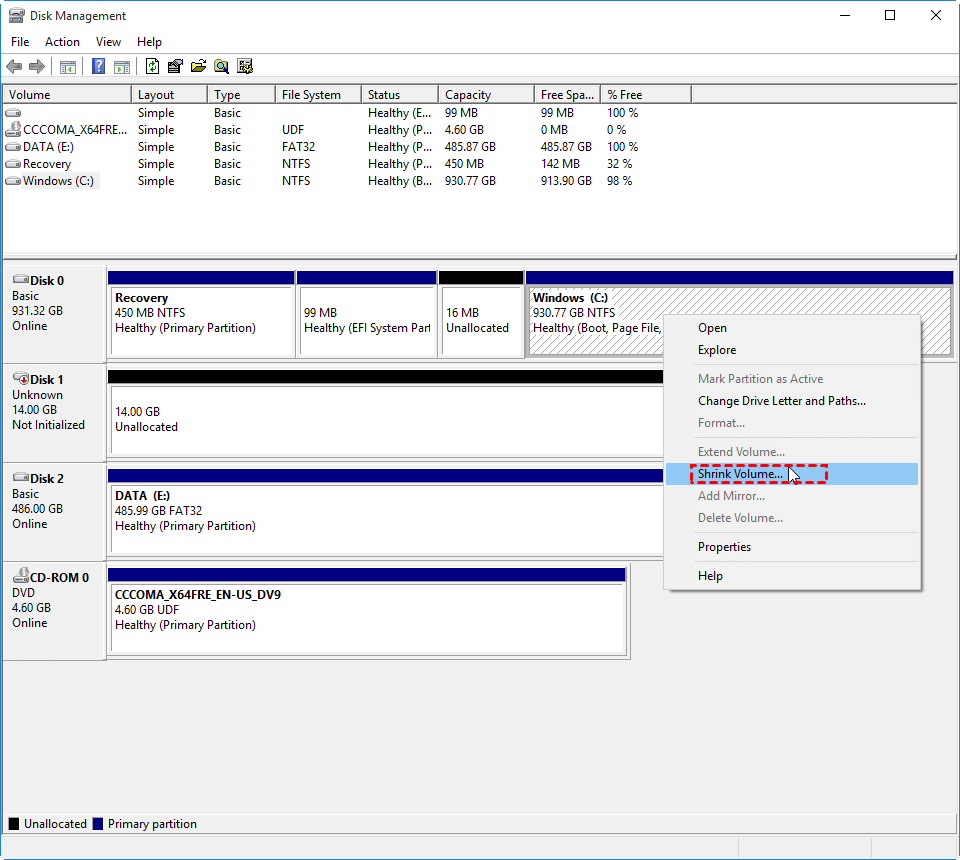
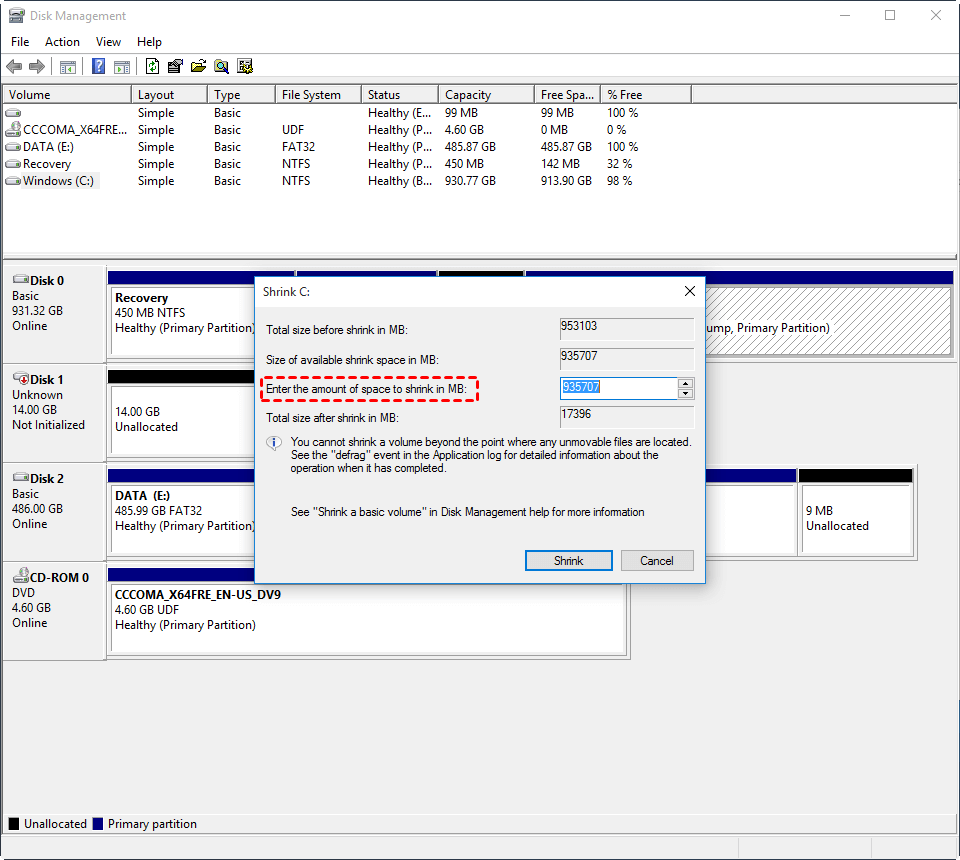
5. Enter the amount of space to shrink in megabytes and click on "Shrink" to proceed.
6. Now, you can notice a piece of unallocated space located on the right of the original partition. Right-click on the unallocated space and click on "New Simple Volume".
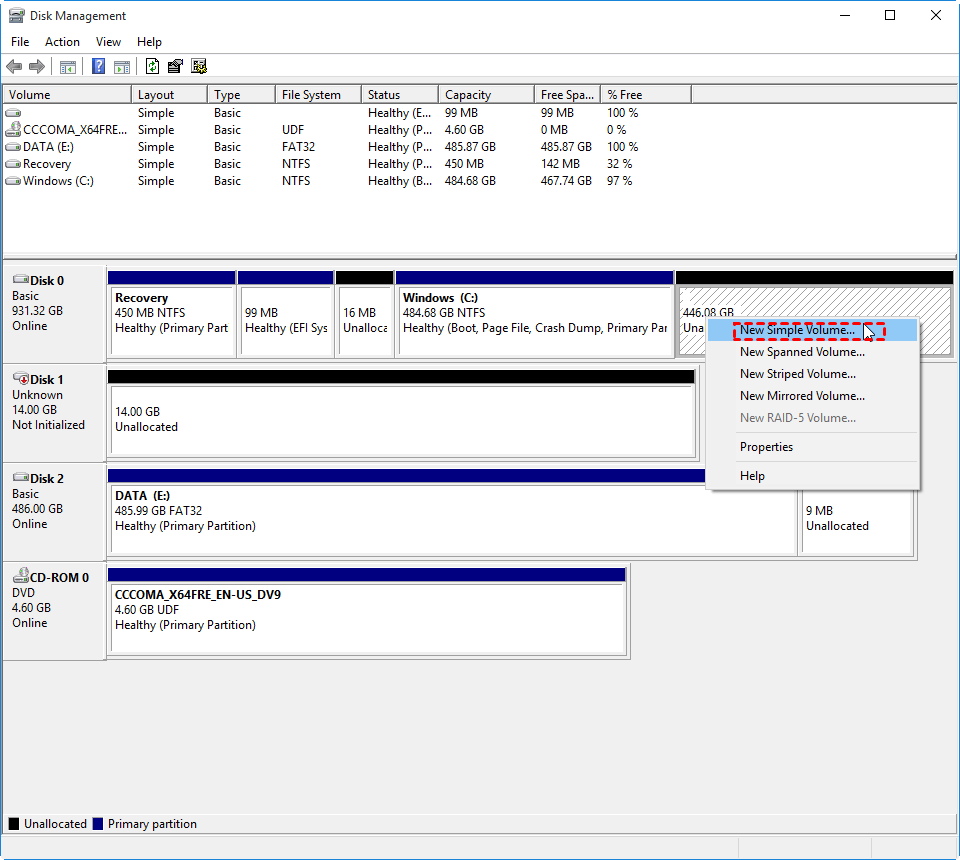
7. Follow the wizard until the last step to create a new partition, reserving some unallocated space for future use if desired.
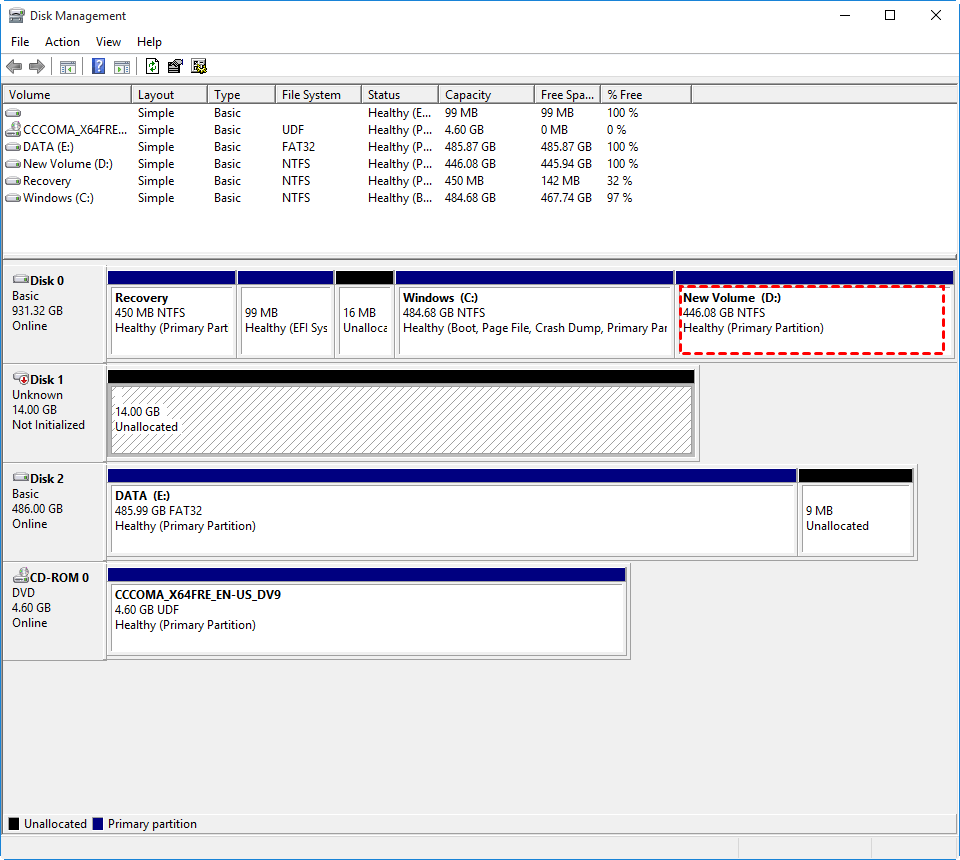
8. To create additional partitions, repeat the steps above. This involves formatting the free space on the hard drive, selecting the partition size and type, and assigning a drive letter.
Warning: Disk Management and DiskPart only support shrinking volumes in NTFS and RAW file systems. If the partition is in FAT32, alternative methods must be used.
Resort to third-Party Disk Manager freeware
If you find methods 1 and 2 too complex, you can use Qiling Disk Master Professional, a powerful disk manager software, to create multiple customized partitions at once with its quick partition feature.
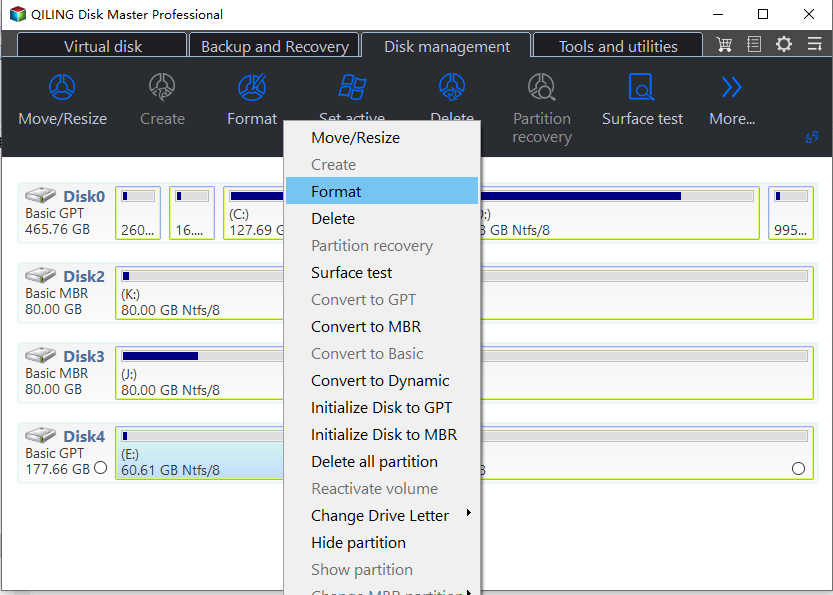
This software can create partitions on unallocated space and existing partitions, resize, merge, split, extend, and shrink partitions in NTFS and FAT32.
You can now download the demo of this software to create another partition on your C drive, for example.
Step 1. Install and launch Qiling Disk Master Professional. All disks and partitions will then appear on the main interface.
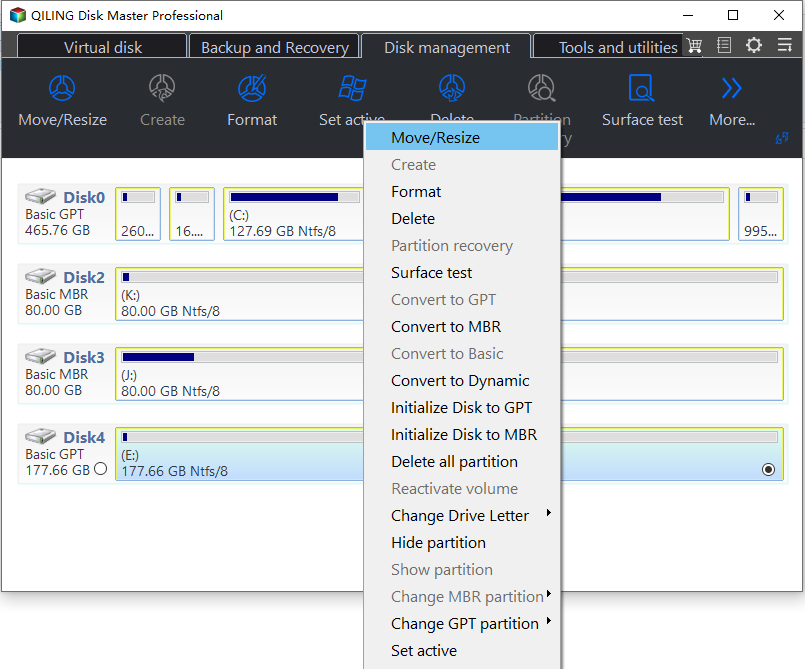
Step 2. Right-click on the existing C partition and choose "Move/resize Partition".
Step 3. Customize the size of the partition to be created.
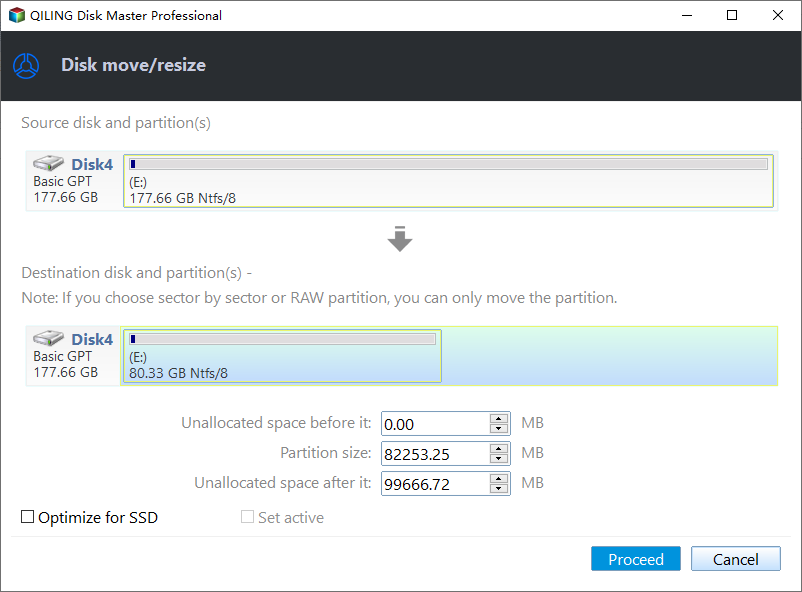
Step 4. To begin, you'll return to the interface. Click on "Proceed" to initiate the process.
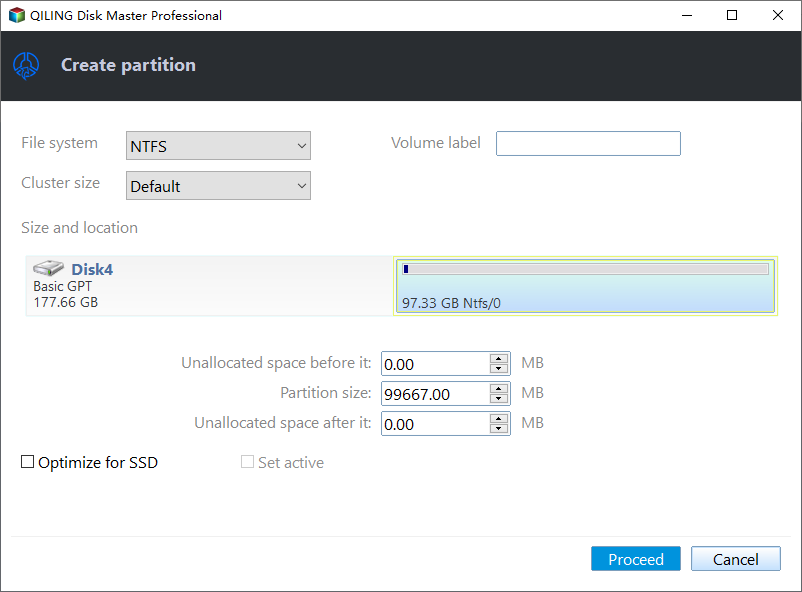
Wait a few seconds before the entire process gets finished.
How to create partition during Windows 10 installation?
To install Windows 10 on a new PC, it's necessary to have an existing partition. In the following contents, you'll learn how to create this partition before installing Windows 10.
1. To install the operating system, you need to boot your computer from the installation media. This typically involves inserting the installation media, such as a CD or DVD, into your computer's CD/DVD drive, or connecting a USB drive containing the installation media to your computer.
2. At the Windows Setup window, press Shift and F10 simultaneously to bring up a command line prompt. This will allow you to enter commands to navigate and customize your installation.
3. To open the Command Prompt as an administrator, type "diskpart" and hit "ENTER".
4. Type "list disk" and hit "ENTER".
5. Type "select disk [disk number]" and press the "ENTER" key to select the disk you want to use.
6. The command `create primary partition size=100000` is used to create a primary partition of a specified size on a disk. This command is typically used in a disk management or partitioning tool, such as fdisk, to create a new partition on a disk.
You have created a 100GB partition where Windows 10 can be installed.
Note: You can create a partition before installing Windows 10/8/7 with Qiling Disk Master Professional as well.
Conclusion
To create a partition in Windows 10, you can use one of three methods: creating partitions one by one using Disk Management and DiskPart, or using the powerful Qiling Disk Master Professional software to create multiple partitions at once. This software not only allows partition creation but also enables you to allocate free space between partitions, convert primary partitions to logical drives, and vice versa, all without data loss.
If you want to use this software on 2 servers per license, you'll need the Server edition.
Related Articles
- Using DiskPart to Create Primary or Extended Partition for Windows 7/8/10
Read this post to learn how to create a primary partition or extended logical drive with specified size using DiskPart from command prompt. You can also use DiskPart free alternative - Qiling Disk Master to create a partition. - How to Create A Partition in Windows 7 without Formatting?
Learn how to Create A Partition in Windows 7 without Formatting with clear steps, key checks, and practical tips. - How to Make Partition in Windows 7/8/10 After Installation?
Making partition can separate your OS from your data. In this post, you'll learn how to make partitions in Windows 7 in 2 ways. - The Solution to Cannot Extend Volume to Unallocated Space in Disk Management
Here you can find out why you cannot extend volume to unallocated space in Disk Management in Windows 11, 10, 8, 7 and how to fix it. - How to Fix Windows 11 Black Screen with Cursor| 100% Works
If your Windows 11 PC is stuck on a black screen with a cursor, you can fix it quickly. Follow this guide to troubleshoot and resolve the issue, getting your PC back to a normal state. - How to Fix Windows 11 Startup Repair Not Working | 7 Tips
Resolve Windows 11 startup issues with ease using our comprehensive guide, featuring easy solutions and expert tips to fix 'Windows 11 startup repair not working' and get your computer up and running smoothly.
Products
Articles & Tutorials
- Data Recovery
- Data Backup
- File Recovery
- File Backup
- File synchronize
- System Backup and Restore
- Disk and Partition Clone
- Technical articles
- Disk Master Help
- Windows Deleted File and Disk Recovery Tutorials
- Windows File and Data Recovery Tutorials
- More Windows Tutorials for Install, Security, Files, and PC Tips
- Windows Boot, Repair, and Recovery Environment Tutorials
- Windows Backup Tutorials
- Windows Restore Tutorials
- Windows Clone and Migration Tutorials
- Windows Server Backup, Recovery, and Management Tutorials
- Windows Disk, Partition, and Storage Management Tutorials