How to Convert GPT to MBR without Data Loss in Windows 11, 10, 8, 7?
- Overview of MBR and GPT Disk
- Why need to convert GPT to MBR partition style?
- How to convert GPT to MBR without data loss in Windows PC?
- Summary
Overview of MBR and GPT Disk
Before learning how to convert GPT to MBR or switch from MBR to GPT, it's essential to understand the basics of MBR and GPT hard disks. In essence, they are two distinct partition styles that differ in their functionality and usage.
◤ MBR (Master Boot Record)
The Master Boot Record (MBR) is the first sector of a hard drive or solid-state drive, containing information about the drive's partitions, file systems, and organization type. It also holds the boot routine, which is the executable code that loads the operating system during the second stage of the boot-up process, as well as the Volume Boot Record (VBR), which connects every partition.
◤ GPT (GUID--Globally Unique Identifiers)
The GPT (GUID Partition Table) is a modern disk partition table that is replacing the older MBR (Master Boot Record) standard. It is used in EFI (Extensive Firmware Interface) systems and features a globally unique identifier for each partition. This makes it more efficient and secure than MBR.
Features of MBR partition table
▸MBR disks only support disks up to 2TB in size, and any additional space beyond that will be shown as unallocated.
▸The MBR disk only supports 4 primary partitions at most. To create more, one primary partition must be designated as an "extended drive" within which many logical drives can be created.
▸MBR partitioning rules are complex and poorly designed, storing partitioning and boot data in one place, making it difficult to recover if overwritten or corrupted.
▸The Master Boot Record (MBR) cannot be created on media that cannot be partitioned, such as CDs or DVDs.
Features of GPT partition table
▸GPT can utilize a large hard drive over 2TB, with a maximum partition size of 256TB per partition, each being up to 2^64 logical blocks long.
▸GPT allows for a nearly unlimited number of partitions, whereas Windows typically allows up to 128 partitions on a GPT drive.
▸A partition on a GPT disk has a backup at the end of the disk, which can be used to restore the original at the front of the disk if it's destroyed.
Why need to convert GPT to MBR partition style?
GPT disks are more advanced than MBR disks, but sometimes still need to be converted to MBR, especially for older operating systems like Windows 95-XP, which can't boot from GPT partitions. This results in a "GPT protective partition" display, making data inaccessible without conversion. There are still some situations where GPT disks may need to be converted to MBR.
To convert a GPT disk with an operating system installed to MBR for better compatibility, users can use Qiling Disk Master Professional, which can convert GPT to MBR (or MBR to GPT) without damaging data, unlike the Command Prompt method that requires deleting all partitions before conversion.
How to convert GPT to MBR without data loss on Windows PC?
Prerequisites for disk conversion
- Download and install Qiling Disk Master on your PC.
- If you want to convert and make a bootable system drive, please install the program on the currently running system.
- To convert a BitLocker encrypted system drive, it's recommended to first decrypt the BitLocker encryption. This involves removing the encryption and creating a new, unencrypted system image.
- To convert a system GPT to MBR or vice versa, ensure your computer supports Legacy boot for MBR and UEFI boot for GPT.
- To convert a GPT disk larger than 2TB to an MBR disk, you'll lose data above 2TB. If you still want to convert, transfer extra data to another drive using data migration software before the conversion.
- To avoid data loss, it's a good idea to make a backup before performing any conversion operations, especially if they involve complex or high-risk processes. This can help ensure that your data remains intact and can be recovered in case something goes wrong.
- If you can boot into Windows, the process is simplified to just 3 steps. If you can't, you can create a bootable media first and then perform the conversion in WinPE mode.
The feature to convert a system drive between MBR and GPT requires a paid upgrade to Qiling Disk Master Professional, Server, or higher versions, but converting a data drive is free.
Situation 1. Convert GPT to MBR within Windows
1. Install and launch Qiling Disk Master Professional Edition. To convert a system GPT disk to MBR, select the disk you want to convert and right-click it. From the drop-down menu, select "Convert to MBR". Alternatively, click the "Convert" main tab and select the "Convert MBR/GPT" tool.
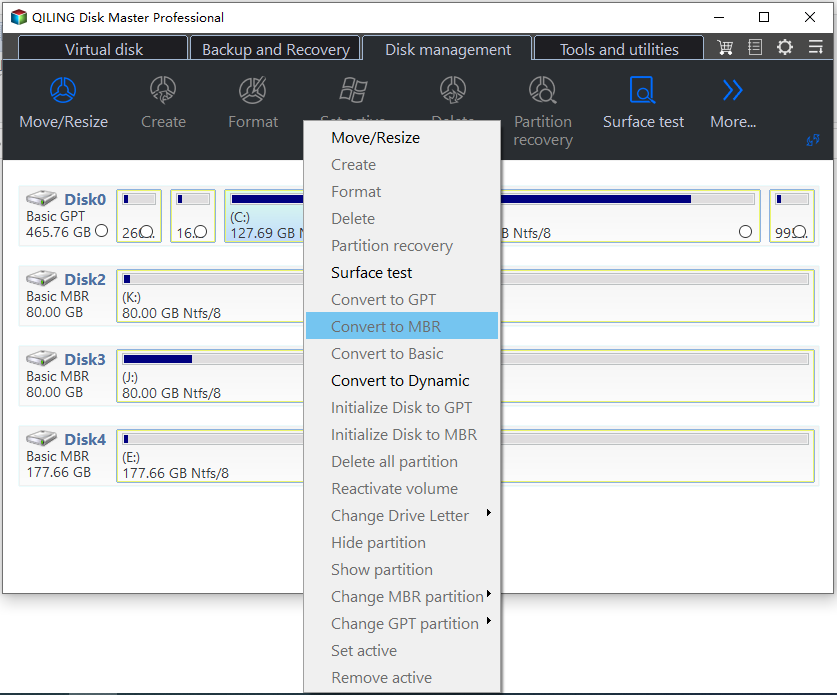
If your disk is MBR and you want to convert it to GPT, please follow the same steps and choose "Convert to GPT".
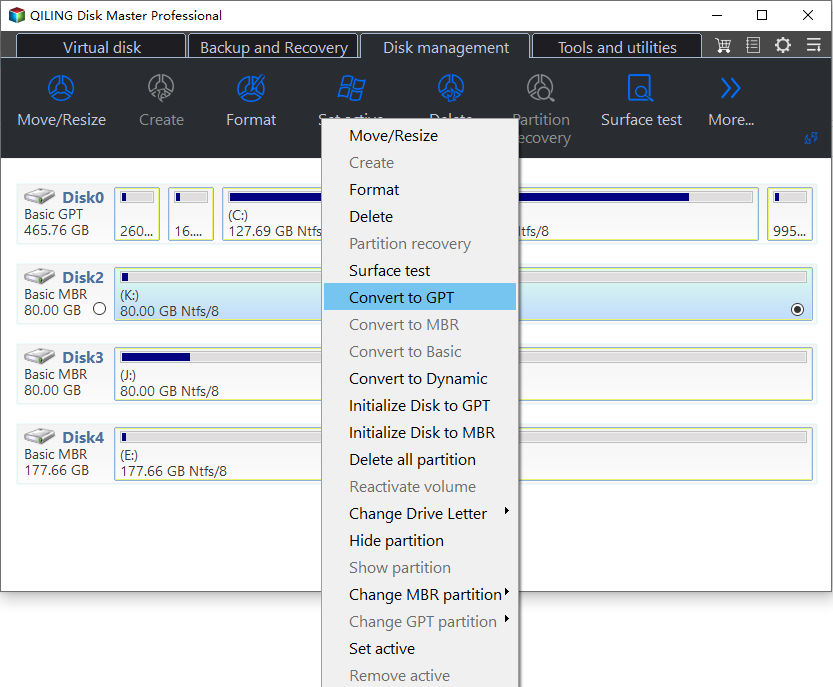
2. The PC will automatically restart after the conversion is finished, and the drive will be converted to MBR after the restart.
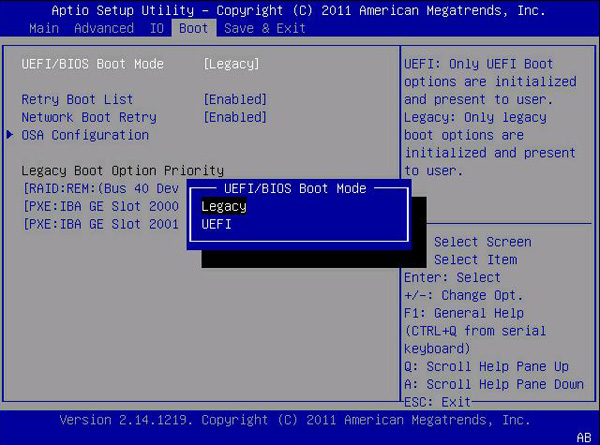
Tips: To successfully boot into Windows after conversion, you may need to enter the BIOS settings to change the boot mode from UEFI to Legacy or vice versa.
Situation 2. Convert GPT to MBR without an operating system
When installing Windows 11, 10, 8, or 7, you may encounter an error message stating that Windows can't be installed on this disk due to an MBR or GPT partition table. To resolve this issue, you need to convert the disk from MBR to GPT (or vice versa) before OS installation. Fortunately, Qiling Disk Master Professional allows you to create a bootable USB drive to boot the computer without an operating system, and then convert the disk to MBR or GPT in a WinPE environment.
1. Insert an empty USB flash drive or CD into another working computer running Windows 11, 10, 8, or 7, and launch Qiling Disk Master to proceed.
2. Click the "Tools" main tab and select "Make Bootable Media".

3. Select the USB Boot Device and click "Proceed" to finish creating the WinPE bootable USB.

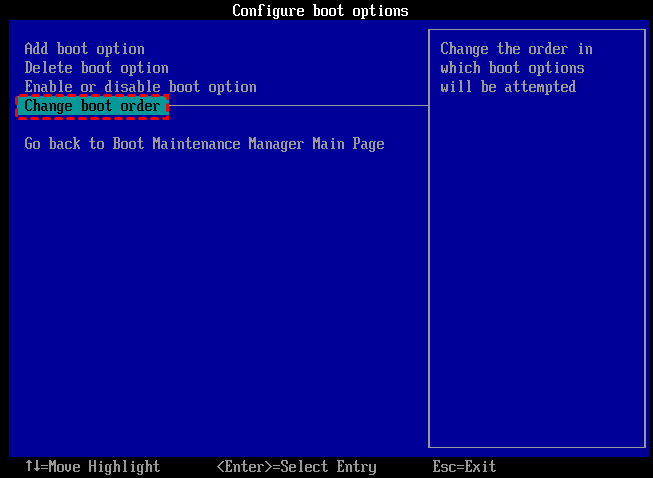
4. Insert the bootable drive into the computer, enter BIOS to change the boot order, and boot from the bootable media drive.
5. Once logged in, you will enter the Qiling Disk Master Professional interface. Right-click the target GPT disk and select "Convert to MBR" to convert it to an MBR disk.
Once you've changed the disk's format, you can install Windows on this disk. If you're not concerned about data loss, you can convert MBR to GPT using the DiskPart utility.
Conclusion
This page introduces the concepts of MBR and GPT, their limitations and advantages, and a tool, Qiling Disk Master Professional, that can convert GPT to MBR and vice versa without data loss or operating system issues. The tool also offers additional features such as cloning MBR to GPT disk, cloning GPT to MBR disk, migrating OS to SSD/HDD, and aligning SSD partition.
With this feature, you can easily convert a system drive or data drive between MBR and GPT without losing any data, allowing you to make full use of your disk and potentially improve performance.
Notes:
- When converting between MBR or GPT on laptops, ensure the laptop is properly powered by being plugged into a power outlet to prevent any potential shutdowns during the process.
- To protect your data, please do not terminate the program during the conversion process.
- If you are working with Windows Server, you can use Qiling Disk Master Server or advanced Edition.
FAQs:
Q: After a GPT system drive is converted to MBR, do I need to reinstall the operating system?
A: After a successful conversion, you may need to enter your PC's BIOS/UEFI settings and switch the Boot Mode from UEFI to Legacy mode.
Q: What happens to the MSR (Microsoft Reserved) partition when converting GPT to MBR?
A: The program will delete the MSR partition while converting a GPT disk to an MBR disk, since the MSR partition has no effect on an MBR disk.
Q: When converting the system disk from GPT to MBR, why is it prompted to install the Windows AIK or ADK?
A: The recovery partition, also known as the WRE partition, will fail after conversion. This is because Qiling Disk Master bootable media is based on the winre.wim file from the recovery partition, prompting the need to install the AIK or ADK. To resolve this, you can copy the "Recovery" folder from the recovery partition to the root directory of the C: drive, and then try again.
Related Articles
- Full Guide to Transcend Elite Backup Software in Windows 11/10/8/7
This tutorial tells what Transcend Elite backup software is and how to use it step by step. A free alternative is offered in case Transcend Elite backup failed. - How to Transfer Files from Windows 7 to 10 over Network
This tutorial demonstrates how to transfer files from Windows 7 to Windows 10 over network efficiently and explains the reasons for file transfer over network. - How to Transfer Windows OS from GPT Disk to SSD without Reinstalling?
Learn how to Transfer Windows OS from GPT Disk to SSD without Reinstalling with clear steps, key checks, and practical tips. - What's Taking Up Space on My Hard Drive in Windows 10? Here are 14 Fixes!
This article answers what is taking up space on my hard drive in Windows 10 and provide 14 solutions to free up disk space. Please read on. - Best Way to Upgrade Hard Drive to Larger Drive or SSD on Windows 11
Upgrading the hard drive on a Windows 11 computer is necessary to improve performance and efficiency. To do this, the best cloning software can be used to clone the existing hard drive to a solid-state drive (SSD), effectively replacing the old hard drive with a faster and more reliable one. - How to Upgrade to Windows 11 and Keep Files (4 Ways)
Learn how to Upgrade to Windows 11 and Keep Files (4 Ways) with clear steps, key checks, and practical tips.
Products
Articles & Tutorials
- Data Recovery
- Data Backup
- File Recovery
- File Backup
- File synchronize
- System Backup and Restore
- Disk and Partition Clone
- Technical articles
- Disk Master Help
- Windows Deleted File and Disk Recovery Tutorials
- Windows File and Data Recovery Tutorials
- More Windows Tutorials for Install, Security, Files, and PC Tips
- Windows Boot, Repair, and Recovery Environment Tutorials
- Windows Backup Tutorials
- Windows Restore Tutorials
- Windows Clone and Migration Tutorials
- Windows Server Backup, Recovery, and Management Tutorials
- Windows Disk, Partition, and Storage Management Tutorials