Best Way to Upgrade Hard Drive to Larger Drive or SSD on Windows 11
User case: Upgrade hard drive on Windows 11
Need help and some info on upgrading my hard drive
To upgrade your HP desktop's hard drive from 1TB to 3TB, simply unplug the 1TB drive, replace it with the 3TB one, and plug it back in. You can also transfer your files from the 1TB drive to the 3TB drive from another computer before installing it in your HP desktop. This way, you won't lose any data and can easily access your files on the new drive.
- Question from Tom's Hardware
The necessity of upgrading hard drive on Windows 11
The hard disk drive or SSD is the main storage device of a computer. If a computer has been used for more than a few years, it may experience slow performance or display a "low disk space warning", leading to frustration and difficulties with completing tasks, crashing, overheating, and draining the battery more quickly.
Upgrading the existing hard disk to a larger hard disk or SSD with more storage space is the best solution, offering a cost-effective alternative to buying a new computer. This upgrade can breathe new life into an older system, providing ample storage for files, programs, and data, and is generally cheaper than purchasing a new device.
✬ Upgrading to a larger storage capacity will provide you with more space to store a variety of digital content, including software, games, videos, photos, and documents. This means you'll have room to save more files, reducing the need to delete or manage your existing collection, and giving you the freedom to download and install new programs, games, and media without worrying about running out of space.
✬ Improving computer performance can be achieved by optimizing software and reducing the load of large files, allowing for faster loading times and overall system efficiency.
✬ To improve the security of the hard drive, one should regularly back up important data to an external drive or cloud storage, and consider replacing the hard drive with a solid-state drive (SSD) which is more resistant to physical shock, temperature fluctuations, and other environmental stressors that can cause hard disk drives to fail. This can help prevent data loss and ensure business continuity.
✬ Hard drive manufacturers are competing to produce the most energy-efficient drives, in addition to the largest and fastest ones, in order to save energy.
Reliable software to upgrade hard drive for Windows 11
Disk cloning allows you to copy an existing hard disk bit by bit to a new one, making it easy to upgrade your hard drive on Windows 11. This process enables you to boot directly from the cloned disk without reinstalling the system, making it a convenient option for upgrading or replacing your hard drive with a solid-state drive (SSD). The best disk cloning software, Qiling Disk Master Professional, can assist you with this process.
This is a cloning software that integrates multiple functions.
- Qiling Disk Master provides three cloning options: Disk Clone, Partition Clone, and System Clone. You can choose one based on your needs. If you select Disk Clone, all data from the source disk, including the OS, programs, and user files, will be transferred to the destination disk after cloning.
- This software allows you to clone your hard drive to a smaller SSD using either a sector-by-sector clone or an intelligent clone, depending on your preference. The intelligent clone method is the default, and it will automatically adjust the cloning process to fit the smaller SSD, even if it's smaller than your current hard drive, as long as the SSD is not smaller than your used space. This means you can clone a larger hard drive to a smaller one without any issues.
- If you want to replace a hard drive with an SSD in Windows 11, you can use the SSD Alignment feature to optimize the SSD's performance.
- The software also includes features like Create bootable media, Universal Restore, and GPT clone, which are also embedded.
This software supports all Windows PC operating systems, including Windows 11/10/8.1/8/7/Vista/XP. You can download and install it on your computer, but to perform real cloning operations, you need to upgrade to the official version. A server version, Qiling Disk Master Server, is also available for Windows server users.
How to replace hard drive with SSD on Windows 11 step by step
Upgrading from a hard disk drive (HDD) to a solid-state drive (SSD) is a great way to improve your computer's performance, and it's especially beneficial for Windows 11 users. To make the transition smoother, you can use Qiling Disk Master Pro to transfer your data from the old HDD to the new SSD, ensuring that all your files and programs are preserved in the process.
Part 1. Install and initialize the SSD on Windows 11
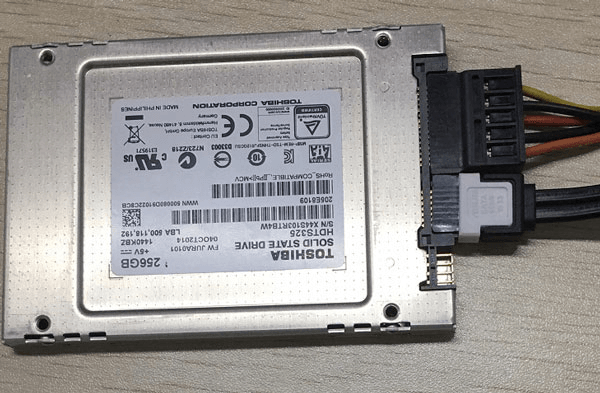
Step 1. Install the SSD to your computer. If you're a laptop, you might need a SATA-to-USB cable. Don't forget to back up any important data on the SSD before proceeding.
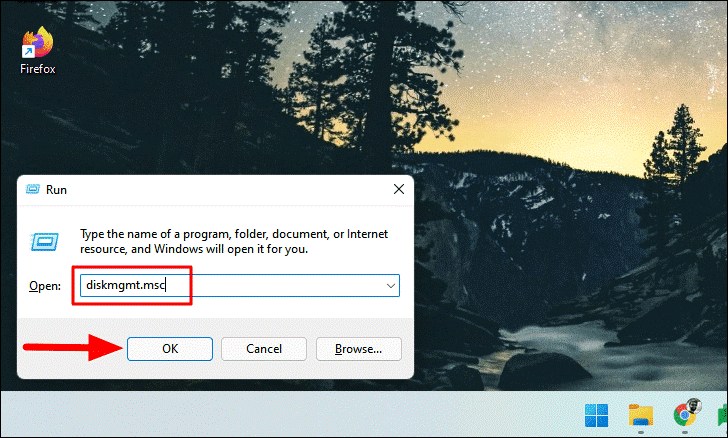
Step 2. To resolve the issue, restart your computer and then open the Disk Management tool by pressing Windows + R to open the Run dialog box, typing diskmgmt.msc, and clicking OK.
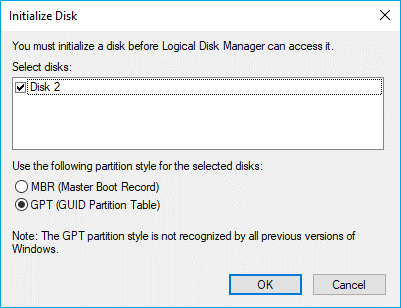
Step 3. Right-click on the new SSD, select "Initialize Disk", and choose either MBR or GPT partition style, with GPT being recommended for better compatibility with Windows11.
Part 2. Upgrade hard drive to SSD on Windows 11
After installing and initializing the SSD, you can use Qiling Disk Master to replace your current hard drive with an SSD. Follow the steps below to do so.
Step 1 Launch Qiling Disk Master, click Clone -> Disk Clone in order.

Note: The Professional edition allows cloning of both data and system disks from MBR to MBR/MBR to GPT, or GPT to GPT/GPT to MBR, while the Standard edition is sufficient for cloning only data disks.
Step 2. Select the disk that you want to clone as the source disk and click Next, choosing the system disk with Windows 11 as the source.

Step 3. Select the SSD you installed on your computer as the target disk, and then click Next.

Step 4. To upgrade your hard drive to an SSD on Windows 11, you can access the Operation Summary interface, where you can click on the "SSD Alignment" option to enhance the reading and writing speed of the target SSD. Once you've confirmed your settings, click on "Proceed" to initiate the upgrade.

Tip✍:
⚾ Sector by sector clone: When cloning a drive, you can choose to clone all sectors, including blank or logically bad sectors, resulting in an exact copy of the source drive. Alternatively, you can edit the partitions on the destination disk by selecting one of three options: copying without resizing partitions, adding unused space to all partitions, or manually adjusting partition size. This allows you to customize the destination disk's layout to suit your needs, whether you're cloning to a larger or smaller disk.
Conclusion
Qiling Disk Master This software allows you to upgrade your hard drive on Windows 11 with ease, performing a bootable clone of your system disk in just a few clicks. It supports different disk partition styles, enabling you to clone from MBR to MBR, GPT to GPT, MBR to GPT, or GPT to MBR without encountering boot issues, all while preserving your data.
This software allows you to create bootable media and system backups, enabling you to deploy a Windows 11 image to other computers without worrying about hardware compatibility issues. It's worth giving it a try.
Related Articles
- Install Windows 10, 11 on SSD Effortlessly with 2 Ways
- How to Backup Windows 10 Before Upgrading to Windows 11
- 3 Free & Easy Ways to Transfer Windows 11, 10 to New Hard Drive
- Top Two Easy Ways to Ghost UEFI Windows 10
Learn the key steps, checks, and practical tips for this related guide. - Best Free Backup Software for Windows 7 (32/64 Bit)
The best free backup software for Windows 7 - Qiling Disk Master can help you protect system and data with no effort. Supports both 32 and 64-bit system. - How to Format Windows 7 With CD Step by Step?
In this article, we will show you how to format Windows 7 with CD step by step. Besides, you can also learn how to format Windows 7 with a USB drive.
Products
Articles & Tutorials
- Data Recovery
- Data Backup
- File Recovery
- File Backup
- File synchronize
- System Backup and Restore
- Disk and Partition Clone
- Technical articles
- Disk Master Help
- Windows Deleted File and Disk Recovery Tutorials
- Windows File and Data Recovery Tutorials
- More Windows Tutorials for Install, Security, Files, and PC Tips
- Windows Boot, Repair, and Recovery Environment Tutorials
- Windows Backup Tutorials
- Windows Restore Tutorials
- Windows Clone and Migration Tutorials
- Windows Server Backup, Recovery, and Management Tutorials
- Windows Disk, Partition, and Storage Management Tutorials