How to Format Windows 7 With CD Step by Step?
- Need to format Windows 7 (C: drive)
- How to format Windows 7 with CD step by step?
- How to format C drive in Windows 7 without CD/DVD step by step?
- Bottom Line
Need to format Windows 7 (C: drive)
A stubborn virus is affecting your computer, and traditional anti-virus software isn't working. To resolve this, you'll need to format the computer and reinstall the Windows operating system. This will essentially give your computer a "fresh start" and hopefully eliminate the virus.
"You're planning to format your C: drive on Windows 7 due to repair issues and start with a clean slate."
Formatting Windows 7 operating system involves formatting the C drive, where the OS is typically installed. This can resolve OS issues or remove persistent viruses.
How to format Windows 7 with CD step by step?
If you try to format the Windows 7 C: drive like any other drive, you'll likely encounter an error message saying "You cannot format this volume" because Windows is installed on this drive. To format C drive, you'll need to boot from a Windows installation CD and format it during the installation process. We'll guide you through this step-by-step.
Warning: Formatting the C drive will erase all information within it, so if there are some files you want to keep, please back them up first via free backup software.
Step 1. Insert the Windows 7 installation CD into the computer and enter the BIOS settings to set the computer to boot from the CD.
Step 2. After the Windows 7 install files are loaded into memory, the "Starting Windows" screen will appear, and you should wait for it to finish.
Step 3. Select the desired language, time and currency format, and keyboard or input method on this screen, and click "Next".

Step 4. Click on the "Install now" button to start the Windows 7 clean install process, and then wait for the "Setup is starting" screen to finish.
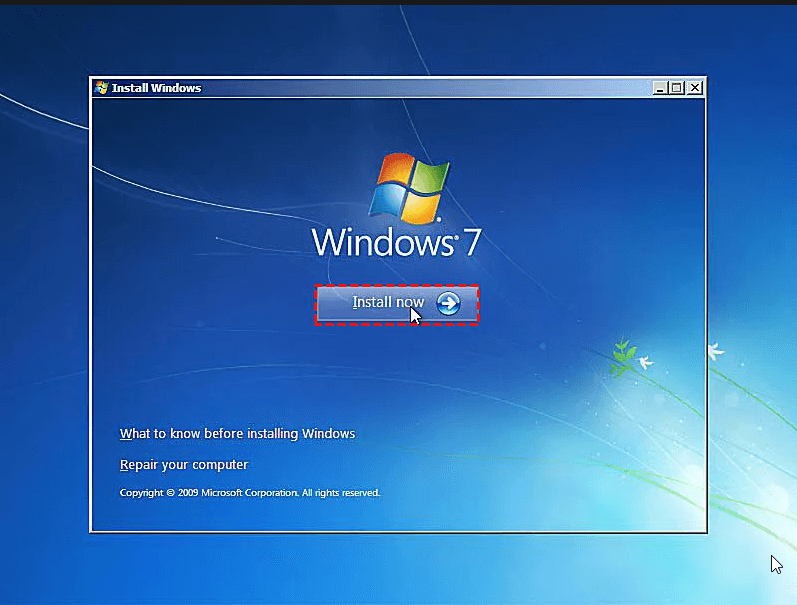
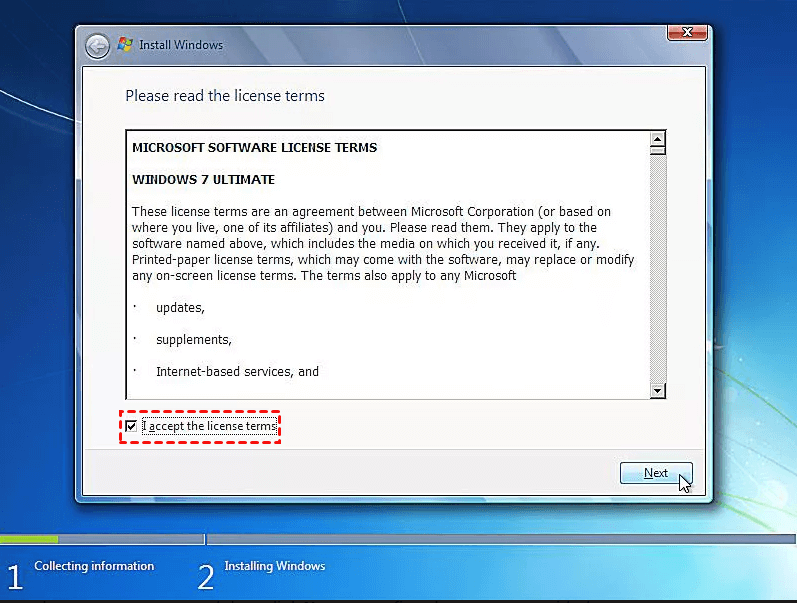
Step 5. Read the Windows 7 Software License terms and click "Next" to confirm your operation.
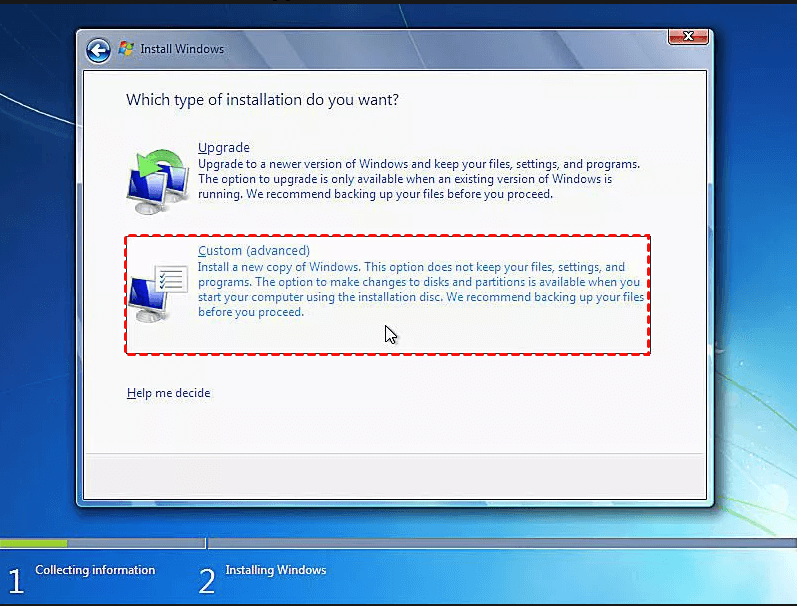
Step 6. Here, choose "Custom (advanced)".
Step 7. In the "Where do you want to install Windows" window, you can see a list of all recognized partitions on your computer. By clicking "Drive options (advanced)", you'll be able to view additional drive options.
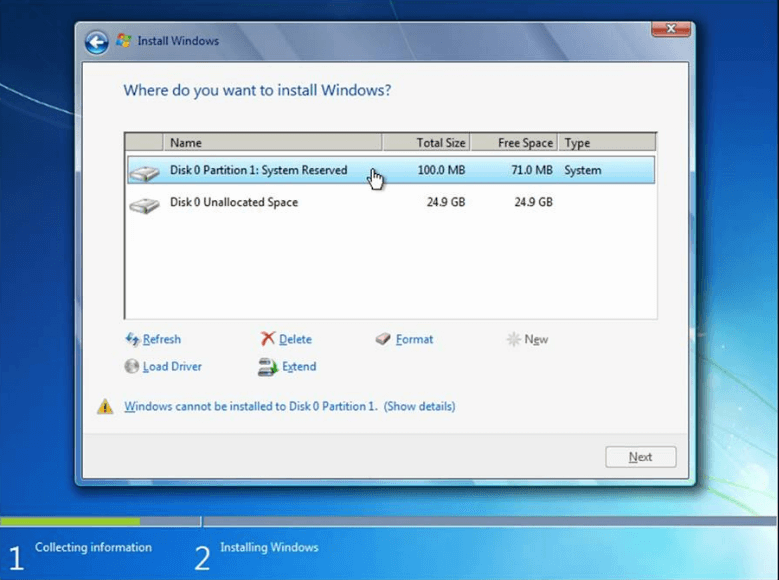
Step 8. Select C drive and click "Format" at the bottom.
You can click "Repair your computer" in step 4, select the operating system from the list and click "Next" to enter the "System Recovery Options" window, then open Command Prompt and format C drive using CMD.
How to format C drive in Windows 7 without CD/DVD step by step?
If you don't have a CD for formatting Windows 7, you can create a bootable USB and use Qiling Disk Master Standard to format your C drive in Windows PE mode without a CD or DVD. This software is compatible with Windows 11/10/8/7/XP/Vista and allows you to format your C drive directly. You can download it for free and learn how to use it to format your C drive in Windows 7.
After logging in, you'll access the main interface of Qiling Disk Master. From there, follow the steps to format your Windows 7 hard drive without needing a CD.
Step 1. Right-click the C drive and choose "Format Partition".
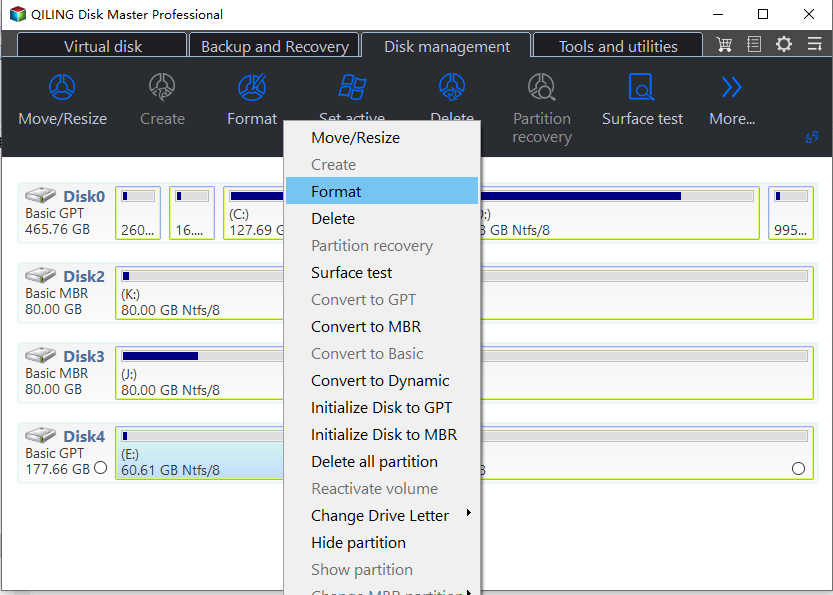
Step 2. In the pop-out mini window, select a proper file system.
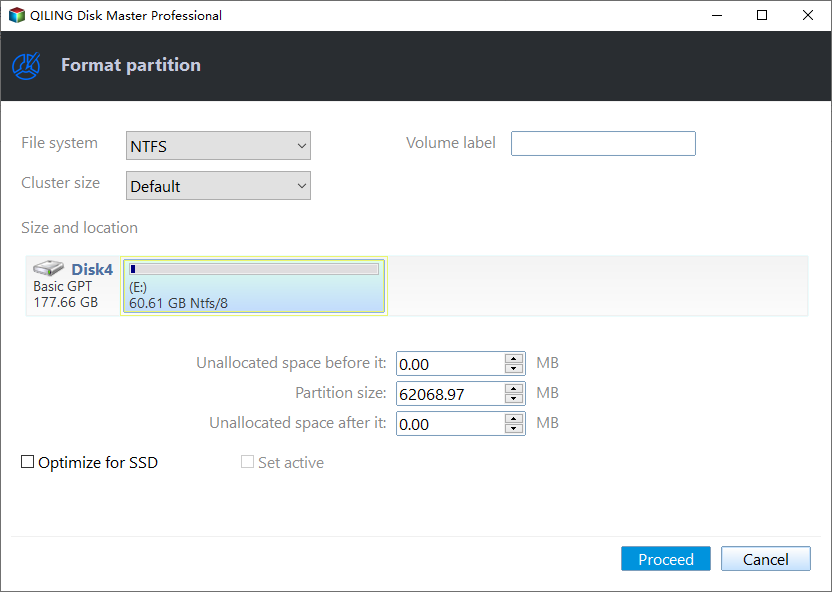
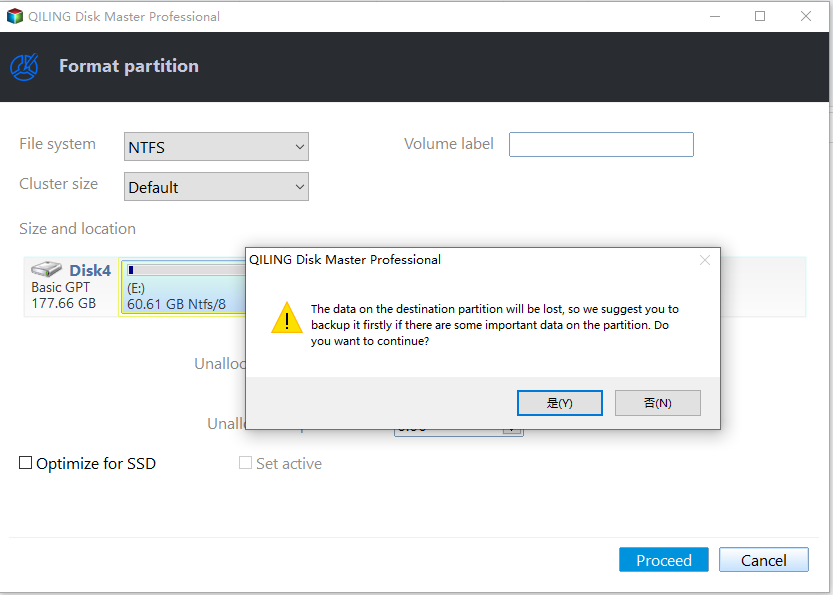
Step 3. Hit on "Apply" and "Proceed" to commit the pending operation.
If you don't have a Windows 7 CD, you can still format your laptop or desktop using a great alternative method.
Bottom Line
If you want to format Windows 7 using a CD or USB drive, or format the C drive for a fresh installation, this article provides step-by-step methods. Alternatively, if you simply want to speed up your slowing computer, you can try using Qiling Disk Master Professional to migrate your OS to an SSD or extend your system drive.
Related Articles
- How to Format C Drive in Windows 7/8/10 Successfully?
This post shows how to format Windows 7 C drive using USB when you don't have Windows installation CD/DVD; or from Command Prompt if you have CD/DVD. - How to Solve C drive full on Dell Computer Problem?
Learn how to Solve C drive full on Dell Computer Problem with clear steps, key checks, and practical tips. - Deploy Windows 11 to Multiple Computers Easily (2 Ways)
You can learn 2 methods to easily and efficiently deploy Windows 11 to multiple computers. One is using the media creation tool, and the other is a professional image deployment tool. - How to: Extend SSD Partition Windows 10 without DATA Loss
This article will teach you how to use professional and free third-party software to extend SSD partition in Windows 10. - Top Three Easy Methods to Block TCP Port 445 in Windows 10/7/XP
WannaCry ransomware run amuck recently. It is important to know how to block/disable/close TCP port 445, 135, 139 opened by system on Windows 7/10/11/Server 2003/2008 step by step.
Products
Articles & Tutorials
- Data Recovery
- Data Backup
- File Recovery
- File Backup
- File synchronize
- System Backup and Restore
- Disk and Partition Clone
- Technical articles
- Disk Master Help
- Windows Deleted File and Disk Recovery Tutorials
- Windows File and Data Recovery Tutorials
- More Windows Tutorials for Install, Security, Files, and PC Tips
- Windows Boot, Repair, and Recovery Environment Tutorials
- Windows Backup Tutorials
- Windows Restore Tutorials
- Windows Clone and Migration Tutorials
- Windows Server Backup, Recovery, and Management Tutorials
- Windows Disk, Partition, and Storage Management Tutorials