How to: Format C Drive in Windows 7 Without CD/DVD?
Failed to format C drive in Windows 7
To format your C drive in Windows 7, you can try using the built-in Disk Management tool. Press the Windows key + R to open the Run dialog, type "diskmgmt.msc" and press Enter. In the Disk Management console, right-click on the C drive and select "Format" from the context menu. This should allow you to format the drive. Alternatively, you can also create a Windows 7 installation media, boot from it, and use the built-in formatting tool to format the C drive.
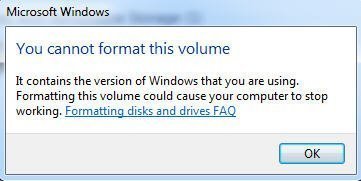
Why cannot format C drive within Windows 7?
The system partition C is an active partition with the operating system installed. Only one partition on a hard drive can be set as active, and it cannot be formatted or deleted within the Windows environment. However, it can be formatted from outside the operating system.
Format Windows 7 C drive without CD/DVD
Formatting the C drive with Windows 7 operating system is a complex process that cannot be done directly through File Explorer or Disk Management within Windows like formatting other drives.
If you don't have Windows installation media, you can try Qiling Disk Master Standard, which is compatible with Windows 7, 8, 8.1, 10, XP, and Vista, allowing you to easily create a bootable USB drive. This can be used to boot your Windows 7 laptop or desktop and then format your C drive in just three steps.
Note: Before formatting the C drive, consider backing up any important files to an external drive or cloud storage to prevent data loss. This will ensure that your files are safe and can be recovered if needed.
Stage 1. Create Bootable USB drive
Connect a USB drive to a working computer running Windows and download Qiling Disk Master Standard for free on the working computer.
2. Install and run the software. In the main interface, click "Make Bootable Media" and follow the prompts to create a bootable media.
Stage 2. Boot your Windows 7 computer from the created bootable USB drive
1. After creating bootable media, connect it to your Windows 7 computer that needs its C drive formatted and boot the computer from it.
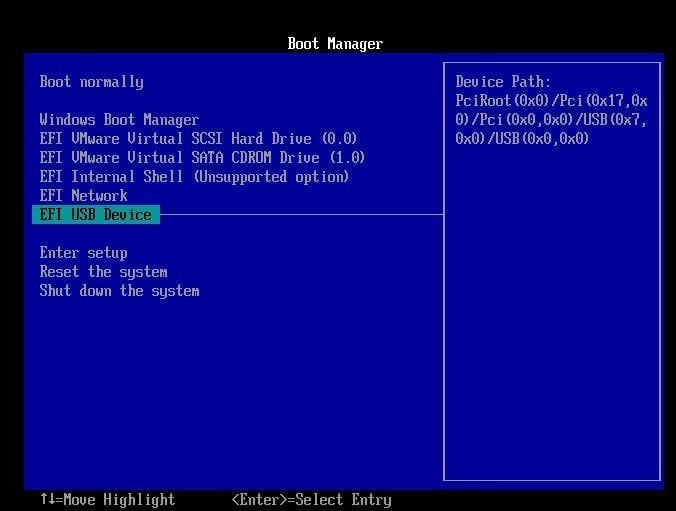
2. To access the main interface of Qiling Disk Master Standard, you can follow the steps provided, which include launching the program, selecting the correct language, and then clicking on the main interface button. Once the main interface is open, you can begin using the software to manage and maintain your computer's disk.
Stage 3. Format system partition with Windows 7 installed
Step 1. Right-click the C drive and choose "Format Partition".
Step 2. For C drive, you can choose a file system based on your needs. If you want to run a 64-bit operating system, you can use the NTFS file system, which is the default for Windows.
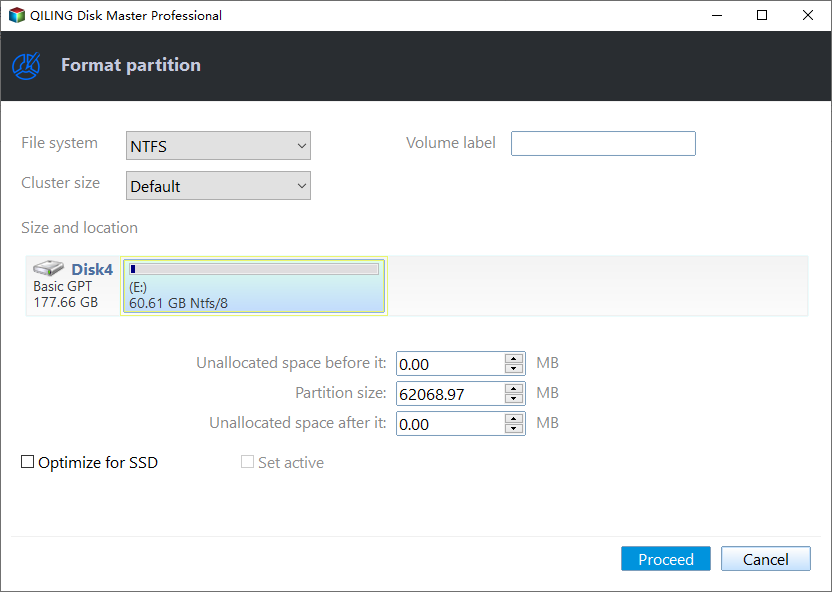
Step 3. Here you can confirm your operation and click "Proceed" to implement it.
PS.: This way can also be applied to format C drive with Windows 10/8.1/8 installed.
Format Windows 7 C drive from Command Prompt
To format the Windows 7 C drive from the Command Prompt, you can use the built-in disk management tools. First, insert the Windows Setup CD/DVD and boot from it. Then, open the Command Prompt as an administrator.
Note: Formatting will get rid of all data on the C drive, you can back up it in advance.
1. To install Windows 7, insert the Windows 7 Setup CD/DVD into the computer and enter the BIOS settings to set the computer to boot from the CD/DVD.
2. Wait for the Windows setup process to finish displaying the "Windows is loading files…" and "Starting Windows" screens. Once done, select the desired "Language to install", "Time and currency format", and "Keyboard or input method" in the pop-up window, then click "Next" to proceed.

3. In the "Install Now" window, click "Repair your computer".
4. Select operating system and click "Next".
5. In the System Recovery Options window, choose "Command Prompt".
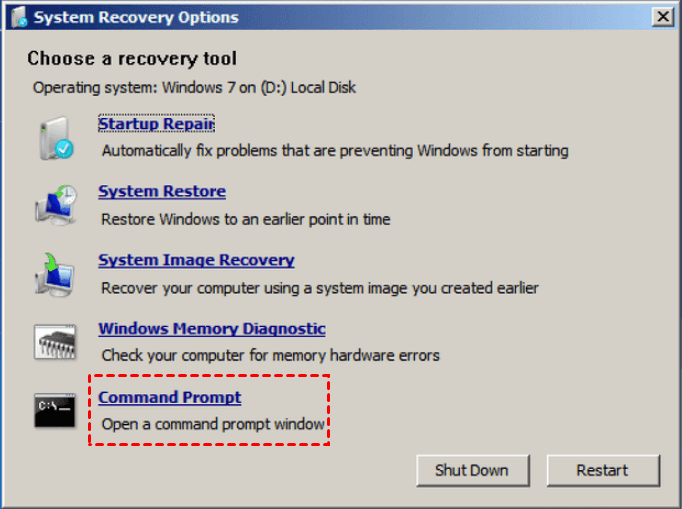
6. Type "format c: /fs:ntfs" and hit "Enter" key
Wrap things up
To format the C drive in Windows 7, you can follow these steps: First, go to the Start menu and click on Computer. Then, right-click on the C drive and select Format. In the Format window, choose the file system you want to use (NTFS or FAT32), and select the allocation unit size.
Qiling Disk Master Standard not only allows you to format C drive, but also enables you to extend or shrink C drive without data loss. Additionally, upgrading to Qiling Disk Master Professional unlocks more features, such as securely erasing SSD, converting system disk to GPT without data loss, and more.
Related Articles
- Format a Windows 7 laptop
Back up files and distinguish factory recovery from formatting and reinstalling. - 3 Safe Ways to Format SSD With No Harm to It
This guide explains 3 Safe Ways to Format SSD With No Harm to It with clear steps, key checks, and practical tips. - Fixed: Green Screen of Death on Windows 10/11 - 6 Tips 💡
Find practical fixes for Fixed: Green Screen of Death on Windows 10/11 - 6 Tips, including disk, partition, file system, or Windows troubleshooting steps. - MMC Format Tool: SD Card Formatter Free Download [2024 Full Guide]
Find practical fixes for MMC Format Tool: SD Card Formatter Free Download, including disk, partition, file system, or Windows troubleshooting steps. - How to Download Windows 11 23H2 Update from Microsoft✅
Recently, Microsoft released the Windows 11 23H2 version, and many users wonder if they can get this update. This post contains a full guide on how to download Windows 11 23H2 Update. - How to Copy NTFS Partition [2024 Detailed Guide]
Find practical fixes for How to Copy NTFS Partition, including disk, partition, file system, or Windows troubleshooting steps. - How to Crack Windows Password [Step-by-Step]
Find practical fixes for How to Crack Windows Password, including disk, partition, file system, or Windows troubleshooting steps.
Products
Articles & Tutorials
- Data Recovery
- Data Backup
- File Recovery
- File Backup
- File synchronize
- System Backup and Restore
- Disk and Partition Clone
- Technical articles
- Disk Master Help
- Windows Deleted File and Disk Recovery Tutorials
- Windows File and Data Recovery Tutorials
- More Windows Tutorials for Install, Security, Files, and PC Tips
- Windows Boot, Repair, and Recovery Environment Tutorials
- Windows Backup Tutorials
- Windows Restore Tutorials
- Windows Clone and Migration Tutorials
- Windows Server Backup, Recovery, and Management Tutorials
- Windows Disk, Partition, and Storage Management Tutorials