3 Easy Ways to Transfer Windows 10/11 to New Hard Drive
A computer's hard drive may become full and slow over time, taking more than 2 minutes to boot up, and may eventually die due to its expiration date, leading to frustrating issues.
To solve the problem of transferring Windows 11/10 to a new hard drive, consider using the new drive as the boot drive, which can significantly improve performance if replacing an HDD with an SSD. To move Windows 11/10 to another drive easily, three solutions are available: a clean install, using the built-in backup and restore feature, or employing third-party backup software.
How to transfer Windows to new hard drive
Windows 11/10 can be transferred to another drive on the same computer, both from a licensing and data perspective, using migration tools to assist with the process.
There are three common methods to migrate Windows 11/10 to a new hard drive or SSD: clean install, using the built-in Backup and Restore utility, or a third-party tool.
| Method | Pros | Cons |
|
Clean Install |
Least problematic. Resolves system-related issues. |
The installation process only sets up the operating system and basic applications, requiring a separate step to reinstall the desired programs. A multi-step process is involved. |
| Built-in Backup and Restore Utility |
The system partition contains everything on the system, allowing you to create a system repair disc. |
The backup image created on a larger disk cannot be restored to a disk with a smaller partition layout, requiring multiple steps. |
| Third-party Tool Qiling Disk Master Professional | Transfer the OS with Disk Clone The process can be completed and is straightforward with no boot issues, requiring only 4 steps, and ensuring no data loss or reinstallation. | What is the clone feature in the context of the trial version of a software or application? The clone feature, in this context, is a function that allows users to create a copy or replica of a specific object, file, or entity within the system. |
- Clean install: Moving Windows 11/10 to a new hard drive is considered the least problematic solution, resolving performance and app issues, but it requires reinstalling all programs, which can be tedious and time-consuming.
- Built-in Backup and Restore (Windows 7): The system image backup contains everything on the system partition, including the operating system, apps, settings, and personal data, allowing you to create a system repair disc and restore Windows to a new hard drive without reinstalling programs or losing data. However, this method has a major limitation: the backup image created on a larger disk cannot be restored to a disk with a smaller partition layout.
- Third-party tool Qiling Disk Master ProfessionalThis software not only serves as a backup and restore tool but also as a powerful disk cloning program, capable of effortlessly transferring Windows 10 to a new hard drive. After cloning, the new disk can be installed on the computer, allowing it to boot Windows directly without the need for restoration.
- Method 1: Clean install to transfer Windows 11/10 to new hard drive
- Method 2: Backup and Restore to migrate Windows 11/10 to new hard drive free
- Method 3: Clone Windows 11/10 to new hard drive with Disk Clone
- Further reading: how to transfer Windows 11/10 license to new hard drive
Method 1: Clean install to transfer Windows 11/10 to new hard drive
Before starting, please prepare a new disk and format it for use, and also get a CD/DVD or USB to create bootable media. These are the basic preparations regardless of the method used, so it's best to get them ready in advance. Once prepared, the specific steps for transferring Windows 10 to a new hard drive can be followed.
- Download the Windows 10 media creation tool from Microsoft, and use it to create a bootable media on a USB drive that has at least 8GB of space.
- Connect the bootable drive and new disk to your computer and make sure they are detected in Windows. Then, boot your computer from this drive through BIOS.
- Wait for Windows 10 installation files to load, then set up language and other preferences on the first screen.
- Click Install now > I don't have a product key > operation system (here is Windows 10) > I accept the license terms in order. Please note that your Windows will reactivate itself after reinstallation if you install the same version of operating system you are currently using.
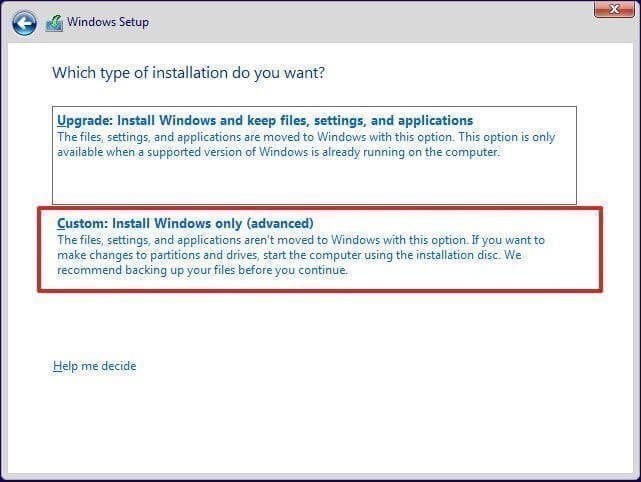
- To install Windows 10 on a new disk, select the "Custom" installation type, delete the partitions on the new disk, and then select the unallocated space to install Windows. Wait for the process to complete and then set your preferences.
Boot from the new hard drive
Users who have swapped hard drives may find that their system won't boot from the new disk. To resolve this, they can change the boot order in the BIOS settings to prioritize booting from the new disk, allowing them to access their Windows operating system.
- Completely shut down your computer and install the new hard drive into the drive bay using screwdrivers. Once installed, restart your computer.
- Press the specific key shown on the initial screen, such as "Press ESC to enter BIOS", and wait until you see the BIOS interface.
- Set the new hard drive as the primary boot device in the BIOS settings, save the changes, and restart the computer to apply the changes.
Tips:
◑ If you're transferring Windows from a disk with one type of partition table (MBR or GPT) to a disk with the other type, you should change the boot mode from Legacy to UEFI or vice versa to make the new disk bootable.
◑ To move a Windows 11/10 drive to a new computer, install the drive on the new computer and follow the steps to boot from it. Ensure the new computer has similar hardware to support secure boot.
Method 2: Backup and Restore to migrate Windows 11/10 to new hard drive free
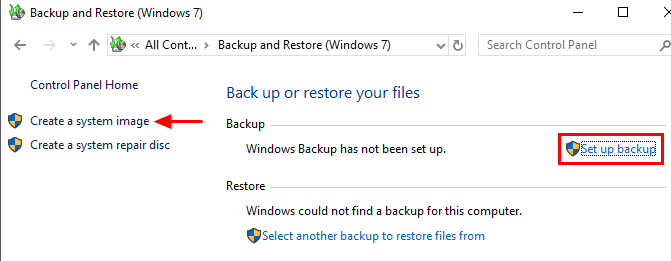
- Create a system image in Windows 10 To backup and restore your Windows 7 system, you'll need to use the built-in Backup and Restore feature. You'll be asked to save the backup to an external drive, and then you'll be prompted to create a system repair disc. If you don't have a CD or DVD, you can use the "Create a recovery drive" option to create a bootable USB drive instead.
- Replace the old hard drive Connect the bootable media and the external disk containing the system image. Then, boot your computer from the repair disc or USB with the new drive.
- Load the computer, select the language for the keyboard, then go to Troubleshoot, Advanced options, System Image Recovery, and choose Windows 10.
- In the Re-In the System Image window, select the option to use the latest available system image and click Next.
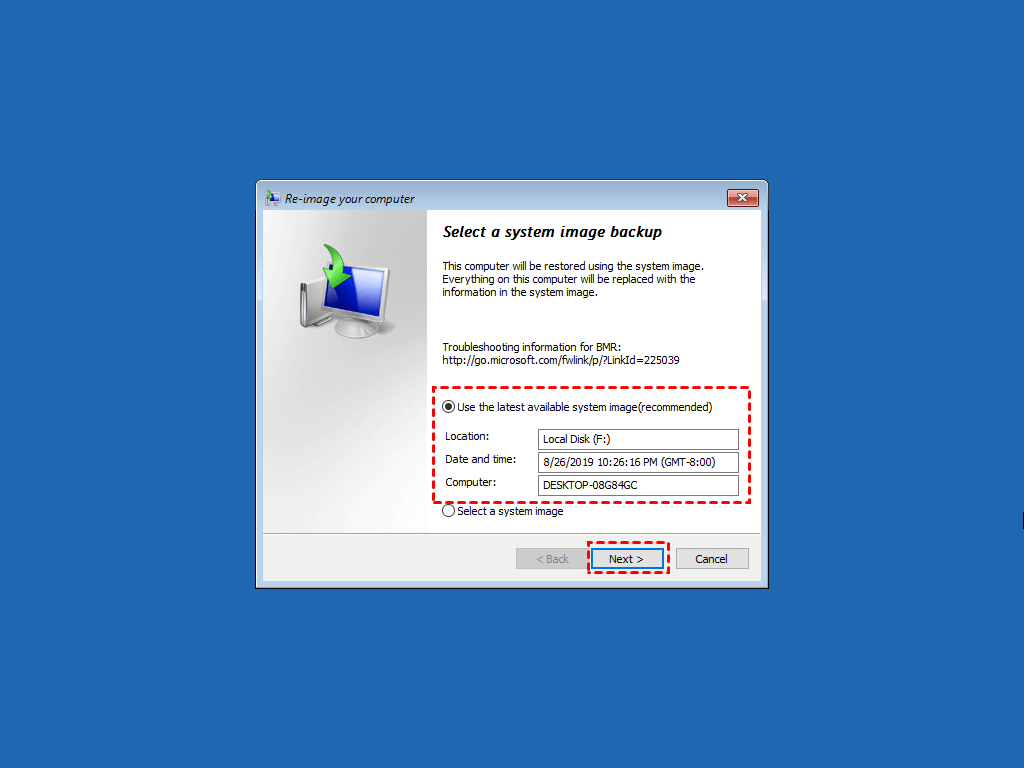
- To restore your computer to its factory settings, select the "Format and repartition disks" option, click "Next", then "Finish", and finally "Yes" to confirm and initiate the restoration process.
Method 3: Clone Windows 11/10 to new hard drive with Disk Clone
To transfer Windows 11/10 to a new hard drive easily, you can use disk cloning, which is a more straightforward method than backup and restore. This process involves creating an exact copy of your current hard drive, including the operating system, settings, and all installed programs and files, onto the new hard drive. This way, you can simply swap the old hard drive with the new one and boot up your computer to find everything exactly as it was before, without having to go through the process of restoring from a backup.
- Connect your new disk to the computer, download and install Qiling Disk Master, then launch it and click Disk Clone under the Clone tab.

♨ Qiling Disk Master supports cloning both MBR and GPT disks, and allows cloning an MBR disk to a GPT disk without needing to convert the partition style beforehand.
- Select the old disk on Windows 11/10 as source disk and click Next.

- Select the new disk as the destination disk and click Next.

- Confirm the operation and click Proceed. Once the progress is complete, click Finish to exit.

>> After cloning a disk to a larger disk, there will be unallocated space at the end of the disk. To utilize this space, you can use the "Edit Partitions" feature to adjust the partition size during the cloning process. This allows you to make the most of the newly available space.
>> The "SSD Alignment" option is used to optimize the performance of SSD and extend its lifetime, typically when transferring Windows 10 to a new SSD.
>> The "Sector By Sector Clone" option clones all sectors on the original disk, including used and unused space, and bad sectors, which is not recommended unless the original disk is known to be functional.
Tips:
- This software can clone a Windows 11/10 operating system to a smaller SSD using its Intelligent Clone technology, which works when the used space of the old disk is smaller or equal to the target disk.
- If you want to transfer only the operating system to a new hard drive, you can use the System Clone feature. This allows you to watch a video that explains the difference between Disk Clone and System Clone, giving you a quick understanding of how it works.
Further reading: how to transfer Windows 11/10 license to new hard drive
The Windows 11/10 license is tied to the motherboard, not the hard drive or SSD. This means that as long as the motherboard remains the same, the license will be transferred to the new hard drive or SSD. However, if you upgrade to a new motherboard, you may need to reactivate the license. It's always a good idea to check with Microsoft or the manufacturer for specific guidance on license transfer and activation.
Whether a Windows license can be transferred depends on the type of license used. Retail or Volume license keys can be transferred, but OEM keys cannot. If you have a Retail or Volume license, you can migrate your Windows 11/10 license to a new HDD/SSD and the license will be reactivated automatically.
If you have a Retail or Volume license, you can move your license to a new hard drive by following the detailed steps, which involve two parts: removing the license key from the old machine and activating the operating system with the license on the new machine.
- Type cmd in the search box and run as administrator.
- To remove the license key from a Windows device, type `slmgr /upk` in the Command Prompt window and press Enter. This command will uninstall the license key from the current machine.
- To remove a license key from the Registry, type `slmgr /cpky` in the command prompt window and press Enter. This command will delete the license key from the Registry.
♨ The steps to remove activation from the Microsoft servers involve using the Windows 10 Settings to deactivate the license, then using the Command Prompt to remove the activation from the Microsoft servers. This process prevents the same product key from being used in multiple devices, but does not remove the activation from the Microsoft servers. If you're transferring a hard drive with Windows 10 to a new computer, you can skip these steps and directly activate Windows with the license on the original computer.
- To activate your Windows license, open the Command Prompt as an administrator. Type the command `slmgr /ipk [your_license_key]` and press Enter.
♨ Note: xxxxx-xxxxx-xxxxx-xxxxx-xxxxx refers to the license key
- Type slmgr /dlv to verify the activation and press Enter.
- To check if Windows is activated, type `slmgr /xpr` and press Enter. If activated, a pop-up window will display "the machine is permanently activated".
Conclusion
Here are 3 ways to transfer Windows 11/10 to a new hard drive: you can use the built-in Windows feature, a third-party tool like Qiling Disk Master, or a cloning software. I recommend using Qiling Disk Master for its ease of use and effectiveness in transferring Windows 10 to a new SSD or HDD.
This software has a wizard-The new interface makes all steps easier and faster, accelerating the reading and writing speed of SSDs. It's also super helpful if you want to move Windows 11/10 to a new computer with different hardware, as the "Universal Restore" feature can do the trick. Give it a try and download it now!
Related Articles
- Transfer OEM Windows 10 to New Hard Drive in a Few Steps
- A Simple Way to Move Windows 10 Hard Drive to New Computer
- Top 3 Windows 10 Backup Options You Should Know
- Move Windows 10 Installation to Another Drive (SSD/HDD) Easily
- Why and How to Convert to Dynamic Disk in Windows 10 or 11?
Converting a basic disk to a dynamic disk in Windows 10 and 11 can be done using the built-in Disk Management tool or a third-party tool, allowing for conversion without data loss. This process enables more flexible disk configuration and usage, and can be achieved via Disk Management or a - How-To | Copy Partition to Another Drive on Windows 10, 11
This tutorial provides the best freeware to help you copy a partition to another drive on Windows 10/8/7, offering solutions for both data and boot partition copying.
Products
Articles & Tutorials
- Data Recovery
- Data Backup
- File Recovery
- File Backup
- File synchronize
- System Backup and Restore
- Disk and Partition Clone
- Technical articles
- Disk Master Help
- Windows Deleted File and Disk Recovery Tutorials
- Windows File and Data Recovery Tutorials
- More Windows Tutorials for Install, Security, Files, and PC Tips
- Windows Boot, Repair, and Recovery Environment Tutorials
- Windows Backup Tutorials
- Windows Restore Tutorials
- Windows Clone and Migration Tutorials
- Windows Server Backup, Recovery, and Management Tutorials
- Windows Disk, Partition, and Storage Management Tutorials