Easily Transfer OEM Windows 10 & License to New Hard Drive
Content of this article:
- Can you move OEM Windows 10 to SSD?
- Why transfer Windows 10 OEM to new hard drive?
- Step by step guide: move OEM Windows 10 to HDD or SSD
- Conclusion
Can you move OEM Windows 10 to SSD?
OEM (short for original equipment manufacturer) is a full version of the operating system that comes preinstalled on PCs, with a unique license key locked to the hardware it was first activated on, making it non-transferable.
"I've read a lot of posts online and get that OEM license key is not transferable. I recently bought a new disk and want to transfer my OEM Windows 10 to new hard drive. Does it work on this computer? Do I need to buy a new license key? If anyone has any personal experience, that would be great! thank in advance."
You can transfer an OEM Windows 10 license to a new hard drive as long as you don't change the motherboard, CPU, or other key hardware, allowing you to reuse the license key on the same computer.
If you upgrade from a previous Windows version, your original license will be replaced with a diagnostics key, and Windows 10 will be digitally entitled, storing a unique computer signature on Microsoft servers. When reinstalling Windows 10 on a new hard drive, you'll be prompted to enter a product key multiple times, but you can skip it and it will activate automatically. Just ensure you install the same version of Windows 10 as before.
Why transfer Windows 10 OEM to new hard drive?
The OEM version of Windows 10 can only be used on the first activated computer, and transferring Windows 10 to a new hard drive is possible if the motherboard is not changed. This operation is feasible due to two main reasons.
① Want a bigger capacity: If your original hard drive is too small, you may want to migrate Windows 10 to a new hard drive to free up space and get more capacity, effectively giving your computer a new lease on life.
② Need a better performance: If your computer is taking longer to boot, programs are freezing, or loading speeds are slow, it's time to consider moving Windows 10 to a Solid-State Drive (SSD) to boost performance, ideally one with a larger capacity.
Step by step guide: move OEM Windows 10 to HDD or SSD effortlessly
A reliable disk cloning software like Qiling Disk Master Professional is essential for users to transfer a Windows 10 OEM copy to Windows 11/10/8/7/XP/Vista. Its user-friendly interface makes it easy for even novice users to use smoothly.
- It supports disk clone and partition clone, containing the entire disk, including the operating system, boot-related partitions, installed programs, and personal data.
- This device supports intelligent clone technology, allowing users to clone a larger hard drive to a smaller solid state drive.
- If the target disk is an SSD, its 4k technology can speed up disk performance.
To transfer OEM Windows 10 to a new hard drive, download and install Qiling Disk Master Professional first. This software will guide you through the process of cloning or transferring your operating system to the new drive. Once installed, you can follow the software's instructions to complete the transfer, ensuring a smooth and efficient transition to your new hard drive, whether it's an HDD or SSD.
The Professional version of Qiling Disk Master allows cloning of both data and system disks, from MBR to MBR, MBR to GPT, GPT to GPT, and GPT to MBR. If the disks have different partition styles, a conversion is required.
If you don't know it, please check it in Disk Management. Right click the hard disk or the SSD, choose Properties -> Volume -> Partition Style, then you will see its partition style, either MBR or GPT.
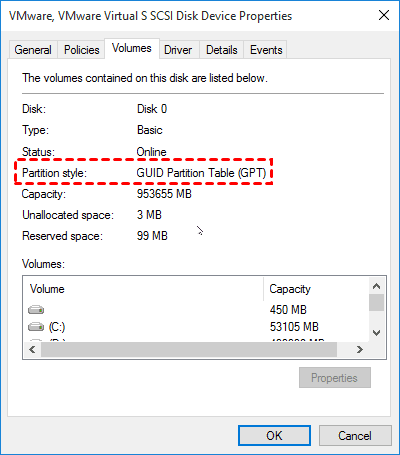
Step 1. To install an SSD on your computer, connect it via a USB-to-SATA cable if it's a laptop, then launch Qiling Disk Master Professional and click on "Disk Clone" under the "Clone" tab.

Note: If the target disk is smaller, the cloning process may fail due to insufficient disk space, so it's recommended to use the System Clone feature to migrate Windows 10 to a new hard drive instead.
Step 2. Select the old hard drive of your computer as the source disk and the new HDD or SSD as the destination disk, one after the other.

Step 3. To optimize SSD performance, click on "SSD Alignment" to enable it, then click "Proceed" to initiate the pending operation. This step can improve the reading and writing speed of the SSD.

There are two options for cloning a disk: "Edit Partitions" and "Sector by sector clone". Both can be used to clone a disk to a larger one, but they cannot coexist. "Edit Partitions" allows for full use of unallocated space and converts MBR to GPT or vice versa without data loss, while "Sector by sector clone" clones all sectors, including blank and bad ones.
Conclusion
You can easily transfer OEM Windows 10 to a new hard drive with a reliable disk cloning software like Qiling Disk Master Professional, without worrying about the OEM license key restriction. This allows you to upgrade to a bigger capacity or better performing drive, and the software can even help you maximize SSD performance with 4k technology. With its ability to clone hard drives of different sizes, you can upgrade your computer's storage with ease.
Related Articles
- A Simple Way to Move Windows 10 Hard Drive to New Computer
- How to Transfer Recovery Partition to New Hard Drive
- Upgrade Motherboard and CPU without Reinstalling Windows 10/8/7
- How to Transfer Windows 8/8.1 Installation from HDD to SSD?
Learn the key steps, checks, and practical tips for this related guide. - Reliable HDD to SSD Cloning Freeware for Windows 10/8/7
You may need HDD to SSD cloning freeware to migrate data when upgrading the disk. Luckily, Qiling Disk Master Standard can clone HDD to SSD on Windows 11, 10, 8, and 7 without losing data. - Best Hitachi Hard Drive Cloning Software - Qiling Disk Master
This guide explains Best Hitachi Hard Drive Cloning Software - Qiling Disk Master with clear steps, key checks, and practical tips.
Products
Articles & Tutorials
- Data Recovery
- Data Backup
- File Recovery
- File Backup
- File synchronize
- System Backup and Restore
- Disk and Partition Clone
- Technical articles
- Disk Master Help
- Windows Deleted File and Disk Recovery Tutorials
- Windows File and Data Recovery Tutorials
- More Windows Tutorials for Install, Security, Files, and PC Tips
- Windows Boot, Repair, and Recovery Environment Tutorials
- Windows Backup Tutorials
- Windows Restore Tutorials
- Windows Clone and Migration Tutorials
- Windows Server Backup, Recovery, and Management Tutorials
- Windows Disk, Partition, and Storage Management Tutorials