Upgrade Motherboard and CPU without Reinstalling Windows [Top 3 Ways]
Can I upgrade motherboard and CPU without reinstalling Windows?
I would like to upgrade the motherboard and CPU of my computer, which runs Windows 10. However, I would prefer to avoid reinstalling the operating system. The OS is installed to an M.2 NVMe drive on an AM3+ socket motherboard, and I will be upgrading to an AM4 socket motherboard.
Upgrading your motherboard and CPU can bring significant improvements in speed, performance, and compatibility with the latest components. However, it also introduces the challenge of preserving your existing Windows installation, which can be a complex process that requires careful consideration and planning to avoid data loss or system instability.
A fresh install itself won't take much time, but the real challenge lies in reinstalling or activating previously installed programs, retrieving personal files, and reconfiguring system settings, which can be a time-consuming and tedious process.
If you try to replace a motherboard and CPU without reinstalling Windows, versions 10/8/7 and older systems like XP will likely fail to boot, as they lack the necessary drivers to boot Windows after replacing major hardware.
Upgrading hardware can be a challenge, especially when it comes to replacing the motherboard and CPU. However, with the right approach, it's possible to do so without reinstalling Windows. To make the process easier and safer, it's essential to have effective tricks up your sleeve. Fortunately, we've compiled some valuable information and three methods to help you successfully upgrade your motherboard and CPU without having to reinstall Windows.
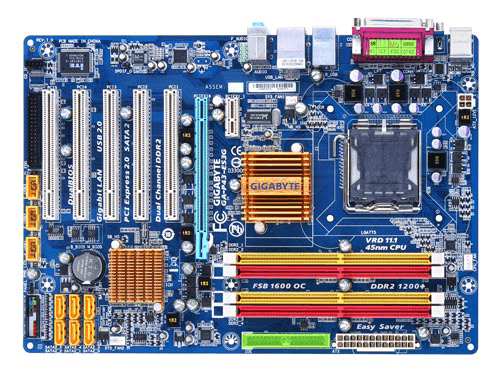
- Will Windows 10/8/7 stay activated after replacing motherboard?
- Methods for hardware upgrade without reinstallation
- Windows 10 won't boot after motherboard upgrade
Will Windows 10/8/7 stay activated after replacing motherboard?
There are three types of Windows license keys: Retail, OEM, and Volume. A Retail license is purchased from a local store or online retailer, while an OEM license is preinstalled on a new computer by the manufacturer. In contrast, a Volume license is distributed in bulk to large organizations.
A Retail or Volume license will automatically activate when connected to the internet, but an OEM key is locked to the original hardware and cannot be transferred to a new motherboard, requiring a new key purchase.
If you're using a Retail key and still encounter activation issues, you may need to contact Microsoft support for further assistance and troubleshooting.
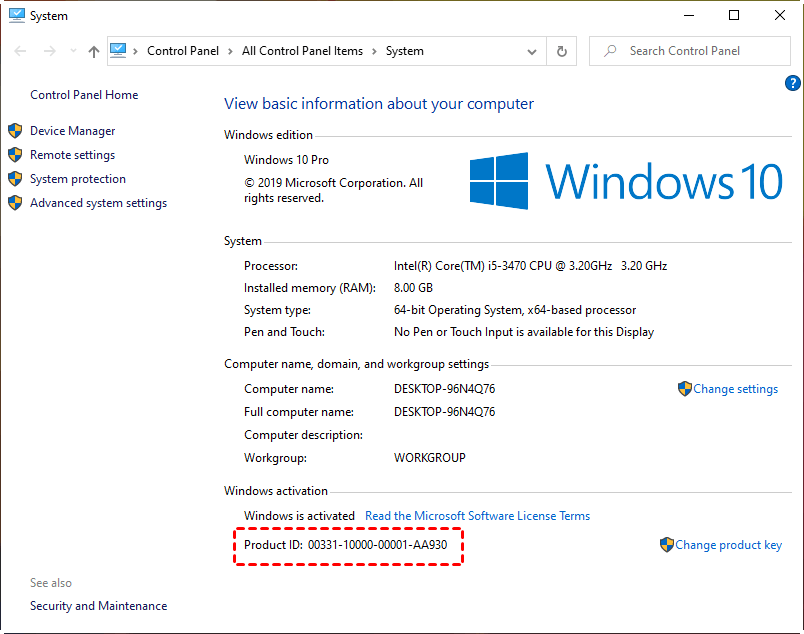
How to check your license type
To check your Windows 10 license key, right-click on "My Computer" or "This PC" and select "Properties". Scroll down to the bottom of the screen and view the "Product ID". If you see "OEM" in the second group, it's an OEM license key; otherwise, it's retail or volume.
Windows keys can be OEM, Retail, or Volume licenses, depending on how they were installed and purchased.
Methods for hardware upgrade without reinstallation
To change a motherboard without reinstalling Windows, there are three methods, with the first being the easiest: performing a universal restore.
- Way 1. Replace motherboard without reinstalling Windows via Qiling Disk Master
- Way 2. Change motherboard without reinstalling Windows by Registry
- Way 3: Change motherboard and CPU without reinstalling Windows via Offline Registry
Way 1. Replace motherboard without reinstalling Windows via Qiling Disk Master
Universal Restore is a feature of Qiling Disk Master that enables Windows system restoration to a different computer with varying hardware.
The system backup guarantees that your computer can boot successfully without changing any settings, allowing you to replace the CPU and motherboard without worrying about system instability. By creating a backup of the original system and restoring it after the hardware replacement, you can ensure a smooth transition and avoid potential issues.
Qiling Universal Restore works similarly to Windows bare metal recovery, but with added convenience and no restrictions.
Step Ⅰ: perform a system backup for universal restore
1. Download and run Qiling Disk Master.
2. To create a system backup, click on the "System Backup" option under the "Backup" tab. This will automatically select the necessary items for the backup source.

3. To proceed with the backup, select the desired destination path and click "Proceed". This allows you to backup to an external hard drive, the original hard drive, or even a network path.

Step Ⅱ: create bootable media for universal restore
After replacing the motherboard and CPU, your Windows may fail to boot, so it's a good idea to create a bootable media in advance to ensure a smooth recovery process.
Go to Tools > Create Bootable Media to make it.

Tips: If you don't want to create a bootable media, you can go to Tools > Recovery Environment to enable the boot option of Qiling Disk Master recovery environment, which also allows you to boot into Windows PE and perform backup/restore.
Step Ⅲ: start universal restore
1. To change the boot order and set the created bootable disk as the first boot option, repeatedly press the DEL or F2 key at the computer startup. This will allow you to access the boot settings and prioritize the bootable disk created.
2. After booting the Qiling Disk Master, it will load the main interface. To restore the system, click "Restore" and then select either "Select Task" or "Select Image File" to choose the backup created previously.
3. To restore the backup image, you have two options: you can either restore the entire system backup or restore a specific partition from the backup. The choice depends on your specific needs, such as whether you want to restore the entire system or just a particular partition.
4. Before starting the restore, make sure the option "Universal Restore" is checked.
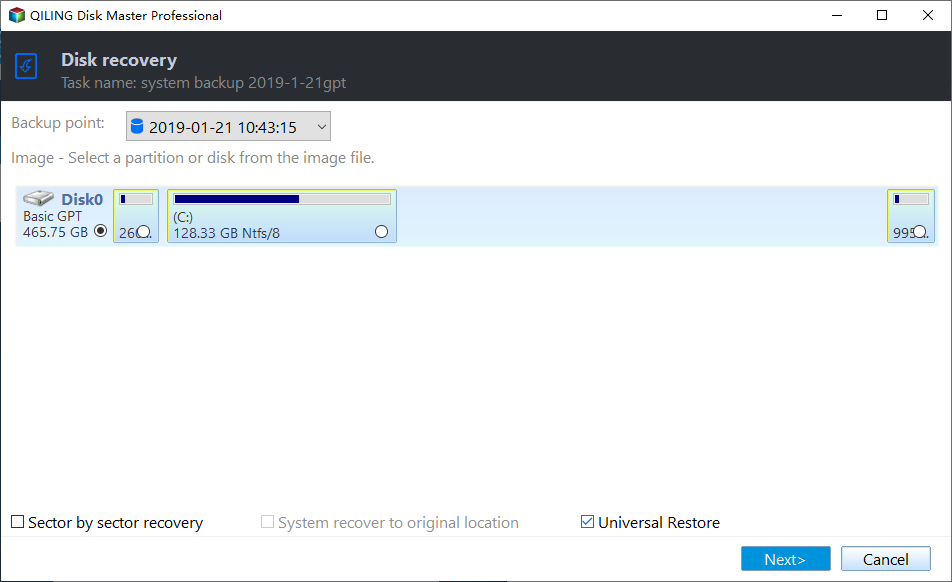
This method can also be used to transfer OS from one computer to another with dissimilar hardware.
Way 2. Change motherboard without reinstalling Windows by Registry
In Windows 8/10 or Server 2012, before replacing the motherboard and CPU, you need to change the msahci key in the Registry, as it has been replaced by StorAHCI in these systems. To avoid any potential issues, it's recommended to create a full system image backup before making any modifications to the Registry. This ensures that you can restore your system to its previous state if anything goes wrong.
Step Ⅰ: link Windows account to online Microsoft account
To reactivate Windows 10/8 after upgrading your motherboard and CPU, you need to link your Windows account to a Microsoft account first. Please follow these steps to link your account, and then you'll be able to reactivate your Windows.
1. To check the activation status of your Windows, go to Start, then click on Settings, followed by Update & security. From there, click on Activation in the left panel.
2. To add an account, click the "Add an account" button in the right panel and sign in with your Microsoft account.
Step Ⅱ: modify Registry and change motherboard
1. To open the Registry Editor, press the Windows key + R to open the Run dialog box, type "regedit" and press Enter.
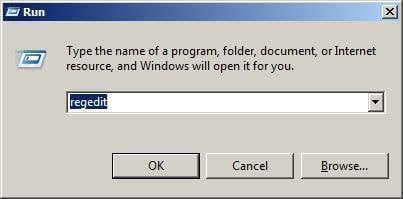
2. Within Registry Editor, navigate to the following key.
HKEY_LOCAL_MACHINE\SYSTEM\CurrentControlSet\services\msahci
3. In the right pane, double-click "Start" and change its value data to 0.
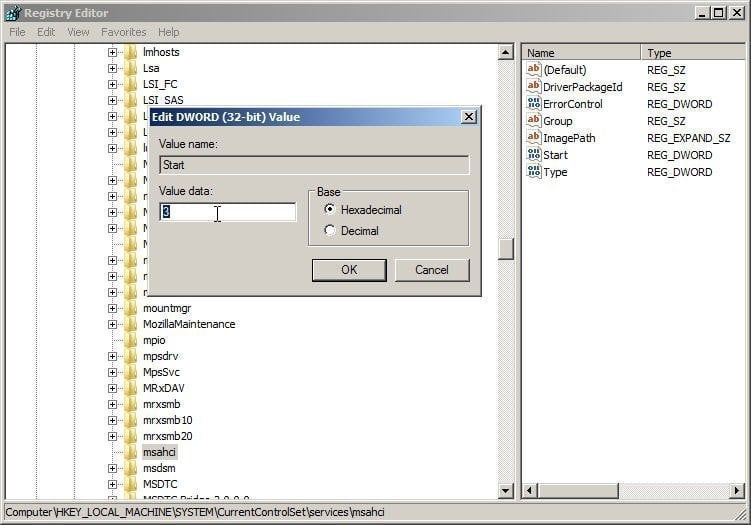
4. Also, change the following Key's DWORD value data to 0:
HKEY_LOCAL_MACHINE\SYSTEM\CurrentControlSet\services\pciide
5. Save the changes and exit Registry Editor.
6. Shut down the computer, replace the motherboard and CPU, and then start Windows with the prepared settings.
Step Ⅲ: activate your Windows after replacing motherboard and CPU
If you've upgraded your motherboard, you may need to reactivate Windows 10/8. Fortunately, this process is straightforward. For Windows 10/8, simply follow the steps to reactivate, while Windows 7 will likely reactivate automatically, so there's no need to worry about it.
1. To reactivate Windows 10 after upgrading the motherboard, go to Settings > Update & security > Troubleshoot > I changed hardware on this device recently. This will prompt Windows to reactivate itself after the boot process.
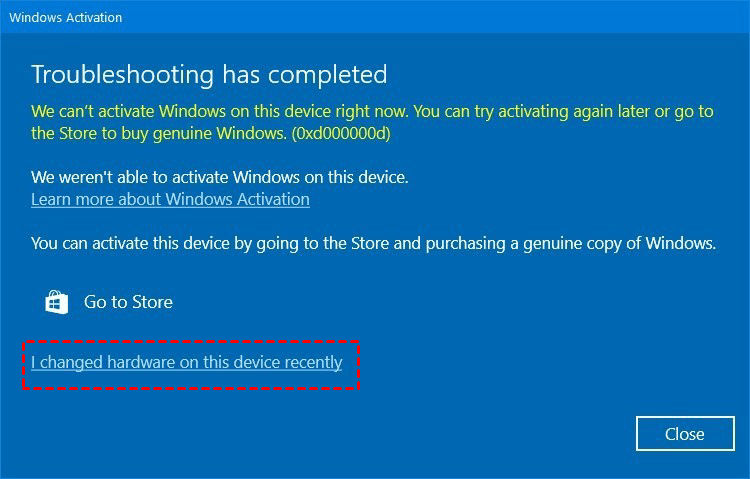
2. Sign in to your Microsoft Account again, click the Activate button, and it will retrieve the activation key from your online account.
3. If you want to change your Windows 10/8 account back to the Local Account, do so.
This method will also work when you want to move hard drive to a new computer without reinstalling Windows.
Way 3: Change motherboard and CPU without reinstalling Windows via Offline Registry
This method is for users who forgot to edit the Registry before upgrading their motherboard and CPU, resulting in a boot failure. To fix this, simply prepare an installation disc, start your computer from it, and then modify the Registry.
1. To start your computer from an installation disc, press F2 or Del repeatedly to enter the BIOS, set the installation disc as the first boot option, and then press F10 to save changes and restart.
2. To fix your computer, set the language and other settings, then click "Repair your computer" to proceed.
3. Select Troubleshoot > Advanced options > Command Prompt subsequently.
4. Type regedit and press Enter to open Registry Editor.
5. Highlight the HKEY_LOCAL_MACHINE key and choose File and Load Hive.
6. Go to the system drive and open the system file, typically located at C:\Windows\system32\config\system.
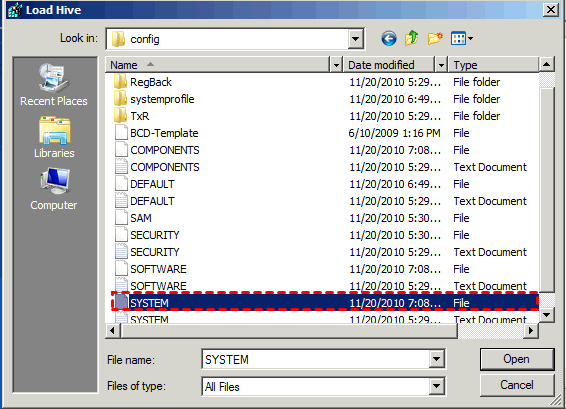
7. To save the Offline key, type Offline, and click OK. This will save the key in the registry.
8. Go to the following keys in order and set the start value of them to 0.
HKEY_LOCAL_MACHINE\Offline\ControlSet001\services\msahci
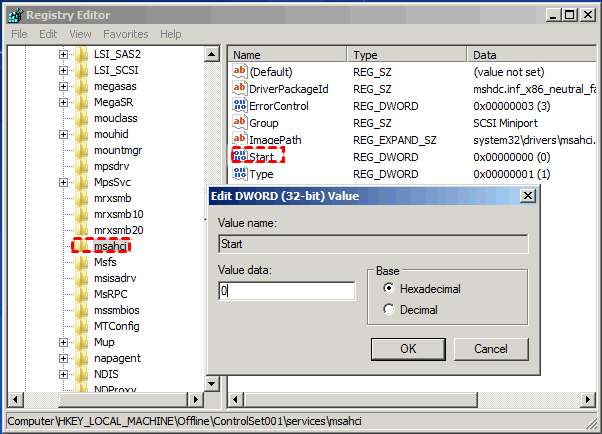
HKEY_LOCAL_MACHINE\Offline\ControlSet001\services\pciide
9. To save changes made in the Registry Editor, highlight the "Offline" key, select "File" and then "Unload Hive", and finally close the Registry Editor.
10. To change the BIOS settings, you should restart your computer, remove the disc, and then run your computer as normal.
Windows 10 won't boot after motherboard upgrade
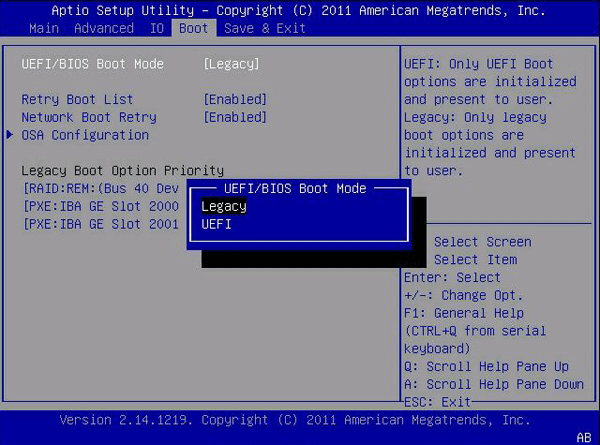
Some users experience Windows 10 not booting after upgrading their motherboard, likely due to a mismatch in boot modes, such as switching from Legacy BIOS to UEFI.
To troubleshoot whether the issue is related to the computer's boot mode, try restarting the computer, then go to the BIOS settings, select Boot, and set the Legacy Boot Option Priority to Alternate Mode. This may resolve the problem.
Conclusion
Upgrading a motherboard and CPU without reinstalling Windows 10/8/7 is possible using three methods. These methods allow you to achieve your goals without having to start from scratch and reinstall your operating system.
Qiling Disk Master is the easiest way for most users, requiring only a backup and subsequent restore to transfer a system.
Windows built-in Registry methods can help prepare storage drivers before a motherboard change, but they are complex and risky. Create a system backup before editing the Registry.
You can protect unlimited computers within your company using Qiling Disk Master Technician, which also allows deploying or restoring system image files to multiple client-side computers over a network via its built-in Qiling Image Deploy tool.
Related Articles
- 2 Ways to Transfer Windows 10 to New Hard Drive (HDD/SSD)
- Transfer OEM Windows 10 to New Hard Drive in a Few Steps
- When and How to Migrate OS to Dissimilar Hardware?
- Simple Way to Move a Windows 10 Hard Drive to a New Computer
- [Error 0x8007016a] Fix OneDrive Cloud Error Code
If you're experiencing issues with your OneDrive Cloud Provider, you may encounter the error code 0x8007016a when trying to access your files. Fortunately, this article has provided solutions to resolve the problem and has also introduced an alternative to OneDrive, which is the Qiling Backup. - Fix "Recovery Drive Please Wait" [Step-by-Step Guide]
This guide explains why Recovery Drive may stay on "Please wait" and provides step-by-step fixes to complete the process.
Products
Articles & Tutorials
- Data Recovery
- Data Backup
- File Recovery
- File Backup
- File synchronize
- System Backup and Restore
- Disk and Partition Clone
- Technical articles
- Disk Master Help
- Windows Deleted File and Disk Recovery Tutorials
- Windows File and Data Recovery Tutorials
- More Windows Tutorials for Install, Security, Files, and PC Tips
- Windows Boot, Repair, and Recovery Environment Tutorials
- Windows Backup Tutorials
- Windows Restore Tutorials
- Windows Clone and Migration Tutorials
- Windows Server Backup, Recovery, and Management Tutorials
- Windows Disk, Partition, and Storage Management Tutorials