Transfer Windows 7/8/10/11 OS from One Computer to Another
Why you transfer OS from one computer to another?
As your computer ages, it becomes slower, making you eager to upgrade to a new one. However, you may not want to give up the familiar old system and applications you're used to. Transferring the operating system from the old computer to the new one is a great way to preserve your old data and save time on reinstalling the system and applications on the new PC. This approach can be particularly useful for keeping your old system and applications intact, making the transition to a new computer smoother and more efficient.
The problems in transferring OS to new computer
When trying to migrate an OS from one computer to another, simply copying the OS from one hard drive to another won't work, as the computer can't boot. Installing the existing OS hard drive into another computer can also cause issues, including a significant security threat of system crashes.
How to transfer operating system from one computer to another smoothly
Transferring an OS from one PC to another requires more than just a simple copy, as the new PC needs to be able to boot successfully. To achieve this, we recommend using Qiling Disk Master Professional, which features a "Universal Restore" utility that can help you transfer the OS safely and easily.
Preparations before OS migration
★ Download and install Qiling Disk Master.
★ You can store the system backup image on an external hard drive, a network share, or network attached storage (NAS) if you don't have one.
★ Create a system backup image on the old computer, storing it on an external hard drive or network location, such as a NAS, and remember the network path.
★ To boot the target computer, you can either create a bootable media, such as a USB drive or CD, to boot the computer directly, or use Qiling PXE Boot Tool to boot the computer via a network connection within the same LAN.
Steps to transfer Windows OS to new computer
To move Windows 10 to a new computer, follow these steps. Qiling Disk Master also supports other Windows OSes including Windows 7/8/11, etc. (Note: I removed the "shortly" part as it doesn't make sense in this context)
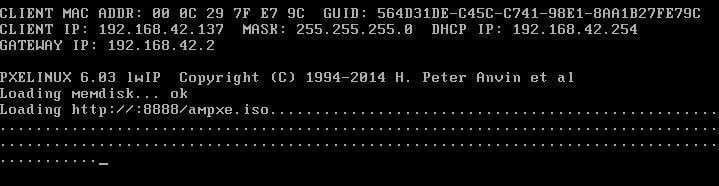
Step 1. To start up a new computer, use either the bootable media or the Qiling PXE Boot Tool.
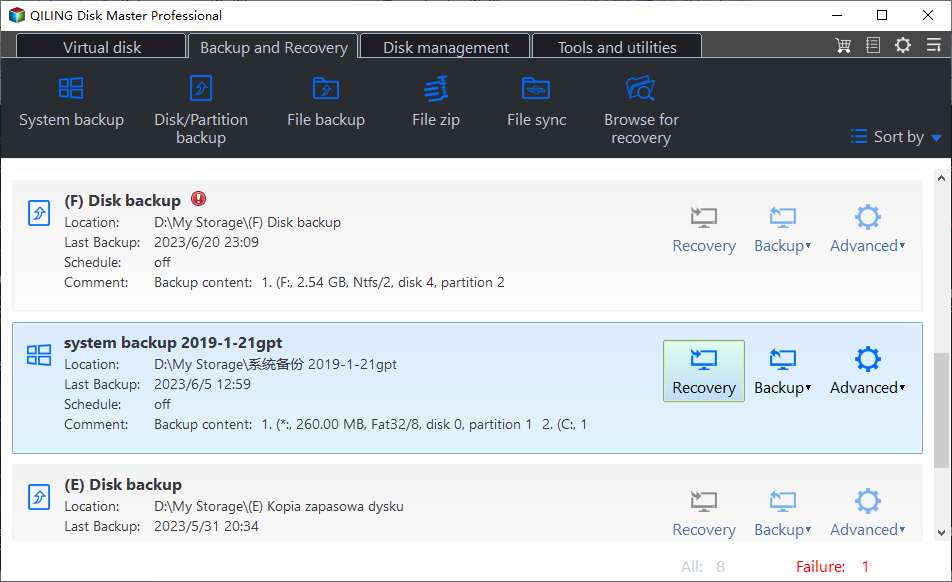
Step 2. Click the Backup and recovery tab, then click Browse for recovery to locate the system backup image you previously created.

Step 3. Click Add Network Location, enter NAS details (path, username, password), then click OK.

Step 4. Select the image on the network path and click OK to exit this window.

Step 5. Select Restore this system backup and click Next.
Step 65. Then, select the restore destination and click Next.
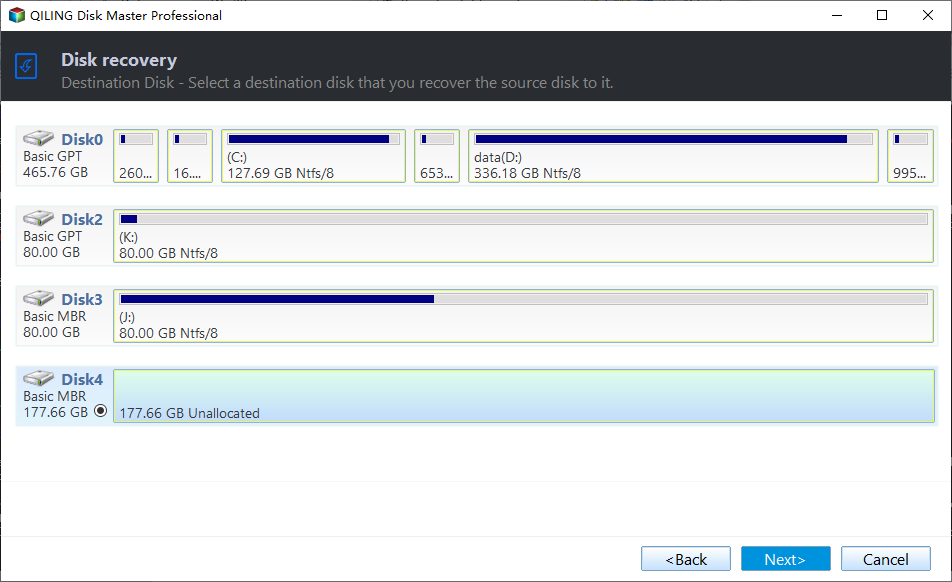
Note: If a selected location has data, Qiling Disk Master will remind you to make a backup before proceeding, as the destination partition will be overwritten during the restoration process.
Step 7. At the Operation Summary page, tick the box in front of Universal Restore to avoid boot issues after migrating OS to different hardware. If there are no issues, click Proceed to execute.
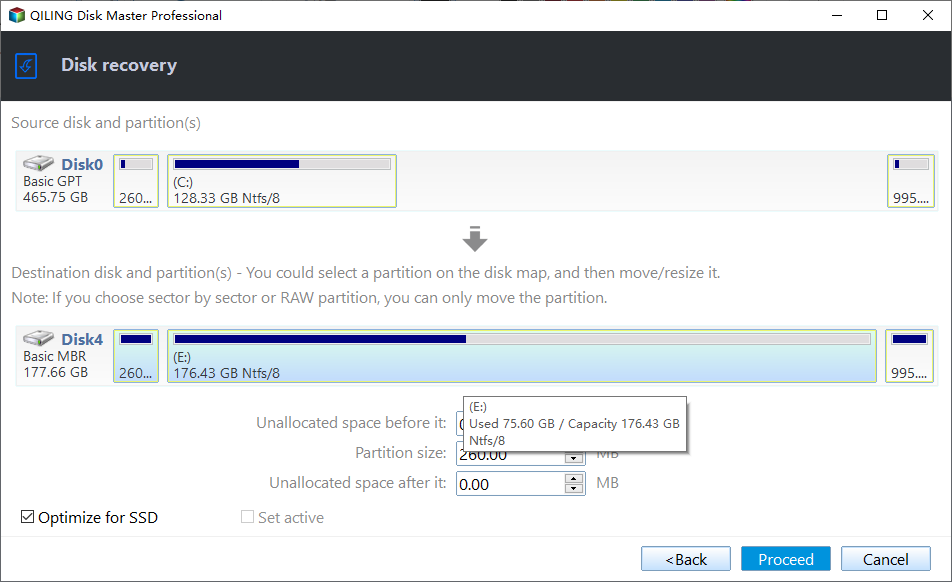
Note: If you're transferring your operating system to a solid-state drive (SSD), you can also check the SSD alignment to enhance the read/write speed of the SSD.
Wait until the progress reaches 100%, and then click on the "Finish" button to exit. After that, you can boot the target computer normally using the same operating system as the original computer.
To protect unlimited computers within your company, you can use Qiling Disk Master Technician, which allows you to deploy or restore system image files on server-side computers to multiple client-side computers over the network using its built-in Qiling Image Deploy tool.
Related Articles
- 2 Ways: Clone Old Computer to New PC (Bootable)
- Transfer OS from Laptop to Desktop without Reinstalling | 2 Methods
- Easily Transfer OS to Another or New Hard Drive in Windows 10/8/7
- Incremental Backup External Hard Drive in Windows 7/8/10
You will learn how to perform automatic incremental backup of an external hard drive with best free incremental backup software - Qiling Disk Master. - Windows recovery & backup software to recover your files or folders
Qiling Backup is a tool that enables Windows users to recover or restore files from specific folders in case of data loss disasters. - How to Solve File Stops Copying Halfway (5 Ways)
When copying large files between drives, the process may stop halfway because of disk errors, file system issues, or connection problems. This guide lists practical fixes.
Products
Articles & Tutorials
- Data Recovery
- Data Backup
- File Recovery
- File Backup
- File synchronize
- System Backup and Restore
- Disk and Partition Clone
- Technical articles
- Disk Master Help
- Windows Deleted File and Disk Recovery Tutorials
- Windows File and Data Recovery Tutorials
- More Windows Tutorials for Install, Security, Files, and PC Tips
- Windows Boot, Repair, and Recovery Environment Tutorials
- Windows Backup Tutorials
- Windows Restore Tutorials
- Windows Clone and Migration Tutorials
- Windows Server Backup, Recovery, and Management Tutorials
- Windows Disk, Partition, and Storage Management Tutorials