Transfer OS from Laptop to Desktop without Reinstalling | 2 Methods
Quick Navigation:
- User case: can you transfer OS from laptop to desktop?
- How do I move OS from laptop to desktop without reinstalling?
- Method 1: Transfer laptop OS to desktop using system backup and restore
- Method 2: Clone one computer to another using system clone
- In the end
User case: can you transfer OS from laptop to desktop?
You can transfer your Windows 10 OS, programs, and personal data from your Dell laptop to your new desktop computer using the built-in feature called "Clone" in the Windows 10 Settings app, or by using a third-party software like Qiling Disk Master. This way, you can avoid reinstalling everything and save time. Would you like me to guide you through the process?
The transferability of a Windows license depends on the type of license. Retail licenses, which come with a full package product, can be transferred to another computer and used on a single computer each time. However, OEM or volume licenses, typically used on computers or in bulk purchases, are not transferable and are tied to the original computer. Therefore, the answer is yes, but only for retail licenses.
How do I move OS from laptop to desktop without reinstalling?
Besides a clean install, there are two common ways to transfer an operating system from one computer to another. One method involves using disk cloning software to clone the system of the laptop and then installing the cloned hard drive in the desktop. Alternatively, backup and restore software can be used to backup the system on the laptop and then restore it to the desktop.
Both cloning and backup-restore can move a laptop OS to a desktop. For Windows 10 or newer systems with similar hardware, System Clone may work well. For Windows 7/8/8.1 or very different hardware, System Backup plus System Restore with Universal Restore is usually safer.
To achieve your goal, use an all-in-one backup and restore software like Qiling Disk Master Professional, which has features such as system backup, disk backup, file backup, disk clone, and system clone, and also has a "Universal Restore" feature to install necessary drivers for hardware incompatibility issues.
Method 1: Transfer laptop OS to desktop using system backup and restore
In Windows 7, 8, and 8.1, using the "Backup and Restore" feature is recommended for transferring the operating system. This approach automatically installs the necessary boot drivers during the restoration process, while ignoring any incompatible drivers from the backup, making the process smoother and more reliable.
To restore a system from a laptop to a desktop, you'll need to perform a few specific steps. First, ensure the system is compatible and can be transferred, which may involve checking the hardware and software requirements.
- To begin, download and install Qiling Disk Master on the laptop from its official website.
- To create a system backup or disk backup of your laptop, save it to a removable storage device, such as an external hard drive or USB drive, which serves as the premise for restoring an image to the disk or computer.
- Create a bootable rescue CD/DVD or USB disk to boot your desktop and perform the restore, or install Qiling Disk Master on your desktop to skip the bootable media.
To transfer laptop OS with Qiling Disk Master:
1. Attach the external hard drive to your computer, and then open the file explorer and navigate to your desktop, where you should see the external hard drive listed. Click on the drive to open it and select the backup file you want to restore.
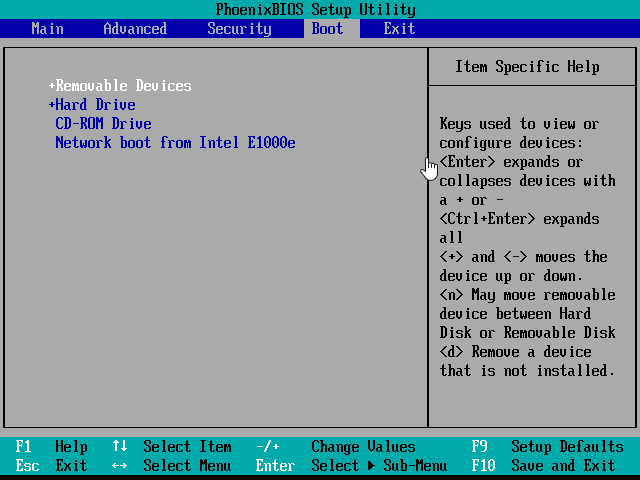
2. Boot your desktop from the bootable media.
To access Qiling Disk Master, power off your computer, restart it, and press the specific key (e.g. F2, ESC) in the initial screen.
3. To restore your laptop, click on the "Restore" tab and then select the "Select Image File" option to choose the backup file of your laptop.

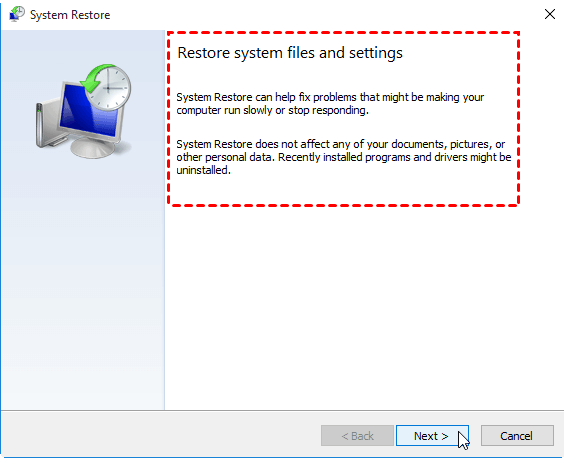
4. Click "Restore this system backup" and click "Next" to continue.

5. To begin the installation process, select a location on your desktop hard drive and click "Next". The first partition or the first available area is recommended for this step.

If you're planning to perform a system update or any other operation that might affect your data, it's crucial to back up your files and folders first. This ensures that your important data is safe and can be recovered in case something goes wrong during the update or operation.
6. If your desktop has different hardware, "Universal Restore" is checked by default. If not, you can manually select this feature. Then, click "Proceed".
Notes:
- If you have an SSD on your desktop, using "SSD Alignment" can improve your computer's performance.
- The "Backup and Restore" feature is also available in Windows 10, but I recommend using the "Clone" feature instead, as it is much easier to use.
Method 2: Clone one computer to another using system clone
Cloning Windows to a new computer with different hardware can be risky due to potential incompatibility with drivers or hardware, so it's recommended to clone to a computer with the same or similar hardware. You can use the System Clone or Disk Clone feature to clone the system or entire disk from the old computer to the new one.
To clone Windows 10 to another PC, you can use the built-in Windows feature called "Clone" or a third-party cloning software. First, make sure the destination PC has the same hardware specifications as the source PC.
1. Connect an external hard drive to your laptop to expand its storage capacity.
2. To clone a system or entire disk using Qiling Disk Master, launch the software, click on the "Clone" button, followed by the "System Clone" button for a system clone or the "Disk Clone" button for a full disk clone.

3. Qiling will automatically select the system partition and boot related partition as the destination path, so there is no need to manually select an external drive.

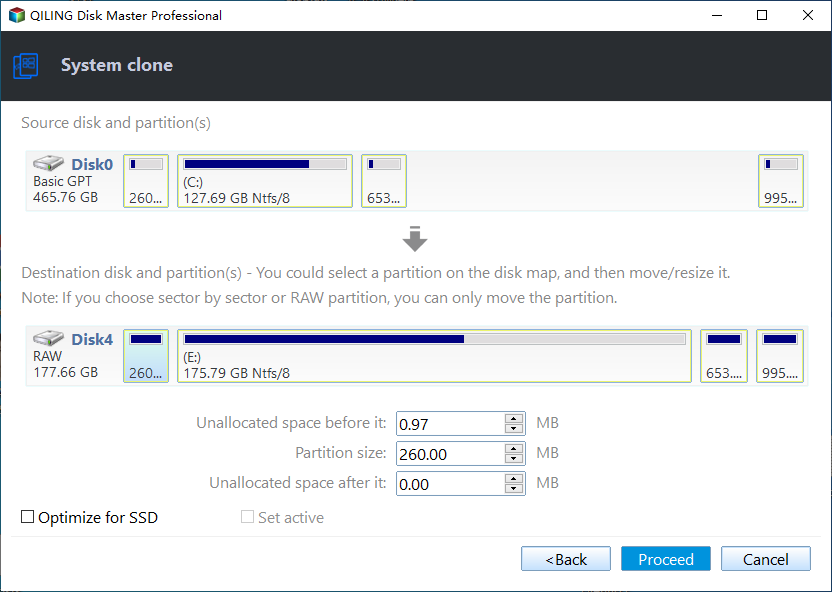
4. To prepare for the cloning process, select the options "SSD Alignment", "Edit Partition", and "Sector by Sector Clone" according to your requirements. If everything is in order, click the "Proceed" button.
- "SSD Alignment". Enable TRIM on your SSD to optimize its performance and extend its lifespan. This feature helps maintain the health of your SSD by allowing it to delete invalid data blocks, which can slow it down over time. By enabling TRIM, you can improve the overall speed and responsiveness of your system.
- "Sector by Sector Clone". This feature is used to clone all sectors of your hard drive, whether used or not, making it especially useful when cloning a disk to a larger disk.
- "Edit Partitions". Many users experience the cloned hard drive showing an incorrect size, which is due to the extra space being marked as "Unallocated". This feature allows you to add unused space to all partitions, or you can manually adjust the partition size if needed.
After cloning, install the cloned hard drive in your desktop, change the boot order in BIOS to prioritize the cloned disk, and then start your computer from the cloned disk to verify if it boots successfully.
In the end
Transferring an OS from a laptop to a desktop can be a tedious process, but a clean install may not be the most efficient option. Instead, consider using a comprehensive backup and restore software like Qiling Disk Master Professional, which offers features such as backup, restore, and clone, making the transfer process much simpler and saving time.
If the two computers have different hardware, it's recommended to use the backup and restore feature, making sure to select the "Universal Restore" option when restoring the system image to the new computer.
If both computers have the same hardware, cloning is a better option as it creates an exact copy of the system or disk that can be used directly without restoring. For server users, Qiling Disk Master Server is recommended.
Related Articles
- How to Transfer Files Between Laptop and Desktop PC Regularly?
Learn how to Transfer Files Between Laptop and Desktop PC Regularly with clear steps, key checks, and practical tips. - How to Move OS to Another Drive without Reinstalling?
You will learn the best way to transfer OS to another or new hard drive in Windows 11/10/8/7 instead of reinstalling Windows and programs from scratch. The entire process is below. - How to Replace Laptop HDD with SSD without Reinstalling Windows?
You will learn the best practice to replace laptop HDD with SSD without reinstalling Windows 10 or 11, and one-stop wizard for hard drive replacement including video tutorials. - Best HP USB drive Image Tool – Qiling Disk Master
This guide explains Best HP USB drive Image Tool – Qiling Disk Master with clear steps, key checks, and practical tips. - Troubleshooting of a Failed Hard Drive to SSD Cloning
Cloning a failing hard drive to an SSD may stop because of bad sectors or read errors. This guide explains practical fixes and safer cloning methods. - What Is File Level Backup? Top 5 Best File Level Backup Software Free Download
This page helps you understand file-level backup, its popularity, and when it's needed, as well as provides 5 best file-level backup software to protect a large number of files immediately.
Products
Articles & Tutorials
- Data Recovery
- Data Backup
- File Recovery
- File Backup
- File synchronize
- System Backup and Restore
- Disk and Partition Clone
- Technical articles
- Disk Master Help
- Windows Deleted File and Disk Recovery Tutorials
- Windows File and Data Recovery Tutorials
- More Windows Tutorials for Install, Security, Files, and PC Tips
- Windows Boot, Repair, and Recovery Environment Tutorials
- Windows Backup Tutorials
- Windows Restore Tutorials
- Windows Clone and Migration Tutorials
- Windows Server Backup, Recovery, and Management Tutorials
- Windows Disk, Partition, and Storage Management Tutorials