How to Transfer Recovery Partition to New Hard Drive Easily
Quick Navigation:
- What is recovery partition?
- Why transfer recovery partition to new hard drive?
- How to clone recovery partition to new hard drive easily
- Step by step guide to copy recovery partition to new hard drive
- Summary
What is recovery partition?
A recovery partition is a reserved area on a hard drive that contains system files and tools used to repair or recover the operating system in case of a failure. This partition is usually created during the installation of the operating system and is not assigned a drive letter, making it invisible in the File Explorer or Disk Management console. The recovery partition typically contains a copy of the operating system, drivers, and other system files, as well as tools like System Restore and Backup and Restore.
The first type of recovery software is designed by the manufacturer, such as HP, Dell, Toshiba, and Lenovo, to restore a computer to its factory settings. This can be done by using the recovery partition and pressing a special key, allowing the computer to be restored to its original state.
The second type of recovery partition is created by Windows when reinstalling the operating system. This type of partition is smaller compared to the recovery partition created by manufacturers, which is typically larger and more comprehensive.
Why transfer recovery partition to new hard drive?
The recovery partition, used for restoring a computer to its original state, takes up space on the hard drive, especially when created by the manufacturer.
If the recovery partition is taking up a significant amount of space on your hard drive, such as 20 GB, you may want to consider deleting it to free up more local disk space.
Before deleting the recovery partition, it's recommended to transfer it to a USB flash drive, external hard drive, SSD, or HDD, allowing you to easily copy it back to the original disk in case of system failure.
How to clone recovery partition to new hard drive easily
Recovery partitions are invisible in Windows Explorer since they have no drive letter, making it impossible to use the built-in Windows tool to transfer them to a new hard drive. However, third-party software can be used to achieve this.
Qiling Disk Master Standard is a tool that allows you to transfer a recovery partition to a new hard drive with ease, making it a simple and straightforward process.
- The software has a utility called "Partition Clone" that allows users to move their recovery partition to a new location, such as an SSD, HDD, USB flash drive, or other external hard drives.
- You can create a boot rescue media to copy the recovery partition on a computer without needing to boot into Windows.
- It runs well on Windows 11/10/8/7.
Download it now and get the detailed steps below.
Step by step guide to copy recovery partition to new hard drive
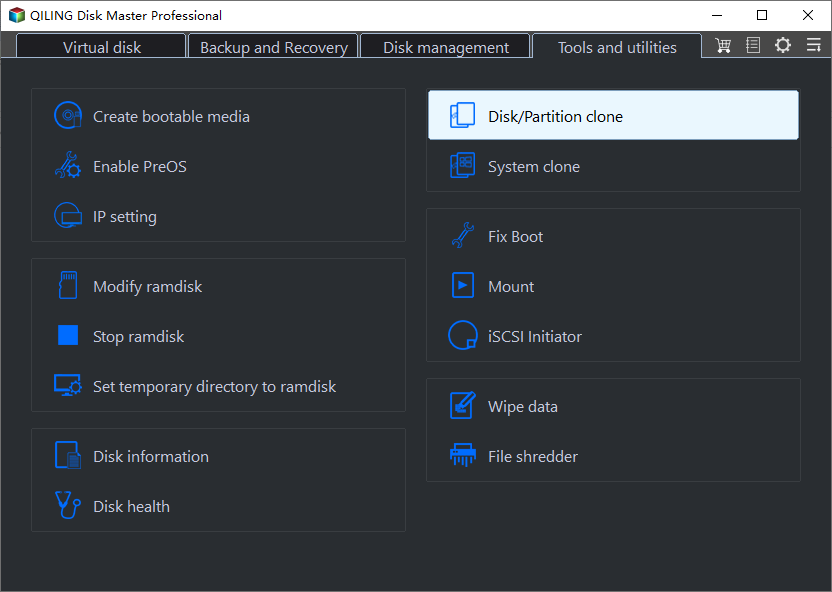
Step 1. Connect your new hard drive to your computer and ensure it can be detected. Install and launch Qiling Disk Master. To clone the recovery partition to the new hard drive, click Clone -> Partition Clone.
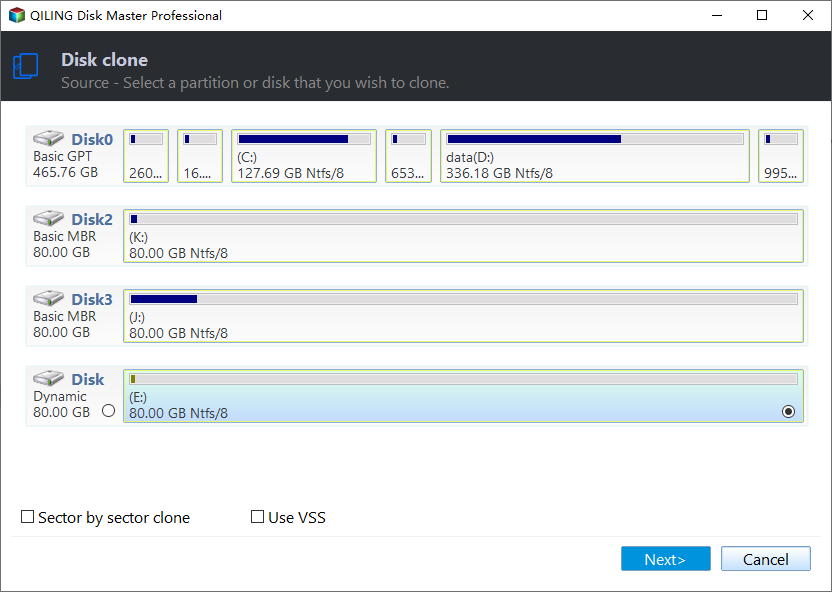
Step 2. Select the recovery partition as the source partition.
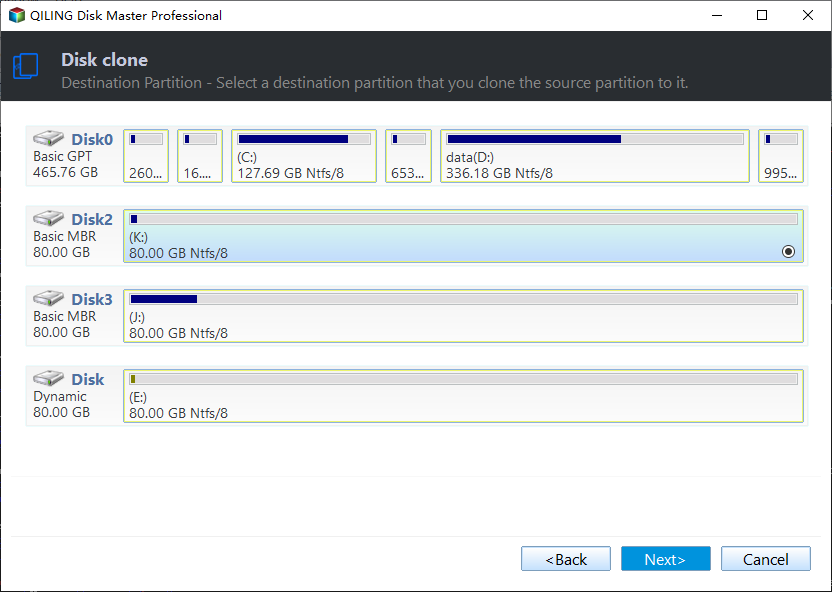
Step 3. To format a hard drive, first, you need to back up any data on the drive. Next, connect the hard drive to your computer via a USB cable.
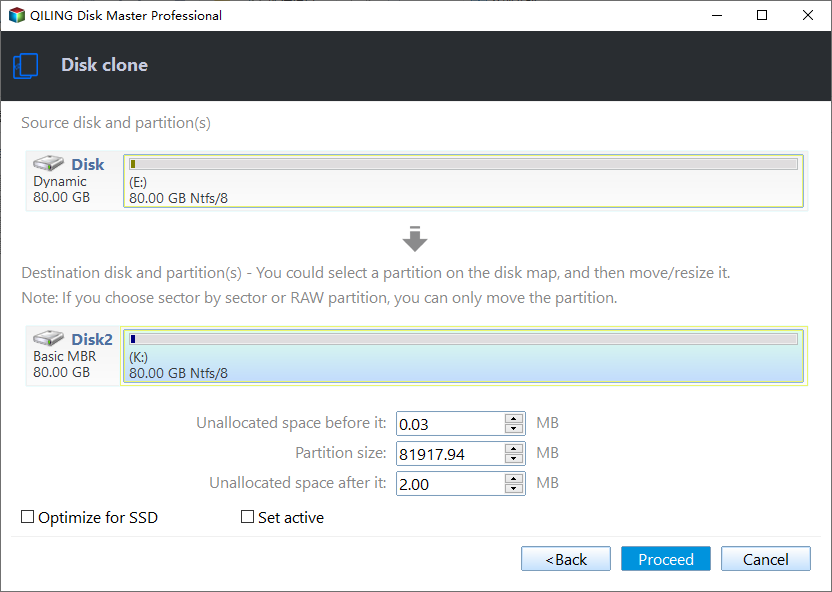
Step 4. Here you need to confirm all the information. If there is no problem, click Proceed to launch the whole progress. If you are cloning recovery partition to SSD, you can check the box in front of SSD Alignment before clicking Proceed to optimize the performance of the SSD.
Summary
With Qiling Disk Master, you can easily clone HP recovery partition to an SSD or HDD, and it also supports other brands like Dell, Toshiba, and Lenovo with Windows 7, 8, or 10. In addition to transferring the recovery partition, the software can also be used to copy a Windows system image to a new hard drive, transfer a disk image, clone an SSD to a larger SSD, and clone Windows 10 to an NVMe drive.
Some advanced features like System Clone and Universal Restore are available in Qiling Disk Master Professional edition, which can be upgraded to enjoy.
Related Articles
- Safely Clone Hidden Recovery Partition to SSD in 5 Steps
- Backup Hidden Recovery Partition in Windows 10/8/7
- Use Asus Recovery Key to Restore System When It Fails
- Hard Drive Recovery| Recover Files from a Hard Disk
Learn the key steps, checks, and practical tips for this related guide. - Is Clonezilla Safe? | Here Is the Answer & Its Alternative
This guide explains whether Clonezilla Safe | Here Is the Answer & Its Alternative is true with clear steps, key checks, and practical tips. - How to Upgrade Lenovo IdeaPad Gaming 3 SSD (2024 Guideline)🥇
The Lenovo IdeaPad Gaming 3 is a powerful laptop, but its storage capacity may not be sufficient for some users. To address this, users may want to know if they can upgrade or add an SSD (solid-state drive) to increase storage space.
Products
Articles & Tutorials
- Data Recovery
- Data Backup
- File Recovery
- File Backup
- File synchronize
- System Backup and Restore
- Disk and Partition Clone
- Technical articles
- Disk Master Help
- Windows Deleted File and Disk Recovery Tutorials
- Windows File and Data Recovery Tutorials
- More Windows Tutorials for Install, Security, Files, and PC Tips
- Windows Boot, Repair, and Recovery Environment Tutorials
- Windows Backup Tutorials
- Windows Restore Tutorials
- Windows Clone and Migration Tutorials
- Windows Server Backup, Recovery, and Management Tutorials
- Windows Disk, Partition, and Storage Management Tutorials