How to Transfer Windows 8/8.1 Installation from HDD to SSD
Windows 8/8.1 is widely used globally, with most computers relying on hard disk drives (HDDs) for storage. The traditional HDD, a metal platter with a magnetic coating, is the basic storage disk of computers, allowing data to be read and written while spinning. However, its physical nature makes it prone to breakage.
Fortunately, technological advancements have led to the development of solid state drives (SSDs), which use solid state electronic storage chips to store data, eliminating the need for platter spinning.
Why we want to transfer Windows 8/8.1 from HDD to SSD?
The primary reason for transferring Windows 8/8.1 from an HDD to an SSD is the numerous benefits that SSDs offer over traditional hard disk drives (HDDs).
- SSD, or Solid-State Drive, is a newer storage disk that uses solid-state electric storage chips, making it safer than traditional hard disk drives (HDDs) that rely on spinning platters.
- Unlike HDD, SSDs can read and write data directly from chips, making them faster and quieter since they don't have spinning metal platters.
- In a serious environment, SSDs outperform HDDs, with optimal temperatures ranging from -10 to 70℃, whereas HDDs can only function within a narrower temperature range of 5 to 50℃.
Migrating Windows 8/8.1 from HDD to SSD can improve startup speed, app loading, and overall responsiveness. File History cannot move the operating system, so use a system clone tool or system backup and restore software instead.
How to move Windows 8/8.1 from HDD to SSD
Windows 8/8.1 doesn't have a built-in function to move the system from a hard disk drive (HDD) to a solid-state drive (SSD). To achieve this, you'll need to use a third-party software. We recommend Qiling Disk Master Professional, which offers powerful features and is worth the investment.
💜 You can use it to backup your computer OS and restore your computer to an earlier date via the System Backup and Restore features.
💜 You can move a Windows installation to a new hard drive directly using the System Clone feature.
💜 You can create bootable media to boot your computer in case of boot failure.
Qiling Disk Master supports all Windows PC operating systems, including Windows XP/Vista/7/8/8.1/10/11, making it easy to upgrade the system. The software is user-friendly and can assist with moving Windows 8/8.1 from HDD to SSD.
Before transferring Windows 8/8.1 from HDD to SSD, connect an SSD with enough capacity to hold the system partitions and back up important files on the SSD because the destination will be overwritten.
Step 1. Install and launch Qiling Disk Master Professional. Click Clone on the main interface and select System Clone.

Step 2. System Clone will automatically select the system partition(s) as the source partition(s) by default. You can choose the destination partition from the list, click on it to select it, and it will turn green. Then, click the "Next" button.

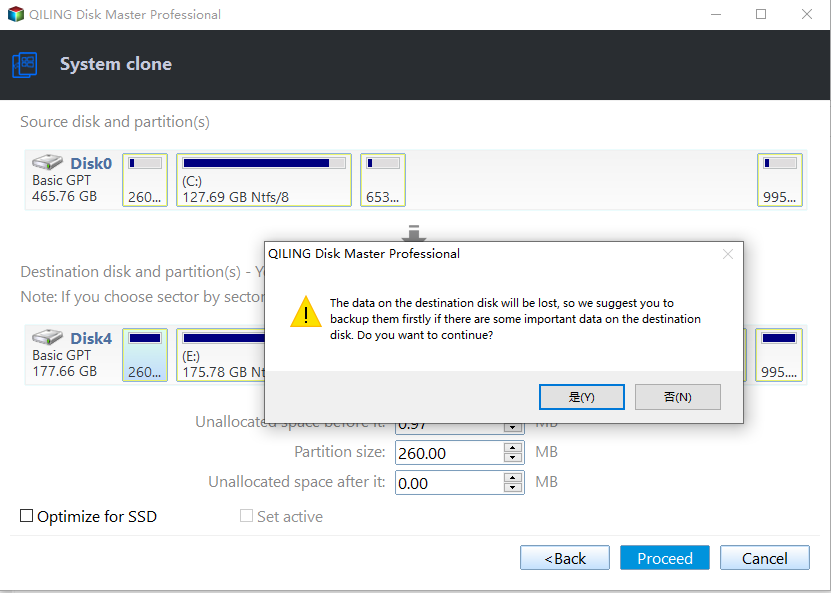
Step 3. Confirm the operation summary. If the destination is an SSD, tick SSD Alignment to improve SSD performance. Then click Proceed.

- The "Sector by sector clone" will clone every byte of the disk, including unused space, resulting in a longer cloning process that takes up more space.
- We highly recommend checking the "SSD Alignment" to optimize the performance of your SSD, which will make it work better.
After all settings are confirmed, click Proceed to start the cloning process.
Step 4. A warning will remind you that the destination partition will be overwritten. Confirm that you have backed up important data on the SSD, and click "OK" to continue.
Step 5. When the progress reaches 100%, click Finish to complete the process.
Qiling Disk Master can complete various tasks with minimal clicks. It can migrate Windows 8/8.1 from HDD to SSD, create a system backup image on HDD, and restore the image to SSD. Once the cloned SSD works properly, you can wipe the old HDD using the DoD disk wipe feature, freeing up storage space.
Related Articles
- Transfer Windows 7, 8, 10, 11 to New Hard Drive without CD [3 FREE Ways]
Learn how to Transfer Windows 7, 8, 10, 11 to New Hard Drive without CD with clear steps, key checks, and practical tips. - Do You Have to Reinstall Windows After Installing a New M2 SSD? [Check the Answer]
This guide explains Do You Have to Reinstall Windows After Installing a New M2 SSD with clear steps, key checks, and practical tips. - How to Fix Acronis Clone Disk Failed Error
There are two methods to fix the Acronis clone disk failed error and both have been discussed here. If the first one does not work for you, then you can try the second method and vice versa. - How to Clone A Hard Drive in Windows 7(No OS Reinstalling)
You might need to clone a hard drive in Windows 7 to a new HDD/SSD for many reasons. Cloning Windows hard drives to HDD or SSD isn't tricky if you use the right tool. Qiling Disk Copy is a perfect solution for hard drive cloning without reinstalling OS and applications. - Network Path Not Found or PXE Error, How to Solve it?
This guide explains Network Path Not Found or PXE Error, How to Solve it with clear steps, key checks, and practical tips. - Solved: SCCM PXE Boot Not Working
This tutorial focus on how to solve the problem of SCCM PXE boot not working. To boot client computers easily, you can turn to Qiling Disk Master Professional.
Products
Articles & Tutorials
- Data Recovery
- Data Backup
- File Recovery
- File Backup
- File synchronize
- System Backup and Restore
- Disk and Partition Clone
- Technical articles
- Disk Master Help
- Windows Deleted File and Disk Recovery Tutorials
- Windows File and Data Recovery Tutorials
- More Windows Tutorials for Install, Security, Files, and PC Tips
- Windows Boot, Repair, and Recovery Environment Tutorials
- Windows Backup Tutorials
- Windows Restore Tutorials
- Windows Clone and Migration Tutorials
- Windows Server Backup, Recovery, and Management Tutorials
- Windows Disk, Partition, and Storage Management Tutorials