How-To | Copy Partition to Another Drive on Windows 10, 11
User case
How do I clone Windows partition to bootable SSD?
You partitioned your desktop's HDD into a small Windows and apps partition, and a larger data partition, anticipating that you'd eventually clone the Windows partition to a smaller SSD.
To clone just one partition to another drive and make it bootable, you can use a tool like Qiling Backup, which allow you to clone individual partitions. Alternatively, you can use the built-in Windows feature called "Disk Management" to clone the partition. If you're using a Linux system, you can use tools like Clonezilla or Partimage to clone the partition. After cloning, you'll need to make sure the partition is bootable by setting the boot flag on the destination drive.
- Question from Tenforums.com
Sometimes, instead of cloning a whole disk, you may want to clone a specific partition to another drive. This can be useful in two common scenarios: when you need to copy a partition to a different drive, or when you want to create a backup of a particular partition without cloning the entire disk.
- To free up space on your current drive, consider moving some data to a larger drive. This will help alleviate storage space issues and ensure you have enough room for your files and applications.
- To free up space on your computer's main drive, transfer the system partition to a solid-state drive (SSD) and use the hard disk drive (HDD) for storage. This setup allows you to run your operating system and programs from the faster SSD, while storing your files and data on the more spacious HDD.
Cloning a specified partition is more efficient than cloning an entire disk, as it only transfers necessary data, saving time. To copy a partition to another drive on Windows 11/10/8/7, the best solution is to use a partition cloning software.
Best freeware to transfer partition to another drive
The best free cloning software, Qiling Disk Master Standard, makes it easy to copy any partition on your PC, offering several benefits through its features.
- Disk Clone: It allows you to clone all partitions on one disk at the same time, making it useful for transferring everything from one hard drive to another.
- Partition Clone: It allows you to clone a specific partition to another partition or disk, supporting NTFS, FAT32, and exFAT drives.
- SSD Alignment: 4K partition alignment is used to improve the read/write speed of an SSD by optimizing the way data is stored and retrieved, resulting in faster performance and better overall system responsiveness.
Qiling Disk Master is a software that runs well on various Windows editions, including Windows 11, 10, 8.1, 8, 7, Vista, and XP. It can be downloaded and tried.
How to clone partition to another drive in Windows 11/10/8/7 easily
To clone a non-system partition, note that all data on the destination drive will be deleted after cloning, so backup files on the target drive if you don't want to lose them. Then, follow the guidance below to begin cloning a non-system partition.
Step 1. If you're cloning your computer's hard drive to an external drive, ensure the target drive is connected to your computer. This is a crucial step in the cloning process, as it allows the cloning software to access the target drive and begin the cloning process.
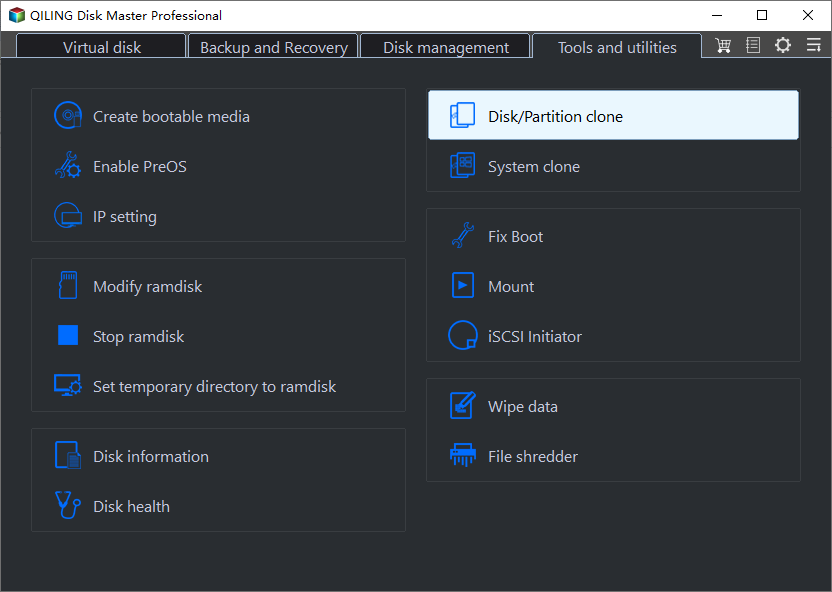
Step 2. Install and run Qiling Disk Master, then select Clone > Partition Clone.
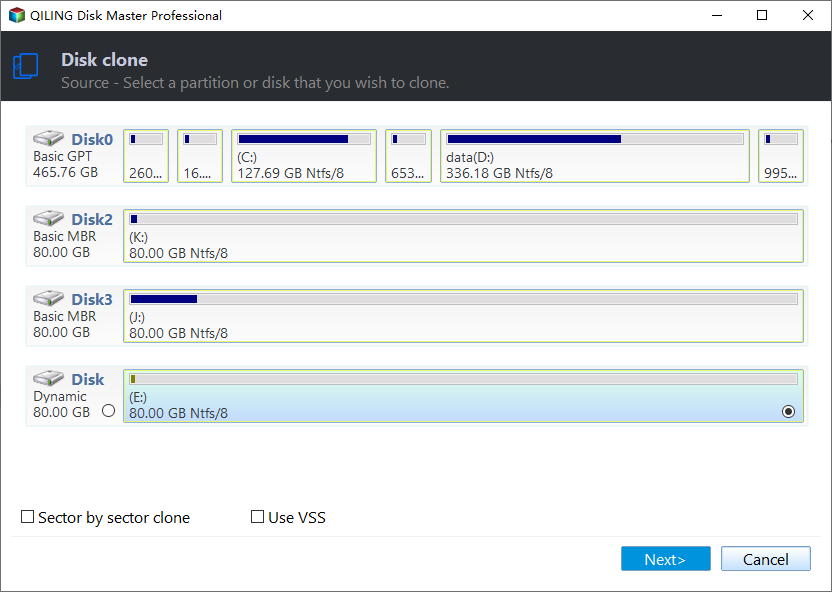
Step 3. On the Source Partition page, select the data partition you want to clone and click Next.
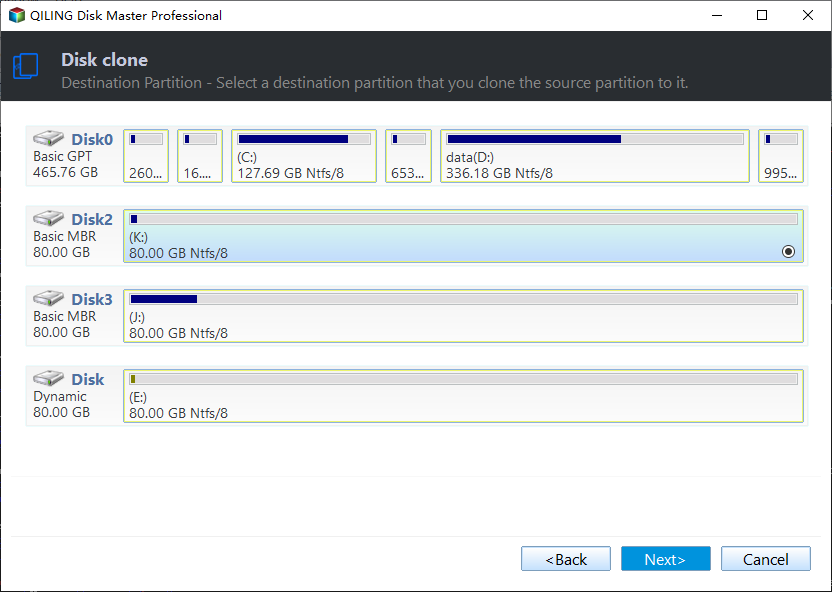
Step 4. On the Destination Partition page, select the target drive and click Next.
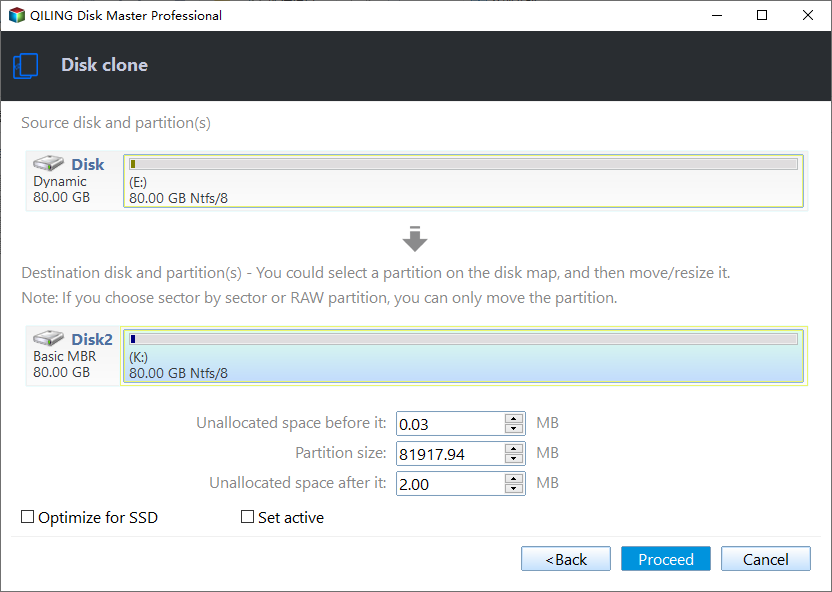
Step 5. If you're cloning to an SSD, check the SSD Alignment option, then click Proceed to start the cloning process.
Notes:
◑ In Qiling Disk Master Professional and higher editions, you can do more settings with Edit partition.
◑ If you want to clone every sector on the source partition, you can enable sector by sector clone, which requires the destination partition to be equal to or larger than the source partition.
◑ After the cloning process is completed, you can wipe the source drive to free up storage space, and the source partition will become unallocated space that can be used to extend an existing volume or create a new one using Windows Disk Management.
Advanced way to copy boot partition to another drive
If the partition you want to clone is a boot partition, it's recommended to use a higher edition of Qiling Disk Master and the System Clone feature, especially if there are other system-related partitions like system reserved or EFI system partition, to ensure a secure boot.
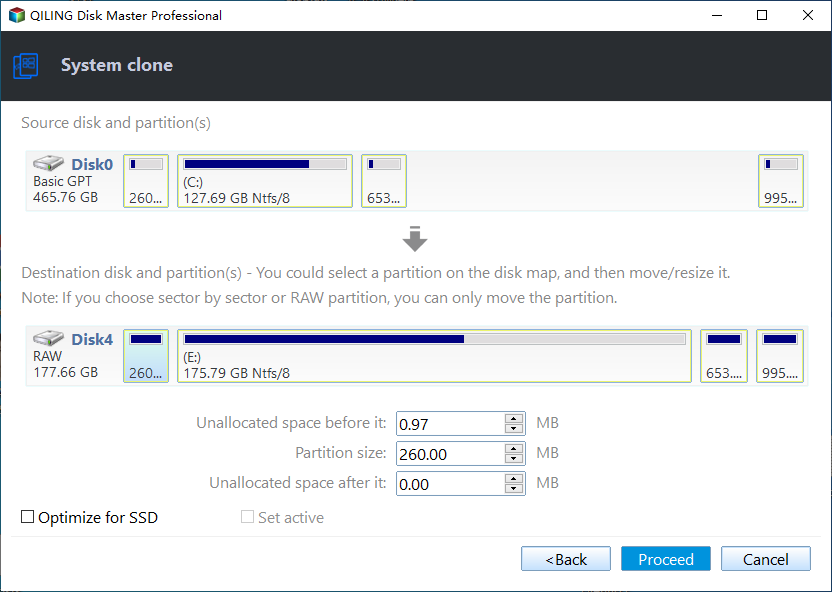
The System Clone feature will automatically select all system-related partitions, reducing the risk of human error. To clone system partition(s) to another drive, follow these steps: choose the target drive, select the system partition(s) to clone, and initiate the cloning process. This feature ensures a seamless and accurate duplication of the system partition(s), making it easier to maintain a backup of your operating system and data.
Step 1. Connect the target drive to your computer as necessary.
Step 2. Load Qiling Disk Master. Select Clone > System Clone.

Step 3. The system related partition(s) are selected by default. To proceed, choose a destination partition to hold the cloned data and click Next.

Step 4. If the target drive is an SSD, select the SSD Alignment option and click Proceed to start the process.
Tip: To boot from the cloned drive, you need to change the boot order in BIOS and potentially the boot mode if the original system disk and target drive have different partition styles.
Wrapping things up
To copy a partition to another drive on Windows 11/10/8/7, you can use Qiling Disk Master. If you're cloning a data partition, the free version works well. However, if you're cloning a boot partition, you'll need the advanced edition to ensure a secure boot. You can choose the edition that best suits your needs.
Qiling Disk Master offers a range of useful features, including creating a mirror image backup, syncing local folders to OneDrive, and more. Why not try it now?
Related Articles
- 4 Ways to Move System Reserved Partition to Another Drive
- How to Clone Hard Drive via Command Prompt in Windows 10/8/7 Simply?
- How to Transfer Recovery Partition to New Hard Drive Easily?
- Create Windows 10 Repair USB for Another PC - 3 Ways Included
This tutorial offers three ways to create a Windows 10 repair USB for another PC. You can choose Windows built-in tools or third-party software as per your need. - How to Repair Partition Table in Windows 11, 10, 8, 7?
When the partition table is corrupted or damaged, you might be unable to access the hard drive. This article shows you how to repair and rebuild partition table in Windows 11, 10, 8, 7. - Reset SSD to Factory Settings: Secure, Simple, Complete
Reset SSD to factory settings can be a simple and secure task through the diverse methods provided in this article, and erased SSD data can never be recovered.
Products
Articles & Tutorials
- Data Recovery
- Data Backup
- File Recovery
- File Backup
- File synchronize
- System Backup and Restore
- Disk and Partition Clone
- Technical articles
- Disk Master Help
- Windows Deleted File and Disk Recovery Tutorials
- Windows File and Data Recovery Tutorials
- More Windows Tutorials for Install, Security, Files, and PC Tips
- Windows Boot, Repair, and Recovery Environment Tutorials
- Windows Backup Tutorials
- Windows Restore Tutorials
- Windows Clone and Migration Tutorials
- Windows Server Backup, Recovery, and Management Tutorials
- Windows Disk, Partition, and Storage Management Tutorials