Create Windows 10 Repair USB for Another PC - 3 Ways Included
What does a Windows recovery USB do?
A recovery drive is a copy of your Windows environment stored on an external device, such as a DVD or USB drive. This allows you to restore or reinstall Windows if your PC experiences a major issue like hardware failure.
If your PC won't start and you haven't created a recovery drive, you can create one on another working PC and use it on the non-starting PC. To do this, you can use a USB drive, a CD/DVD, or even another Windows PC to create the recovery drive. This will allow you to access the necessary files and tools to troubleshoot and fix the issue with your non-starting PC.
👉 To create a Windows 10 repair USB for another PC using the Media Creation Tool, start by downloading the tool from Microsoft's website. Run the tool and select the "Create a bootable media for another PC" option. Choose the language, edition, and architecture of Windows 10 you want to create the repair USB for.
👉 To create a Windows 10 recovery USB for another PC using the Recovery Media Creator, you can follow these steps: Download the Recovery Media Creator from the Microsoft website and save it to your computer. Run the downloaded file and follow the prompts to create a recovery USB. This process will download the necessary files from Microsoft's servers, which may take some time depending on your internet connection.
👉 You can create a Windows 10 recovery disk for another computer using free software like Rufus. This allows you to boot into the recovery environment and perform repairs or reinstalls on the target computer. Simply download Rufus, insert a USB drive, and follow the prompts to create the recovery disk.
#1. Create a Windows 10 repair USB for another PC via Media Creation Tool
To create a Windows 10 repair USB, you'll need a USB drive with at least 8 GB of space. Microsoft offers the Media Creation Tool to help users upgrade their current PC to Windows 10 or create installation media to install Windows 10 on a different PC. Using this tool, you can create a Windows 10 repair USB that can be used to repair or reinstall Windows 10 on your PC. Simply download the Media Creation Tool, run it, and follow the prompts to create the repair USB.
Warning: Any content on the USB drive will be erased, so use a blank one or back up the files first.
- Download and run the Windows 10 media creation tool on a working PC, requiring administrator privileges.
- On the License terms page, select Accept.
- On the "What do you want to do?" page, select "Create installation media for another PC" and click "Next".
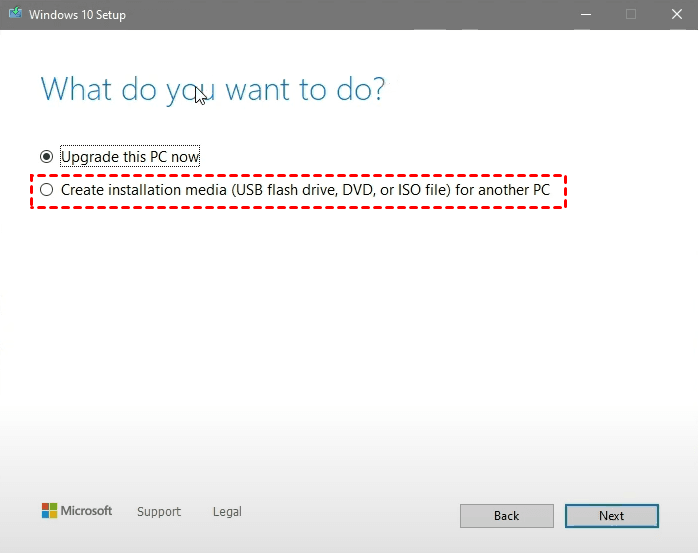
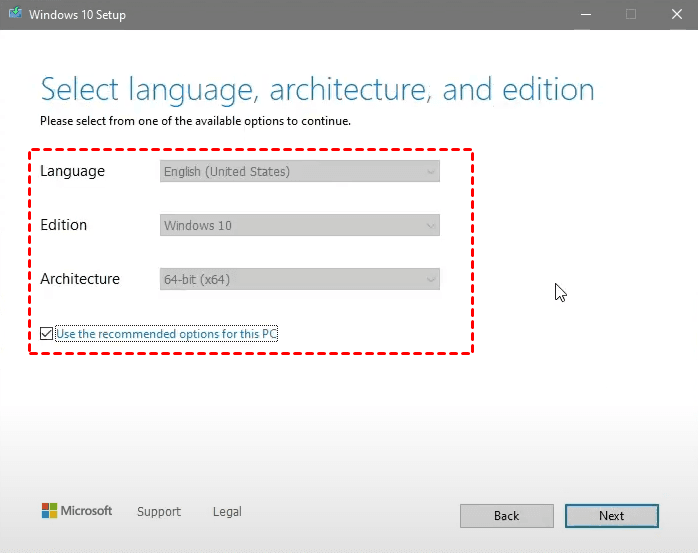
- The Setup program automatically selects the language, edition, and architecture for Windows 10 based on your current Windows environment. If needed, you can uncheck the 'Use the recommended options for this PC' option and choose other options. Click 'Next' to proceed.
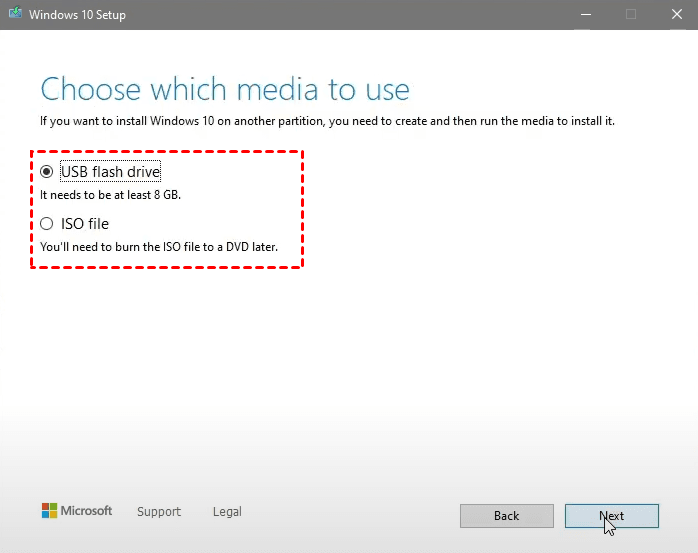
- Choose USB flash drive and click Next.
- Connect a USB flash drive, refresh the drive list, select the USB drive, and click next to start creating Windows 10 installation media.
How to use the repair USB on another PC
- Attach the repair USB on the target PC and boot from it.
- When the Windows Setup wizard opens, select your language, time, and keyboard preferences, and then click Next.
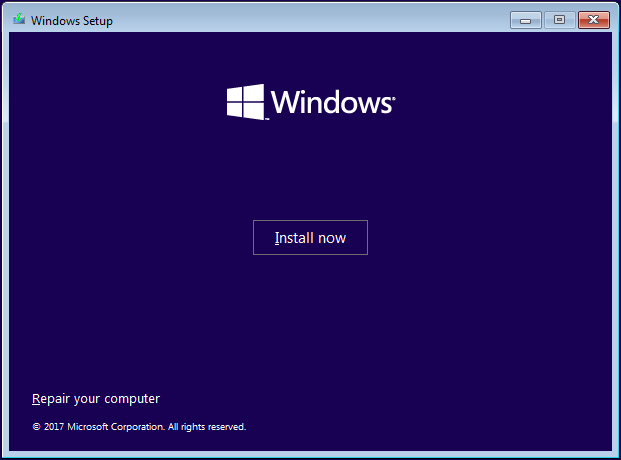
- To clean install Windows 10 on this PC, click "Install now" and to use advanced recovery options, click "Repair your computer" > "Troubleshoot" > "Advanced Options".
#2. Create a Windows 10 recovery USB for another PC with Recovery Media Creator
Windows 10 has a built-To create a Windows 10 recovery drive, you need a USB drive of at least 16 GB.
Warning: Insert the USB drive into the computer and launch the Disk Management tool by searching for it in the Start menu. Select the USB drive from the list of available drives and click the "Delete" button to erase the existing data.
- On a working PC, type "create a recovery drive" in the search box next to the Start button, and then select it, confirming your choice in the pop-up window.
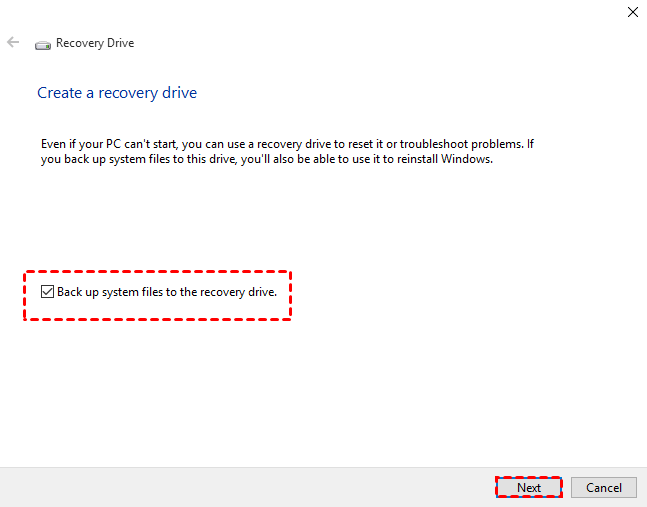
- When the tool opens, select the option to back up system files to the recovery drive and then click next.
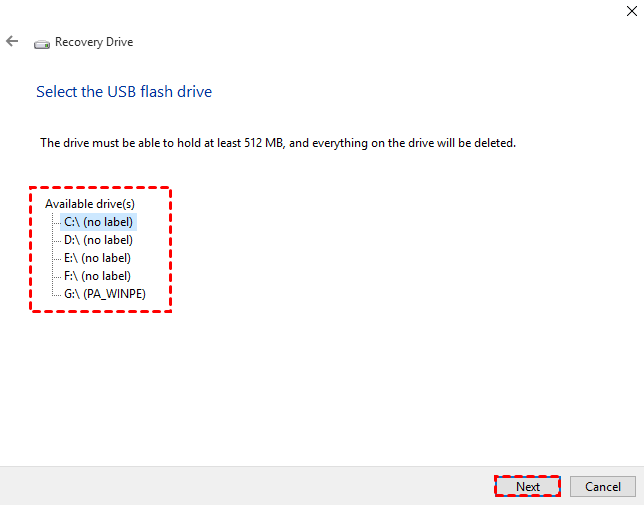
- Connect a USB drive to your PC, select it, and then select Next.
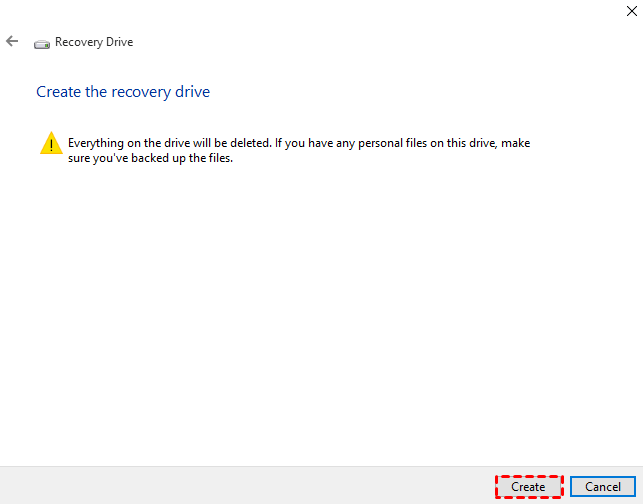
- Select Create. This process will take some time, as many files need to be copied to the recovery drive.
Tips:
◑ The recovery drive only includes system files and apps that came with your PC, so you'll need to make a separate backup of your personal files and any other important data.
◑ It's recommended to recreate the Windows recovery drive every year to keep the files up to date.
How to use the recovery USB on another PC
- Connect a recovery drive to the target computer and start it up from the drive.
- Choose your keyboard layout.
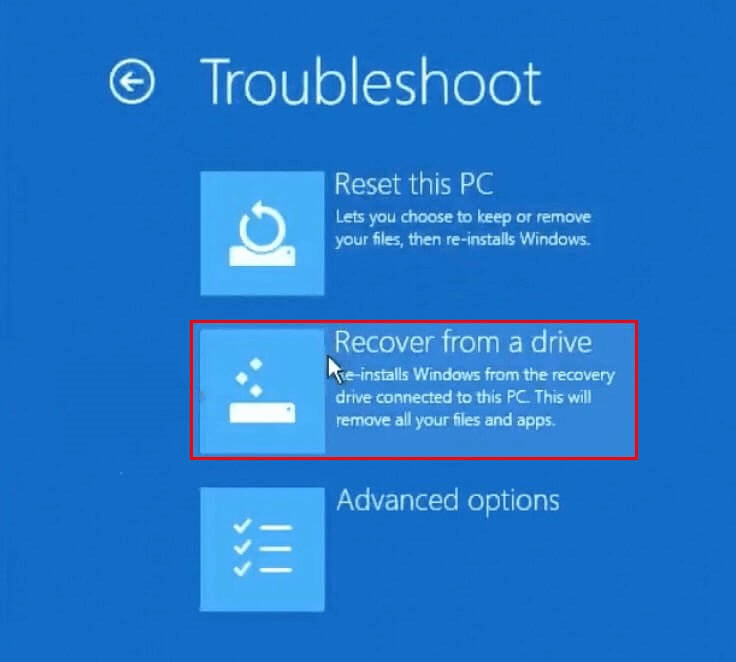
- On the "Choose an option" screen, select "Troubleshoot", then choose a desired recovery option.
- To reinstall Windows 10, select Recover from a drive.
- To restore from a system restore point, select Advanced Options > System Restore.
#3. Make a Windows 10 recovery disk for another computer using free software
Besides Windows, there is a free tool called Qiling Disk Master Standard that is a bootable USB creator, but it offers more features than just creating a bootable USB.
- This tool allows you to create a bootable disc (Windows PE or Linux) using a USB flash drive, CD, or DVD as the bootable media.
- It provides comprehensive backup solutions, including system, disk, partition, file, and cloud backups.
- It enables you to restore your computer to a previous state, recover corrupted disks, and retrieve lost files.
- It supports all editions of Windows 11/10/8.1/8/7/Vista/XP.
To make a Windows 10 recovery disk, you'll need a blank CD or DVD and the Windows 10 Media Creation Tool. First, download the Media Creation Tool from Microsoft's website and run it.
Warning: The USB drive will be erased, so it's essential to backup any important files on it to a safe location. This will ensure that your data is preserved and can be accessed again in the future.
- Plug a USB drive with at least 2 GB capacity into a working computer.
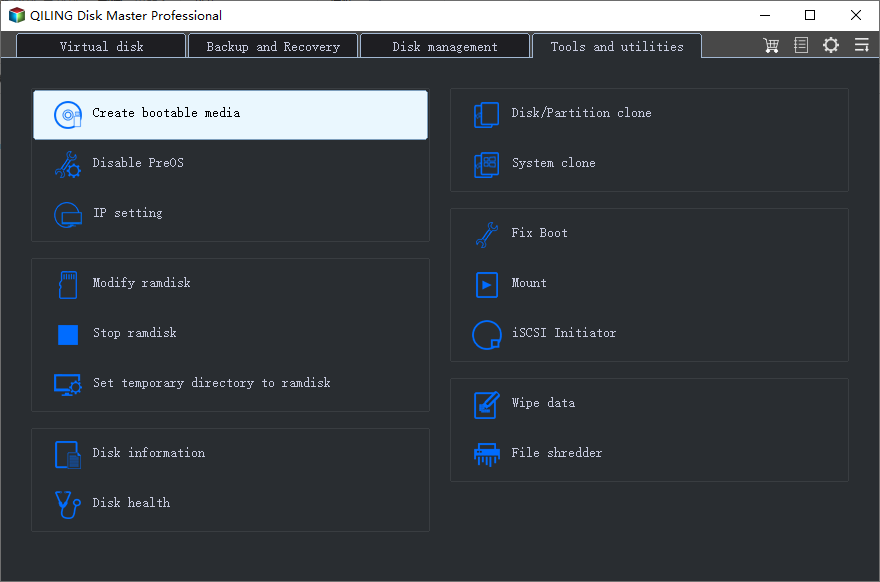
- Download, install and launch Qiling Disk Master, then click on "Tools" and select "Create Bootable Media".
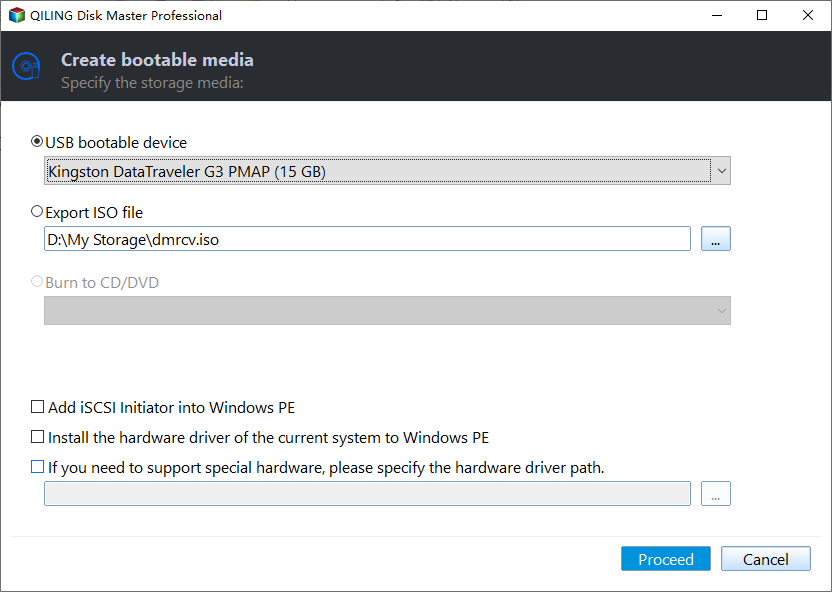
- Connect a USB drive, select USB Boot Device, and confirm data erasure to initiate the process.
Note: To repair the system on another PC, you should also backup Windows to an external hard drive or another location that can be accessed by a different computer.
How to use the recovery disk on another computer
- Insert the recovery disk into the target computer and change the boot order in the BIOS to boot from it.
- Once the computer boots, Qiling Disk Master will be loaded automatically, allowing you to choose a way to recover the target computer based on your specific situation.
- To use Windows Command Prompt, go to Tools > Windows Shell Command.
- To restore from a system backup image, go to Restore > Select Image File.
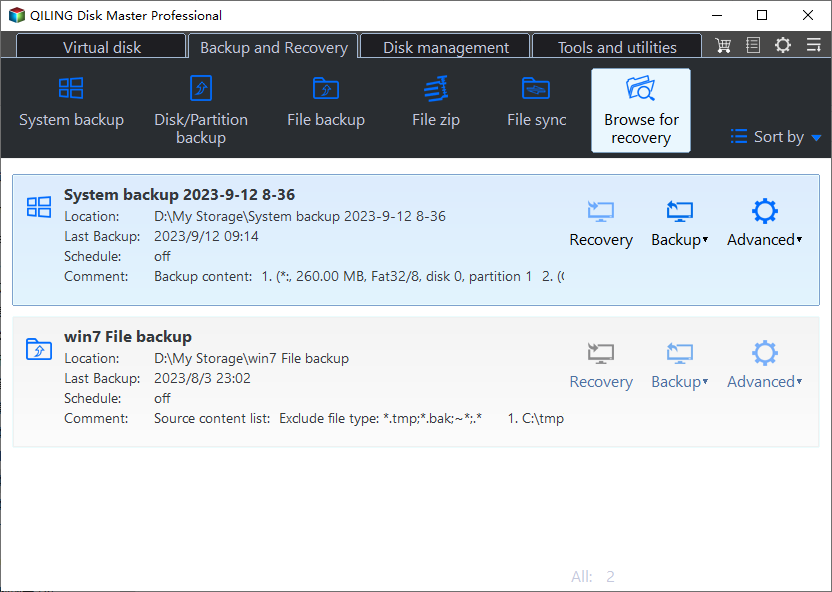
Note: When restoring an OS to a different computer, enable the "Universal Restore" feature to ensure secure boot, and the system will be restored to the original state where the system image was created.
Verdict
If you need to create a Windows 10 repair USB for another PC, you can use the Media Creation Tool or Recovery Media Creator, which can help with recovery or reinstallation, but keep in mind they don't offer backup solutions. For a tool that combines backup and recovery, consider Qiling Disk Master.
Upgrading to higher editions of Qiling Disk Master allows for advanced features such as cloning an SSD to another SSD, cloning a dynamic disk to a basic disk, and more, unlocking additional capabilities and functionalities.
Related Articles
- Repair Windows 10, 11: Create Repair Boot USB Drive
A Windows 10/11 repair boot USB drive can fix system errors and reset computer to a normal state. In this post, you will find how to create bootable USB and repair Windows 10 with it. - 3 Free Ways to Create Windows 10, 11 Recovery Disk or USB
This guide explains 3 Free Ways to Create Windows 10, 11 Recovery Disk or USB with clear steps, key checks, and practical tips. - Restore Windows 10, 11 from Recovery USB with 4 Effective Ways
Now is the best time to create a recovery disk and then you can restore Windows 10/11 from USB when your computer runs into issue. 4 useful methods and complete guides are included. - How to Create a Seagate Cloud Backup Efficiently | Two Ways
Running a Seagate cloud backup allows you to easily obtain photos, videos, and data on all devices, whether at home or out. This article introduces two ways for you. - [6 Ways] How to Speed Up Computer Windows 10 Successfully
If your Windows 10 computer runs very slow, you can take a look at this post. We gather 6 easy but effective ways to speed up Windows 10 computer. So, read it on and learn how to increase Windows 10, Windows 8 and Windows 7 hard disk speed. - How to Validate a Windows 10 System Backup Image?
You will learn how to validate a windows 10 system backup image during the backup process or after it's complete. Then, you can revive Windows 10 from system image recovery successfully.
Products
Articles & Tutorials
- Data Recovery
- Data Backup
- File Recovery
- File Backup
- File synchronize
- System Backup and Restore
- Disk and Partition Clone
- Technical articles
- Disk Master Help
- Windows Deleted File and Disk Recovery Tutorials
- Windows File and Data Recovery Tutorials
- More Windows Tutorials for Install, Security, Files, and PC Tips
- Windows Boot, Repair, and Recovery Environment Tutorials
- Windows Backup Tutorials
- Windows Restore Tutorials
- Windows Clone and Migration Tutorials
- Windows Server Backup, Recovery, and Management Tutorials
- Windows Disk, Partition, and Storage Management Tutorials